Select An Org
Tableau Errors "Setting site role for user to <role> failed" or "Insufficient licenses" or "Exceeds limit for Creator role"
Publish Date: Feb 13, 2026
Description
When attempting to add a new user or assign a site role to a user on Tableau Server or Tableau Cloud, one of the following error messages might occur:
Setting site role for user <username> to '<siterole>' failed
Or
Insufficient licenses. Setting user roles to '<siterole>' failed.
Or
Exceeds limit for '<siterole>' role.
Cause
When attempting to add a new user or assign a site role to a user on Tableau Server, the Tableau Server environment has reached or exceeded the total number of available seats.
Tableau can be demoting roles to fulfill a request for a new user. For example, there may be no Creator seats available because a request for a new Explorer took the available Creator role. In this example, there are no additional seats to assign and the License Usage page would look something like this:
Creator 4/5 Explorer 1/0 Viewer: 15/15
Resolution
Tableau Cloud
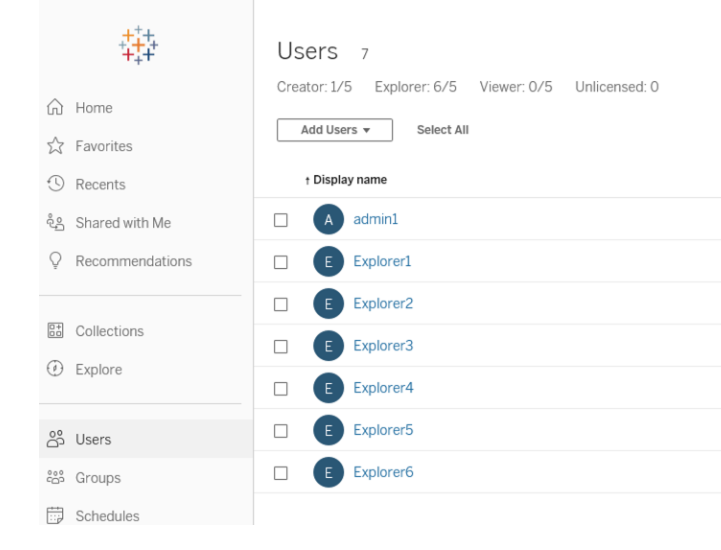
- Log in to Tableau Cloud as a Site Administrator to see how licenses are assigned and verify the total number of seats available for each site role on the Users page (For each site role type, the number on the right is the number of purchased licenses on your site for that role, the number on the left is the number of users currently assigned that role).
- If a certain site role exceeds the limit, convert the existing users to the desired site role or unlicense the users to free up seats of the desired site role.
- If the desire is to purchase additional seats because demand has increased, please visit the Tableau website to buy more licenses.
Tableau Server on Windows 2018.2 And Newer Versions, Tableau Server on Linux
- Log in to Tableau Server as an Administrator to see how licenses are assigned and verify the total number of seats available for each site role on the Users page (For each site role type, the number on the right is the number of purchased licenses on your site for that role. The number on the left is the number of users currently assigned that role. Example: Creator 5/5 shows that there are no additional Creator seats to assign).
- If a certain site role exceeds the limit, convert the existing users to the desired site role or unlicense the users to free up seats of the desired site role.
- Verify that all license keys are activated by visiting the Tableau Customer Portal and selecting the "Keys - Server Only" report to ensure the total capacity has been activated. Run the TSM Licenses List command to compare the keys activated with the total keys report. For information on adding product keys, see Add Capacity to Tableau Server.
- If not using ATR activation, open a command prompt as an administrator and navigate to the Tableau Server bin folder, located by default at C:\Program Files\Tableau\Tableau Server\packages\bin.<version> on Windows or /opt/tableau/tableau_server/packages/bin.<version> on Linux and run the following commands.
tsm stop
lmreread
tsm start
In a multi Site Tableau Server Environment:
If Tableau Server is reflecting the correct number of licenses available on an individual site, but still unable to add a new user:
- Select Manage All Sites and review the full list of users.
- Confirm that the number of users on All Sites does not exceed the number of license seats.
Additional Resources
Knowledge Article Number
001473145
Did this article solve your issue?
Let us know so we can improve!
