Select An Org
Configuring TCP Window Scaling to Optimize Tableau Server Performance
Publish Date: Apr 28, 2025
Description
If you are having problems with performance, you may want to check the value of TCP Window Scaling to make sure it is not contributing to performance issues. If it is disabled, you can set it to normal as this usually improves performance. Be aware that this setting may have been changed from the default to accommodate other aspects of your networking environment, so you should verify with your network administrators that it is ok to set it back to default ("normal").
Resolution
Step 1
On the main Tableau Server computer, right-click on Command prompt, and then click Run as administrator.
Step 2
In the command prompt, type netsh interface tcp show global.
If TCP Window Scaling is enabled (the default), the Receive Window Auto-Tuning Level will show as "normal".
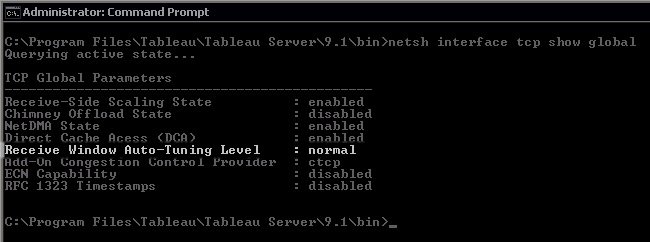
If TCP Window Scaling is disabled, the Receive Window Auto-Tuning Level will show as "disabled", which can reduce Tableau Server performance.
Step 3
To enable Receive Window Auto-Tuning Level, at the command prompt, type netsh interface tcp set global autotuning=normal.
The command will return an "OK" if it was successful. You can verify the setting by typing netsh interface tcp show global.
Additional Resources
- Refer to the Microsoft Support article about the Receive Window Auto-Tuning feature.
- For more information about TCP Window Scaling, refer to the article about TCP Receive Window Auto-Tuning on the Microsoft Technet site.
Knowledge Article Number
001473399
Did this article solve your issue?
Let us know so we can improve!
