Velg en organisasjon
Unable to Change Default Highlight Color in Tableau
Publiseringsdato: Sep 25, 2025
Beskrivelse
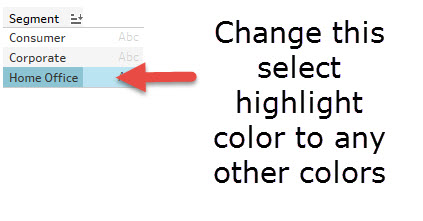
Unable to change the highlighting color used when selecting data in a Tableau view.
Cause
The ability to change the highlighting color used when selecting data in a view is not currently built into the product.
Løsning
Below is a possible workaround example for changing the highlight color using a parameter and calculation.
1. Create a parameter "Select a Sub-Category" to trigger the parameter action.
2. Create a calculation field "Color the Sub-Category"
IF [Select a Sub-Category]="" then "Blue"
ELSEIF [Select a Sub-Category]= [Sub-Category]
then "Orange"
else "Gray"
END
3. Create a calculation field "1", convert it to "Dimension". *This is to disable the trick to disable the default highlighting.
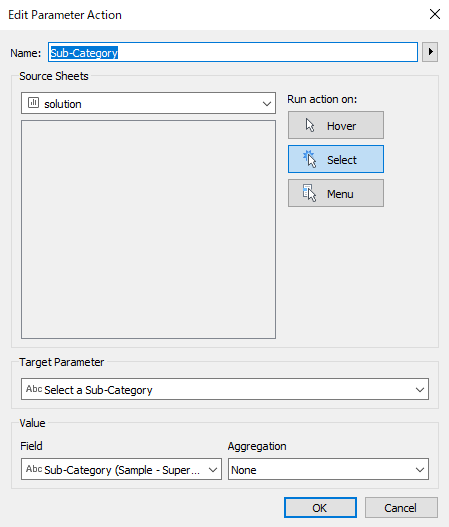
4. "Worksheet" > "Actions" to add a parameter action like the following.
5. Drag "Color the Sub-Category" to "Color"
6. Drag "1" to "Detail"
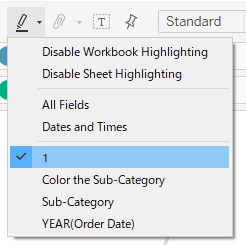
7. Change the Highlight to "1" like the following to disable the original effect of the highlight behavior
8. Click a line and set the colors for the selected line and the other lines.
9. Right click the parameter "Select a Sub-Category" and select "Show Parameter"
*Manually delete the contents in the parameter legend will trigger the line graph to go back to the original.
Note: Follow step 8 above to change the colors. Calculated field is for setting the Legend/text and modifying the values will not change the colors.
Flere ressurser
To voice your support for the inclusion of this feature in a future product release, add your vote to the following Salesforce Idea: Editing Default Selection.
Knowledge-artikkelnummer
001473643
Hjalp denne artikkelen med å løse problemet ditt?
La oss få vite det slik at vi kan forbedre!
