Выбрать организацию
Dashboard is Blank or Missing Content After Publishing to Tableau Server or Tableau Cloud Using Device Layouts
Дата публикации: Apr 24, 2024
Описание
After publishing a workbook containing device layouts to Tableau Server or Tableau Cloud, the dashboard or view appears blank, or different than the view appeared when viewed in Tableau Desktop.
Cause
Alternate layouts can be added by mistake, or vary from the "Default" layout in Tableau Desktop. If this is the case, and you view the published workbook on that device specific to that layout, the workbook will appear different from the way it looked in Tableau Desktop when viewed in Tableau Server or Tableau Cloud. This only occurs if the actual content is different in that layout when compared to the default views layout of content (For example, blank or missing some views).
Решение
- Open the workbook in Tableau Desktop.
- Verify if there are alternate layouts (Tablet, Phone, or Desktop) in addition to your Default layout.
- Click through all the layouts to find if there is a layout that differentiates from the default layout.
- Either remove or update the layout (either Tablet, Phone, or Desktop) that is different from the default view, so that it matches the default view.
- Re-publish the workbook over the affected workbook in order to update it and correct the issue.
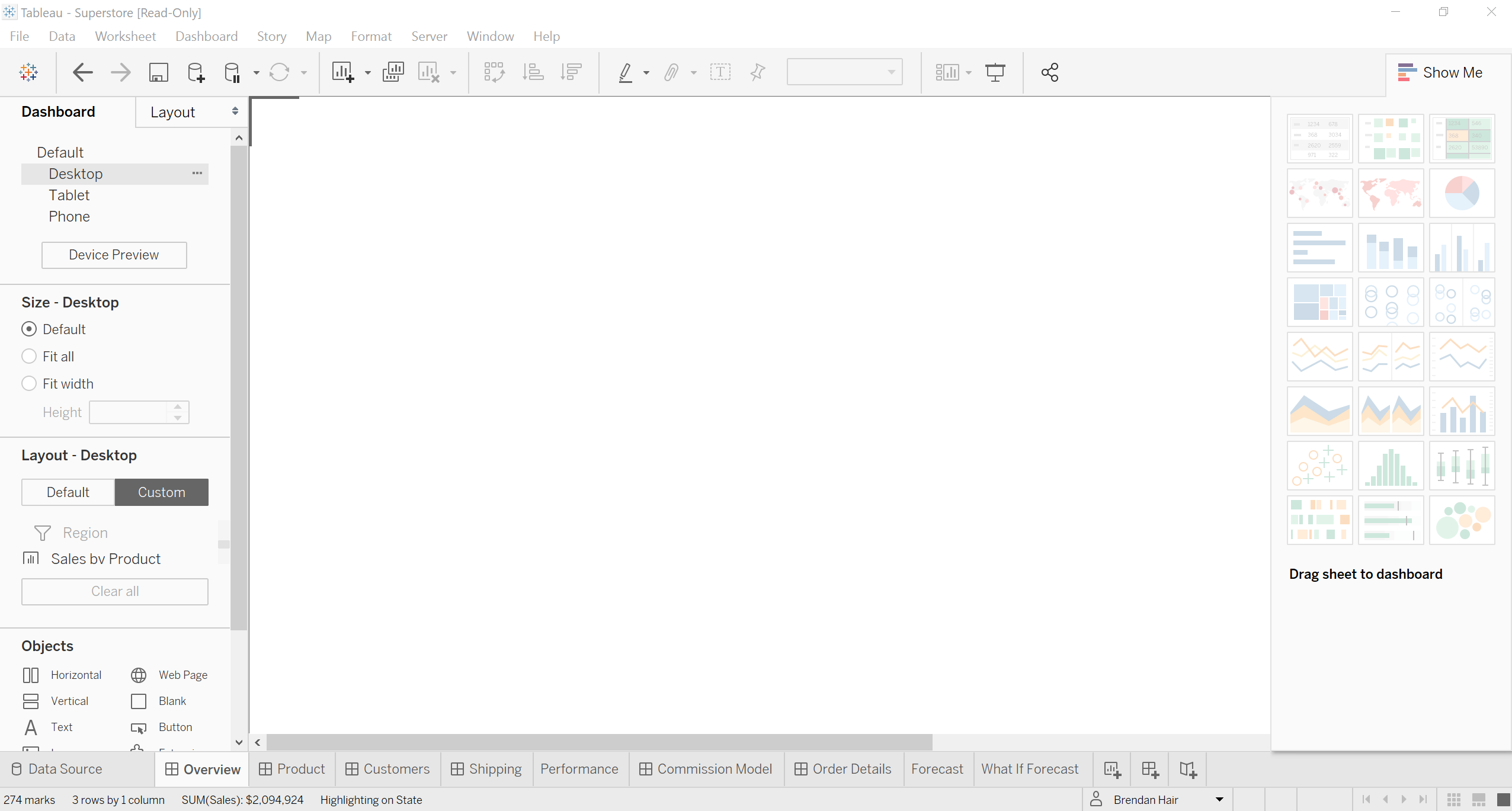
As described in the below picture, the "Desktop" layout is different than the "Default" layout, and contains no content. Therefore, when it is published to Tableau Server or Tableau Cloud, and viewed on a Desktop machine, the view will appear blank. The Tableau Desktop view with content accidentally removed or different:
After clicking the Default view option, you will see the default view or dashboard in Tableau Desktop normally:
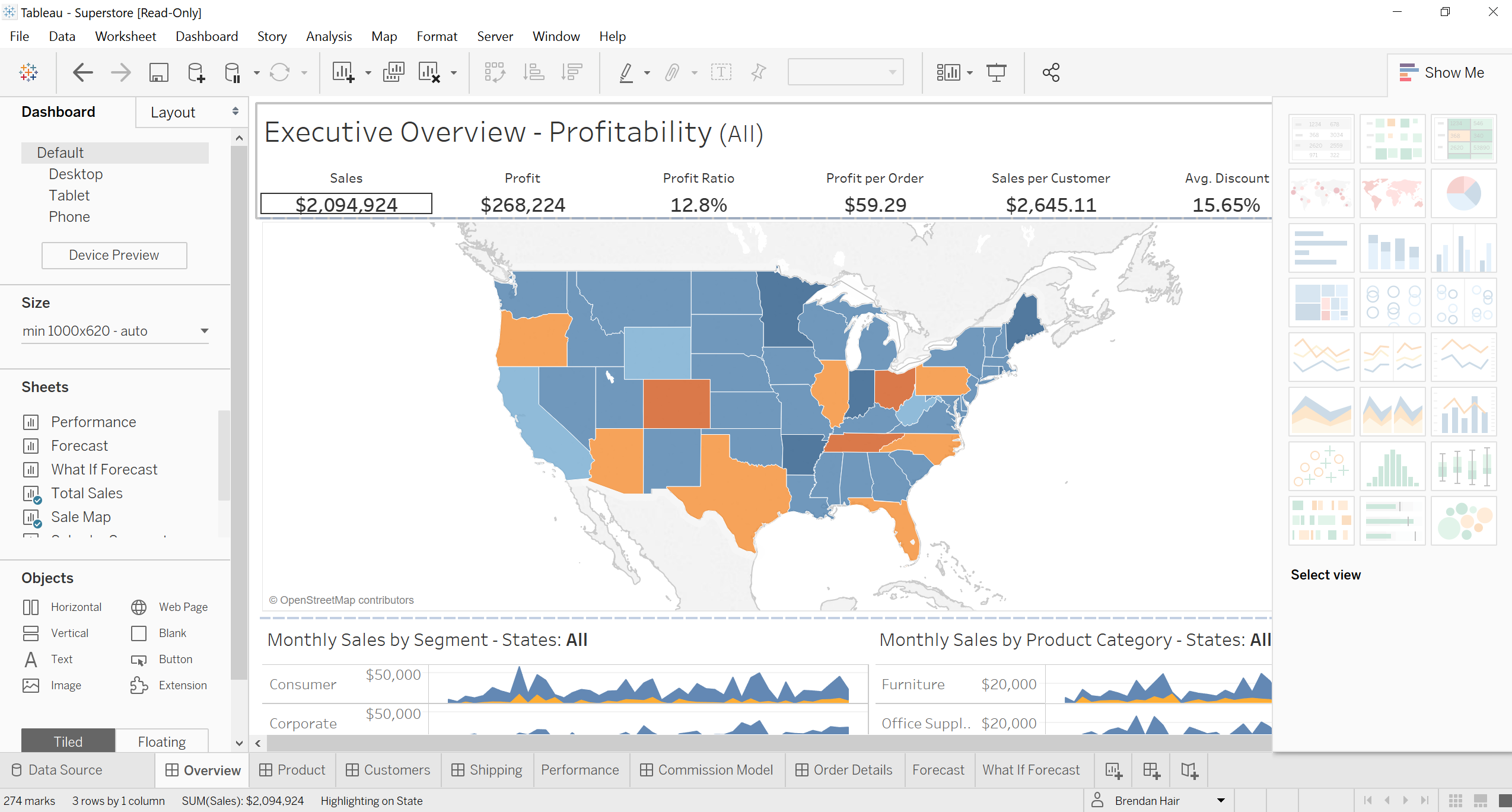
After the workbook is published to Tableau Server or Online, the Desktop view is the view that Tableau Serve or Tableau Cloud defaults to, and appears blank as a result. If the content is different in that view, it appears different or is missing content such as filters or data in Tableau Server or Tableau Cloud depending on which device is used to view it.
Дополнительные ресурсы
Note: This article only addresses the dashboard blank issue due to the alternate layout. There are multiple reasons why a dashboard/view may display blank.
The blank view after publishing can also happen when the workbook is published from a newer version of Tableau Desktop to older version of Tableau Server. If the functionalities used in Tableau Desktop newer version do not exist in older version of Tableau Server, the view is not displayed.
Option 1: Export the workbook to a compatible version of Tableau Desktop and publish from compatible Tableau Desktop
Option 2: Upgrade Tableau Server to new version that is compatible with Tableau Desktop
There are other cases which may apply:
View is Blank After Publishing a View with a Filter Using a Username Function
Web Page Object Linked to Web-Based URL Blank After Publishing
Web Page Object Linked to Local File Blank After Publishing
Dashboard Sheets Appear Blank when Using Quick Filters
The blank view after publishing can also happen when the workbook is published from a newer version of Tableau Desktop to older version of Tableau Server. If the functionalities used in Tableau Desktop newer version do not exist in older version of Tableau Server, the view is not displayed.
Option 1: Export the workbook to a compatible version of Tableau Desktop and publish from compatible Tableau Desktop
Option 2: Upgrade Tableau Server to new version that is compatible with Tableau Desktop
There are other cases which may apply:
View is Blank After Publishing a View with a Filter Using a Username Function
Web Page Object Linked to Web-Based URL Blank After Publishing
Web Page Object Linked to Local File Blank After Publishing
Dashboard Sheets Appear Blank when Using Quick Filters
Номер статьи базы знаний
001473723
Эта статья решила вашу проблему?
Оставьте свой отзыв, чтобы мы могли стать лучше!
