Select An Org
Data Does Not Refresh when Using Live Excel or Text File Connection
Publish Date: Dec 24, 2025
Description
When you have a packaged workbook (.twbx) connected live to Excel or Text files and you try to refresh the data, the data might not refresh.
Cause
This behavior is by design to allow workbooks to be shared with users that do not have access to the original data source. Please see Packaged Workbooks for more information:
"Packaged workbooks contain the workbook along with a copy of any local file data sources and background images. The workbook is no longer linked to the original data sources and images."
If the original data source is a text file, then Tableau Desktop will create a shadow copy of the text file in the TableauTemp folder. If the connection to the text file is live, then Tableau Desktop will change the file path to the TableauTemp folder.
- Note: this change will not show until the workbook is saved, closed, and reopened.
Resolution
If saving the work as a *.twbx file, extract the connection to the text file first. If the connection to the text file should be live, then always save the workbook as a *.twb file.
- In Tableau Desktop, select Data > <data source name> > Edit Data Source. This will navigate to the Data Source tab for this data source.
- Select Data > <data source name> > Edit Connection...
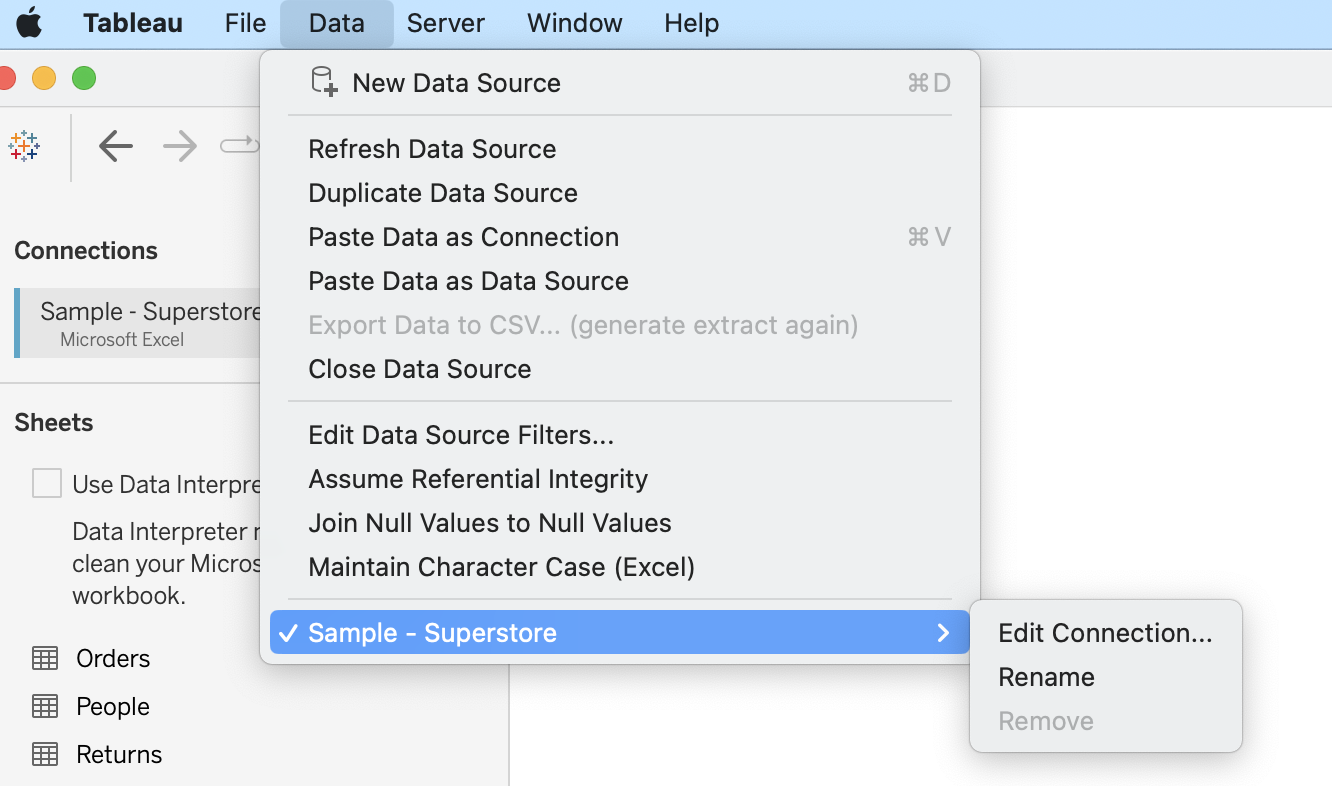
- Note: The file path will include the TableauTemp folder rather than the original location of the file
4. In Tableau Desktop, select the Extract radio button.
5. Navigate to a worksheet tab in the workbook, which will prompt Tableau Desktop to create the extract.
6. To refresh data, under Data, right-click the data source, and then select Extract > Refresh.
Option 2: Close the program where the text file is open and attempt refreshing again
Option 3: Create a new connection to replace the old connection
- Click Data at the top toolbar, and select New Data Source > Excel
- Select the correct file, and connect. This will create a second connection to the same file.
- Navigate to any sheet that uses the old data connection.
- Replace the old connection with the new connection. For detailed directions, see Replace Data Sources
Additional Resources
Data Not Refreshing When Using SharePoint-Based Excel Data Sources
Error "an error occurred while connecting to Tableau Data Extract" Using .twbx With Live Connections to Excel or Text Files
Knowledge Article Number
001474030
Did this article solve your issue?
Let us know so we can improve!
