Välj en organisation
The Ability To Filter Data Using Navigation Button On Dashboard.
Publiceringsdatum: Jun 12, 2026
Beskrivning
Cause
This feature is not built in Tableau Desktop yet.Lösning
The procedure is as follows:
<Create button sheet>
1. Connect to Sample Superstore
2. Drag and drop the dimension you want to use to the Columns. (In this case I use [Region])
3. Create a new calculated field with the following settings.
Name : Dummy
Calculation : IF COUNT([Region]) > 0
THEN 1
END
4. Drag and drop [Dummy] to the Columns.
5. Right-click on an axis > Edit Axis
6. Choose the range ‘Fixed’ and set is as follows.
Fixed start: 0 , Fixed end: 1.
7. Right-click on axis and dimension names > Click show header to hide it.
8. Drag and drop [Region] to Label.
9. To center the text, click Label and set around the placement.
10. Create a new sheet, also drag and drop [Region] to Columns and [Sales] to Rows.
11. Create a new dashboard, also drag and drop sheet1 and sheet2 to the view.
<Setting actions>
12. Click Dashboard in the toolbar. > Actions
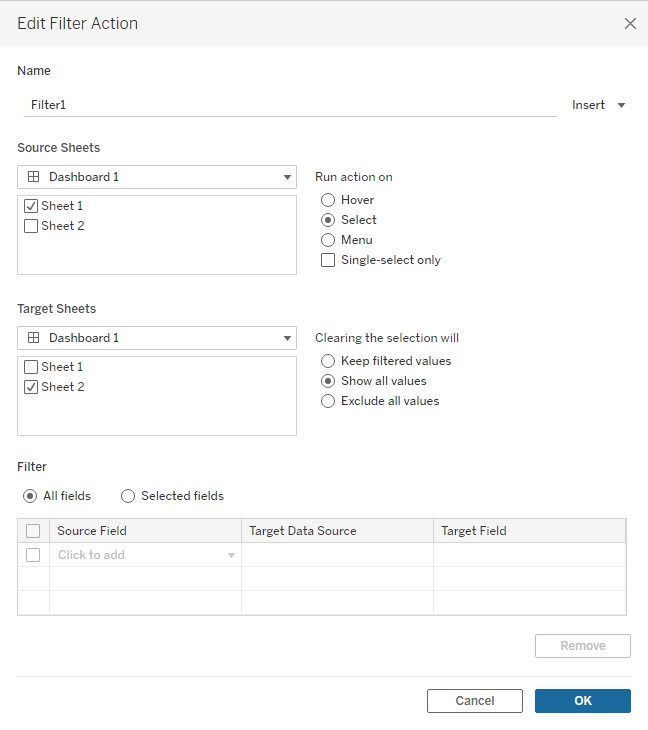
13. Add Actions > Filter > Set as following.
Knowledge-artikelnummer
001474772
Löste denna artikel ditt problem?
Berätta för oss vad vi kan förbättra!
