Выбрать организацию
After Updating An Existing Refresh Schedule By Clicking The "New Extract Refresh" Button In Tableau Cloud, The Data Source Is Missing On Tableau Bridge
Дата публикации: Apr 24, 2025
Описание
After updating an existing refresh schedule by clicking the "New Extract Refresh" button in Tableau Cloud, the data source is missing from the list and does not show on Tableau Bridge UI (from system tray).
Cause
Updating an existing refresh schedule by clicking the "New Extract Refresh" button will be migrated to an Online refresh (formerly called Recommended) schedule.The data sources that use Online refresh schedules or whose schedules have been migrated to use Online refresh schedules are not visible from the client. See Some data sources are not listed or missing from the client.
Решение
Use the Bridge Extracts admin view to see the refresh activity for jobs that use the default schedules option.
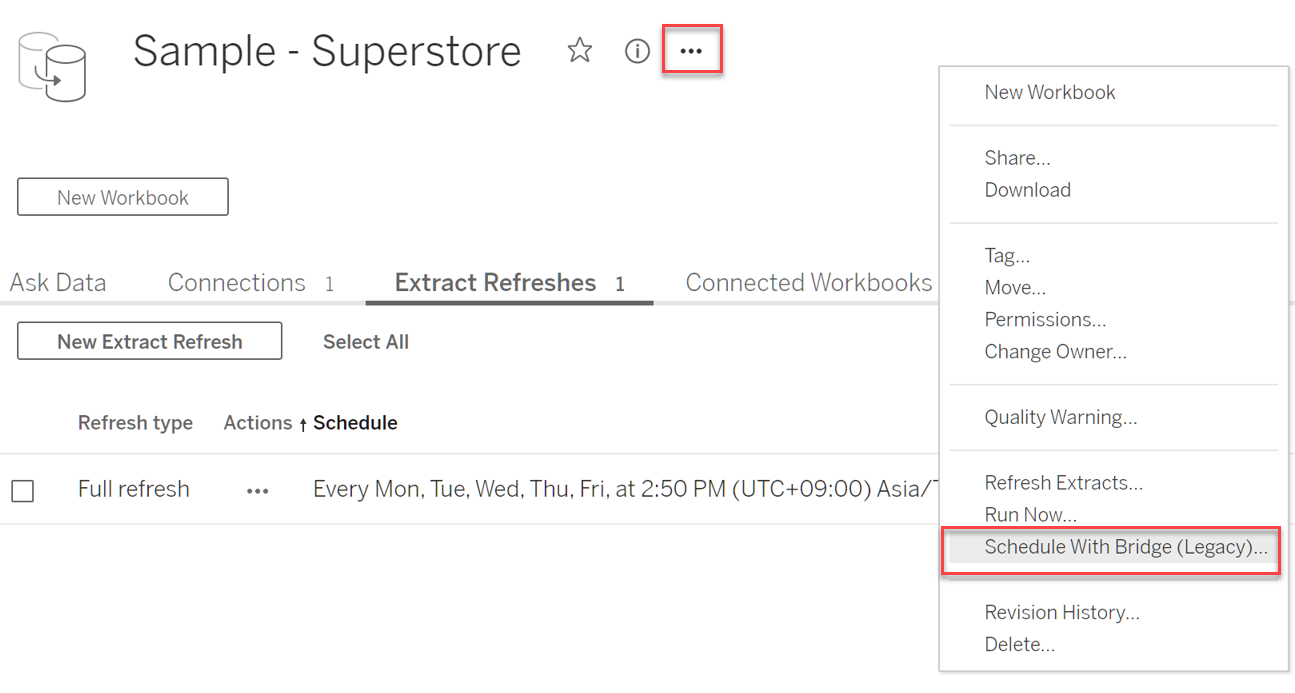
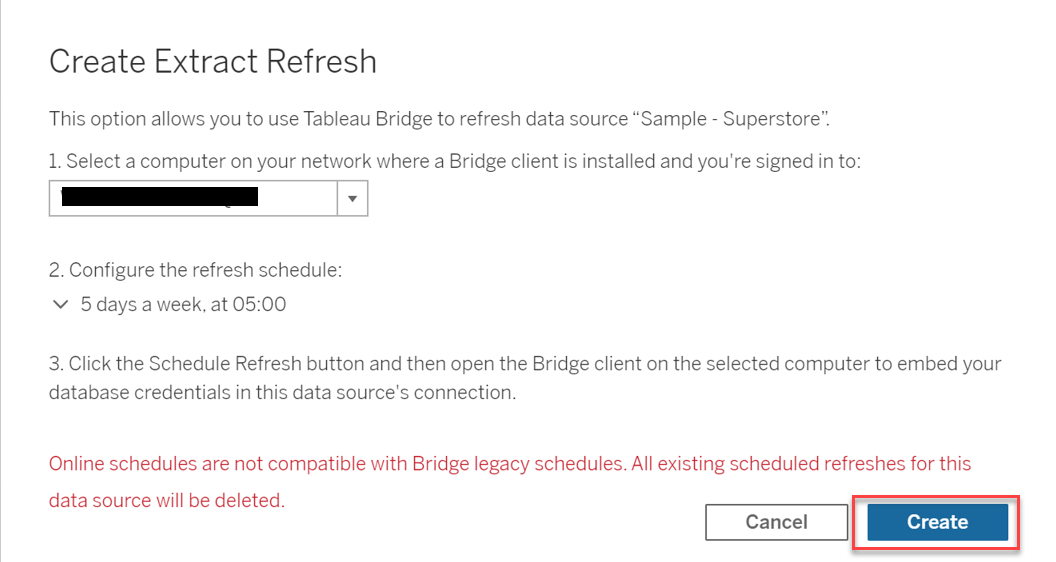
If you prefer to use legacy schedules where the data source displays within the Bridge client, update an existing Bridge (legacy) refresh schedule by clicking the "Schedule With Bridge (Legacy)..." button to keep data fresh. From more information, see Bridge (legacy) schedules have moved to a new location.
Дополнительные ресурсы
Номер статьи базы знаний
001496576
Эта статья решила вашу проблему?
Оставьте свой отзыв, чтобы мы могли стать лучше!
