Sélectionner une organisation
Error When Changing Text File Properties After Renaming The Connected Text File, "Unable to change table attributes on this table"
Date de publication: Mar 11, 2025
Description
After renaming the connected text file, an error occurs when changing text file properties of existing data sources.
Error Message: Unable to change table attributes on this table. Check that the server is running and that you have access privileges to the requested database.
Cause
After a text file is renamed, simply changing the destination file path does not replace the table.
Résolution
After the connected text file has been renamed, please try the following options.
Option 1
1. Select Menu > Data > New Data Source.
2. Select the renamed file.
3. Open a worksheet.
4. Select Menu > Data > Replace Data Source.
5. Open Data Source page and change Text File Properties.
Option 2
1. In Data Source page, right-click the connections name and select Edit Connection.
2. Select the renamed file.
3. Right-click the table on the Canvas and select Open.
4. Drag the renamed table from Files list and drop it on the table in a physical layer.
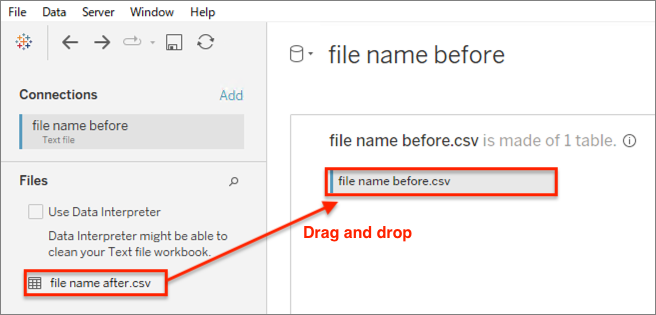
5. Change Text File Properties.
Ressources supplémentaires
Numéro d’article de la base de connaissances
001496809
Cet article a-t-il résolu votre problème ?
Dites-nous ce que nous pouvons améliorer !
