Valitse organisaatio
Workbook with Published Separately and Embedded Password Can Result in Error "Unable to connect to the data source"
Julkaisupäivä: Jun 15, 2026
Kuvaus
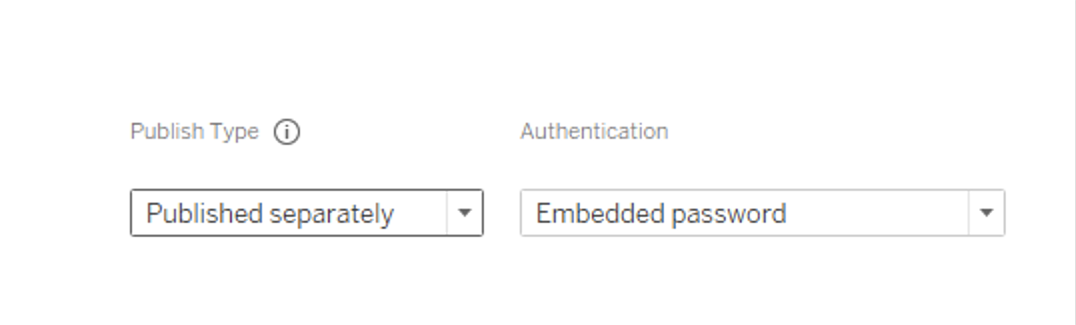
Some users may see the errors listed below when opening the published view:
Unable to connect to the data source.
Try connecting again. If the problem persists, disconnect from the data source and contact the data source owner.
Or
Try connecting again. If the problem persists, disconnect from the data source and contact the data source owner.
DataServiceFailure
Unable to connect to the server "localhost". Check that the server is running and that you have the access privileges to the requested database.
Or
Unable to connect to the server "localhost". Check that the server is running and that you have the access privileges to the requested database.
User(s) do not have permission to access datasource.
There was an error with the data source "[DataSourceName]". Verify that the data source is configured correctly.
There was an error with the data source "[DataSourceName]". Verify that the data source is configured correctly.
Cause
Because the dialog doesn't have options for both the data source and the workbook to use the embedded credentials, the data source receives the embedded information.
Ratkaisu
Once you have published the data source, you can embed the password into your workbook by selecting Embedded password in the publishing dialog.
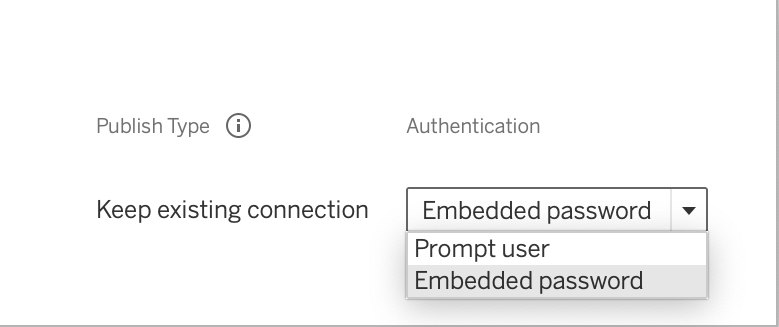
See the resolution in this article for more information.
Lisäresurssit
Knowledge-artikkelin numero
001497483
Ratkaisiko tämä artikkeli ongelmasi?
Anna palautetta, jotta voimme kehittyä!
