Выбрать организацию
Images Are Not Displayed After Assigning Image Roles to URLs
Дата публикации: Apr 13, 2024
Описание
Images are not displayed in a Viz after assigning image roles to URLs.
Cause
The URL/path to the image file is not complete and missing file extensions like .jpeg, png, etc.e.g. https://img.example.com/flats.png
Решение
Image role feaure only accepts URLs. The alternative to using the image role feature is to use the embedded image/viz in the tooltip.
Below is an example to display an image in the tooltip of a cross-tab.
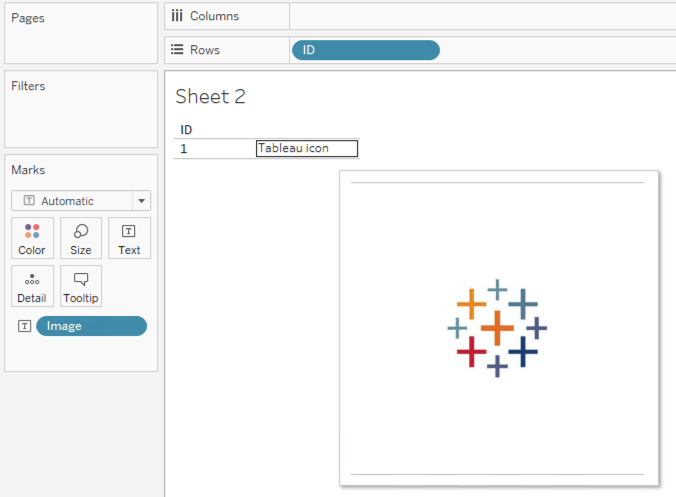
1. Prepare the image files.
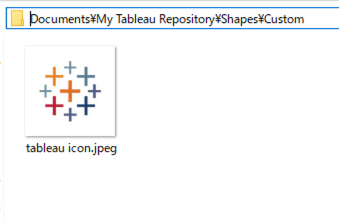
2. Copy the image files to a new folder in the My Tableau Repository\Shapes folder in your Documents folder. The name of the folder will be used as the name of the palette in Tableau. In the example below, Custom folder is newly created.
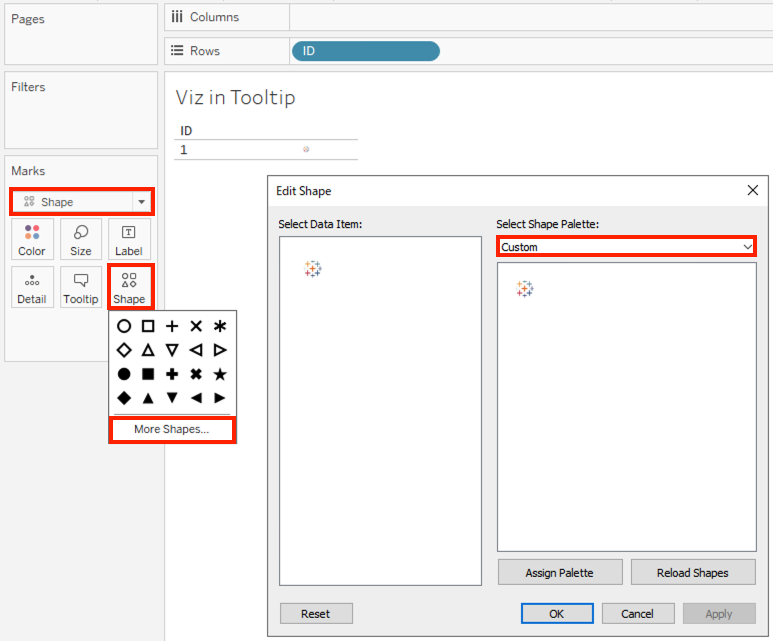
3. Launch Tableau Desktop and create a viz to display in tooltip as Shape. Name the sheet as Viz in Tooltip. Hide unnecessary headers as you need.
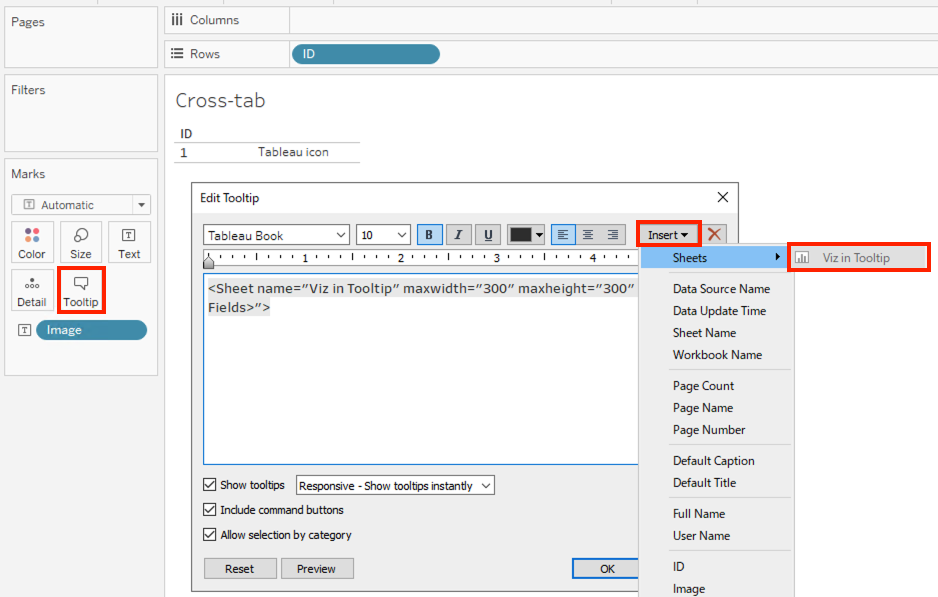
4. Create a cross-tab and insert a Viz in Tooltip sheet to Tooltip.
Дополнительные ресурсы
Create Views in Tooltips (Viz in Tooltip)
Use Custom shapes
Номер статьи базы знаний
001498660
Эта статья решила вашу проблему?
Оставьте свой отзыв, чтобы мы могли стать лучше!
