Valitse organisaatio
How to allocate different color based on multiple fields
Julkaisupäivä: Apr 24, 2025
Tehtävä
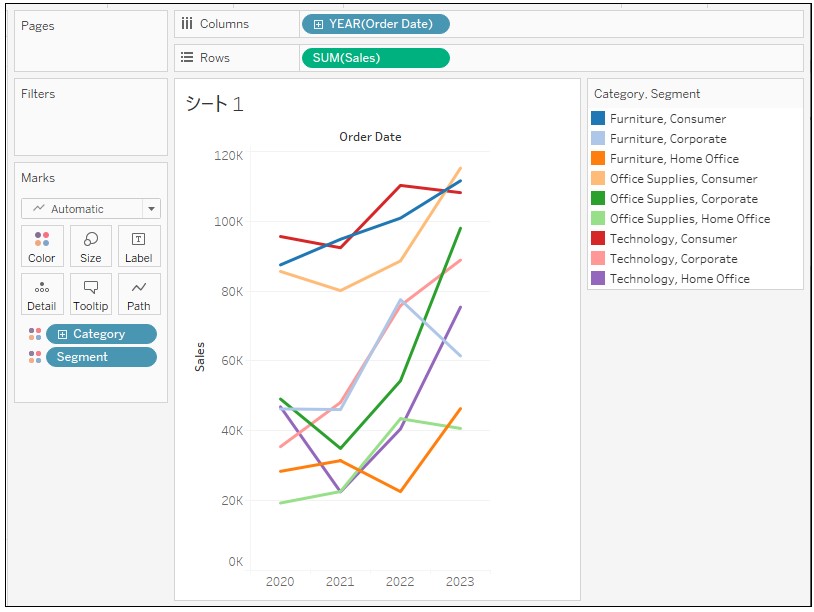
How to allocate colors using more than one field like below?
In the example below, a line chart of sales is colored by [Category] and [Segment].
<IMAGE>
Vaiheet
1. Connect to Sample Superstore from Tableau Desktop.
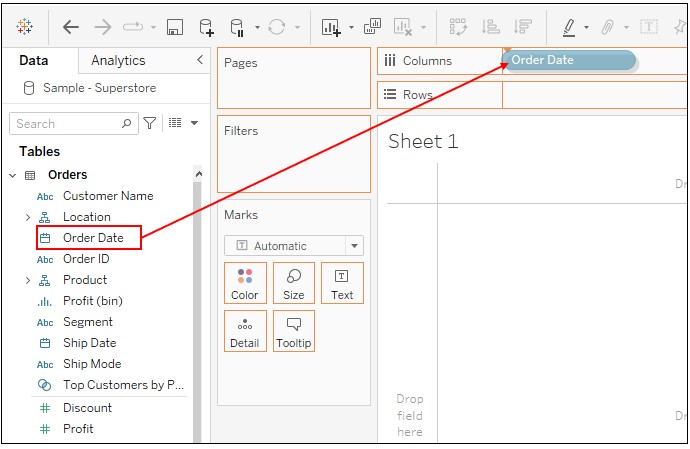
2. Drag [Order Date] to Columns.
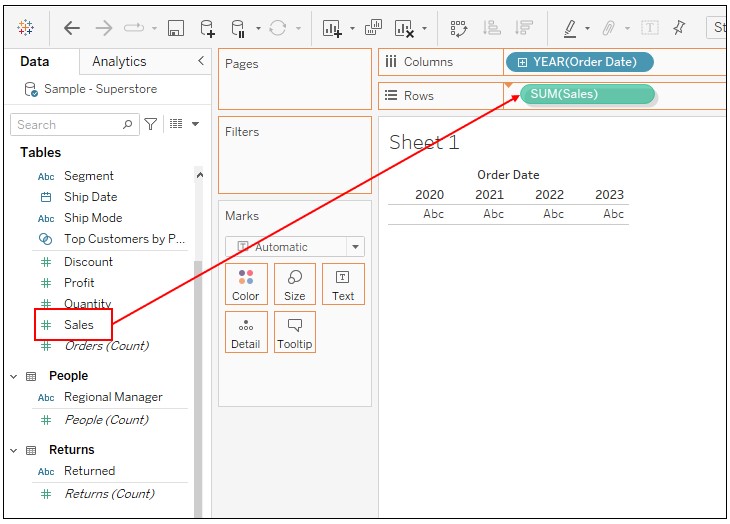
3. Drag [Sales] to Rows.
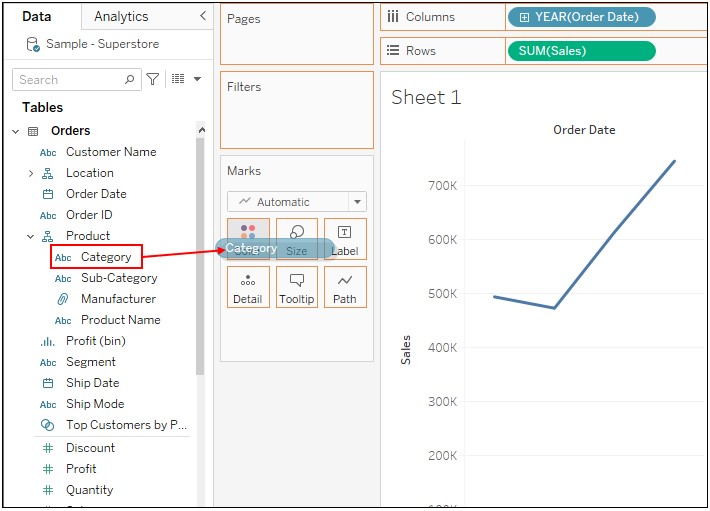
4. Drag [Category] to Color.
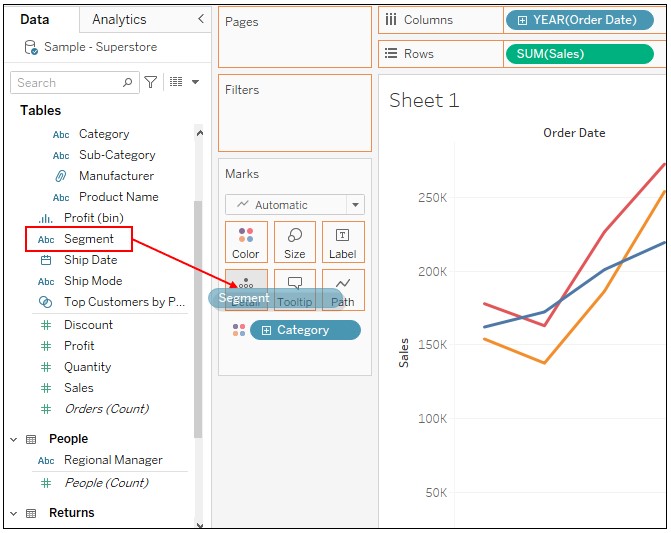
5. Drag [Segment] to Detail.
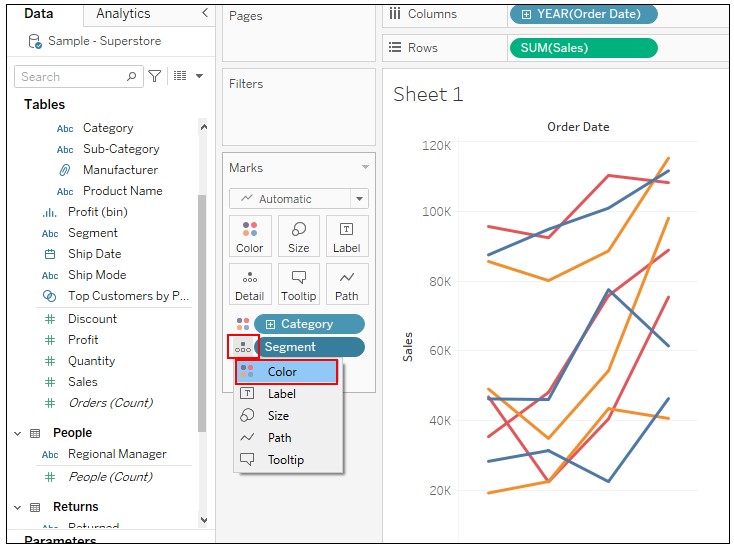
6. Click on Detail mark of [Segment] -> Select Color.
7. Click on Delta mark on Color legend -> Edit Color -> Set to any desired color.
Knowledge-artikkelin numero
001498734
Ratkaisiko tämä artikkeli ongelmasi?
Anna palautetta, jotta voimme kehittyä!
