Seleccionar una organización
How to Set a Dynamic Data Range When Using [Extend Date Range] Function in Tableau Desktop
Fecha de publicación: May 13, 2025
Tarea
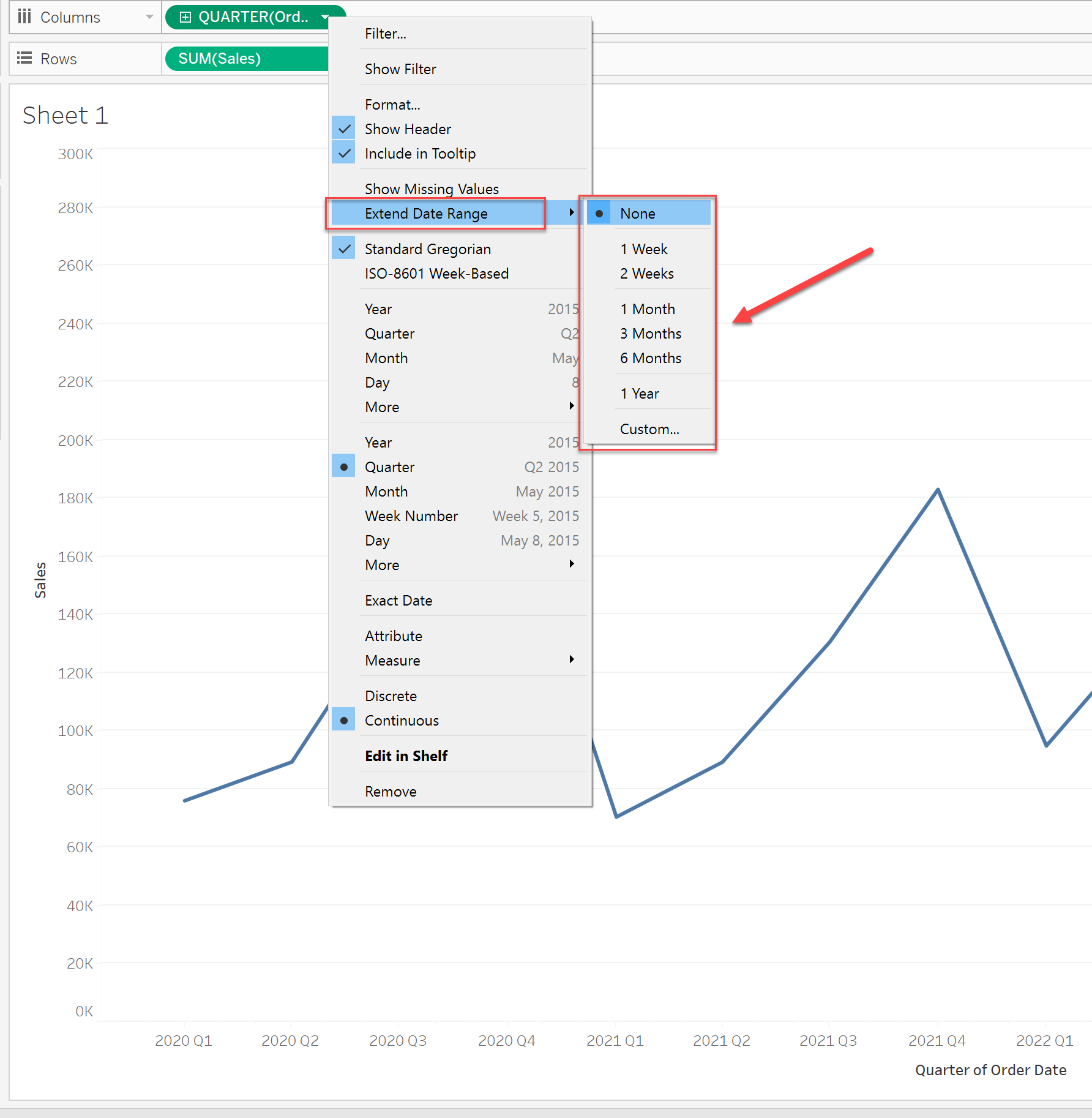
How to set a dynamic extended date range like next month or next year in Tableau Desktop?
For now, it could only set a fixed extended date range as 6 Months, 1 Year, etc.
Pasos
Please consider using a reference line to show the dynamic date range as a workaround.
The steps are as follows
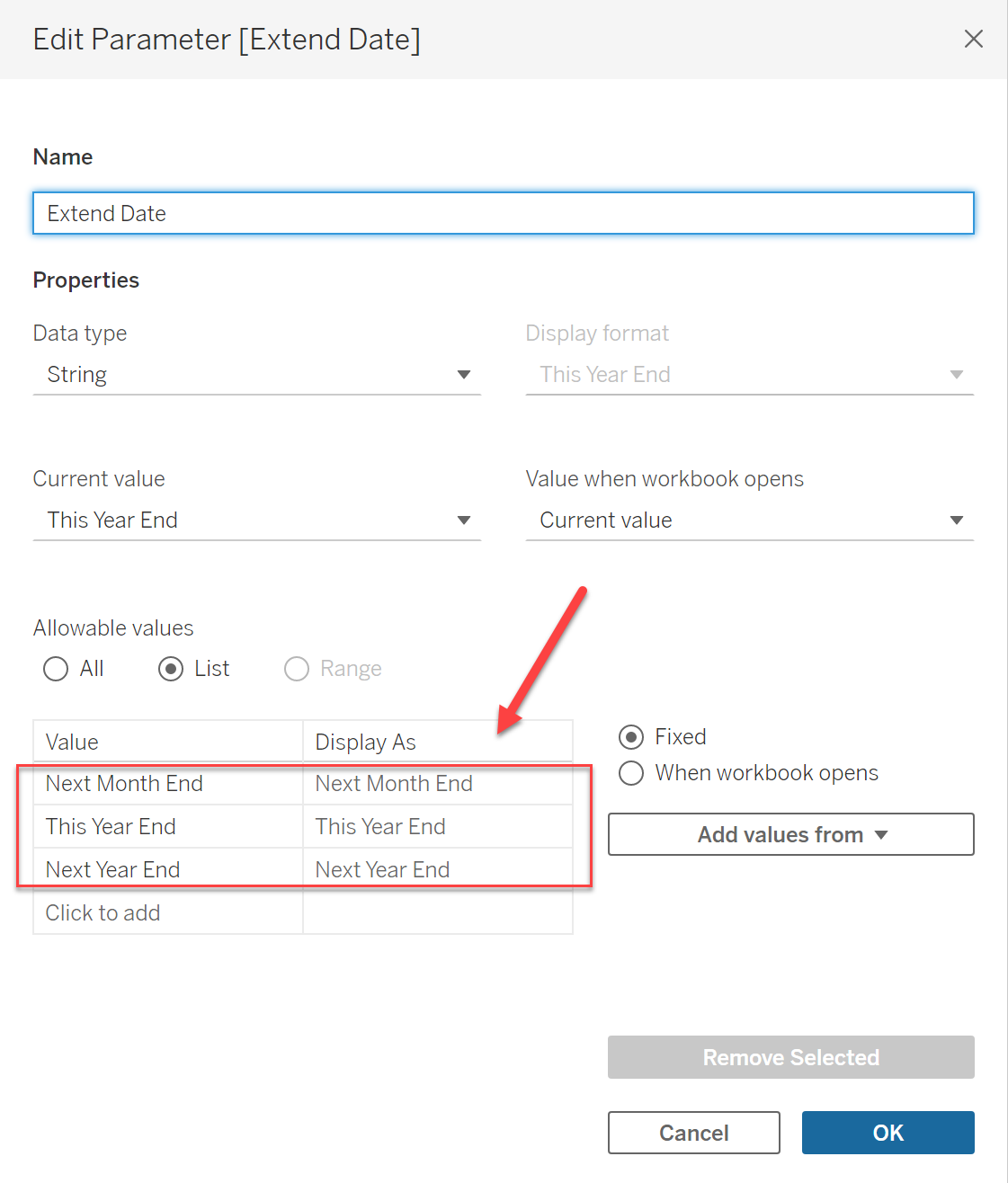
1. Create a Parameter like the below image to control the reference line.
2. Create a calculation like below to calculate the dynamic extended date range.
===========
CASE [Extend Date]
WHEN "Next Month End" THEN
DATE(DATETRUNC('month',DATEADD('month',2,TODAY()))-1)
WHEN "This Year End" THEN
DATE(DATETRUNC('year',DATEADD('year',1,TODAY()))-1)
WHEN "Next Year End" THEN
DATE(DATETRUNC('year',DATEADD('year',2,TODAY()))-1)
END
===========
3. Add the calculation to [Details].
4. Right-click the Date axis and click [Add Reference Line].
5. Add the calculation created in step 2 in the reference line.
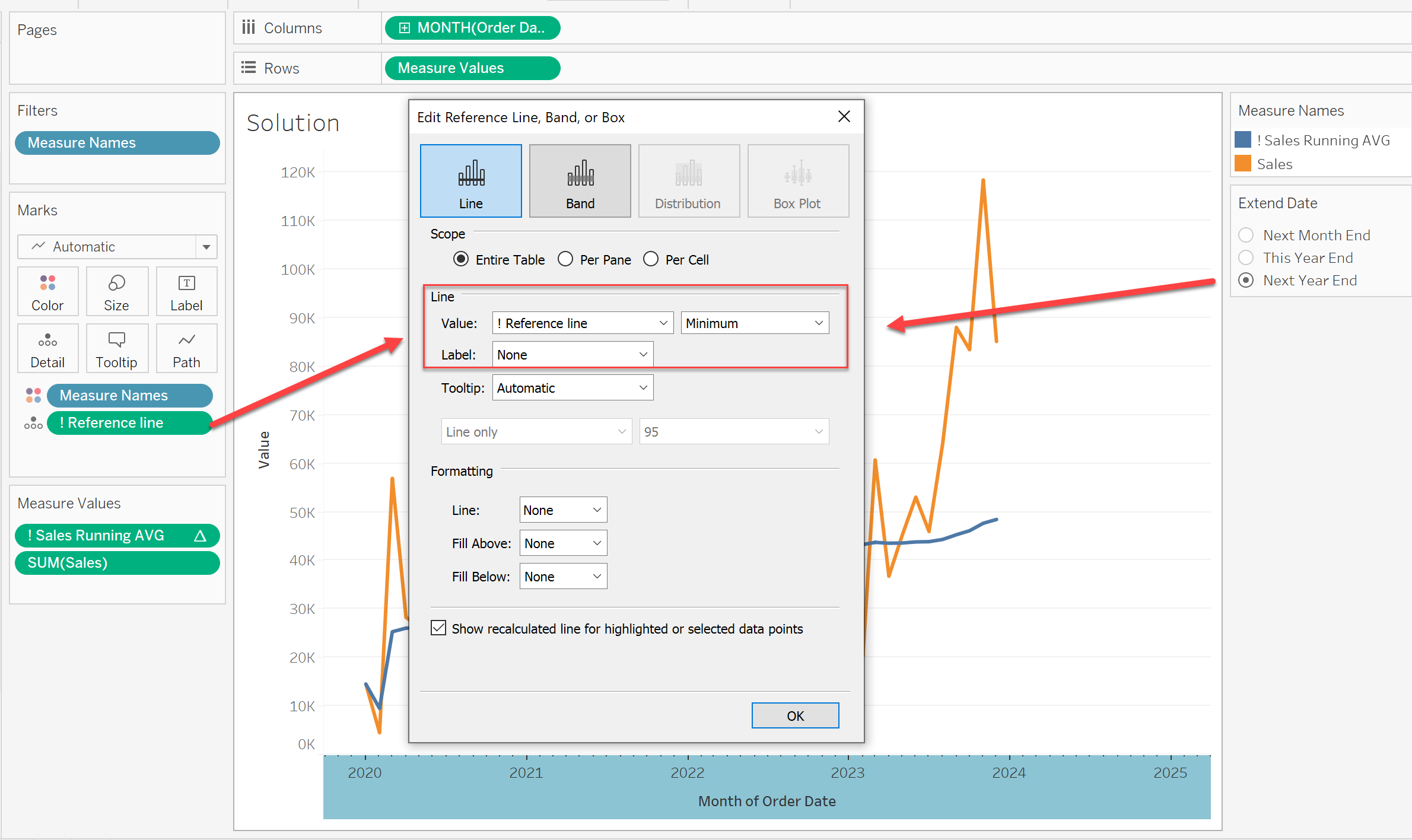
This reference line could have a dynamic value based on the value in the parameter.
Please also check the attached workbook for details.
Recursos adicionales
Número del artículo de conocimiento
001498737
¿Resolvió este artículo su problema?
¡Háganos saber cómo podemos mejorar!
