Valitse organisaatio
How to Set a Dynamic Data Range When Using [Extend Date Range] Function in Tableau Desktop
Julkaisupäivä: May 13, 2025
Tehtävä
How to set a dynamic extended date range like next month or next year in Tableau Desktop?
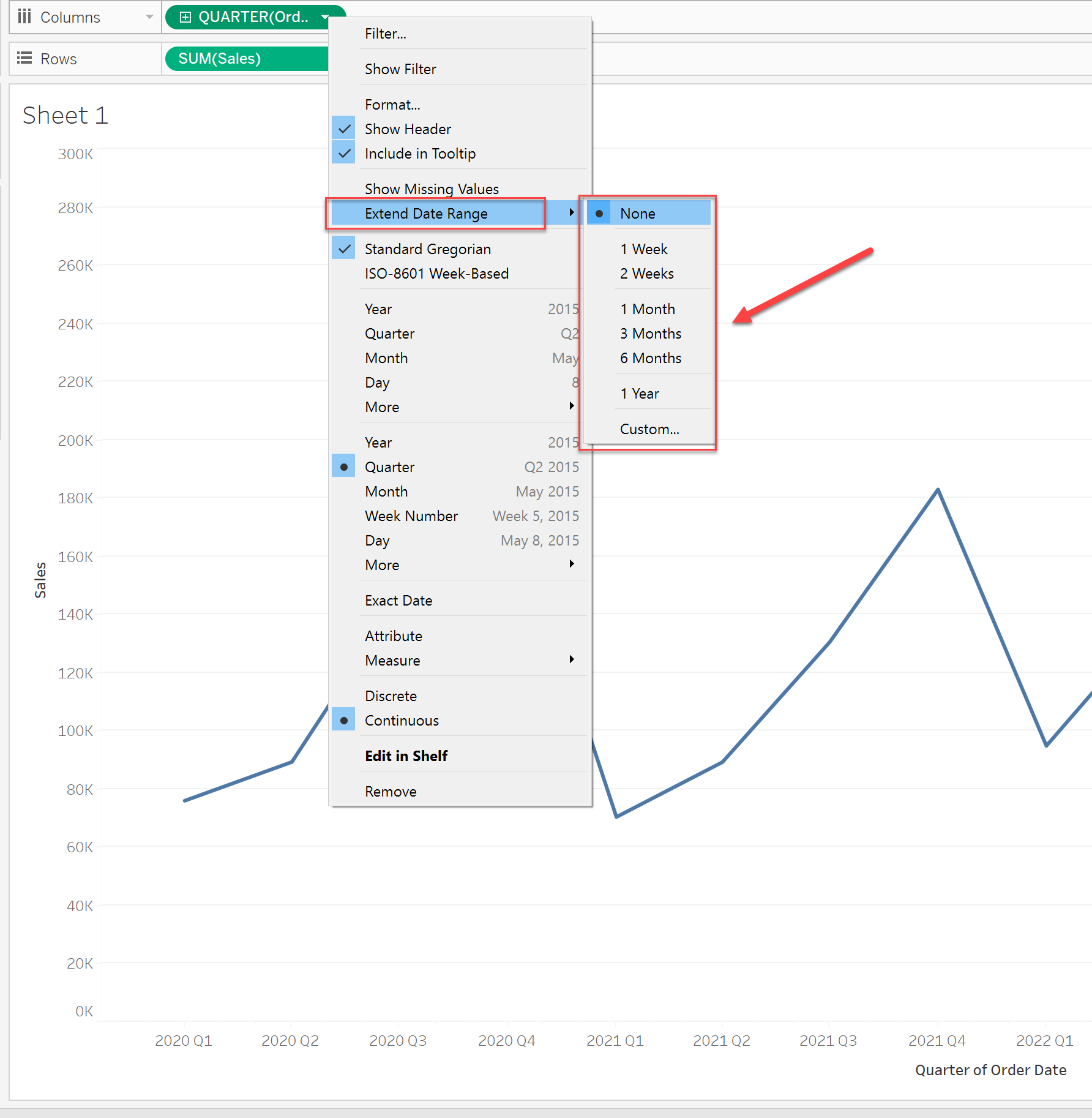
For now, it could only set a fixed extended date range as 6 Months, 1 Year, etc.
Vaiheet
Please consider using a reference line to show the dynamic date range as a workaround.
The steps are as follows
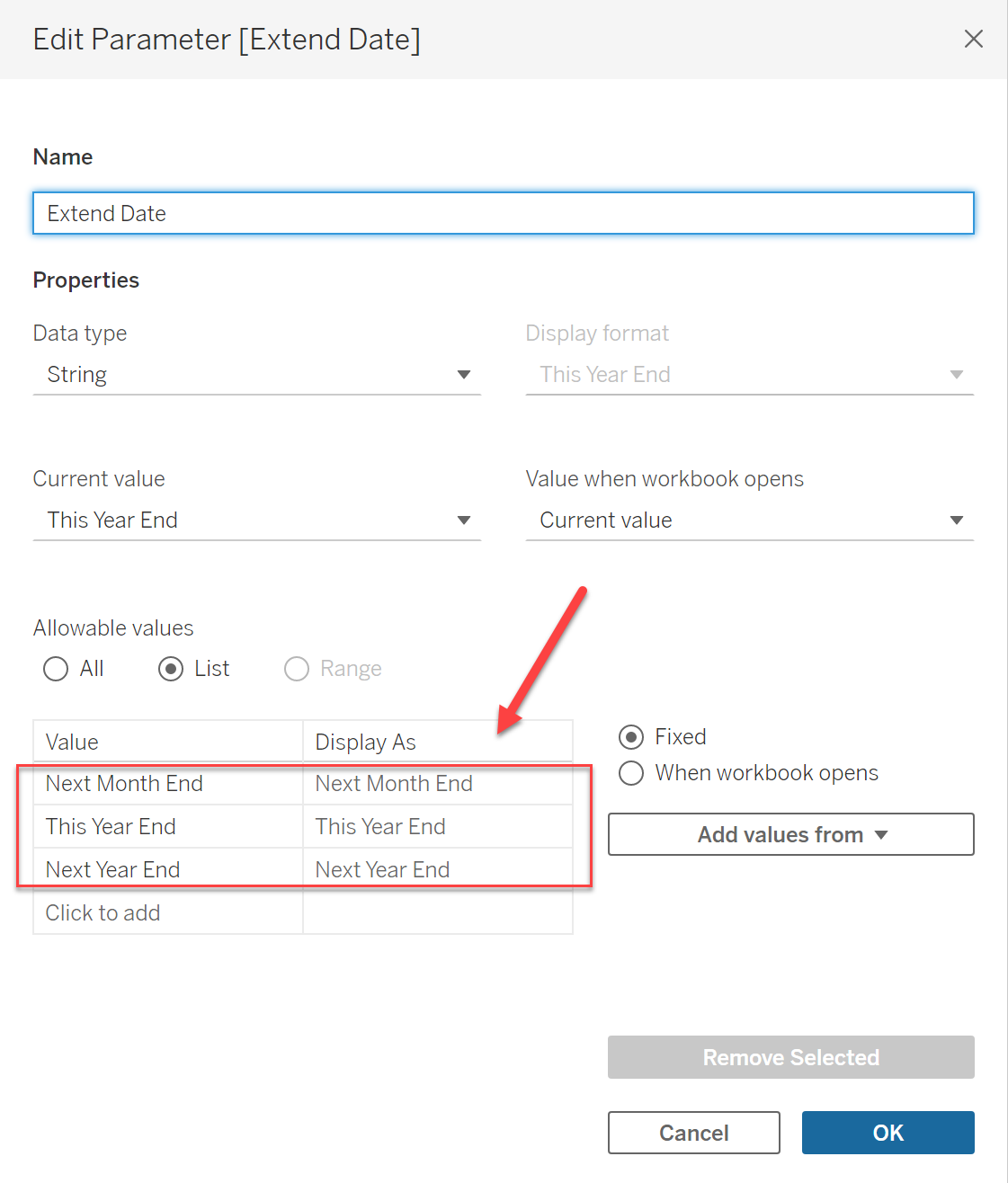
1. Create a Parameter like the below image to control the reference line.
2. Create a calculation like below to calculate the dynamic extended date range.
===========
CASE [Extend Date]
WHEN "Next Month End" THEN
DATE(DATETRUNC('month',DATEADD('month',2,TODAY()))-1)
WHEN "This Year End" THEN
DATE(DATETRUNC('year',DATEADD('year',1,TODAY()))-1)
WHEN "Next Year End" THEN
DATE(DATETRUNC('year',DATEADD('year',2,TODAY()))-1)
END
===========
3. Add the calculation to [Details].
4. Right-click the Date axis and click [Add Reference Line].
5. Add the calculation created in step 2 in the reference line.
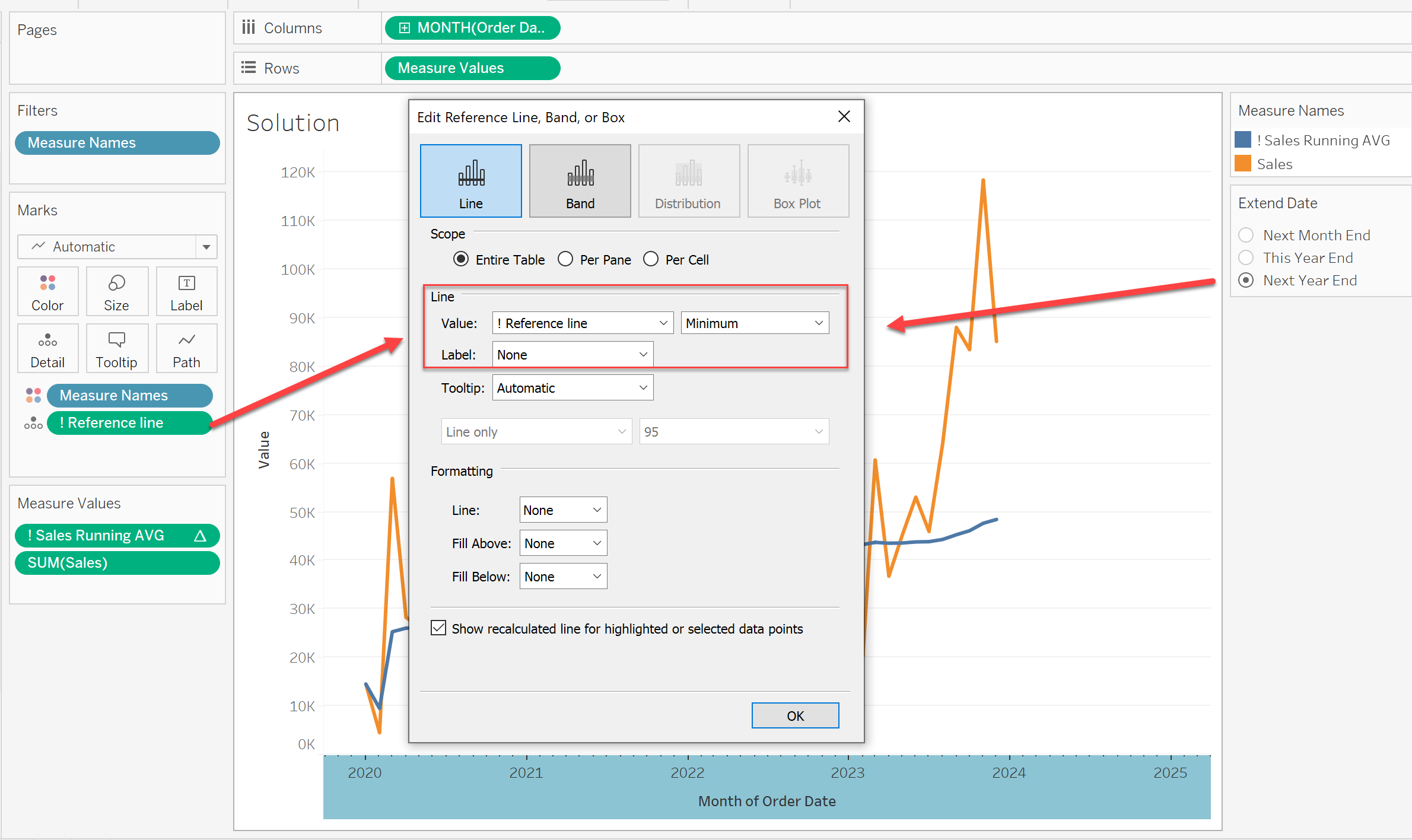
This reference line could have a dynamic value based on the value in the parameter.
Please also check the attached workbook for details.
Lisäresurssit
Knowledge-artikkelin numero
001498737
Ratkaisiko tämä artikkeli ongelmasi?
Anna palautetta, jotta voimme kehittyä!
