Seleziona un'organizzazione
Tooltip does not appear when floating sheets are stacked on top of each other on the dashboard
Data pubblicazione: Mar 14, 2025
Descrizione
How to show the tooltips when floating sheets are stacked on top of each other on the dashboard.
Cause
Only the topmost sheet will show the tooltip by design.Risoluzione
1. Open Tableau Desktop and connect to Sample -superstore.
2. Drag [Sales] to Rows and Region to Columns.
3. Change the sheet name to "Sales"
3. Create a new sheet.
4. Move to the new sheet and drag [Profit] to Rows and Region to Columns.
5. Change the sheet name to "Profit"
<Step 2>
-Create Sheet Selector-
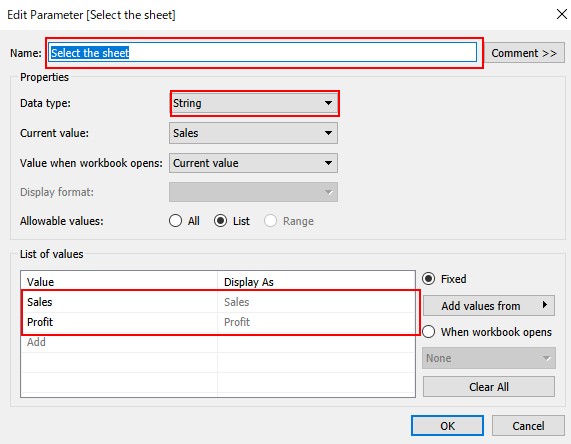
6. Create a new parameter like the following.
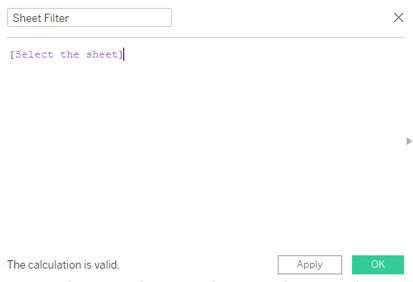
7. Create a new calculated field like the following.
Name : Sheet Filter
Calculation : [Select the sheet]
8. In "Sales" sheet , right click [Select the sheet] and click Show Parameter.
9. Drag [Sheet Filter] to Filter Pane check "Sales".
10. Move to the sheet "Profit", right click [Select the sheet] and click Show Parameter.
11. Change the value of the parameter to "Profit".
12. Drag [Sheet Filter] to Filter Pane check "Profit".
<Step 3>
-Adding to Dashboard-
13. Create a new Dashboard.
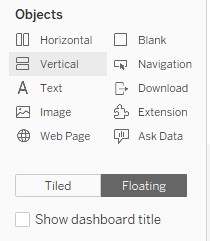
14. Select "Floating" and drag and drop "Vertical Object" to view.
15. Drag sheet -Sales while pressing Shift button to the vertical object added in step 14.
16. Set sheet title to hidden.
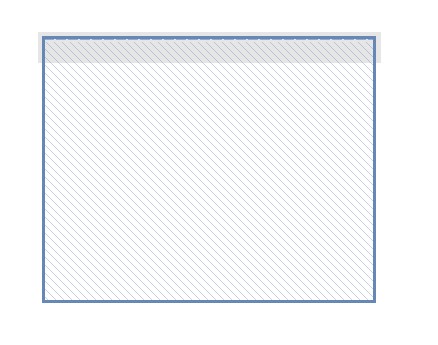
17. Drag sheet -Profit while pressing Shift button to the vertical object added in step 14.
*Drop in the following gray area.
18. Set sheet title to hidden.
Make sure you can see the tooltips on both sheets.
Numero articolo Knowledge
001534982
Questo articolo ha risolto il problema?
Facci sapere, così possiamo migliorare!
