Vælg en organisation
How to Count the Number of Incoming Emails Related to a Case in Salesforce
Udgivelsesdato: Apr 23, 2026
Beskrivelse
A business with Agentforce Service (formerly Service Cloud) uses Email-to-Case to create and manage Cases when a support email is sent to their dedicated customer support email address. The Cases are assigned to a Queue when they come in, and the business requires that the Customer Service Team know when a Case is still assigned to the queue but has more than one email from the customer
Løsning
We can use Flow and a custom field to count the number of EmailMessage records related to a Case to make it easy to identify which records meet the criteria: Assigned to Customer Service Queue & > 1 Email related to it.
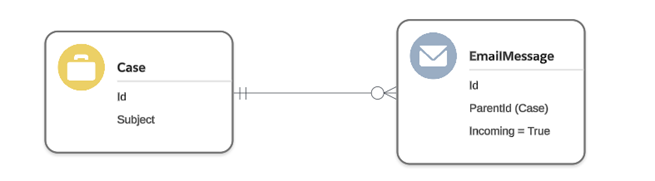
EmailMessage relationship to Case.
As a best practice, be sure to build and test Flows in a Sandbox before deploying to a Production environment.
Part A : Add a Custom Number Field to the Case Object to track the number of Incoming EmailMessages related to the Case record
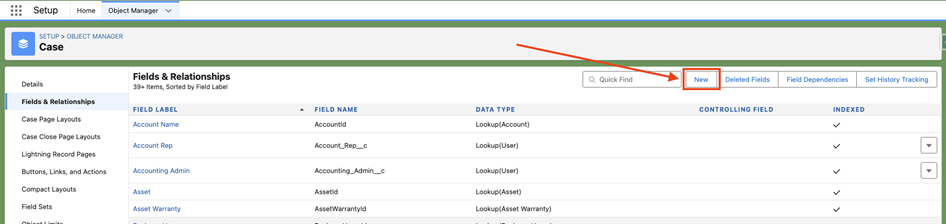
1. Navigate to Setup > Object Manager > Case > Fields & Relationships, and click New to add a new field
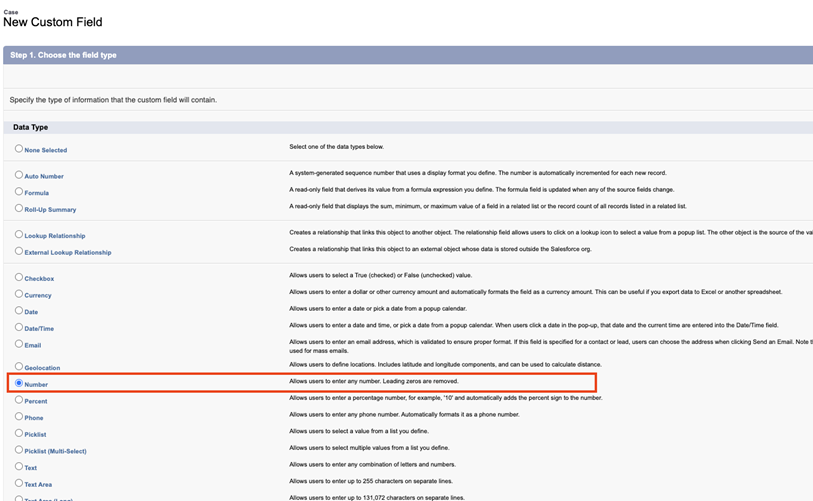
- Select Number as the Data Type
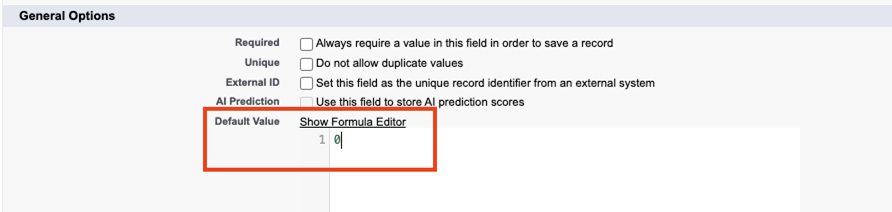
- Give the field a good Label, Description, and Help text - for this example, the field will be called Number of Incoming Email - give the field a Default Value of 0 and click on Next
- Choose the appropriate Field Level Security and Page Layout options for your business requirements, and Save the field
Part B: Create a Record-Triggered Flow based on Email Message to Increment the Count of Incoming Emails on a Case
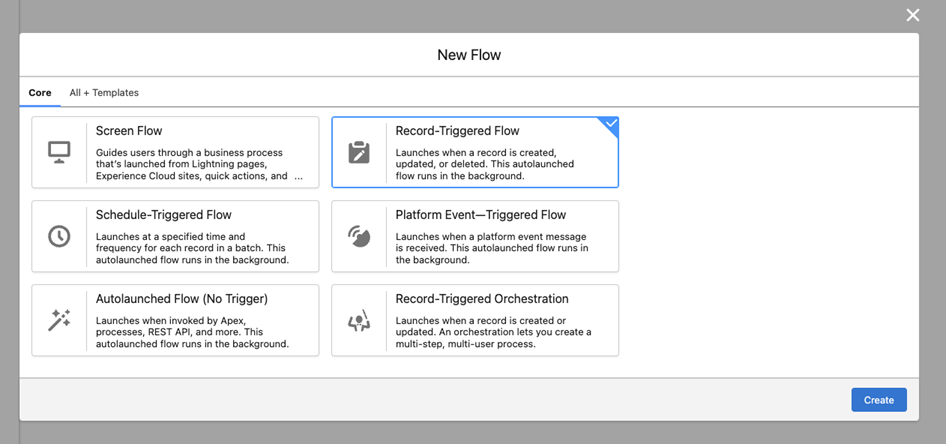
- From Setup > Flows, create a new Flow - Select Record-Triggered Flow

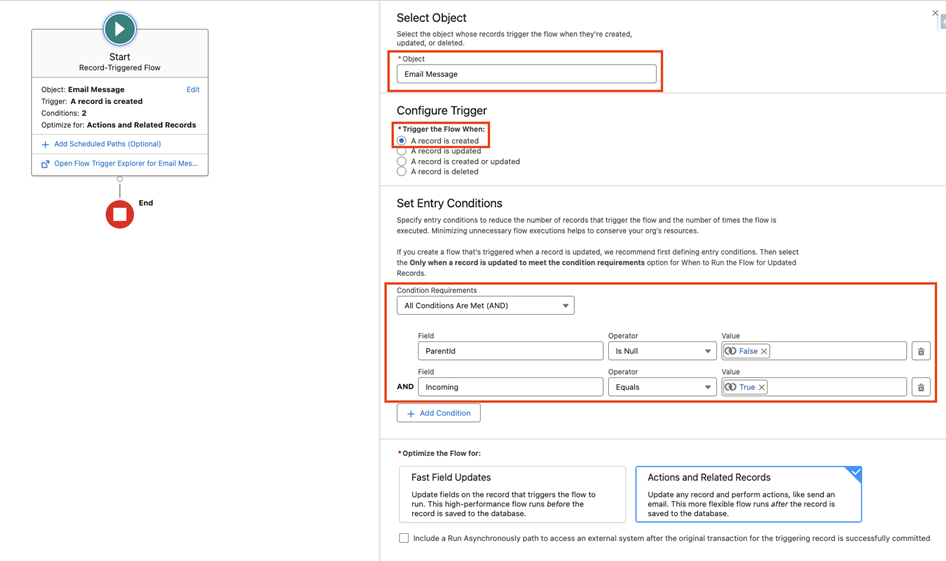
- Select EmailMessage as the Object and select to trigger the Flow when a record is created
- Add entry criteria to ensure that the EmailMessage is related to a Case (ParentId <> Null) and where Incoming = True
- If the EmailMessage has a value for ParentId, we know that it is related to a Case (see object reference)
- Navigate to Toolbox and Add a new Formula Resource with Date Type = Number, 0 Decimal Places - we’ll use this formula to increment the number of incoming emails on the Case by one. The following formula is used to ensure if a blank value is found on an existing Case, that it treats it as a 0 so that it can be incremented successfully
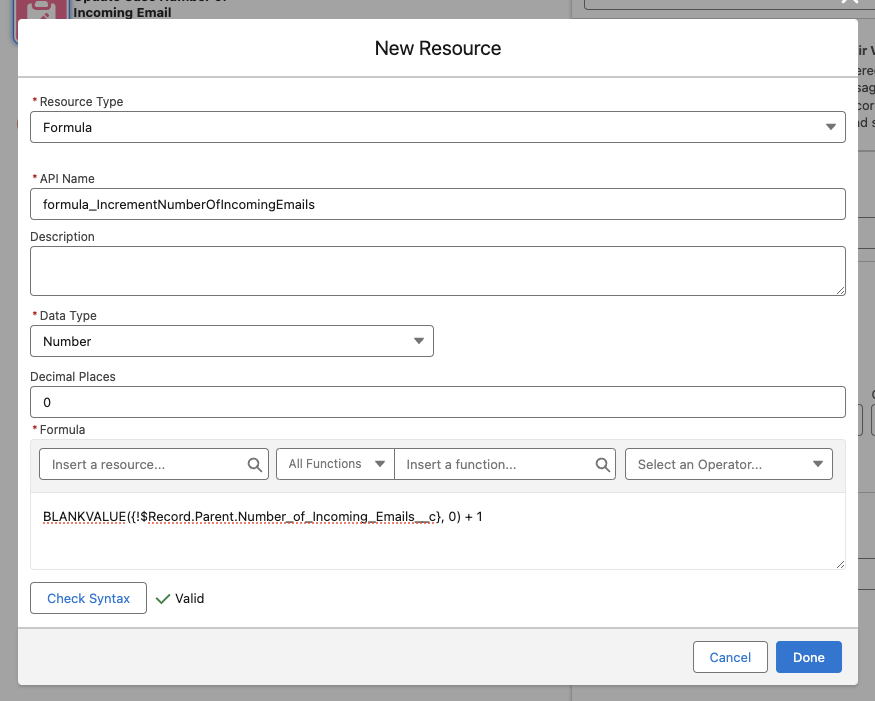
BLANKVALUE({!$Record.Parent.Number_of_Incoming_Emails__c}, 0) + 1
- Add an Update Element to update the Case record where the Id = {!$Record.ParentId} Set the Case Number_of_Incoming_Emails__c field to the formula resource created in Step 5
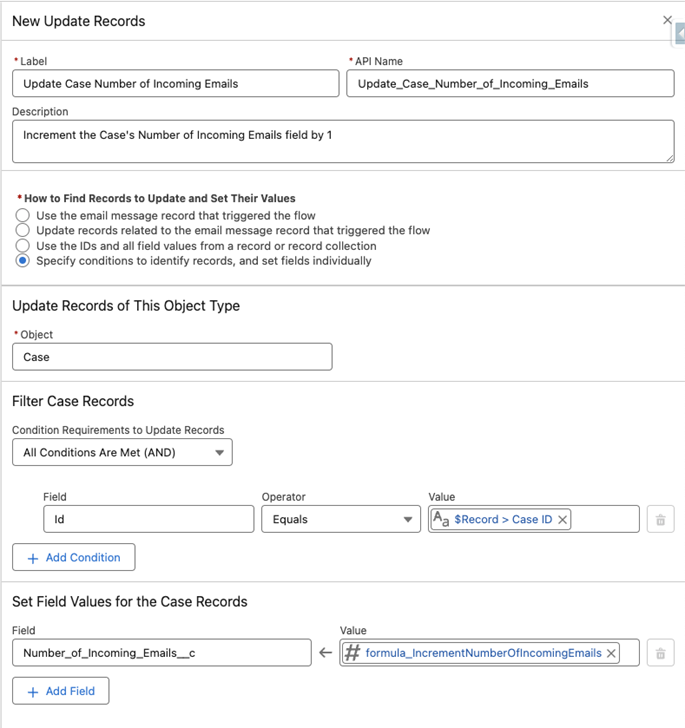
- The Flow should now look like this:
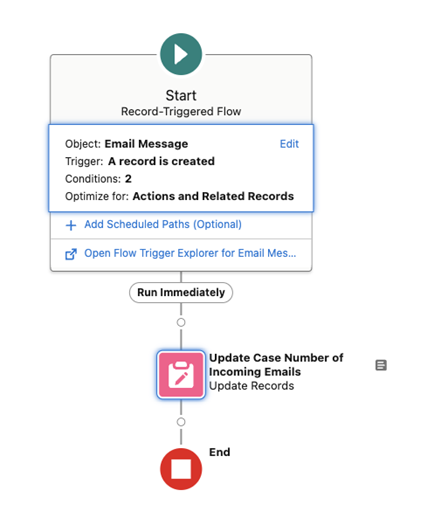
- Save the Flow, and if in a sandbox, activate the Flow (EmailMessage does not fully support debugging, so this Flow (as always) should be built in and tested in a sandbox as testing the functionality will require sending emails via Email to Case)
- To test the functionality, create a Case via Email-to-Case and verify that the Number of Incoming Emails field has incremented from 0 or blank to 1. Then send another email routed to the same Case and validate that it increments from 1 to 2
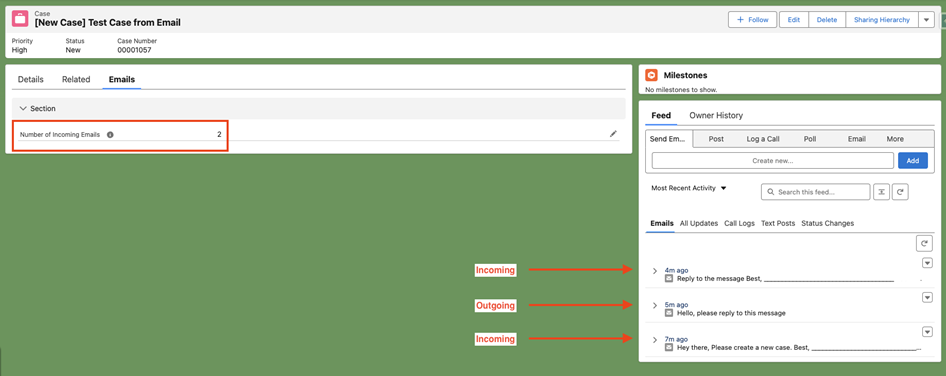
Part C: Make it Easy for Customer Service Agents to find Relevant Cases
- Create a New Case List View

- Name the List View and choose how to share it
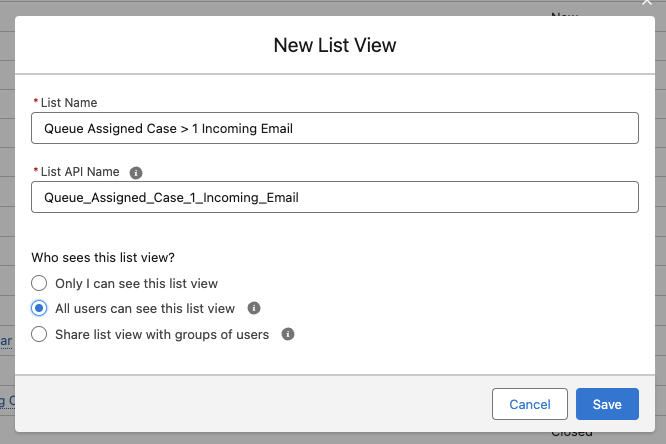
- Define filters to show Cases assigned to the Customer Service Queue that have more than 1 incoming email related to them
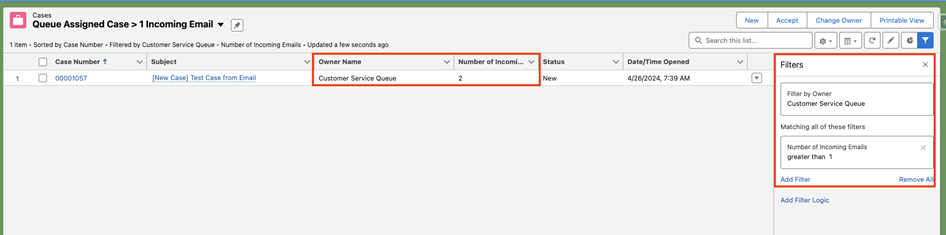
- You can apply the same concept to create additional Reports and/or Dashboards for the customer service team to easily identity and act on these Cases
Notes:
- As a best practice, always be sure to build and test your Flow in a sandbox.
- Always be sure to include fault paths for Flow elements that can fail (this was not demonstrated in this solution).
- All data used in this example is fictional.
- This tutorial is based on this post in the Trailblazer Community.
_________________________________
Written by: Zack Terry | Forum Ambassador
Zack Terry is a Senior Solution Architect at Fast Slow Motion, which aims to be a blessing to business leaders by helping them implement and maximize their use of the Salesforce platform. At the time of writing, Zack has worked in the Salesforce ecosystem for nearly a decade, holds 23 Salesforce Credentials, and has achieved the rank of “All-Star Ranger” on Trailhead. Zack serves as a Trailblazer Community Forum Ambassador, and regularly participates in the community.
Submissions reflect only the opinions of the user who made available the Submission and not the opinions of Salesforce, regardless of whether the user is affiliated with Salesforce, and may contain or constitute products, services, information, data, content and other materials made available by or on behalf of third parties ("Third Party Materials). Salesforce neither controls nor endorses, nor is Salesforce responsible for, any Third Party Materials, including their accuracy, validity, timeliness, completeness, reliability, integrity, quality, legality, usefulness or safety, or any applicable intellectual property rights. Any Submissions made available through any message board or forum in response to posted questions, or that otherwise purports to answer any questions, including any questions about Salesforce or Programs, are made available for your general knowledge only and should never be relied upon as answers to your specific questions (even if an answer is marked as a “best” answer or with any similar qualifications). You should always contact Salesforce support for answers to your specific questions. Salesforce has no control over Submissions, and is not responsible for any use or misuse (including any distribution) by any third party of Submissions.
If you have questions, tap into the wisdom of our entire Trailblazer Community here: https://trailhead.salesforce.com/trailblazer-community/feed
Vidensartikelnummer
001738815
Løste denne artikel dit problem?
Giv os besked, så vi kan forbedre os!
