Select An Org
How to Display Product Item Description When Consuming Products from Van Stock in Field Service Mobile
Publish Date: May 15, 2026
Description
When consuming products from a Van Stock (mobile inventory location) in the Salesforce Field Service Mobile app, the Product Item Description field is not visible. By default, only the Product Name is shown in the Products tab on a Work Order record. This makes it difficult for field technicians to identify the correct product when multiple items have similar names.
For example, a technician navigates to a Work Order in the Field Service Mobile app, selects the Products tab, and proceeds to add consumed products from Van Stock. The Product Item Description column does not appear, even though a description exists on the product record in Salesforce.
This article explains how to configure Salesforce so that the Product Item description is visible during product consumption in the mobile app.
Resolution
The solution involves configuring the Search Layout. Start by creating a formula field on the "Product Item" object, referencing "Product2.Description." Here are the steps:
- Navigate to Setup > Object Manager > Product Item > Fields & Relationships > New Field.
- Choose Formula as the field type.
- Insert the field or paste "Product2.Description" into the formula box.
- Save the formula field.
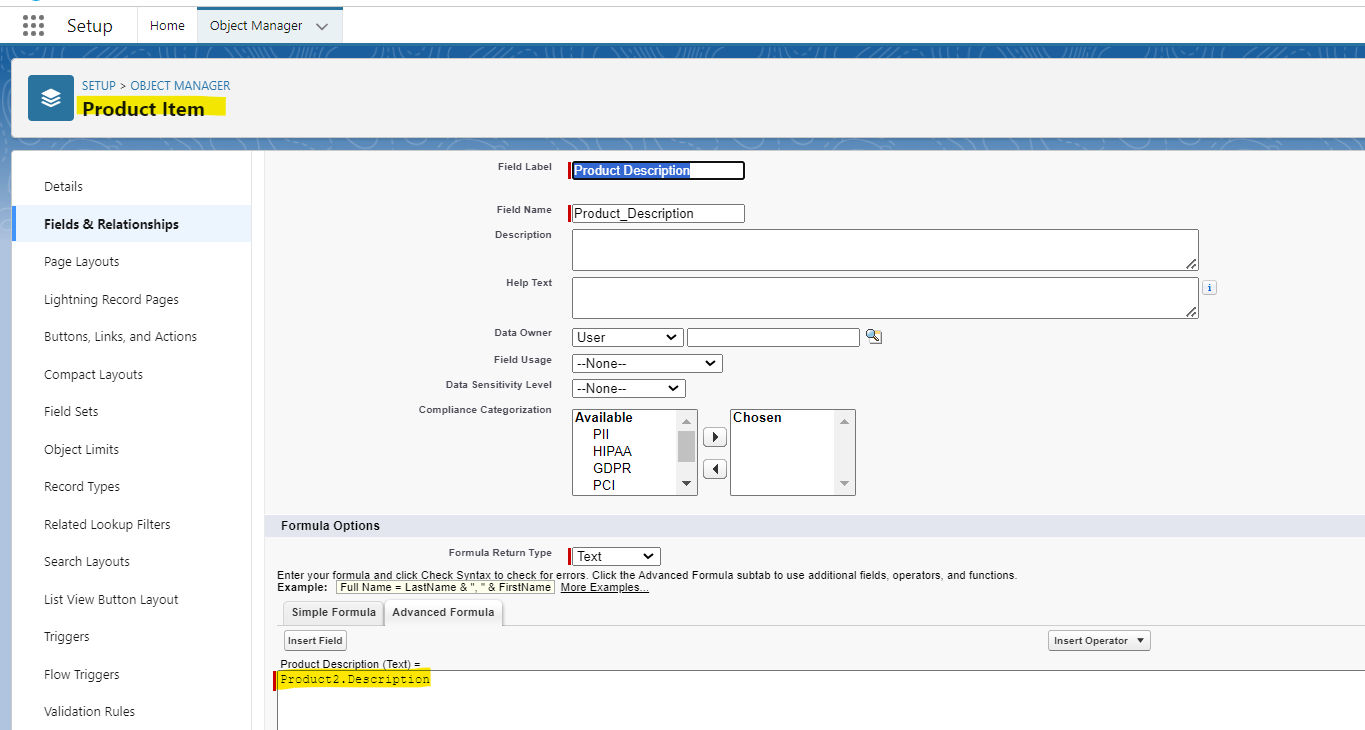
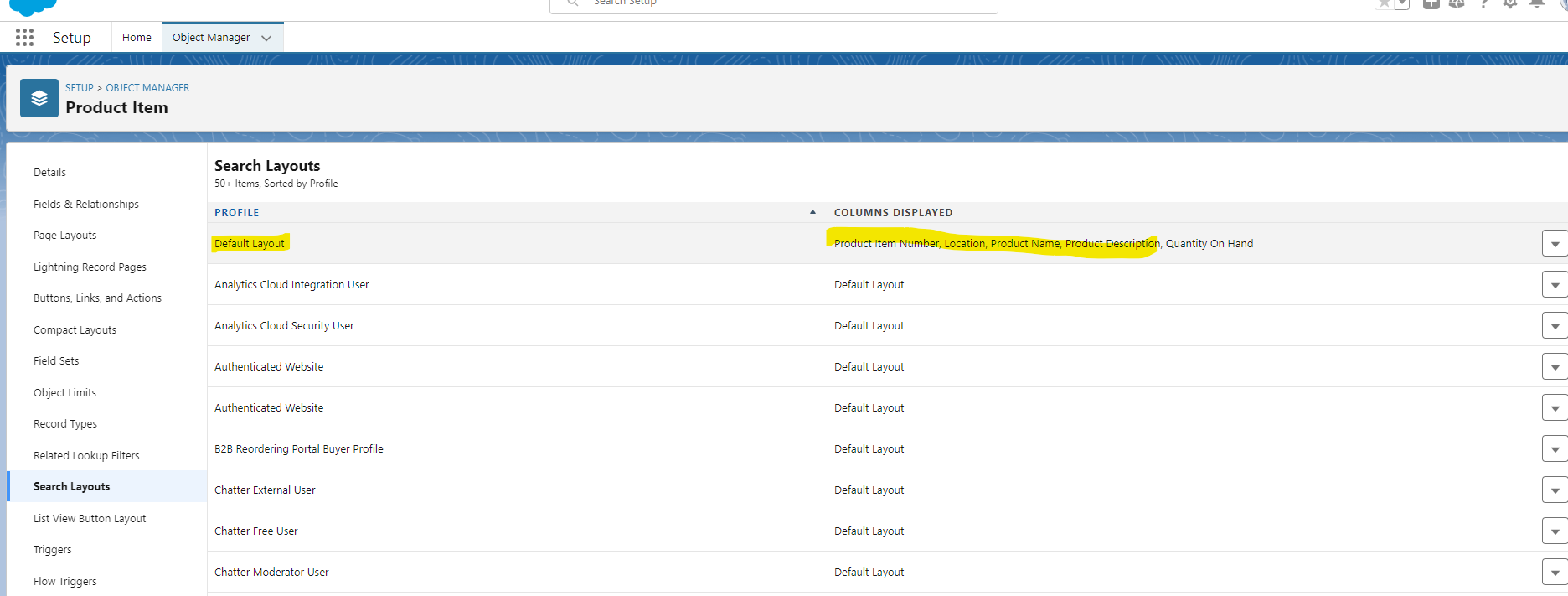
Next, add the field to the Search Layout of the "Product Item" object:
- In Salesforce Settings, go to Object Manager > Product Item > Search Layouts.
- Ensure that the newly created field is among the top 4 fields listed.
- Save the changes.
Additional Resources
Knowledge Article Number
001857045
Did this article solve your issue?
Let us know so we can improve!
