Valitse organisaatio
Retrieving Account Records for the Current Month with a Salesforce Scheduled-Triggered Flow
Julkaisupäivä: Aug 28, 2026
Kuvaus
In Salesforce, retrieving records is often achieved through the Get Records element within a flow. In some cases, more advanced logic is needed, such as retrieving records that match specific criteria or running actions only on certain scheduled days.
This Salesforce Flow solution retrieves Account records created in the current month and only takes action on a designated day, such as the 7th of the month, keeping data both current and aligned with a defined schedule.
Ratkaisu
This article explains how to build a Scheduled-Triggered Flow in Salesforce that automatically finds Account records created in the current month and pushes their start date forward by 12 months. It walks through creating a custom field, building the flow logic, and testing the result.
Why This Flow Is Useful
Sometimes the standard Get Records element in a flow is not enough. You may need to retrieve records that match specific criteria and only run actions on certain scheduled days, such as the 7th of every month. This solution retrieves Account records with a start date in the current month and year, then extends each one by 12 months, keeping renewal or planning dates accurate without manual updates.
Step 1: Create a Start Date Field on Account
- Create a new field named Start Date with the Data type Date by navigating to Setup > Object Manager > Account > Fields and Relationships
Step 2: Create the Scheduled Flow
- Click Setup
- Search for Flows in the Quick Find box, then click Flows
- On the Flow screen, click New Flow
- Select Scheduled-Triggered Flow from the Flow types and click Create
- Set the appropriate start date and time for the flow to run
Step 3: Build a Formula to Check the Scheduled Day
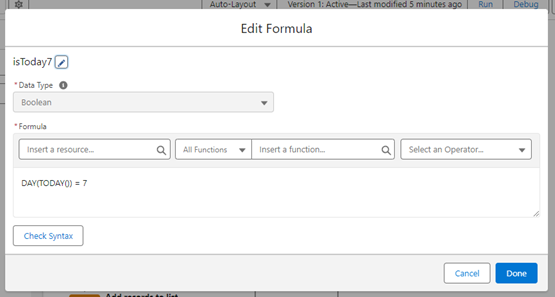
- Add a new Formula resource
- Select Formula as the resource type
- Set the return data type to Boolean
- Write a formula that checks whether today matches the specified day, for example checking if today is the 7th of the month:
`DAY(TODAY()) = 7`
This formula returns true only on the 7th day of the month, which is what the next Decision element checks.
Step 4: Add a Decision Element for the Scheduled Day
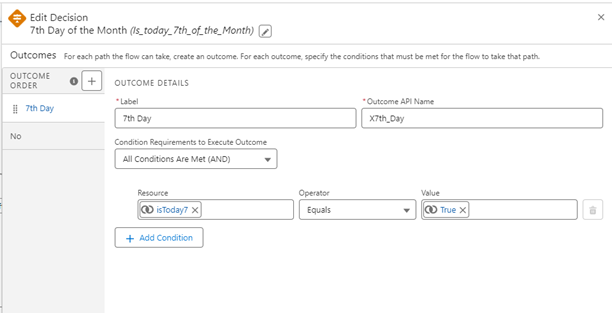
- Drag a Decision element onto the canvas
- Configure it to evaluate whether today is the specified day, using the formula created above
- Set the Decision element to take the Yes path if the formula returns True
Step 5: Get Account Records
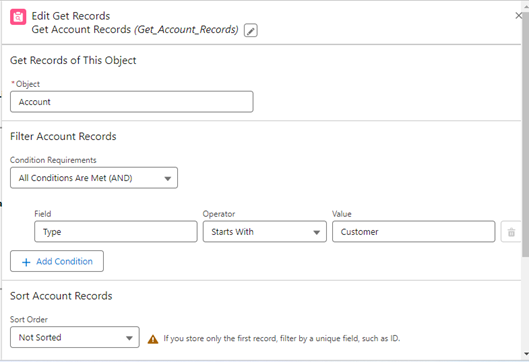
- Add a Get Records element to the flow
- Configure it to retrieve records from the Account object
- Add a condition so only Accounts with Type equal to Customer are retrieved
Step 6: Loop Through the Retrieved Accounts
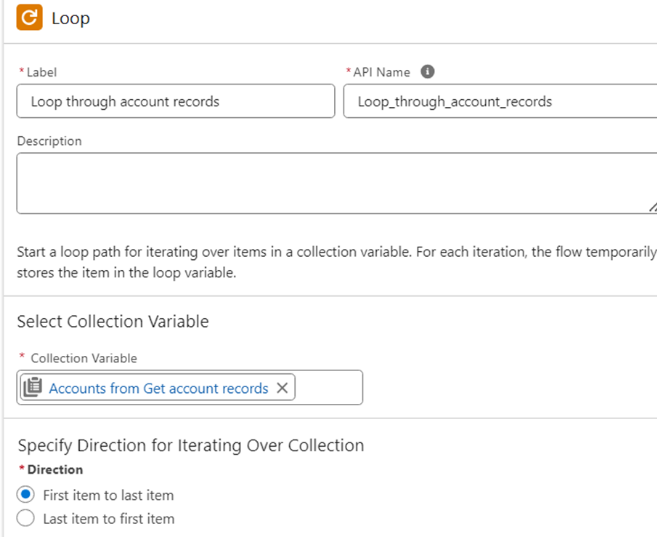
Add a Loop element to iterate through the collection of Account records retrieved in the previous step.
Step 7: Check if the Start Date Falls in the Current Month and Year
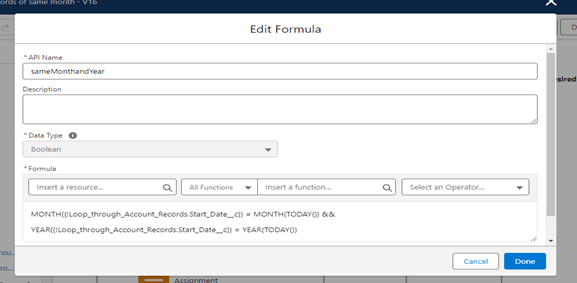
- Configure a formula to return true when the Start Date has the same month and year as today
`MONTH({!Loop_through_Account_Records.Start_Date__c}) = MONTH(TODAY()) && YEAR({!Loop_through_Account_Records.Start_Date__c}) = YEAR(TODAY())`
This formula compares the month and year of each Account's Start Date to the current month and year, so only records started this month move forward.
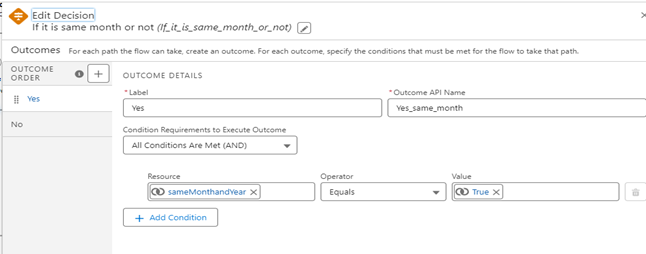
Step 8: Add a Decision for Matching Records
Set the Decision element to take the Yes path if the formula from Step 7 returns True.
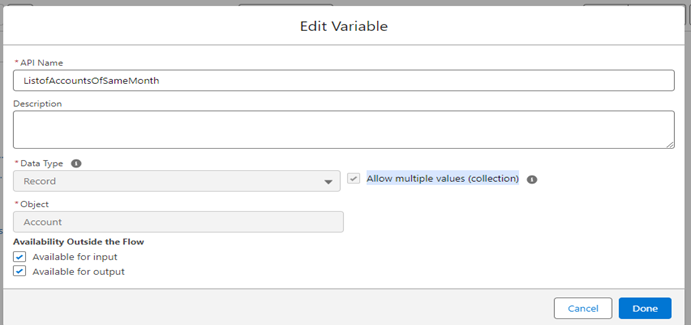
Step 9: Create a Collection Variable for Matching Accounts
- Click New Resource
- Choose Variable as the resource type
- Select Record as the data type
- Set Allow multiple values (collection) to True
- Choose Account as the object for the variable
- Set Available for input/output to True
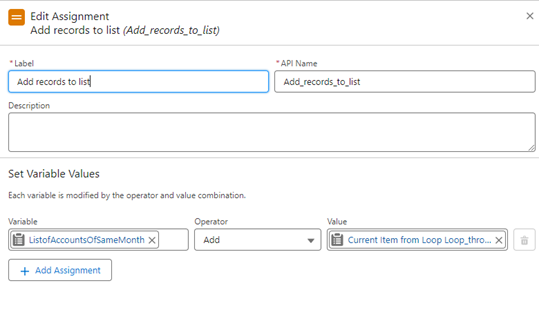
Step 10: Add Matching Accounts to the Collection
In the Yes path of the Decision element, add an Assignment element that adds each matching Account record to the collection variable created in Step 9.
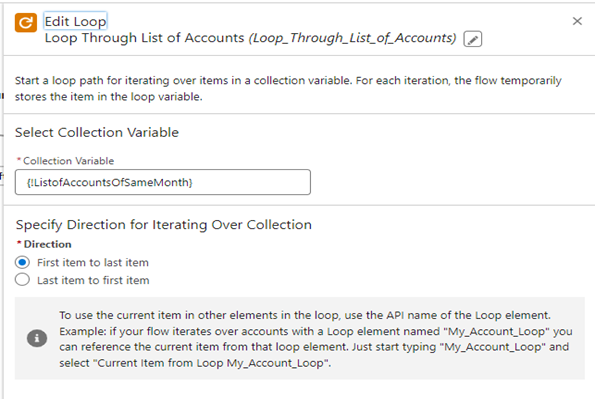
Step 11: Loop Through the Matching Accounts
Add a Loop element to iterate through the collection variable that stores Accounts from the same month and year.
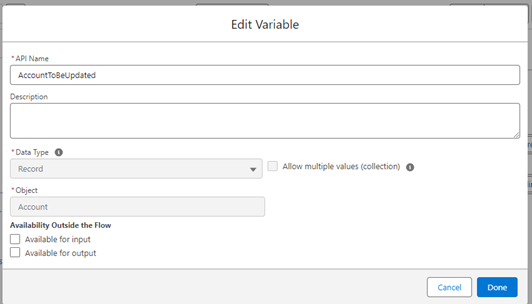
Step 12: Create a Record Variable for the Current Account
- Click New Resource
- Choose Variable as the resource type
- Select Record as the data type
- Specify Account as the object
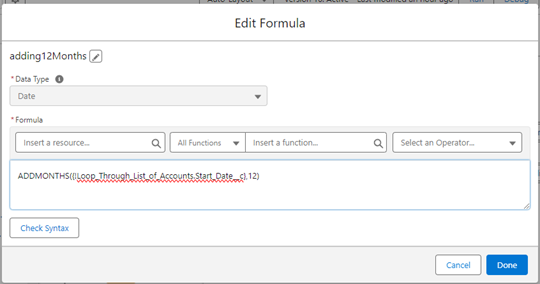
Step 13: Build a Formula to Add 12 Months to the Start Date
- Click New Resource
- Choose Formula as the resource type
- Set the return data type to match the Start Date field, in this case Date
- Write a formula to add 12 months to the Start Date. This may vary depending on your requirements
`ADDMONTHS({!Loop_Through_List_of_Accounts.Start_Date__c},12)`
This formula takes the current Start Date and returns a new date exactly 12 months later.
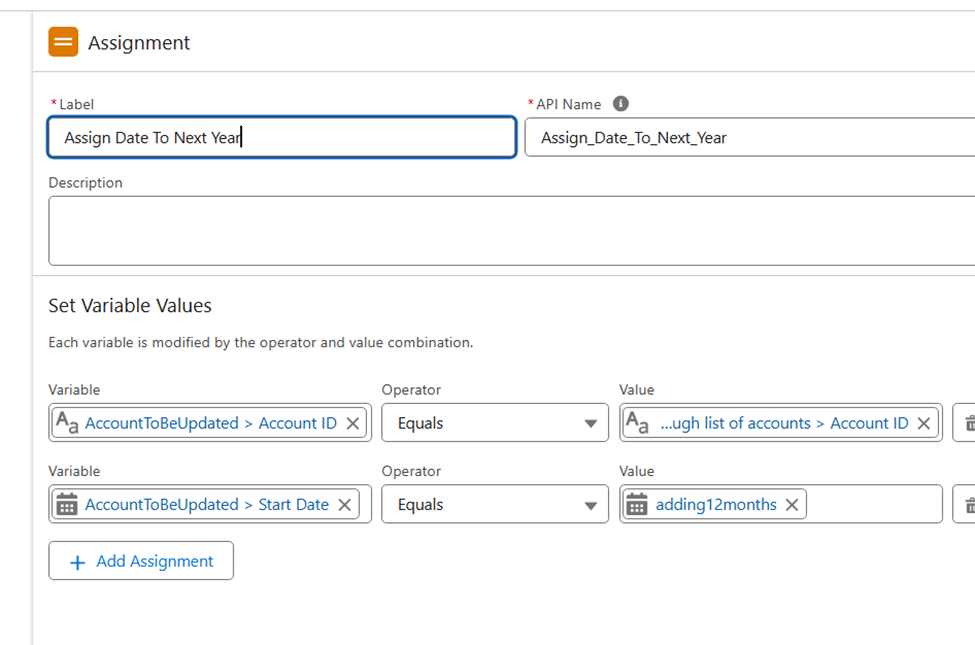
Step 14: Update the Record Variable with the New Start Date
- Assign the current Account record from the loop to the record variable created in Step 12
- Use the formula from Step 13 to calculate the updated Start Date
- Assign the updated Start Date to the Start Date field of the record variable
Step 15: Create a Collection Variable for Accounts to Update
- Choose Variable as the resource type
- Select Record as the data type
- Set Allow multiple values (collection) to True
- Choose Account as the object for the variable
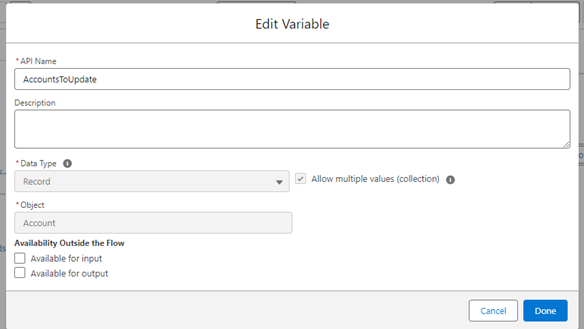
Step 16: Add the Updated Record to the Collection
Add another Assignment element that adds the updated Account record variable to the collection variable created in Step 15.
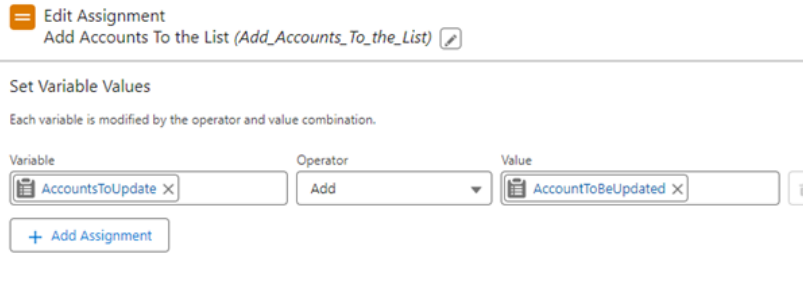
Step 17: Update the Records
- Add an Update Records element to the flow canvas
- Choose the option Use the IDs and all field values from a record or record collection
- Select the collection variable that stores the Accounts to update
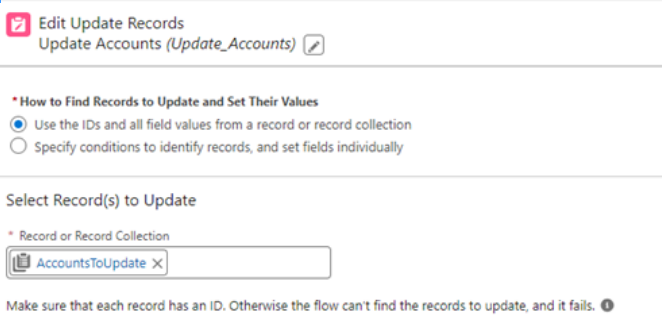
Save and activate the flow.
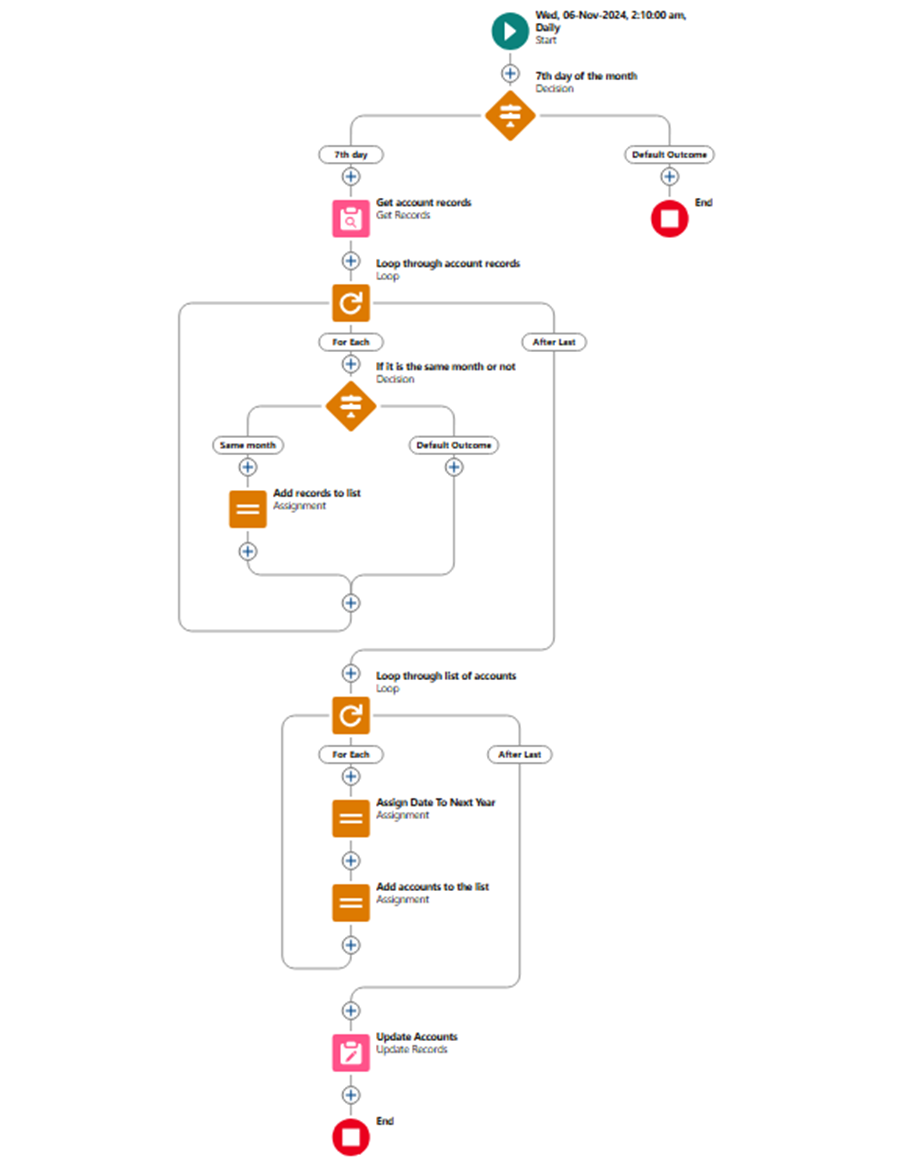
Testing the Flow
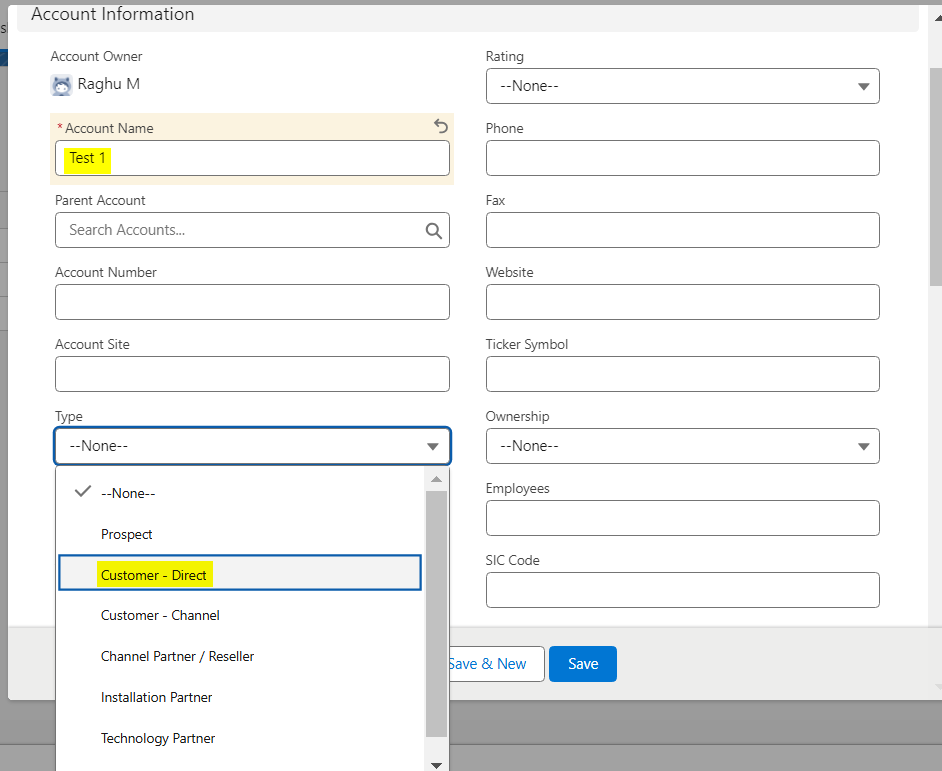
- Create an Account record
- Enter the Account Name you want to test with
- Choose Customer-Direct as the Type and click Save
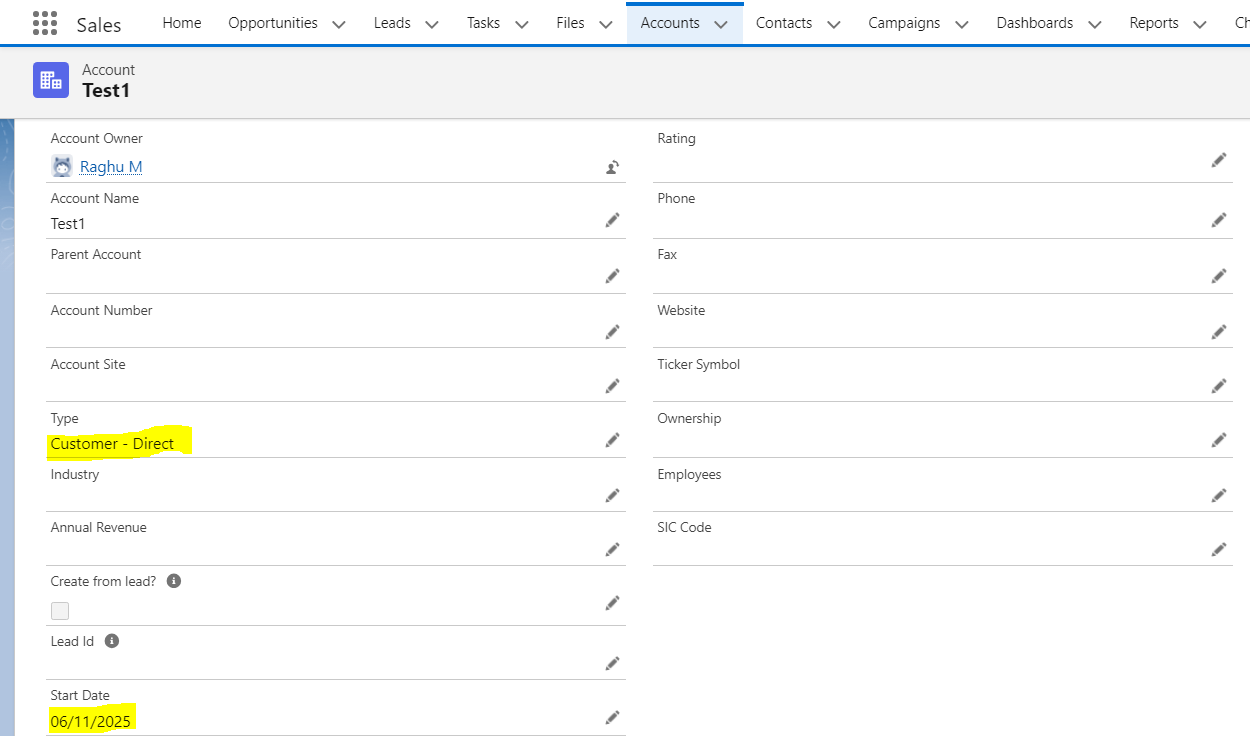
Result
_________________________________________________________________
Written by: Maham Hassan | Forum Ambassador
Maham Hassan is 2x Mom, Salesforce MVP, Director & Technical Architect @ Cloud-1 & Check Automate, Founder of Dubai Dreamin, 16x Certified, Trailblazer Mentor, Community Group Leader & All Star Ranger.
Submissions reflect only the opinions of the user who made available the Submission and not the opinions of Salesforce, regardless of whether the user is affiliated with Salesforce, and may contain or constitute products, services, information, data, content and other materials made available by or on behalf of third parties ("Third Party Materials). Salesforce neither controls nor endorses, nor is Salesforce responsible for, any Third Party Materials, including their accuracy, validity, timeliness, completeness, reliability, integrity, quality, legality, usefulness or safety, or any applicable intellectual property rights. Any Submissions made available through any message board or forum in response to posted questions, or that otherwise purports to answer any questions, including any questions about Salesforce or Programs, are made available for your general knowledge only and should never be relied upon as answers to your specific questions (even if an answer is marked as a "best" answer or with any similar qualifications). You should always contact Salesforce support for answers to your specific questions. Salesforce has no control over Submissions, and is not responsible for any use or misuse (including any distribution) by any third party of Submissions.
If you have questions, tap into the wisdom of our entire Trailblazer Community here: https://trailhead.salesforce.com/trailblazer-community/feed
Lisäresurssit
Knowledge-artikkelin numero
001979869
Ratkaisiko tämä artikkeli ongelmasi?
Anna palautetta, jotta voimme kehittyä!
