Select An Org
How to Normalize Phone Number Format in Salesforce
Publish Date: Apr 17, 2026
Description
An organization is using Agentforce Service (formerly Service Cloud) and the voice call records are created in Salesforce when a call comes in via an integration.
They are facing issues with the Phone number formatting on the Contact record as they need the Phone number to be stored in E. 164 format.
Note: If the language locale is assigned as either English (Canada) or English (United States) in Salesforce then the formatting of phone numbers on the Salesforce records having 11 digits phone number (starting with '1') or 10 digits phone number are available in the format: (XXX) XXX-XXXX.
Also, whenever a phone number is entered in the Phone field, it retains the provided format and is not updated automatically in a normalized format.
Resolution
In this article, this article demonstrates how to achieve the required Phone number formatting in E. 164 format.
Note: In this use case, we are considering the Phone number field on the Contact record and we will be achieving the required formatting using a custom formula field.
Login to your Salesforce account.
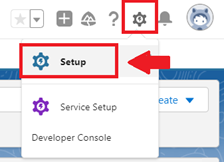
Step 1 - Click the Gear icon on the top right corner of your screen and select Setup
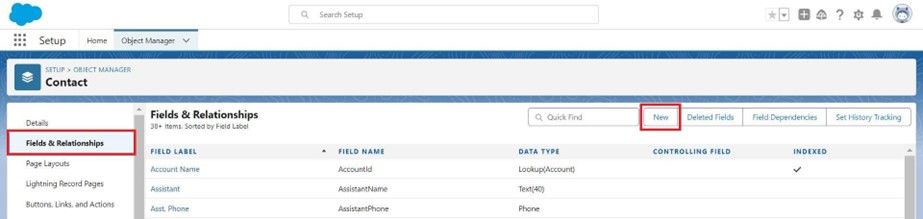
Step 2 - From the object manager, search for Contacts and under the Fields & Relationships section, select New button
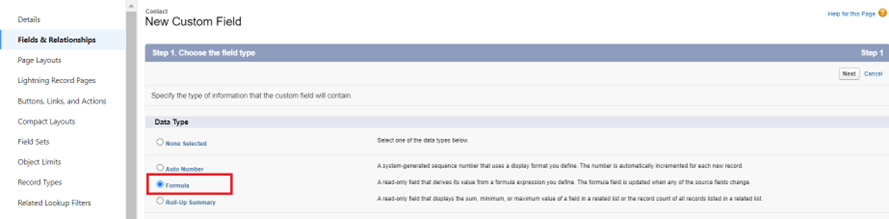
Step 3 - Select Formula as Data Type and click the Next button
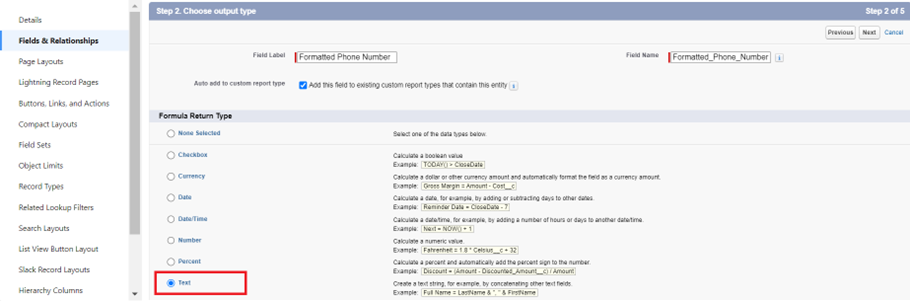
Step 4 - Provide the appropriate Label for this new formula field , select Text as the Formula Return Type and click the Next button
Step 5 - In the formula editor, substitute the formula as provided below:
Note: Below is an example for US phone numbers. Replace +1 with another country code you want to use in the formula below.
IF(
LEN(Phone) > 0,
'+1' + SUBSTITUTE(SUBSTITUTE(SUBSTITUTE(SUBSTITUTE(SUBSTITUTE(Phone, '(', ''), ')', ''), '-', ''), ' ', ''), '.', ''),''
)
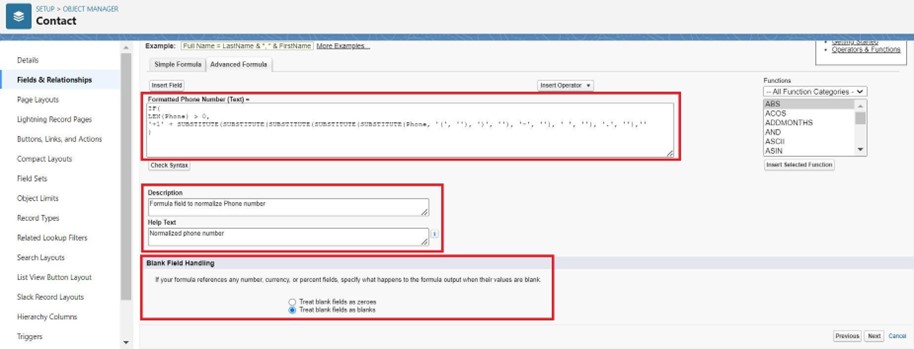
Also, make sure that under the Blank Field Handling section, treat blank fields as blanks is selected as the option and click the Next button
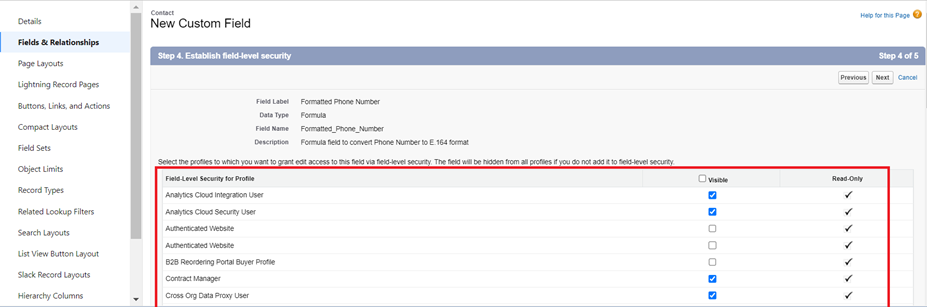
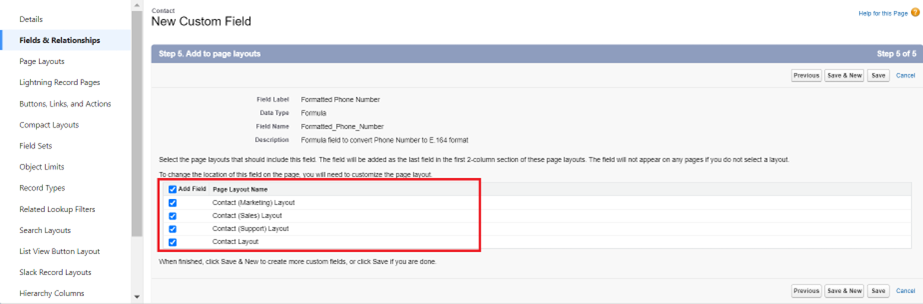
Step 6 - Provide the required Field Level Security for required Profiles and finally add this new field to the appropriate page layouts and select the Save button to create the field
RESULTS : Below are some different Phone number formats tested:
(a) Output when Phone is in format = (XXX) XXX-XXXX

(b) Output when Phone is in format = XXX-XXX-XXXX

(c) Output when Phone is in format = XXX XXX XXXX

(d) Output when Phone is in format = XXX.XXX.XXXX

Additional Resources
Reference these articles to learn more about the standard phone field formatting in Salesforce:
Formats for Currency, Dates, Times, Names, and Phone Numbers
Knowledge Article Number
001996524
Did this article solve your issue?
Let us know so we can improve!
