Velg en organisasjon
Salesforce Field Service: Work Capacity Availabilities Not Updating After Completing the Scheduled Apex Job
Publiseringsdato: May 15, 2026
Beskrivelse
In Salesforce Field Service (SFS), Work Capacity is configured to define the maximum workload a Service Territory can handle within a given time period. When Work Capacity Availabilities fail to update after the scheduled Apex Job completes, the Service Territory shows no availability data even though the Apex Job status shows as completed in Setup.
What You Will Observe:
- The Work Capacity is set up per the Salesforce Field Service product documentation.
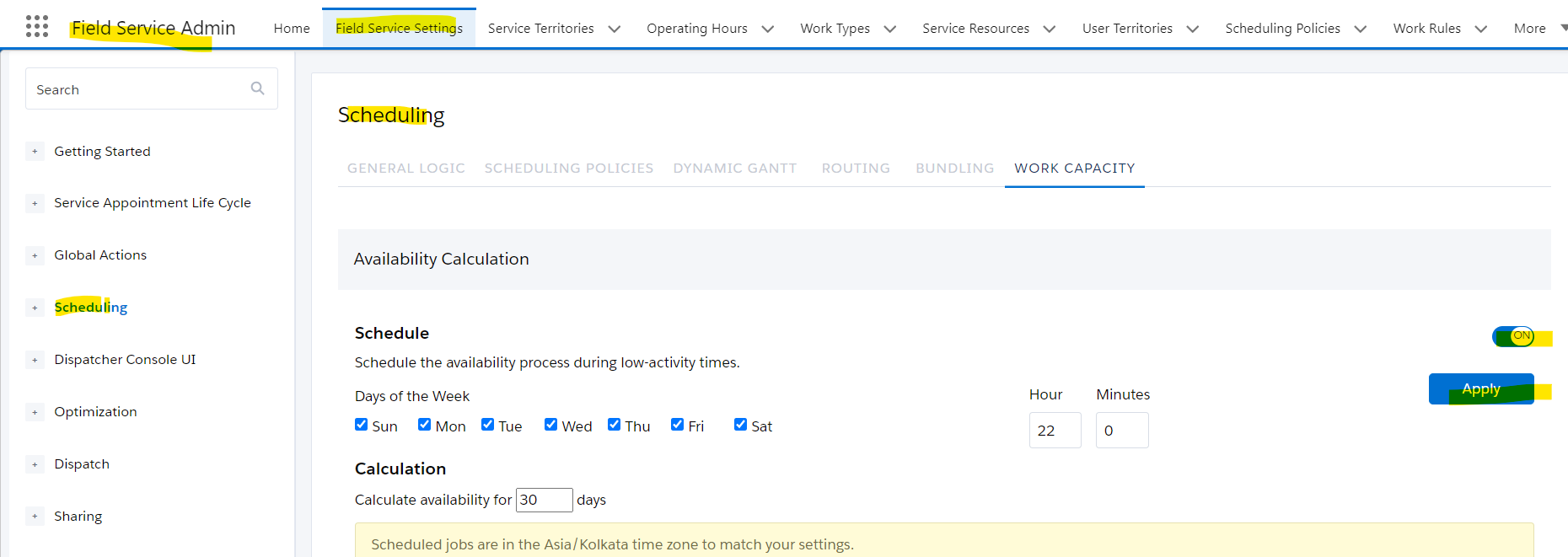
- The scheduled Apex Job runs and completes successfully (visible in Setup > Apex Jobs).
- However, no Work Capacity Availability records are generated or updated for the Service Territory.
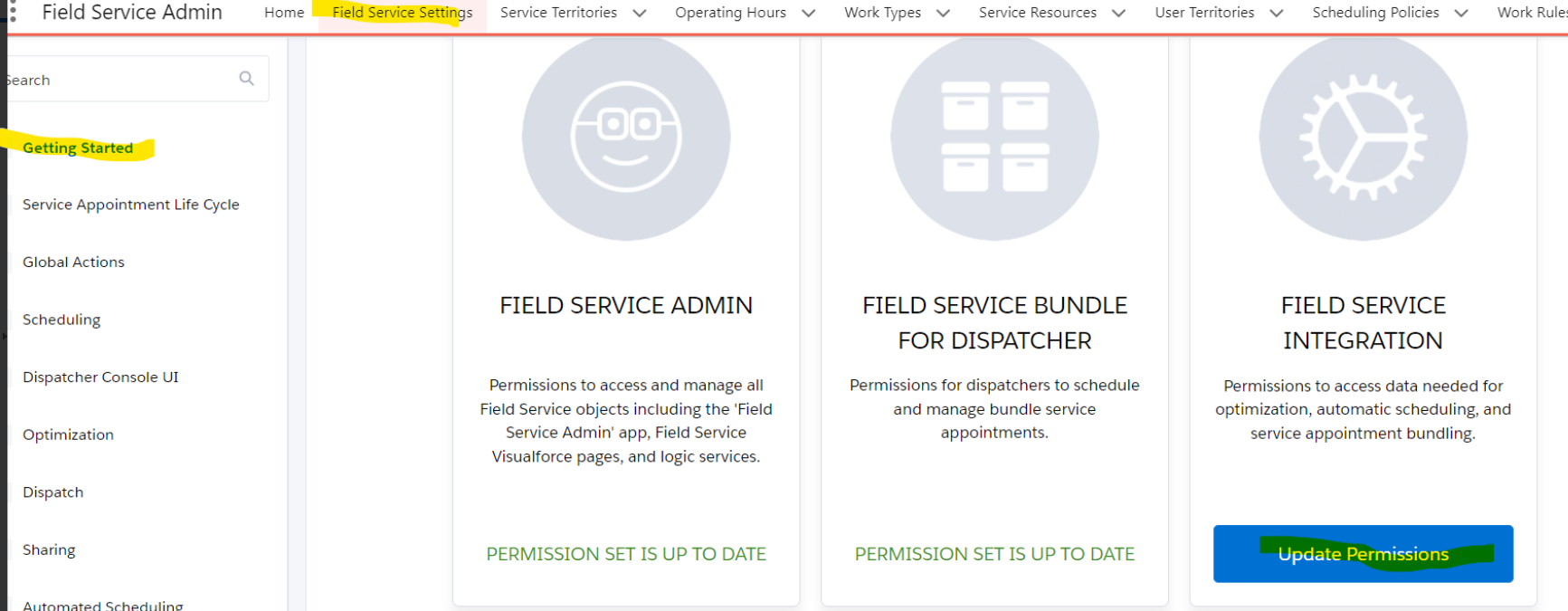
This issue is caused by a missing field-level permission on a custom field used in the Work Capacity configuration. The Field Service Integration Permission Set, which governs the system integration user responsible for running background Field Service processes, does not have the required access to the custom field involved in Work Capacity calculations. Without this permission, the Apex Job completes but cannot write availability data correctly.
Job Screenshot-
Løsning
This article provides steps to resolve the issue of Work Capacity Availabilities not updating in Salesforce Field Service by granting field-level access to the required custom field(s) within the Field Service Integration Permission Set.
Root Cause
Work Capacity Availability calculations in Salesforce Field Service are performed by a background process running under the Field Service Integration Permission Set. If a custom field used in your Work Capacity configuration does not have Read access granted to this Permission Set, the Apex Job will complete without error, but availability data will not be generated for the Service Territory.
Resolution Steps
To resolve the Work Capacity Availabilities not updating issue, follow these steps:
- Navigate to Setup in your Salesforce org.
- In the Quick Find box, search for Permission Sets and select it.
- Locate and open the Field Service Integration Permission Set.
- Click Object Settings and select the object that contains the custom field used in your Work Capacity configuration.
- Click Edit on the Field Permissions section.
- Enable Read access (and Edit access if required) for the relevant custom field.
- Click Save.
- Return to Setup > Apex Jobs and manually re-run the Work Capacity scheduled Apex Job.
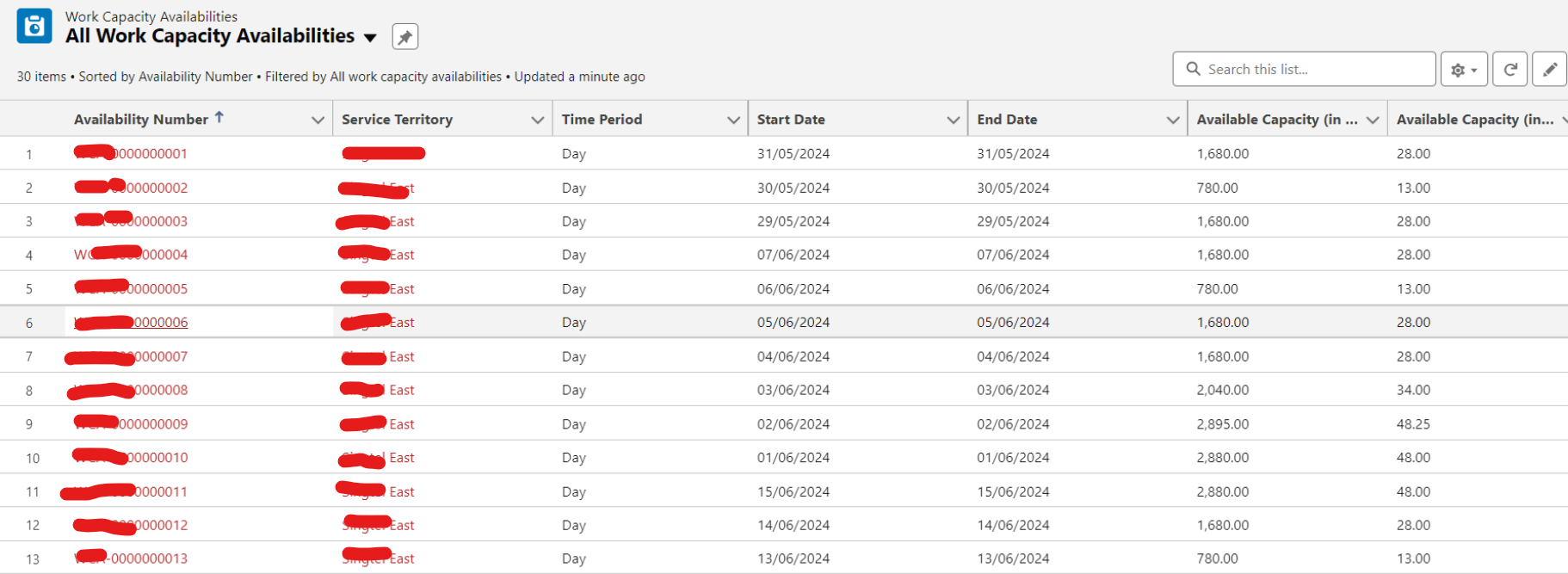
- Verify that Work Capacity Availabilities are now populated for the Service Territory.
Verifying the Fix
After re-running the Apex Job, navigate to the Service Territory record and confirm that Work Capacity Availability records are now visible. If availabilities still do not appear, verify that all custom fields referenced in the Work Capacity configuration have been granted access under the Field Service Integration Permission Set — there may be more than one custom field requiring access.
Flere ressurser
Knowledge-artikkelnummer
002061721
Hjalp denne artikkelen med å løse problemet ditt?
La oss få vite det slik at vi kan forbedre!
