Vælg en organisation
Agent Unable to See Real-Time Messages / Transcription in Conversation Component for Enhanced Messaging Sessions / Voice Calls
Udgivelsesdato: Jun 10, 2026
Beskrivelse
Agents may sometimes be unable to see the messages in enhanced conversation component in real-time on enhanced messaging sessions and voice calls until the page is refreshed. Agents may encounter such issues when the Server-Sent Events (SSE) connection is obstructed by their firewall or proxy. This connection is crucial as it facilitates the real-time reception of events from agents' conversations. This article provides an overview of SSE technology, common issues caused by firewalls and proxies, and the necessary verification steps to ensure proper SSE functionality.
Server-Sent Events (SSE) is a technology that allows servers to push real-time updates to web clients over a single, long-lived HTTP connection. This is essential for enhanced messaging and voice calls as it enables real-time reception of events from agents' conversations.
Often times "Block malicious downloads" feature in some softwares (or proxy) prevents the HTML5 feature Server Sent Events (SSE) from working properly. As the SSE works over HTTP using text/event-stream as content-type, it looks like a never-ending download.
Løsning
How to verify if the issue is with SSE connection:
In the Network tab, you should see calls to salesforce-scrt.com. Both the authenticate call and the SSE call should show status 200 (success), as shown below:
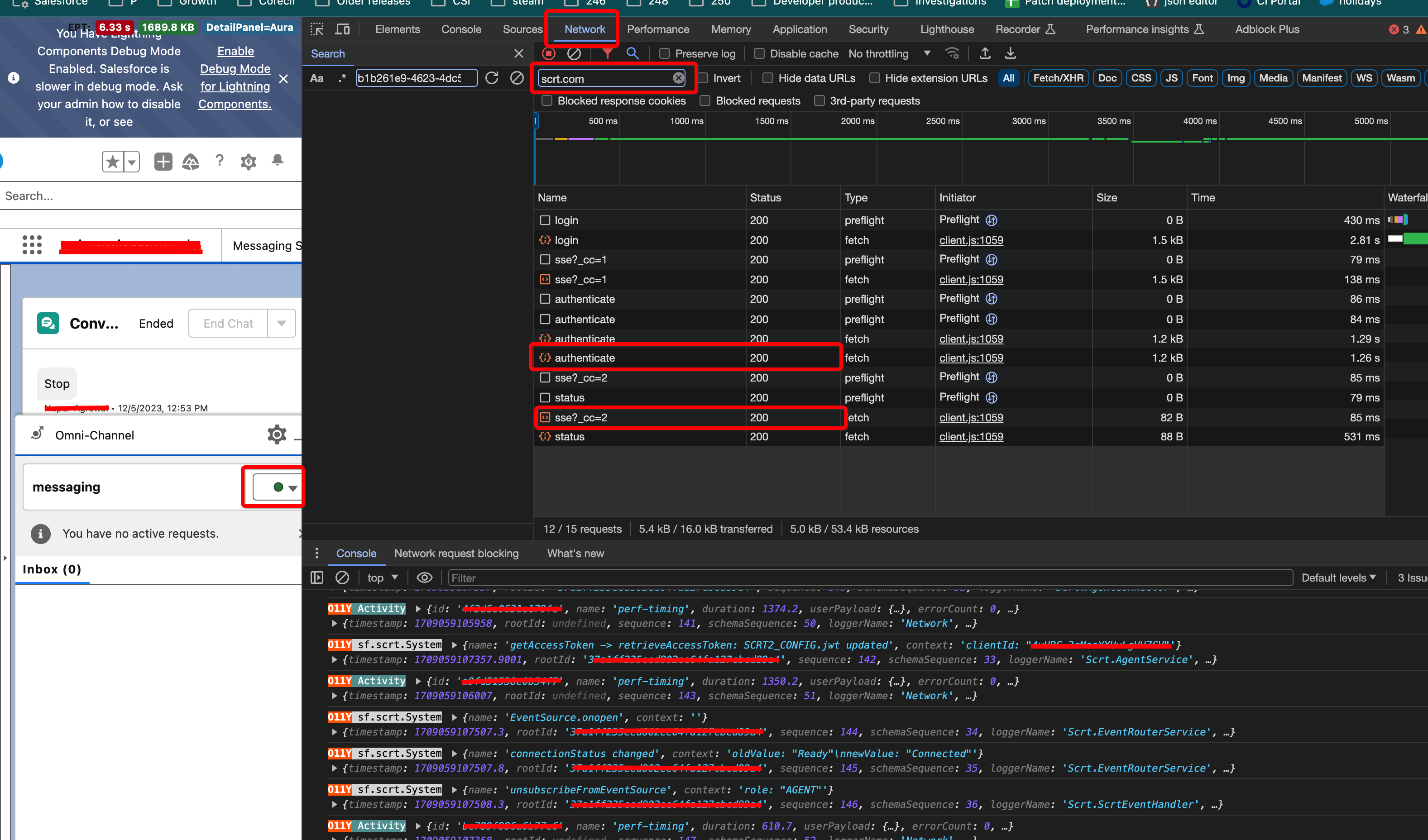
- Inspect and open the network tab
- Login to omni
- search for salesforce-scrt.com in the Network tab → this should filter and show all the backend calls that are related to voice/enhanced messaging features
- We need both authenticate call and sse calls to have status=200 meaning the calls were successful
- If either or both calls are not successful, we have to make sure that they are not blocked by how agent’s workstation is setup
- We have seen status=pending forever and never becomes 200 in some cases
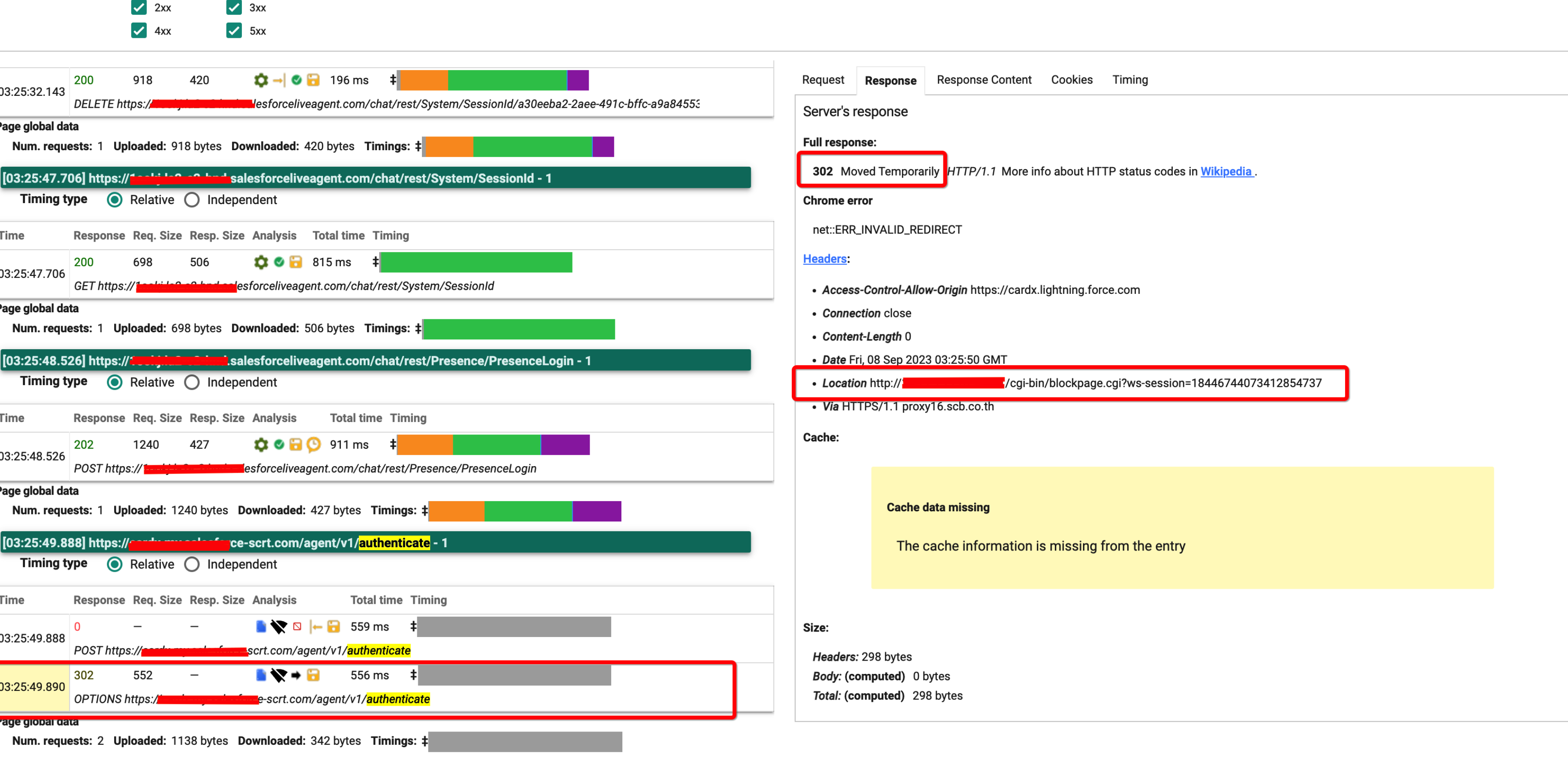
- We have also seen Websense proxy blocking the server call. Below screenshot is from an inspection of har file (similar to network tab inspection)
If the Websense proxy is blocking the call, you will see the request stuck in a non-200 status, as shown in this HAR file inspection:
How to Resolve:
- Ask the IT and/or network team to add https://*.salesforce-scrt.com to the list of allowed domains.
- Work with IT and/or network team and check if any of the softwares or proxy could block malicious download and turn that feature off and test
- Verify that the firewall or proxy is not blocking or inspecting traffic for SSE connections.
- Confirm that the browser and device being used support SSE.
- Ensure that any security software or browser extensions are not interfering with SSE connections.
Yderligere ressourcer
https://developer.mozilla.org/en-US/docs/Web/API/Server-sent_events/Using_server-sent_events
Vidensartikelnummer
002232058
Løste denne artikel dit problem?
Giv os besked, så vi kan forbedre os!
