Select An Org
Troubleshoot Priming Issues for the Salesforce Mobile Offline App
Publish Date: Sep 20, 2024
Description
Timeout | Unable to Resolve Hostname | SalesforceSDKCore.RestClientError | Request Failed
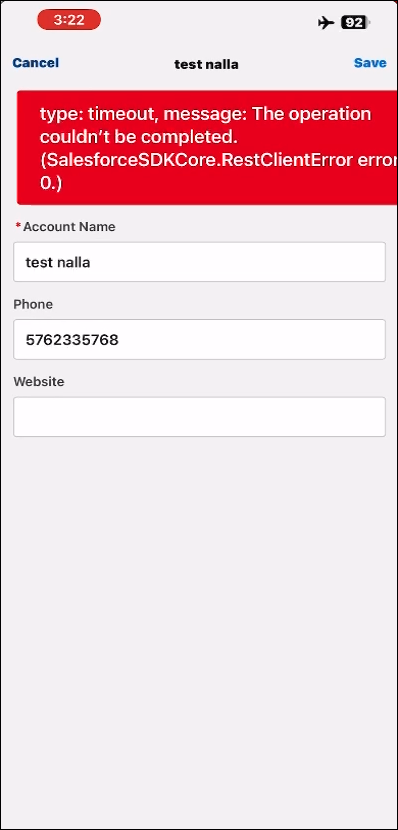
Sometimes users may see a large red toast message stating a network related error such as a hostname error or SalesforceSDKCore.RestClientError while the device is offline. This error typically occurs when visiting pages while offline that should have all components, modules, and record data cached.
Resolution
Use the Test Harness to Debug
The LWC Offline Test Harness (Test Harness, for short) is a lightweight testing, debugging, and inspection app. It enables developers to debug Lightning web components for use in their LWC Offline-based mobile apps. Use Test Harness to execute Quick Actions on selected SObjects from your Salesforce org, debug component JavaScript, and inspect drafts and draft queue behavior.
To learn more about using Test Harness, see Develop Ofline-Ready LWCs with the LWC Offline Test Harness.
To download and install Test Harness app, see Install the Test Harness App.
After installing the Test Harness app, determine which quick action is causing issues. If a red toast message appears when navigating to a record, the issue is likely the .view quick action.
Use the network tracing feature in the Test Harness app and take not of all the network requests made when priming the quick action in question.
- Tap on the SObjects tab and navigate to the object with the issue.
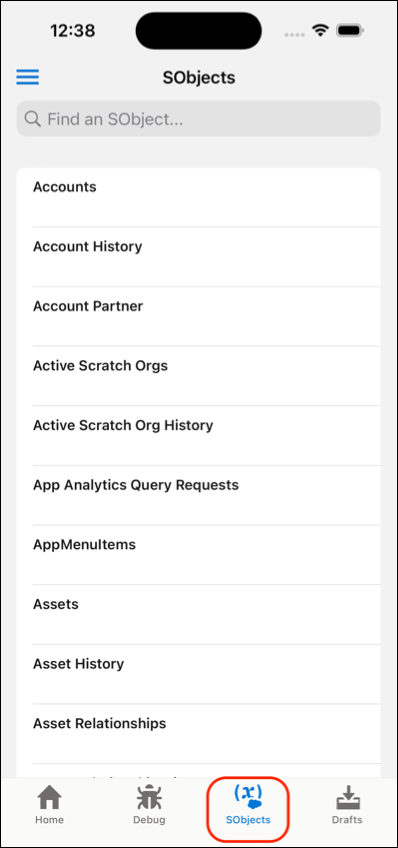
- Tap on a record.
- Swipe left on the quick action and tap on the Lightning bolt button.
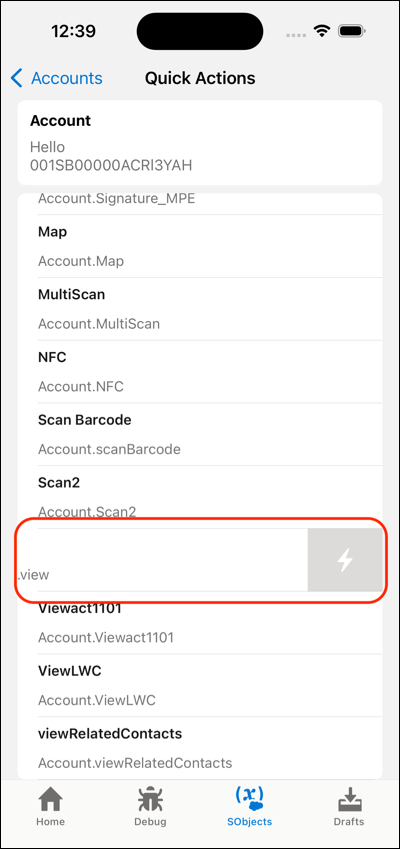
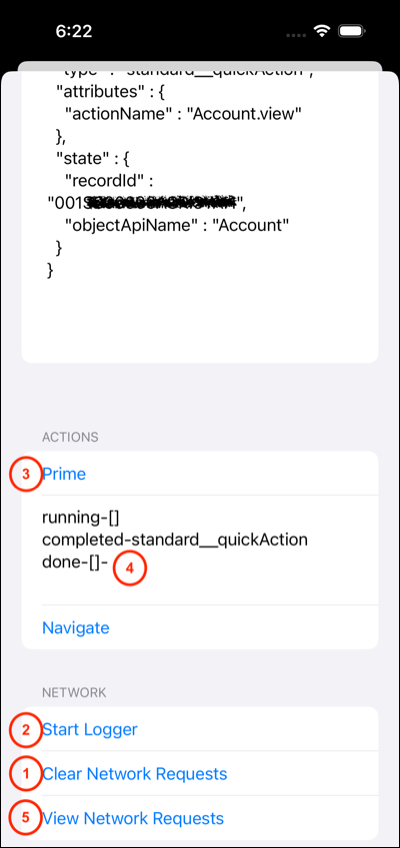
- Perform the following:
- Tap Clear Network Requests.
- Tap Start Logger.
- Tap on Prime.
- Wait for priming to finish as signaled in the log area.
- Tap View Network Requests.
- Take note of the requests of copy them elsewhere.
- Perform the following:
- Tap Clear Network Requests.
- Tap on Navigate.
- Tap on the Debug tab.
- Tap Stop in the Network Logs section.
- Tap Show.
- Take not of the requests or copy them elsewhere.
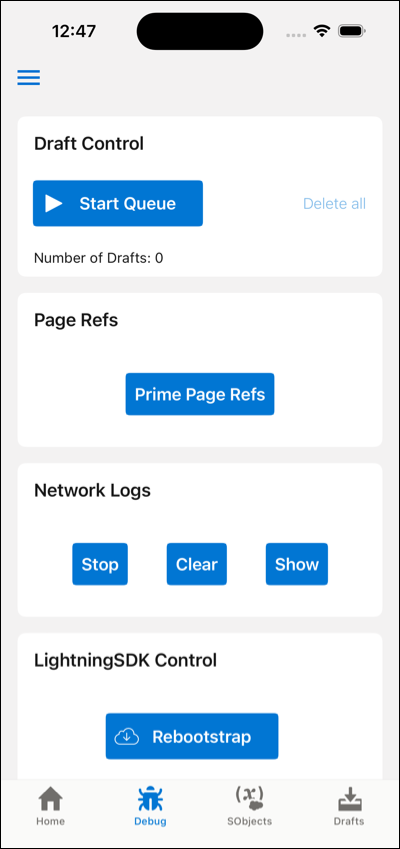
Compare and contrast the network requests during priming versus navigation. If there are any network requests made during navigation that were not made during priming, that indicates that the prefetcher is not able to prime your LWCs as expected.
Here are some scenarios that might be the cause for this issue and how to resolve them.
Avoid Using Private @track Variables When Prefetching Data
Make sure only a public property is passed in an @wire function. The rule also applies to wired apex functions. Any wired function cannot be called during prefetching if a private property is passed in as its parameter. This issue can be caught by the static analyzer.

- Use the Komaci Static Analyzer to catch this in VS Code during development.
- Best practice is to use a getter instead of a private property
Make sure that there is no conditional rendering of lightning-record-forms dependent on @track variables.
If data prefetch of lightning-records-forms are dependent on a @track variable, none of it will be prefetched at priming time.
GraphQL is Not Running During Prefetching
GraphQL wire adapter is a common way to retrieve data in LWC. There are common issues that GraphQL is not running during prefetching.
queryandvariablesshould be defined inside getter methods. (example)- All the fields inside of query should be accessible by the user.
- Use single return statements when using Delay Query Execution (example)
- Query is not well-formed, or contains typos on case-sensitive field names. (use the following tools to validate)
Resources around GraphQL best practices.
- GraphQL Wire Adapter Best Practices in the GraphQL API Developer Guide
- Troubleshoot GraphQL issues comment in the Trailblazer Community
Tools to run queries.
- Web based tool: login the org and attach “/qa/graphiql.jsp” after the domain url.
- Third-party tools:
Subcomponents Are Not Getting Prefetched
See the How to correctly prime different subcomponents depending on object data Quip doc for more information on why this occurs and how to solve this issue.
Explicitly Calling for the Record Type Defaults as an @-wire
After following the initial triage, if the only additional network call made was /ui-api/record-defaults, then it’s likely due to the default values prefetched by <lightning-record-edit-form> not matching the record type that is actually used to view the page.
// NOTE: For the data graph to resolve correctly at prefetch time, use literal values
@wire(getRecordCreateDefaults, { objectApiName: STOREVISIT, recordTypeId: "0122M0000013L8FQAU" })
scheduledRecordDefaults;
Knowledge Article Number
002370792
Did this article solve your issue?
Let us know so we can improve!
