Velg en organisasjon
How to Add a Clickable Hyperlink to a Name Field within a Data Table Component in a Screen Flow
Publiseringsdato: Jul 14, 2025
Beskrivelse
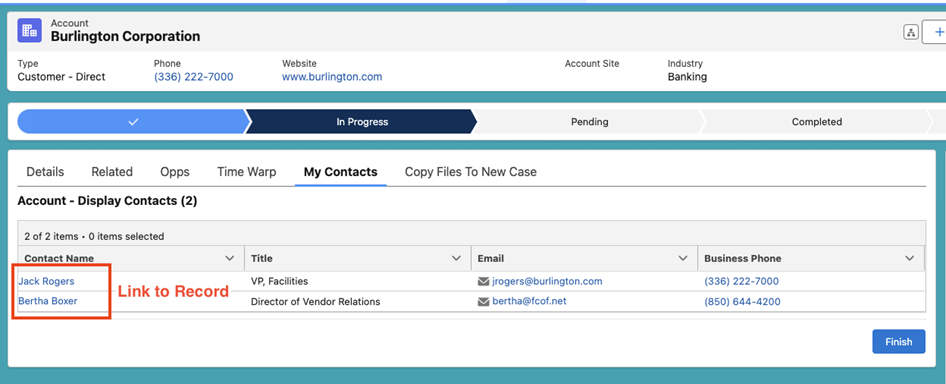
A business has configured a Screen Flow which is embedded on an Account Lightning Record Page. The Flow displays a Data Table with each of the Account’s related Contacts, showing some of the records’ key information at a glance. The business would like to update the screen so that the Contact’s Names are clickable and will navigate the user to the Contact record when the link is clicked.
Løsning
Out of the box, at the time of writing, the standard Screen Flow Data Table component does not support clickable “Name” fields. As a workaround, we can create a formula field on the object which uses the Hyperlink function to create a URL which can be directly accessed from the Data Table.
Note : As a best practice, be sure to build and test Flows in a Sandbox before deploying to a Production environment.
Step 1: Create a new Formula field on the object whose records will be displayed in the Data Table - in this example, we are displaying related Contacts on an Account’s record page, so the Formula field will be added to the Contact Object. The Formula field should be of type Text, and the formula will be configured using the Hyperlink function to display the First and Last Name of the Contact, while linking to the record Id
HYPERLINK("/" & Id, FirstName & " " & LastName, '_self')
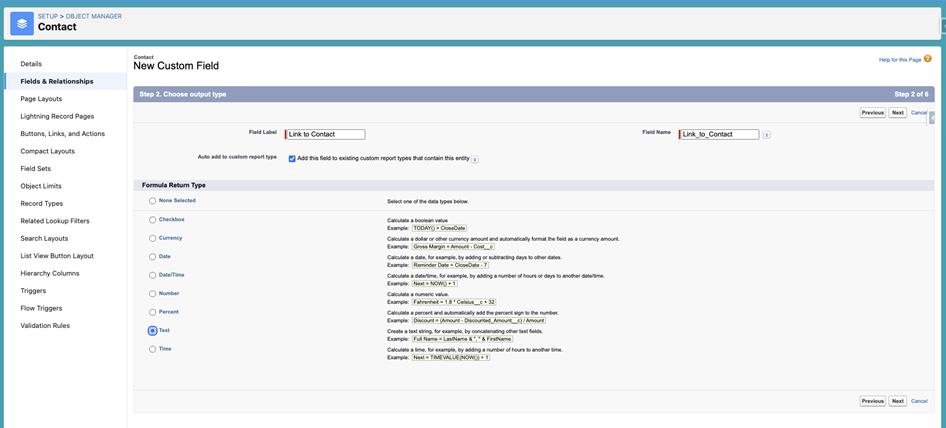
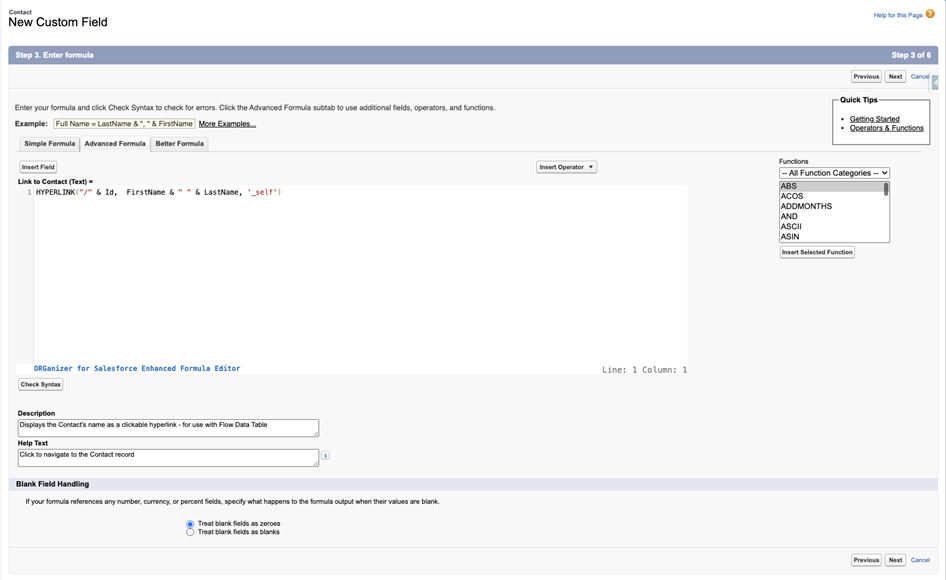
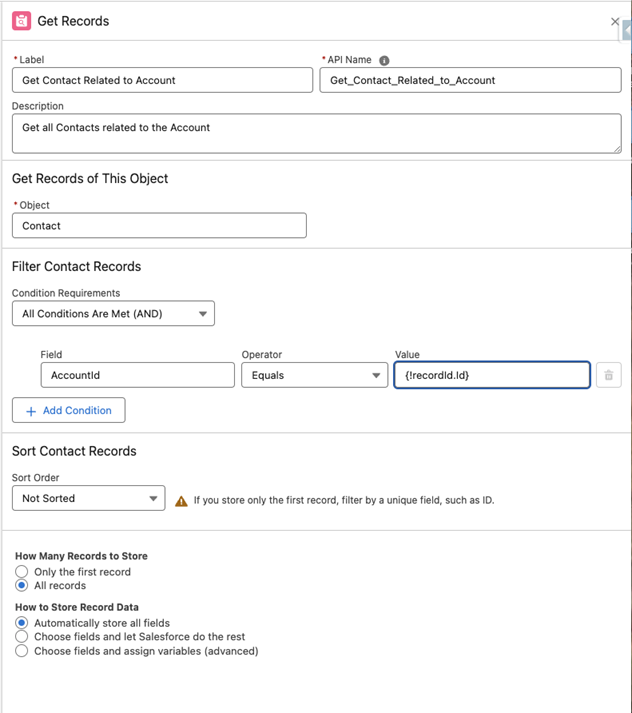
Step 2: To obtain the collection of Contacts to display, a Get Records Element is configured to find all Contacts where the AccountId = Current record’s Id
Step 3 : Within the Flow, navigate to the Data Table Component on the Screen Element and add the new formula field as a column in the Data Table - we can modify the label to display a user-friendly name, such as Contact Name vs. the name of our Formula Field. For example, if the Formula Field is called Link to Contact, we can modify the Data Table column to instead display Contact Name
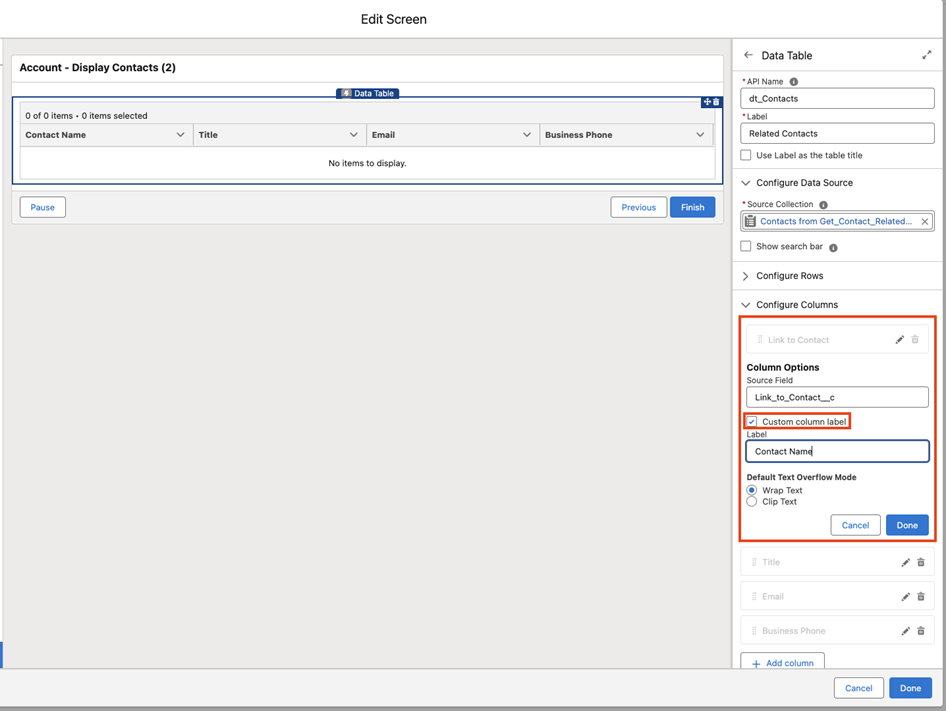
Step 4 : Save and Debug the Flow, and note how the Contact Name column appears with a clickable hyperlink. When activated and embedded on an Account page, the Flow should return results similar to the screenshot below :
Additional Resources:
_____________________________________________
Written by: Zack Terry | Forum Ambassador
Zack Terry is a Senior Solution Architect at Fast Slow Motion, which aims to be a blessing to business leaders by helping them implement and maximize their use of the Salesforce platform. At the time of writing, Zack has worked in the Salesforce ecosystem for nearly a decade, holds 24 Salesforce Credentials, and has achieved the rank of “All-Star Ranger” on Trailhead. Zack serves as a Trailblazer Community Forum Ambassador, and regularly participates in the community
Submissions reflect only the opinions of the user who made available the Submission and not the opinions of Salesforce, regardless of whether the user is affiliated with Salesforce, and may contain or constitute products, services, information, data, content and other materials made available by or on behalf of third parties ("Third Party Materials). Salesforce neither controls nor endorses, nor is Salesforce responsible for, any Third Party Materials, including their accuracy, validity, timeliness, completeness, reliability, integrity, quality, legality, usefulness or safety, or any applicable intellectual property rights. Any Submissions made available through any message board or forum in response to posted questions, or that otherwise purports to answer any questions, including any questions about Salesforce or Programs, are made available for your general knowledge only and should never be relied upon as answers to your specific questions (even if an answer is marked as a “best” answer or with any similar qualifications). You should always contact Salesforce support for answers to your specific questions. Salesforce has no control over Submissions, and is not responsible for any use or misuse (including any distribution) by any third party of Submissions.
If you have questions, tap into the wisdom of our entire Trailblazer Community here: https://trailhead.salesforce.com/trailblazer-community/feed
Knowledge-artikkelnummer
002471439
Hjalp denne artikkelen med å løse problemet ditt?
La oss få vite det slik at vi kan forbedre!
