組織を選択
[SFS] Screen Components Remain Editable in Salesforce Field Service Mobile App When Disabled or Read Only Is Set to True in Flow Builder
公開日: May 12, 2026
説明
In Salesforce Field Service (SFS), there may be a need to make certain screen components read-only or disabled in Field Service Mobile Flows to restrict user input on the Field Service Mobile App.
While it is possible to configure the Disabled or Read Only properties in Flow Builder by setting their value to True (or using a formula that evaluates to True), this functionality is currently not supported in the Field Service Mobile App. It works as expected on desktop only.
Steps to Reproduce the Issue
- In Flow Builder, create a Field Service Mobile Flow
- Add a Screen element to the flow
- Include one or more screen components and set the Disabled or Read Only field to the global constant True (available in the flow formula editor as the True global constant)
- Save and activate the flow
- Run the flow in the Field Service Mobile App
Expected Behavior
The screen components should appear as disabled or read-only, preventing the mobile user from entering or modifying data.
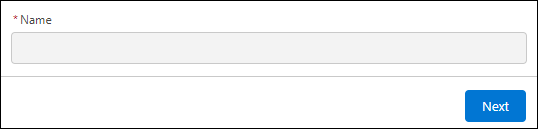
Actual Behavior
On the Field Service Mobile App, the components remain fully editable even when Disabled or Read Only is set to True. This is a known limitation of the current Field Service Mobile App flow engine. The Disabled and Read Only properties are respected on desktop but are not currently enforced in the mobile app.
解決策
To achieve a read-only display in the Salesforce Field Service Mobile App, use the Display Text component instead of a standard input component. The Display Text component presents information in a non-editable format in the mobile app and is fully supported in Field Service Mobile Flows.
Steps to Implement the Workaround
- In the Screen Element of the Field Service Mobile Flow, navigate to the Components section
- Drag and drop the Display Text component onto the screen
- Configure the Display Text component:
- Enter a descriptive name in the API Name field (for example, ReadOnlyInfo)
- Add the desired message or field reference in the text body of the component
- Click Done to save your changes
- Save and activate the flow, then test on the Field Service Mobile App
By using the Display Text component, the information is presented in a read-only format in the Field Service Mobile App, effectively preventing user input.
ナレッジ記事番号
002527163
この記事で問題は解決されましたか?
ご意見をお待ちしております。
