Sélectionner une organisation
Salesforce Flow: Extract Part of a Long Text Area Field into Another Text Field Using MID and FIND
Date de publication: Oct 9, 2026
Description
In Salesforce, a business may need to extract a specific segment of a string stored in a long text area field and display it in a separate text field on the same record. Since formula fields cannot reference long text area fields, a Record-Triggered Flow using a MID and FIND formula resource is the recommended approach.
Résolution
This article explains how to extract a specific segment from a long text area field in Salesforce and populate it into a separate text field using a Record-Triggered Flow with a MID and FIND formula resource. Since formula fields cannot reference long text area fields, this Flow-based approach is the recommended workaround.
Example Scenario
This example uses the following string and retrieves only the job title:
{"vacancy_details":{"salary":{"to":"55","period":"hour","from_x":null,"currency_x":null,"benefits":"Subsidisedaccom "},"job_title":"Physiotherapist","job_reference":
The string is stored in a long text area field, so a formula field cannot read it. Use a Record-Triggered Flow on the object instead.
Solution Overview
Step 1. Create a Custom Object with Two Fields
Create a custom object called Test and create two fields on the Test object:
- Long text area
- Text
Step 2. Create a New Record-Triggered Flow
Go to Setup, search for Flows in the Quick Find box, and click the New Flow button.
- Select Start from scratch and click Next.
- Select Record-Triggered Flow and click Create.
Step 3. Configure the Start Element
In the Start element, select the object that the long text field is on, and set it as follows:
- Trigger the flow when A record is created or updated.
- Set Condition Requirements to Any Condition Is Met (OR).
Long_text_area__c - Is Null - {!$GlobalConstant.False}
Long_text_area__c - Is Changed - {!$GlobalConstant.True}
The first condition checks that the long text area field is not empty. The second condition checks that the field value changed.
Step 4. Select Fast Field Updates
Make sure Fast Field Updates is selected, since the destination field is on the same object.
Step 5. Switch the Flow Layout to Free-Form
Change the default layout of the flow from Auto-Layout to Free-Form. On the left side in the Toolbox, switch to Manager.
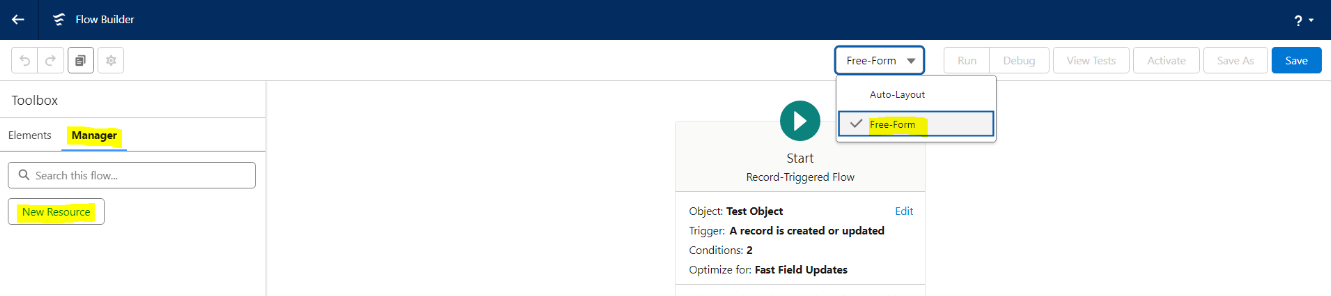
Step 6. Create a Formula Resource
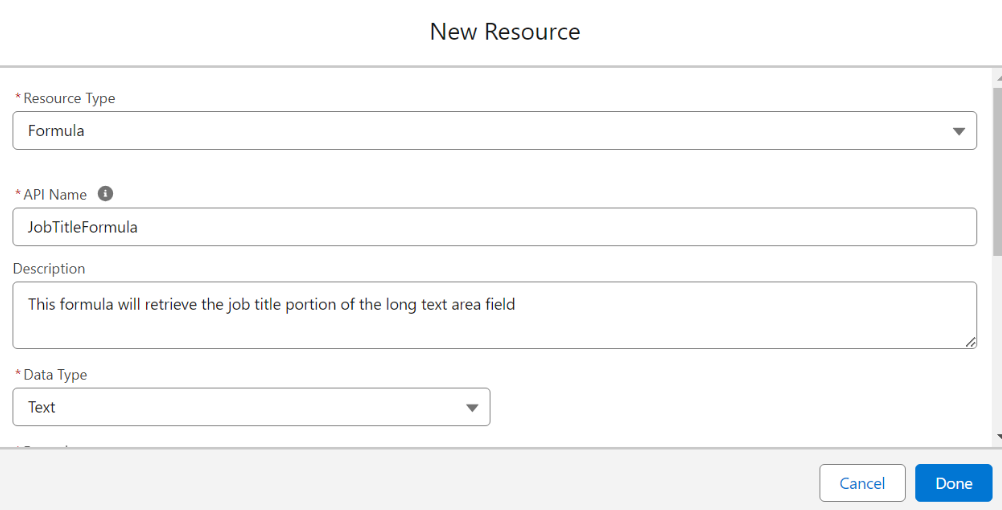
Click New Resource and select Resource Type as Formula. Give it a name (and description), set the Return Type to Text, and enter the formula below.
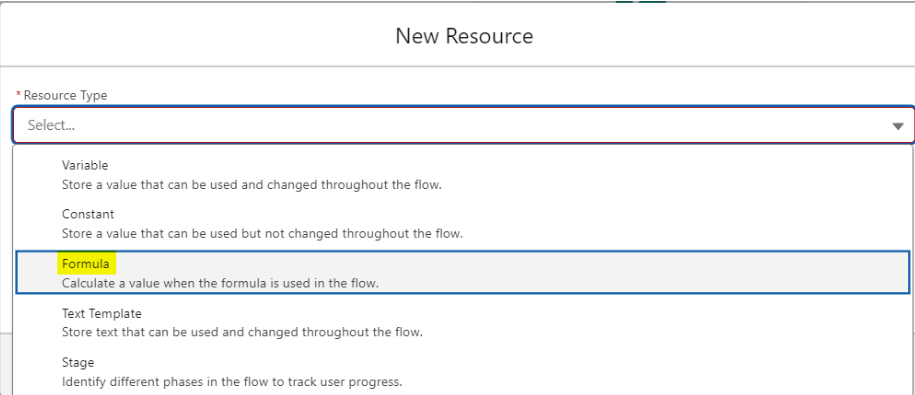
The following formula returns the text between the quotation marks that follow the job_title key. The FIND function locates where the job title starts, the LEN function skips the length of the search text, and the MID function returns the characters up to the closing quotation mark.
MID({!$Record.Long_text_area__c},
FIND('"job_title":"',{!$Record.Long_text_area__c}) +LEN('"job_title":"'),
FIND('"',{!$Record.Long_text_area__c},FIND('"job_title":"',{!$Record.Long_text_area__c})+LEN('"job_title":"'))-(FIND('"job_title":"',{!$Record.Long_text_area__c})+LEN('"job_title":"'))
)
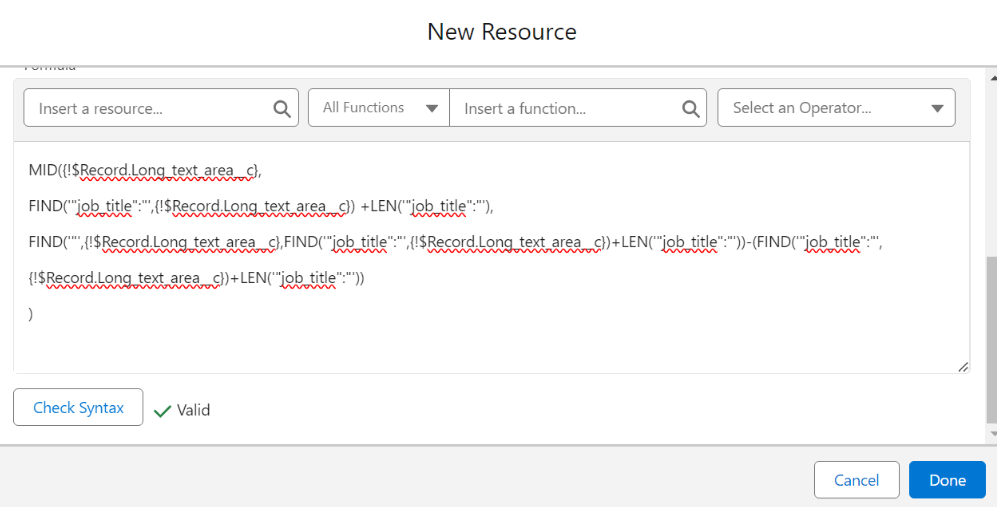
Note: The field on this example object is called Long_text_area__c. Your field name is likely different, so update the Formula accordingly. To find your field, click Insert a resource, go to $Record, and select from the list of fields on the triggering object.
Step 7. Add an Update Records Element
In the Elements section, drag and drop the Update Records element onto the canvas.
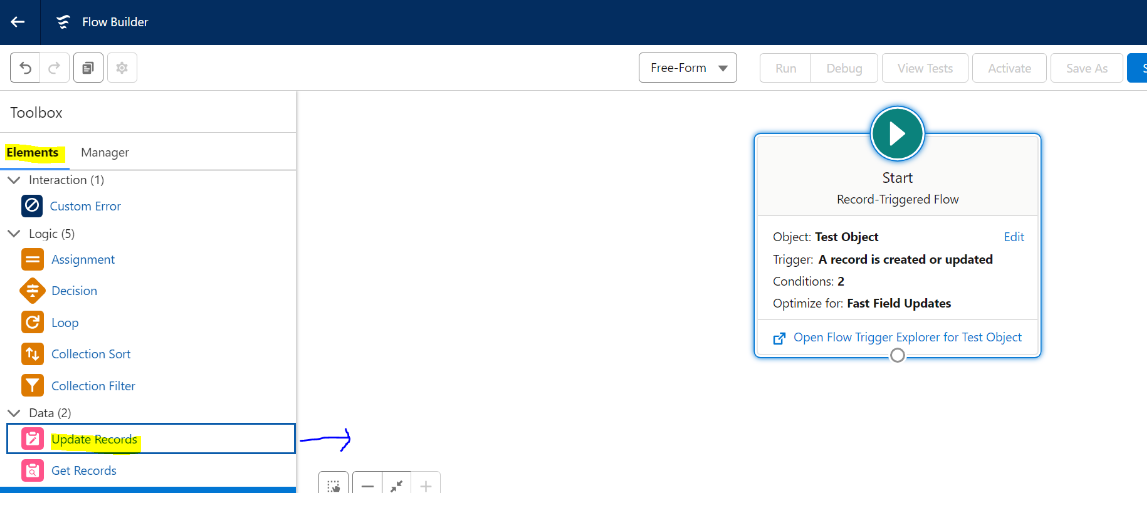
Step 8. Configure the Update Records Element and Activate the Flow
- Update the Update Records element as shown in the screenshot.
- Click Done, then join the Start element with the Update Records element as shown in the screenshot.
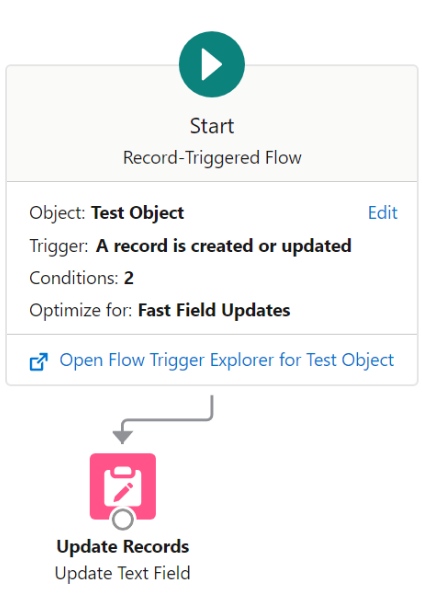
Save and Activate your Flow, and then test it.
Step 9. Test the Flow
Create a record in the Test object by copying the following long text example into the Long text area field:
{"vacancy_details":{"salary":{"to":"55","period":"hour","from_x":null,"currency_x":null,"benefits":"Subsidisedaccom "},"job_title":"Physiotherapist","job_reference":
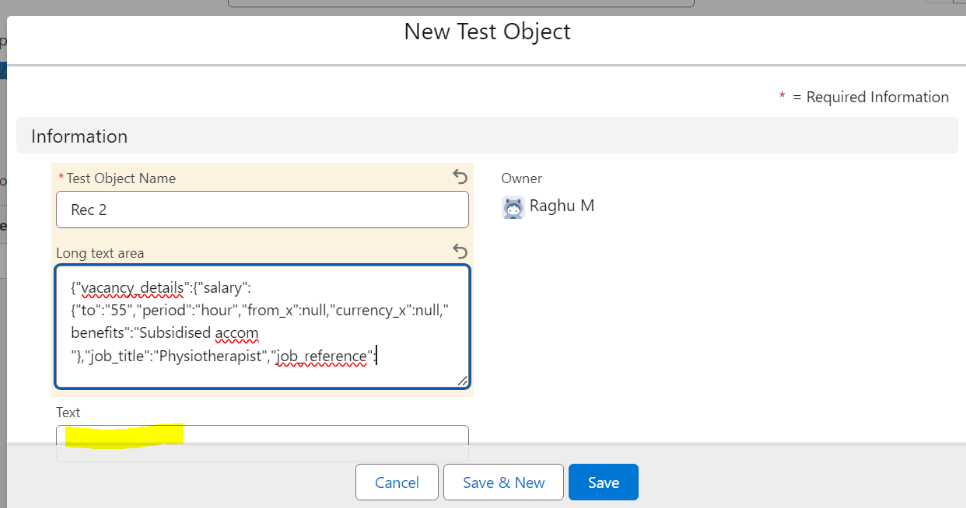
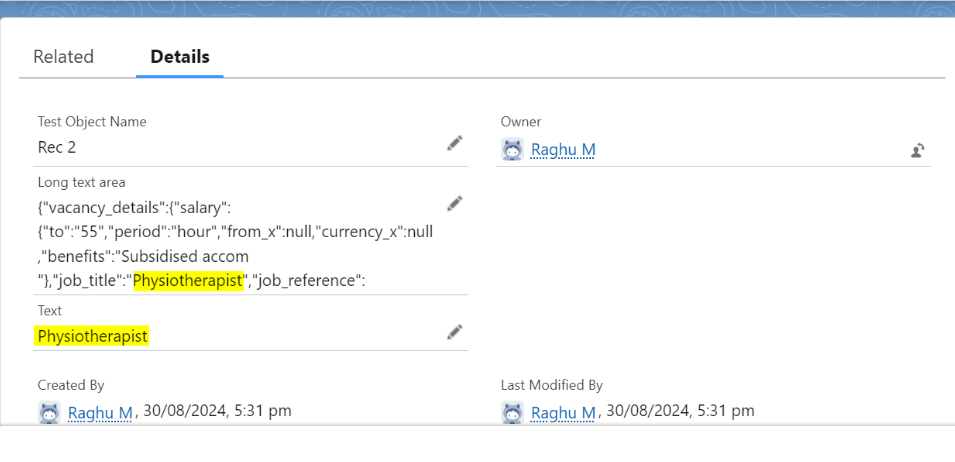
After you save the record, the Text field populates automatically with the Job title value in the Long text area field, as shown in the screenshot.
About the Author
Written by: Eric Praud | Forum Ambassador
Eric is a Salesforce Platform Manager at Active8 Solar Energies and has been working in the Salesforce ecosystem for the past 14 years. He started his Salesforce career as a Salesforce support agent. Like many others, he stumbled across the platform accidentally and hasn’t looked back since. Eric is very active in the Answers community and has been a Salesforce MVP since March 2021.
Submissions reflect only the opinions of the user who made available the Submission and not the opinions of Salesforce, regardless of whether the user is affiliated with Salesforce, and may contain or constitute products, services, information, data, content and other materials made available by or on behalf of third parties ("Third Party Materials"). Salesforce neither controls nor endorses, nor is Salesforce responsible for, any Third Party Materials, including their accuracy, validity, timeliness, completeness, reliability, integrity, quality, legality, usefulness or safety, or any applicable intellectual property rights. Any Submissions made available through any message board or forum in response to posted questions, or that otherwise purports to answer any questions, including any questions about Salesforce or Programs, are made available for your general knowledge only and should never be relied upon as answers to your specific questions (even if an answer is marked as a "best" answer or with any similar qualifications). You should always contact Salesforce support for answers to your specific questions. Salesforce has no control over Submissions, and is not responsible for any use or misuse (including any distribution) by any third party of Submissions.
If you have questions, tap into the wisdom of our entire Trailblazer Community here: https://trailhead.salesforce.com/trailblazer-community/feed
Ressources supplémentaires
Numéro d’article de la base de connaissances
002625407
Cet article a-t-il résolu votre problème ?
Dites-nous ce que nous pouvons améliorer !