Vælg en organisation
Field Service - Understanding "Field Service Automatic Sharing" in Service Appointment Sharing Hierarchy
Udgivelsesdato: May 18, 2026
Beskrivelse
In Salesforce Field Service, the Service Appointment record's Sharing Hierarchy may show a sharing reason labeled Field Service Automatic Sharing. This article explains what triggers this sharing reason, how to verify it in an org, and how to reproduce the behavior step by step.
Løsning
In the Service Appointment record page, under the actions click on Sharing Hierarchy. When the reason for access is Field Service Automatic Sharing, this indicates that sharing is enabled via the Share dispatched service appointments with their assigned resources setting, located in Setup > Field Service Settings. This sharing only takes place when the Service Appointment status is set to Dispatched.
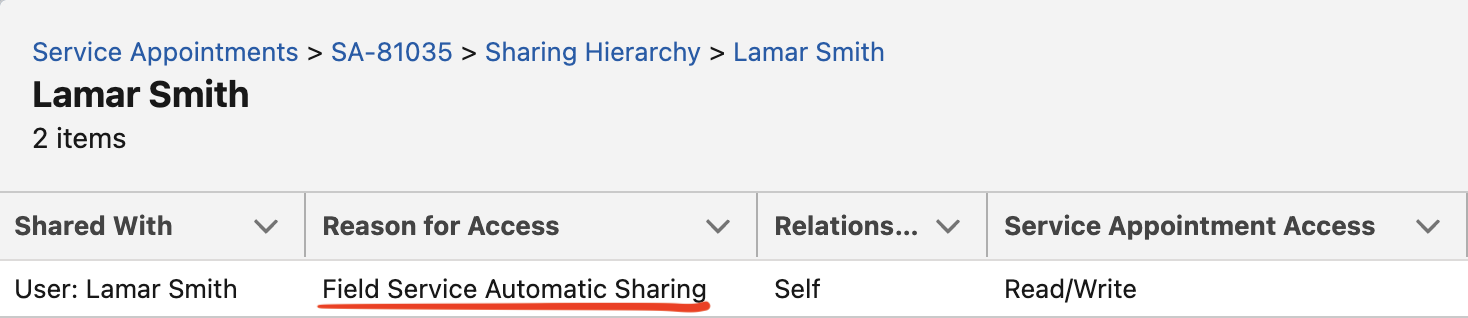
Steps to reproduce and verify:
- Ensure the setting Share dispatched service appointments with their assigned resources is enabled from Setup > Field Service Settings.
- Assign a Service Appointment to a Service Resource, and set the Service Appointment status to Scheduled.
- From the Service Appointment, navigate to Sharing Hierarchy and click View against the Service Resource name.
- Confirm there is no sharing entry with Reason for Access as "Field Service Automatic Sharing" (because the status is Scheduled, not Dispatched).
- Change the Service Appointment status to Dispatched and repeat step 3.
- A sharing entry with Reason for Access as Field Service Automatic Sharing now appears, confirming the setting is active.
Alternatively, the following query can also be used to check the sharing:
SELECT Id, ParentId, RowCause, LastModifiedDate FROM ServiceAppointmentShare WHERE ParentId = '<SA ID>'
Yderligere ressourcer
Vidensartikelnummer
002772121
Løste denne artikel dit problem?
Giv os besked, så vi kan forbedre os!
