Velg en organisasjon
How to dynamically notify different recipients based on critical Opportunity stage updates
Publiseringsdato: Aug 25, 2025
Beskrivelse
A Customer would like to notify different recipients within Opportunity Team Member based on specific Opportunity Stage
Løsning
To set the context, we have a customer who would like to notify specific stage updates to the respective Opportunity team members based on their role. To Explain, lets consider that we have an Opportunity with many opportunity team members and they are assigned to specific team member roles like Sales Manager, Sales Executive and Pre-sales Consultant.
The ask is to
- Notify Opportunity team members with Pre-Sales Consultant role when the Opportunity Stage reaches “Need Analysis”,
- Notify Opportunity Team Members with Sales Executive role when the Opportunity stage reaches “Perception”,
- Notify Opportunity Team Members with Sales Managers role when Opportunity stage reaches “Negotiation/Review”.
In the past, the solution to cater above use case would have required Apex Triggers to selectively send specific Opportunity stage updates to respective team members. This is because the native Email Alert action within salesforce has “Opportunity Team” as a Recipient option, but the Email Alert action will then end up communicating Stage updates to all Opportunity team members; contrary to our ask.
Hence, a perfect no-code solution for such situations is the “Send Email” Flow Core Action, as this Core action can help to inform record updates to selective recipients dynamically, with no additional customization. Steps to execute the same is as below:
Lets Assume that we have an Opportunity with respective Team members present. Resolution steps are as below:
Step 1 :
- Navigate to the Setup page and enter Flows in the quick find box. Select Flows > New Flow > Record Triggered Flow
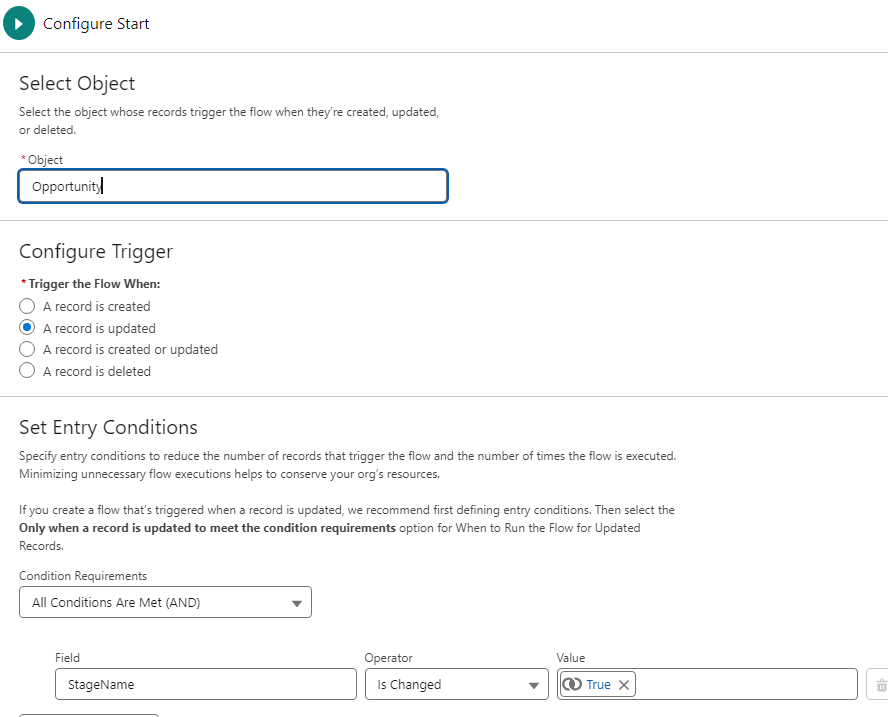
- We then select Opportunity as the Object here with the Entry Condition for Flow execution looking at Stage Updates
Step 2 :
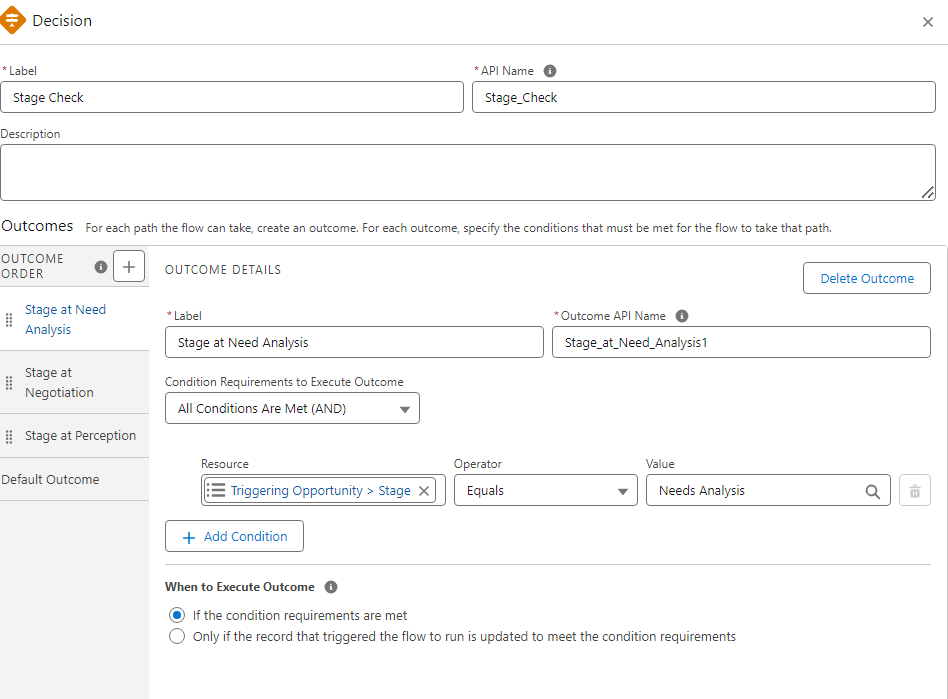
- Next Flow element is Decision element which looks for specific Stage updates. In this case our focus is to look at Opportunity Stage updates when stage reaches Need Analysis, Perception Or Negotiation/Review. As a result we will have specific Decision outcomes configured as per below
Step 3 :
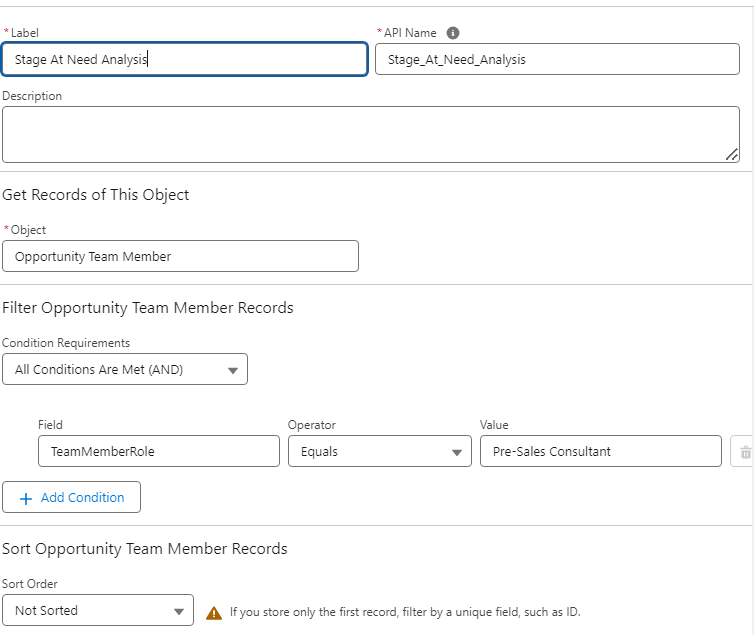
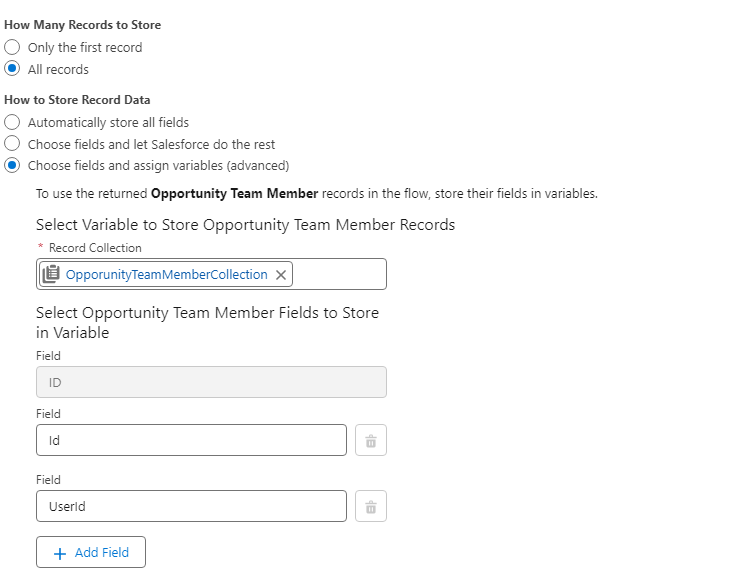
- We then have a GET records element to query respective Opportunity Team Member. For instance query all Opportunity Team Members with assigned Role as Pre Sales Consultant so that they can be notified when Stage reaches Need Analysis. As you can have multiple team members with same role, we will have multiple team members stored in record collection variable OpportunityTeamMemberCollection as below
Step 4 :
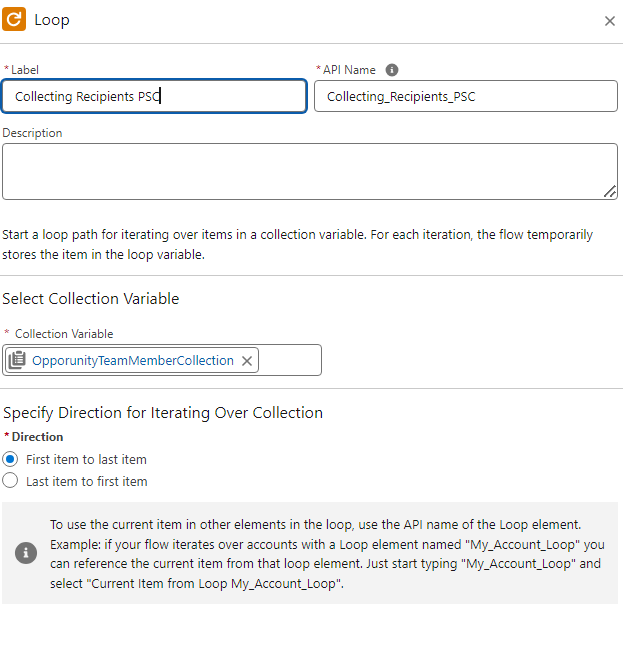
- We would then have a For Loop to retrieve each record from the collection variable OpportunityTeamMemberCollection as below
Step 5 :
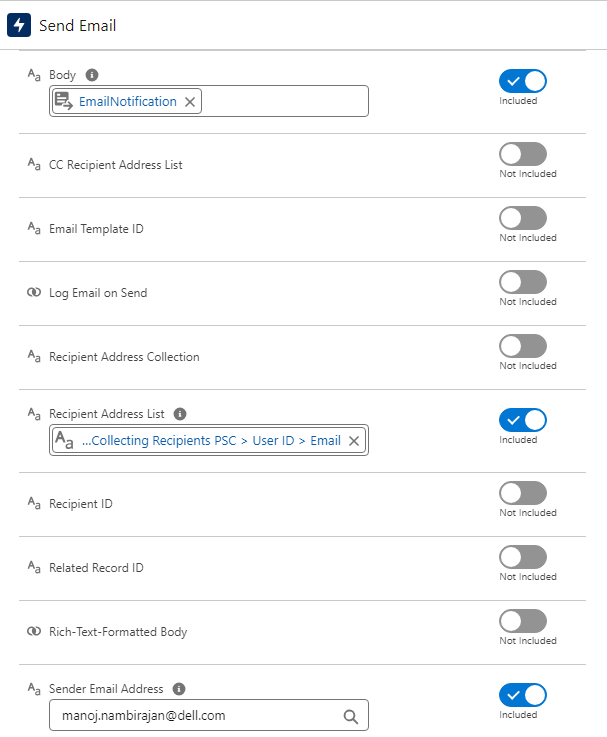
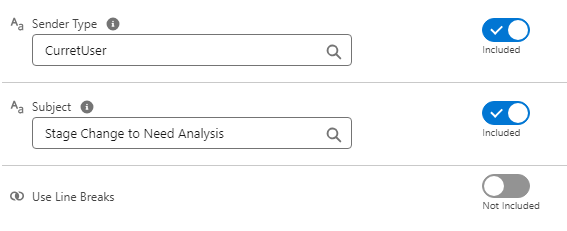
- Lastly, we would use the Send Email Action to communicate about Opportunity stage updates to respective Opportunity team member. For Send Email Action, as we are not using an existing Email Template there are few minimum attributes that needs to be defined as per below. Key attributes being
-
- Recipient Address is being defined here since we have a possibility of storing Email of multiple recipients as compared to a recipient id
- Body refers to Body of the Email Notification
- Sender Address can be Org wide email address or any standard email address
- Sender Type can be CurrentUser
Other attributes for Send Email Action can be referred from below link as we define Send Email action for respective needs
Overall Flow design is as below
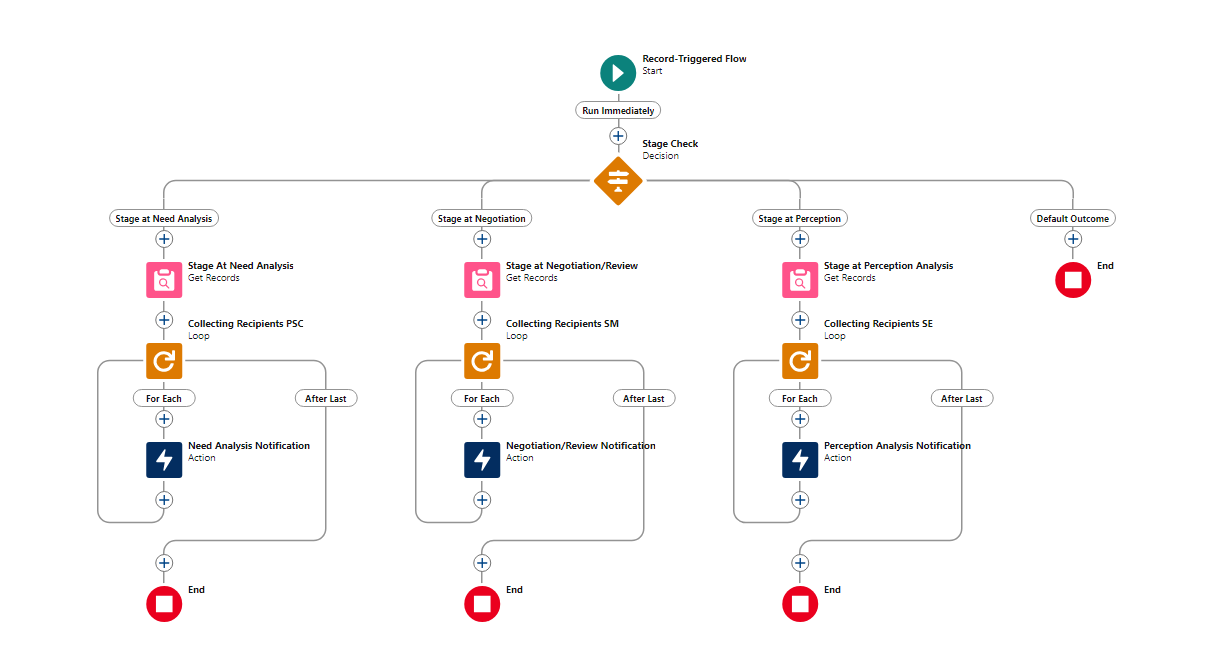
With the above configuration, we can thus be able to dynamically send communication to multiple recipients leveraging a no-code approach Send Email Action
__________________________________________
Written By : Manoj Nambirajan | Forum Ambassador
Manoj Nambirajan is a Salesforce Enterprise Architect at Dell Technologies with more than 17 years of experience in the Salesforce ecosystem. Manoj has exceptional leadership abilities and a flair for solving issues quickly. Accredited as Salesforce MVP, Manoj has 21 Salesforce certifications and is among the Top 10 Answers leader in the Trailblazer Community.
Submissions reflect only the opinions of the user who made available the Submission and not the opinions of Salesforce, regardless of whether the user is affiliated with Salesforce, and may contain or constitute products, services, information, data, content and other materials made available by or on behalf of third parties ("Third Party Materials). Salesforce neither controls nor endorses, nor is Salesforce responsible for, any Third Party Materials, including their accuracy, validity, timeliness, completeness, reliability, integrity, quality, legality, usefulness or safety, or any applicable intellectual property rights. Any Submissions made available through any message board or forum in response to posted questions, or that otherwise purports to answer any questions, including any questions about Salesforce or Programs, are made available for your general knowledge only and should never be relied upon as answers to your specific questions (even if an answer is marked as a “best” answer or with any similar qualifications). You should always contact Salesforce support for answers to your specific questions. Salesforce has no control over Submissions, and is not responsible for any use or misuse (including any distribution) by any third party of Submissions.
If you have questions, tap into the wisdom of our entire Trailblazer Community here: https://trailhead.salesforce.com/trailblazer-community/feed
Knowledge-artikkelnummer
002826033
Hjalp denne artikkelen med å løse problemet ditt?
La oss få vite det slik at vi kan forbedre!
