Sélectionner une organisation
Add a Related List to a Dedicated Tab on a Lightning Record Page
Date de publication: Apr 2, 2026
Description
A business tracks Vendor Product details related to their Accounts on a custom object called Vendor Products. The business would like to display related Vendor Product data on a dedicated tab on the Account Lightning Record Page so that users can easily access and review the information
Résolution
We can solve for this by adding a Tab to the existing Tabs component on the Account Lightning Record Page, and then adding a Related List Single component to the new Tab. Then we select the Vendor Product related list to display the records related to the Account within the Tab.
Step 1:
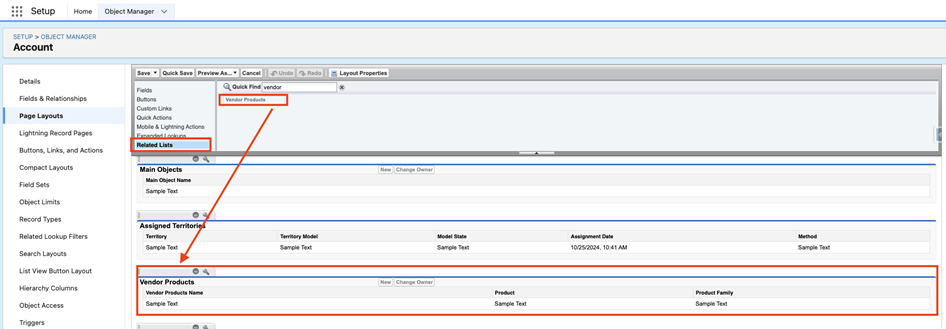
- Check that the Account page layout has the Vendor Product related list added to the layout this is necessary in order to display the records on the record page, and if we attempt to add the Related List single component for Vendor Products without having the Related List on the Account Page Layout, we will receive an error letting us know that the related list is not on the layout
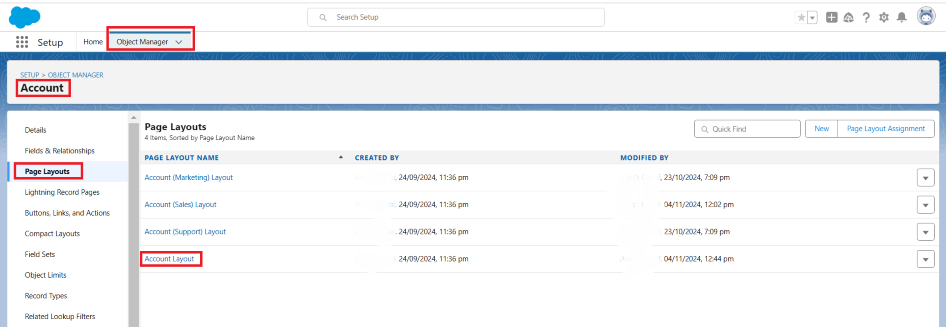
- Navigate to Setup -> Object Manager -> Account -> Page Layouts -> Select the Layout in use -> Click Related Lists -> Ensure that the Vendor Products or whichever Object you need to add has been added to the layout.
- If the related list is not present, drag it to the related list section and save the layout

Step 2:
- Navigate to an Account record and click the Setup Icon -> Edit Page

Step 3:
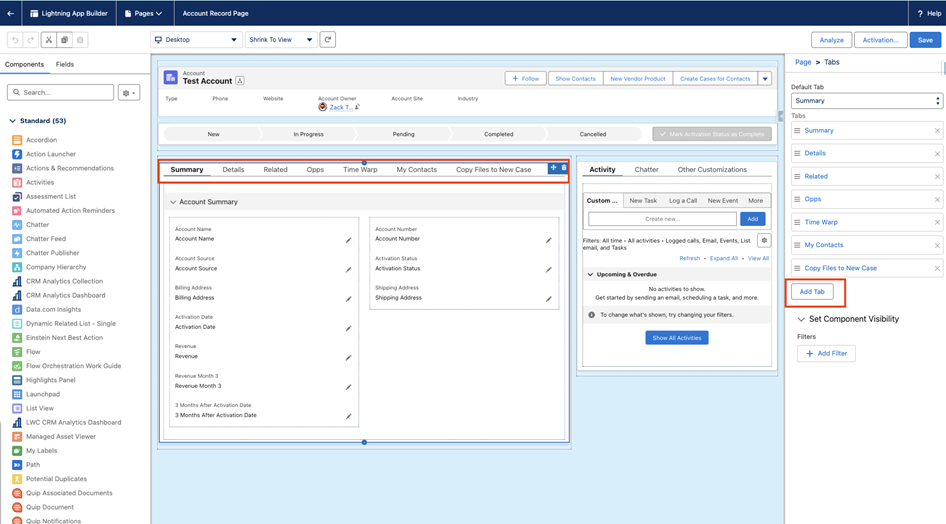
- Click on the tabs component on the lightning page, and then click Add Tab to create a new Tab within the component
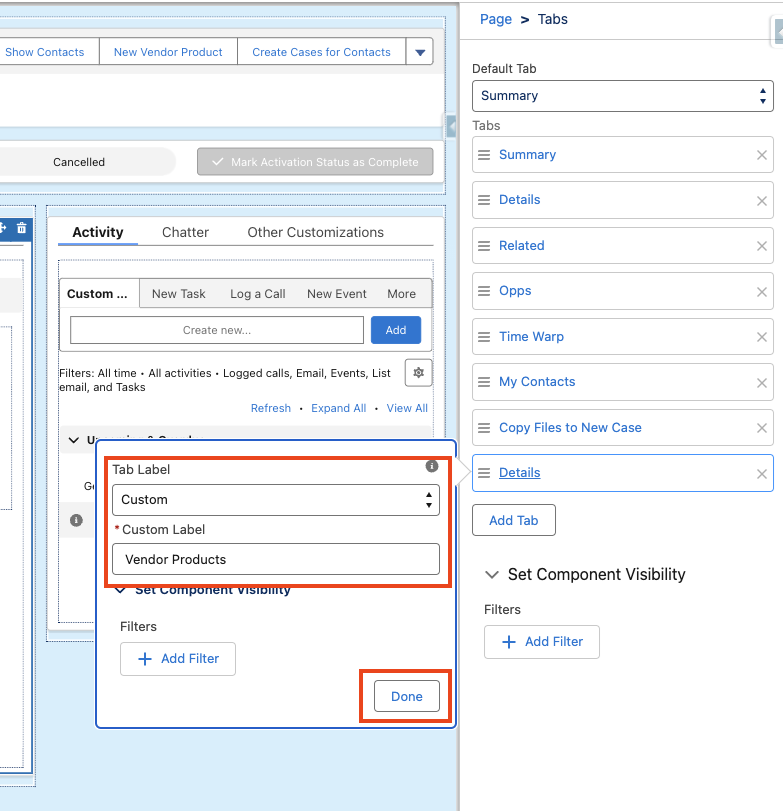
- Scroll to the top and select Custom, then create a label specific to the object we want to display in this case, we will call it Vendor Products. Click Done to add the tab to the component
Step 4:
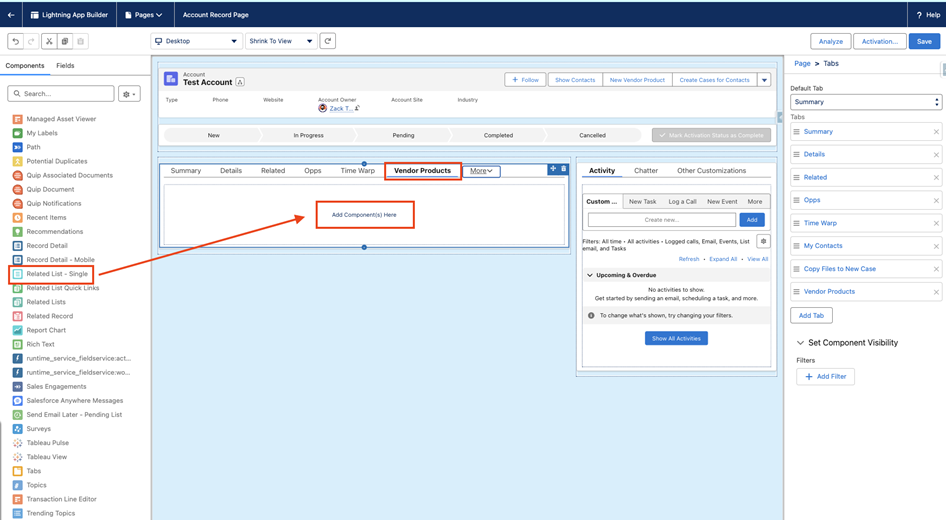
- While still in the page editor navigate to the New Tab. You may need to click More if you have multiple tabs already
- Then find the Related List Single component and drag it to the empty tab where it says Add Components Here
Step 5:
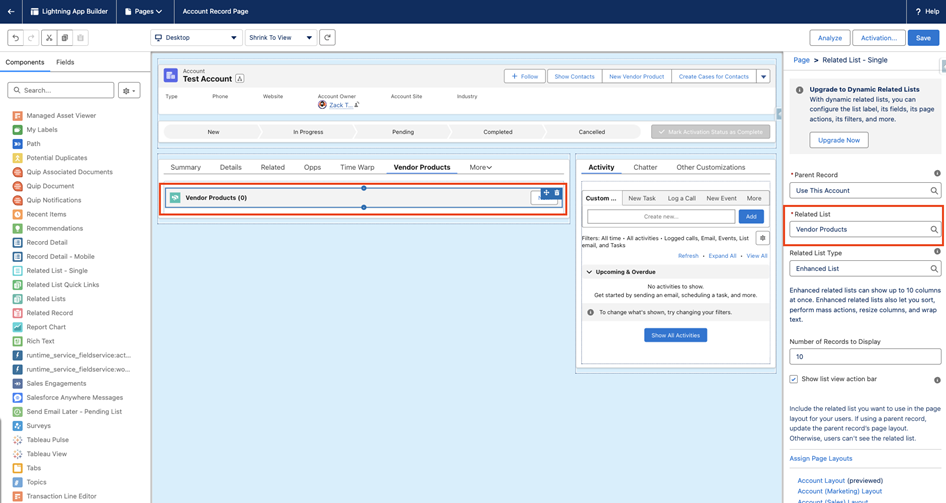
- Click on the newly added Related List Single component, and then from the right hand side, choose the Vendor Products related list from the Related List dropdown
- Optionally, choose what type of related list you would like to display in this example, we have chosen to use an Enhanced Related List
Step 6:
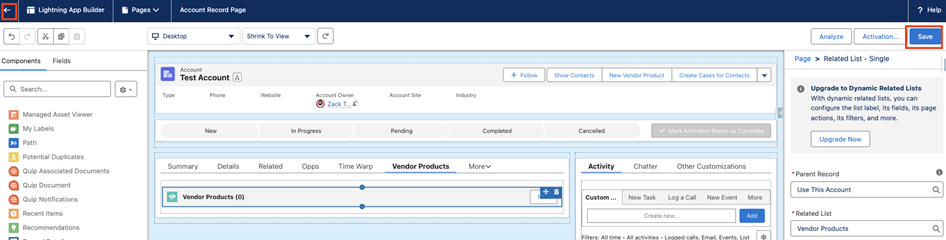
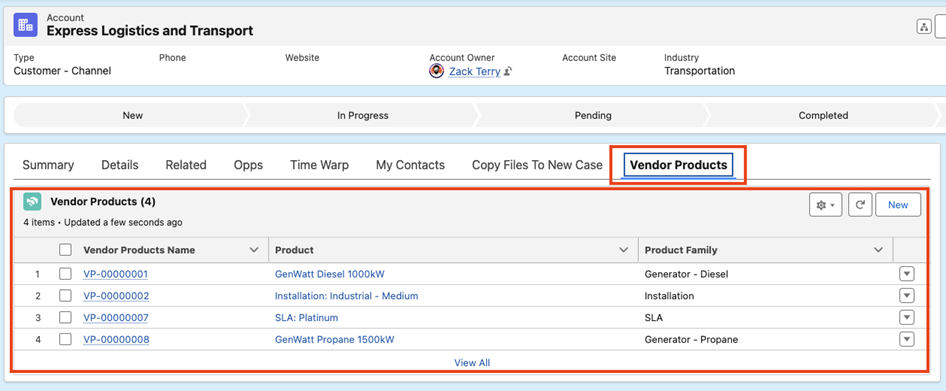
- Click Save in the top right to save your changes, then navigate back to the page. We should now see a dedicated Vendor Products tab with a related list displaying the records within that tab
Ressources supplémentaires
Numéro d’article de la base de connaissances
003379474
Cet article a-t-il résolu votre problème ?
Dites-nous ce que nous pouvons améliorer !
