Sélectionner une organisation
How to prevent email notification: Your Content Delivery Has Been Viewed when someone public or internal users views or downloads the file for the first time
Date de publication: Nov 13, 2024
Description
Discover how to disable email notification: Your Content Delivery Has Been Viewed when a file is first viewed or downloaded by any user, whether public or internal. This guide will help you control alerts and reduce email clutter
Résolution
The below diagram describes how files are stored in the database as well as how public links of the file stored in Salesforce are generated.

- Each file in Salesforce is stored in ContentVersion and there can be many ContentVersion for a given file indicating the different versions of the same file over the period.
- ContentDocument always indicates the latest version of the file.
- ContentDistribution link signifies the link between file and the associated record.
- A Content Delivery lets us convert documents such as PowerPoint and Word files into an optimized web-based version for easy online viewing & is only available in Salesforce Classic.
In situations where we want to share the files with external or public users who don’t have access to the Salesforce, We can generate a public link and share it with the users. Each public link generated for the files indicates the record in the ContentDistribution object in Salesforce. Please preview the above image to understand the association, Whenever a user previews or downloads the content for the first time we get the below email notifying about the action taken by the user.
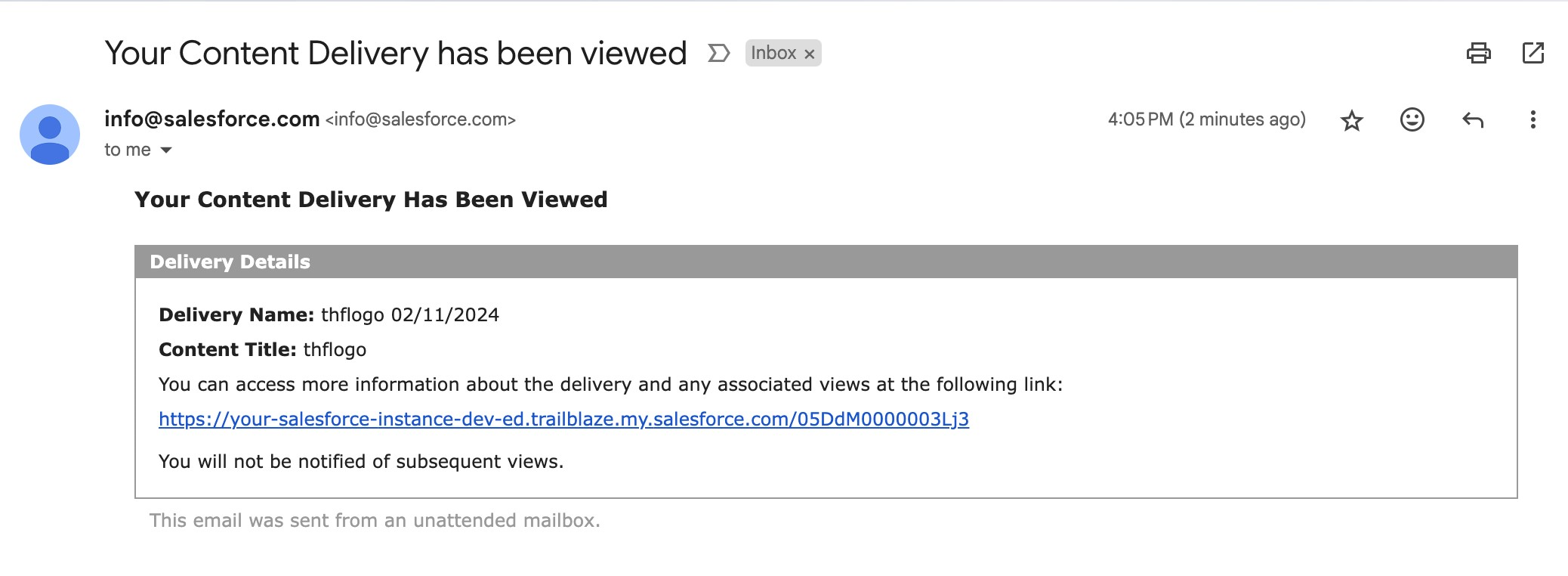
In order to stop receiving emails we need to set PreferencesNotifyOnVisit as False. PreferencesNotifyOnVisit is a standard field present on the ContentDistribution object which signifies whether the owner of the shared document should be notified via email or not whenever the external/public user views or downloads the document.
There are multiple ways to disable the email alert option:
- Via Salesforce Classic UI
- Declaratively/Programmatically via Apex or via Lightning Flows
Option 1: The following are the steps for disabling the email alert notification option via Salesforce Classic.
Step 1: On the Record Detail Page navigate to the Files detail page under Notes & Attachments for which you want to disable the alert
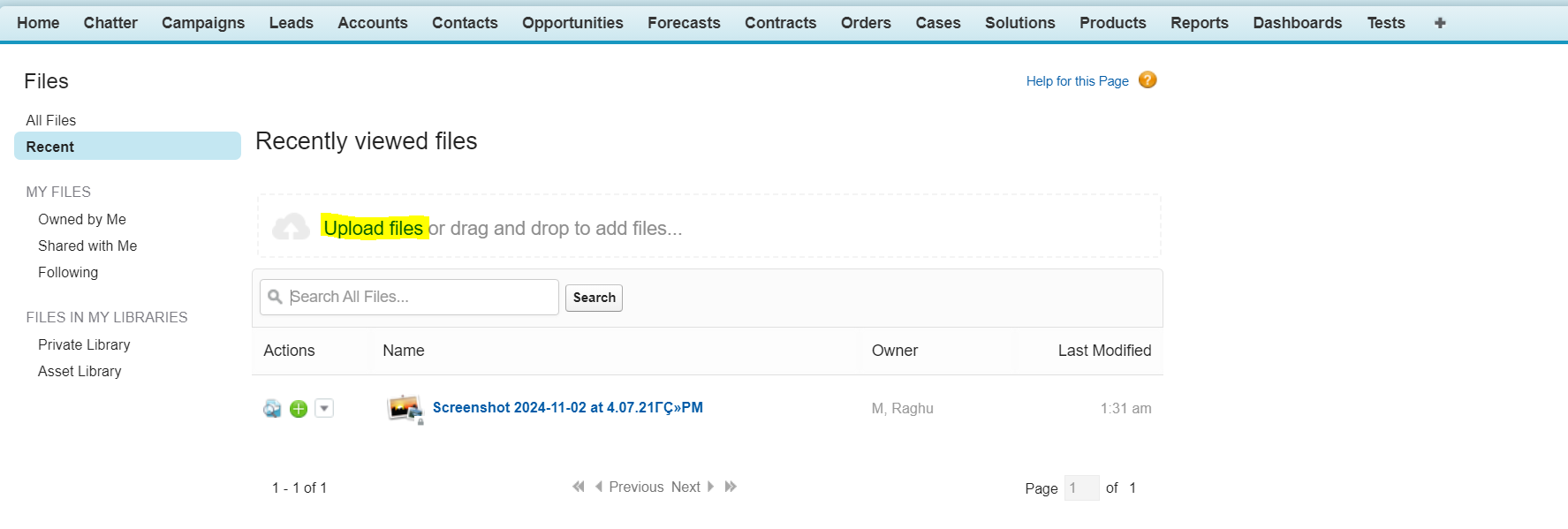
- After switching to Salesforce Classic, Search for Files object and click on it
- Then, Upload any Image or Screenshot by clicking on Upload Files button
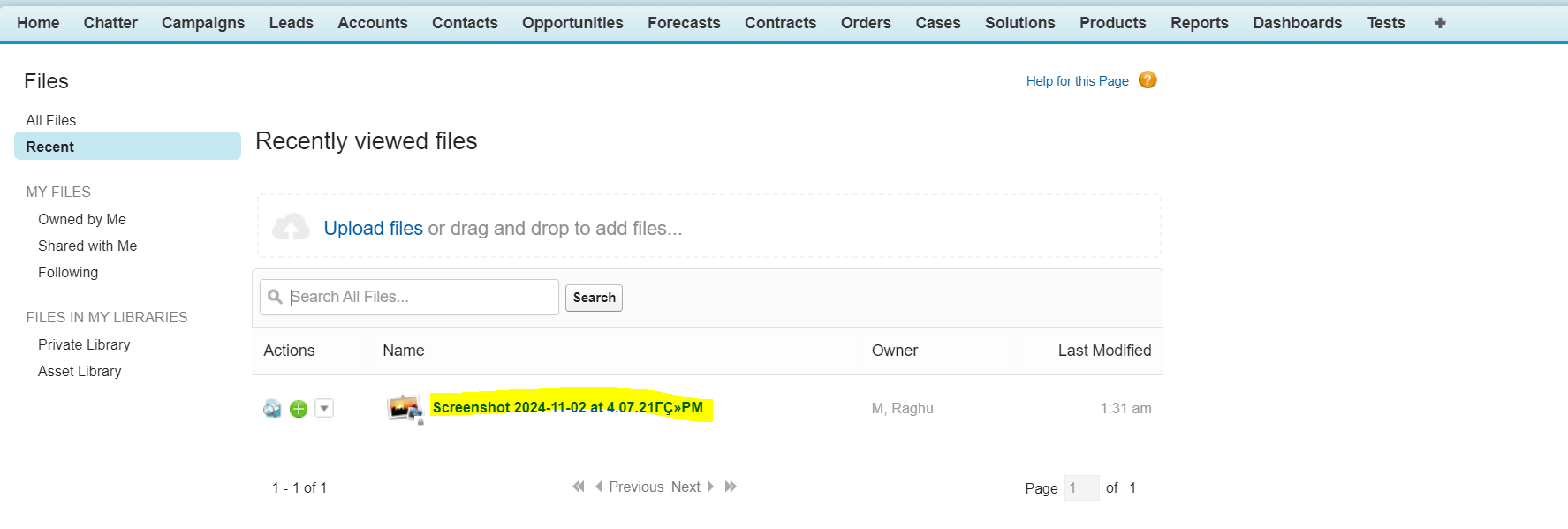
Step 2: Now, Click on the Screenshot link
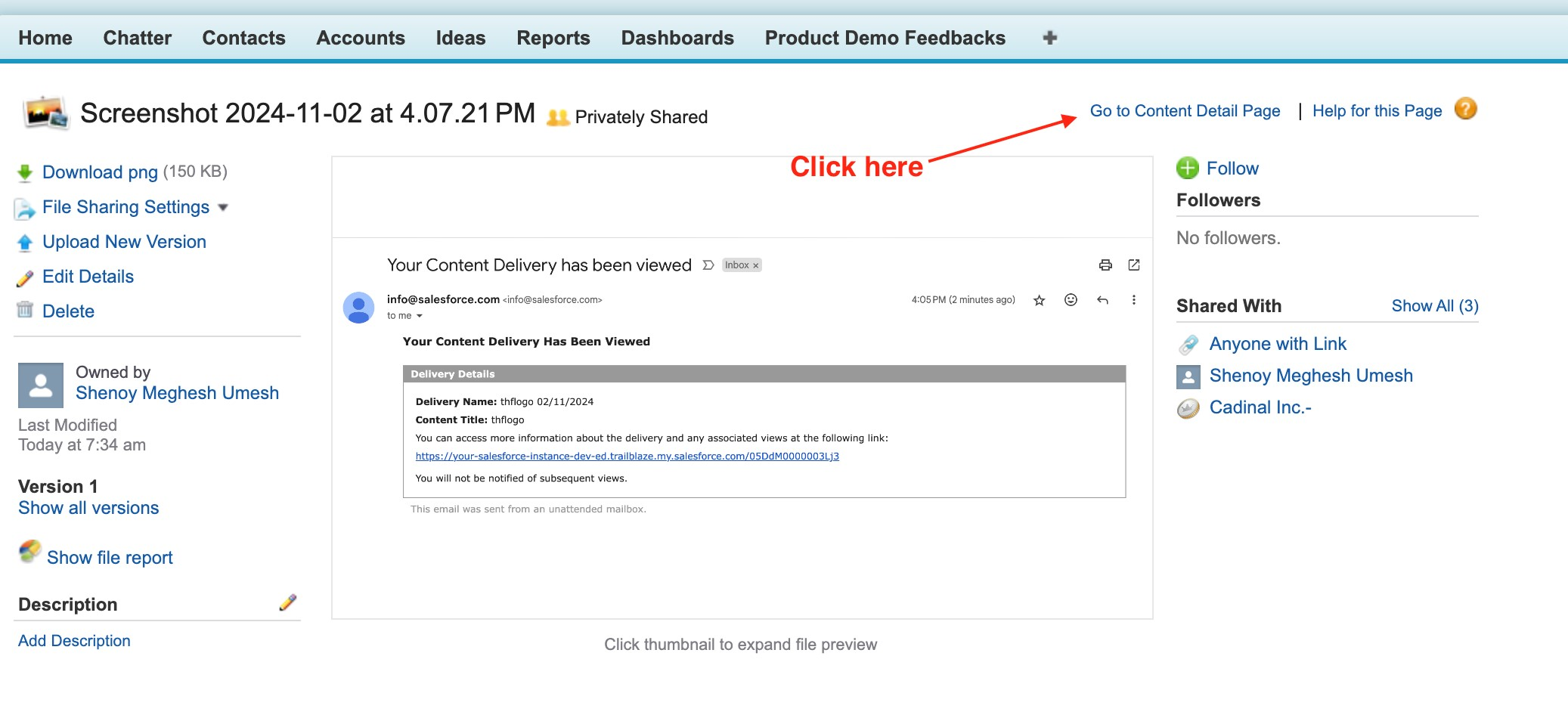
Step 3: Click on the Go to Content Detail Page option
Step 4: Now, Click on Deliver Content button
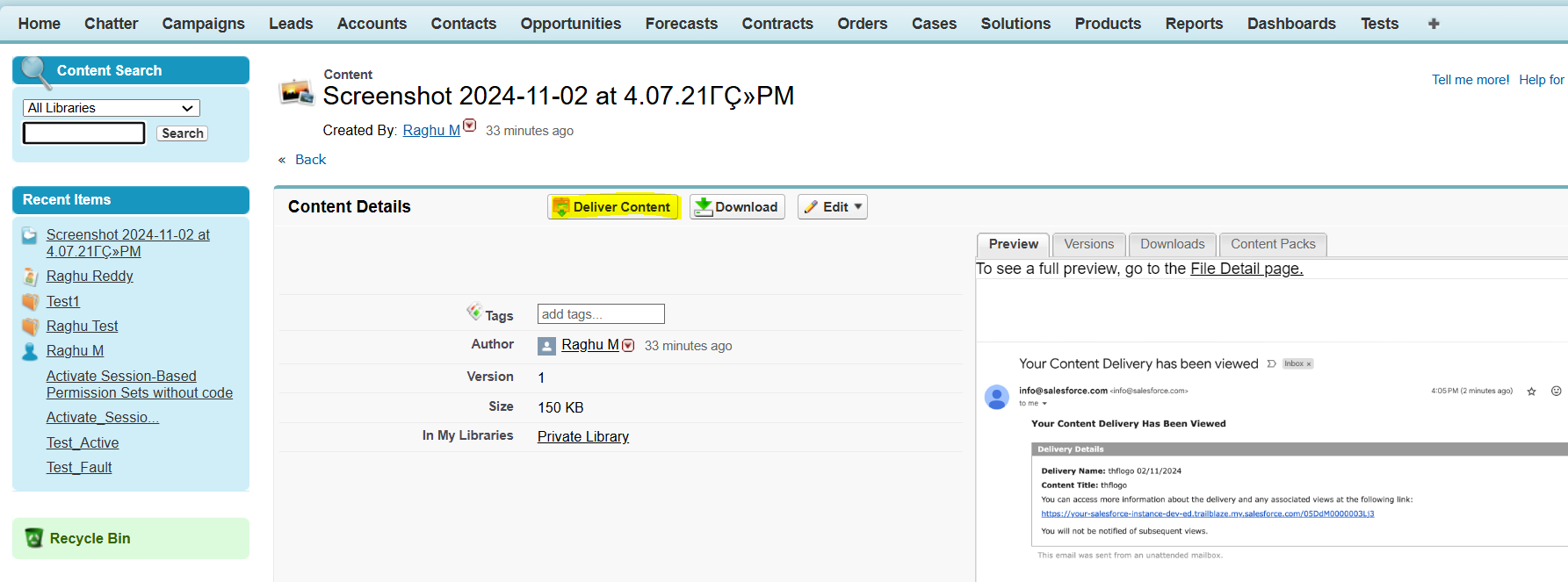
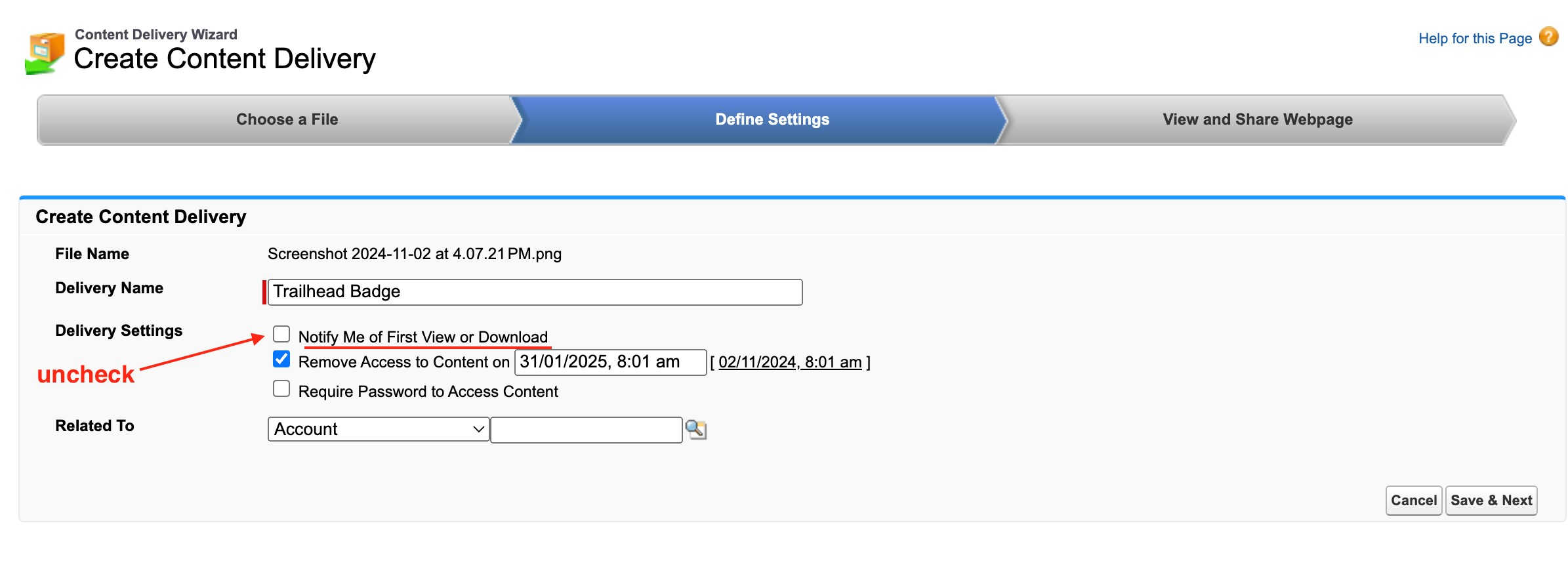
Step 5: Uncheck the Notify Me of First View or Download option and click on Save
Option 2: Steps to disable via using Salesforce Lightning Flow or by using Apex code
- Using Lightning Flow
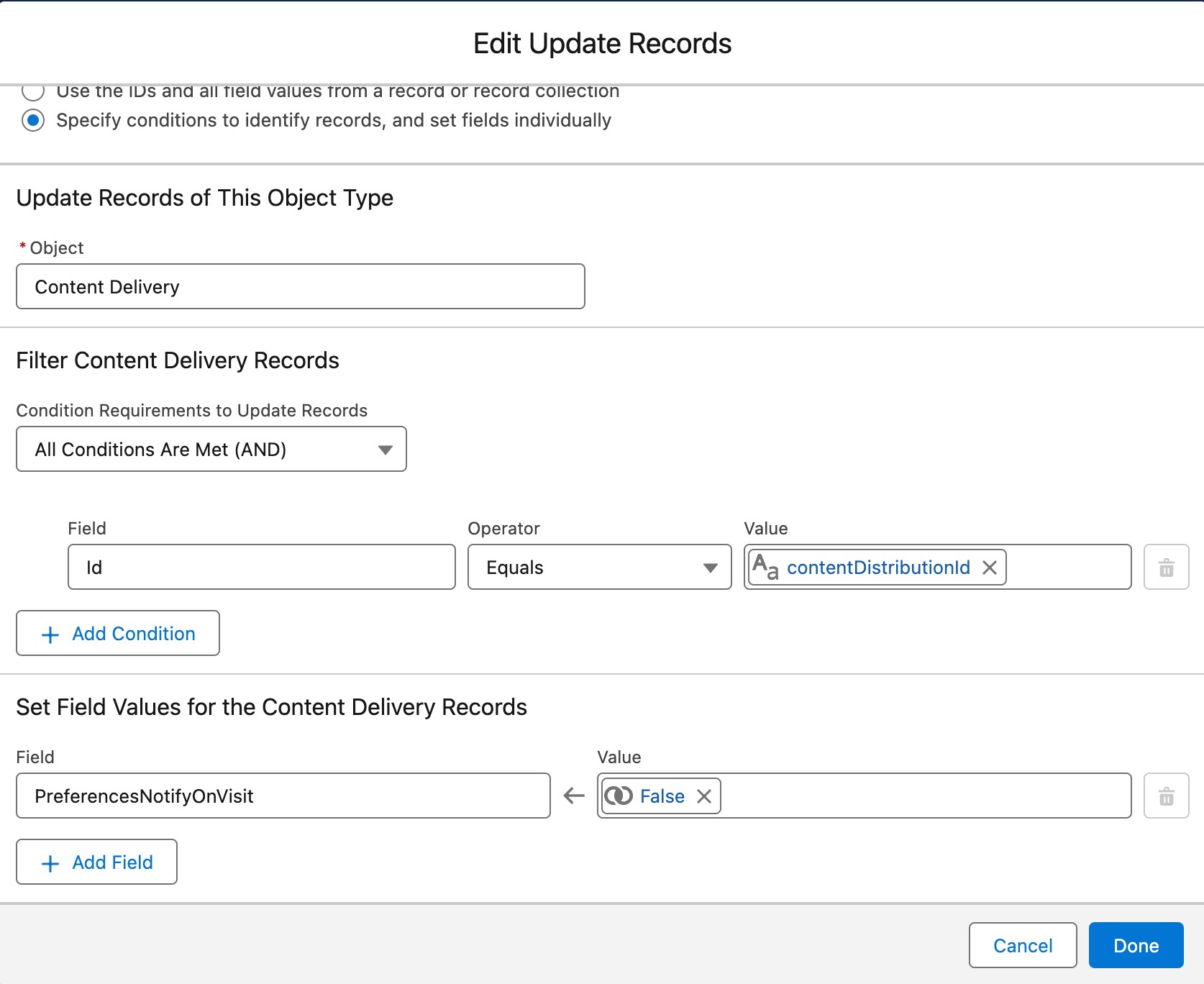
When using Lightning Flow, Depending on the business use case you can add an Update Element and set the object as ContentDistribution. The record for which you want the notification to be disabled can be identified by using ContentDistribution, ContentDocumentId, ContentVersionId or basis of conditions you set in the Update Element. Then you need to set the PreferencesNotifyOnVisit field as {!$GlobalConstant.False}
- Using Apex
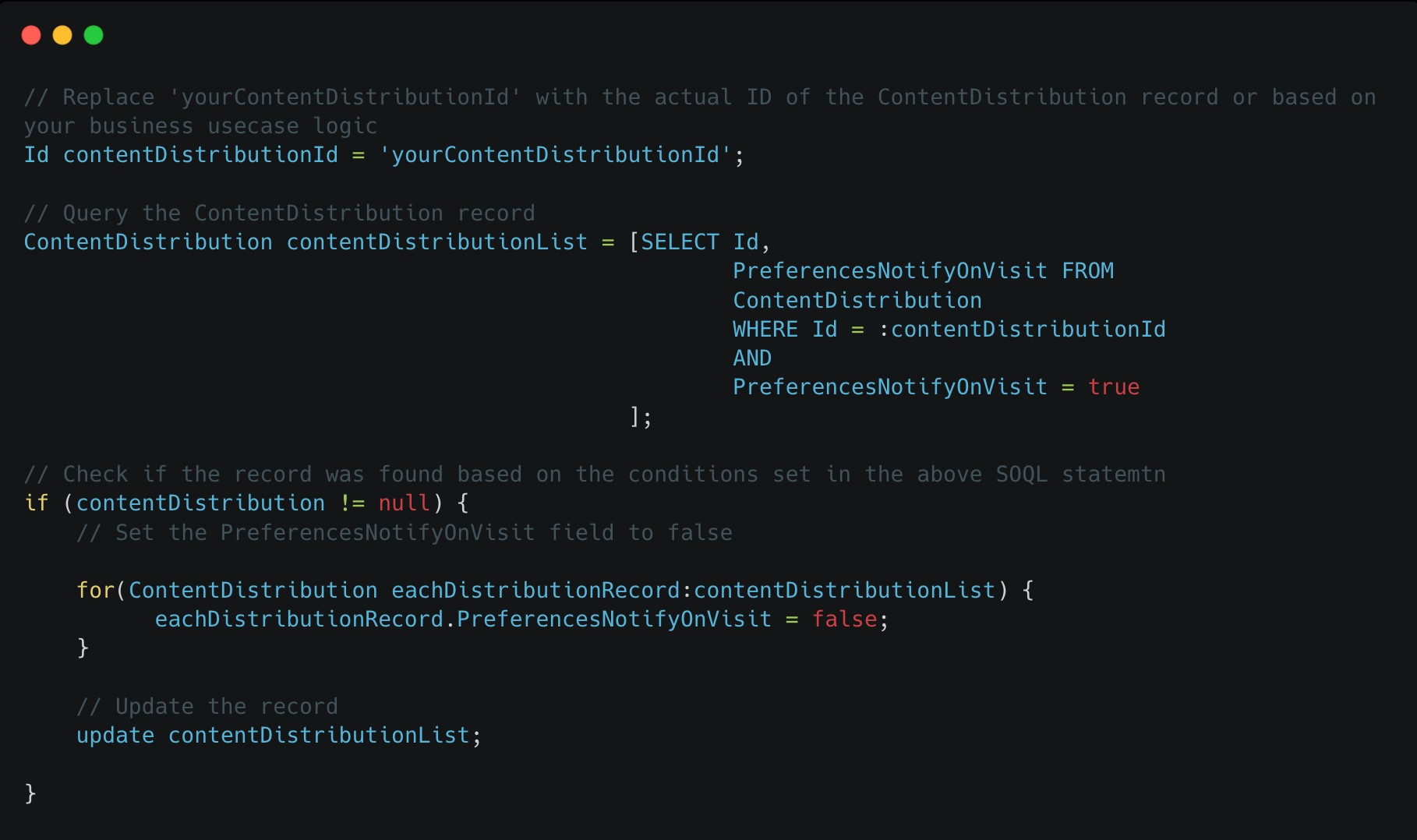
When using Apex Code we first need to query the contentDistribution object by using some conditions and then programmatically setting the value as False. Once set we use DML Database Manipulation Language statement to update the value on the record and disable the email alert
_____________________________________________________________________
Written by: Meghesh Shenoy | Forum Ambassador
Meghesh Shenoy is a MuleSoft Ambassador and a Salesforce Forum Ambassador. He is a Mulesoft and Salesforce Certified Developer, carrying the knowledge of building automation solutions using Salesforce and Mulesoft. Meghesh is passionate about sharing knowledge and experience and also helping others sharpen and grow their Mulesoft & Salesforce skills together.
Submissions reflect only the opinions of the user who made available the Submission and not the opinions of Salesforce, regardless of whether the user is affiliated with Salesforce, and may contain or constitute products, services, information, data, content and other materials made available by or on behalf of third parties ("Third Party Materials). Salesforce neither controls nor endorses, nor is Salesforce responsible for, any Third Party Materials, including their accuracy, validity, timeliness, completeness, reliability, integrity, quality, legality, usefulness or safety, or any applicable intellectual property rights. Any Submissions made available through any message board or forum in response to posted questions, or that otherwise purports to answer any questions, including any questions about Salesforce or Programs, are made available for your general knowledge only and should never be relied upon as answers to your specific questions (even if an answer is marked as a “best” answer or with any similar qualifications). You should always contact Salesforce support for answers to your specific questions. Salesforce has no control over Submissions, and is not responsible for any use or misuse (including any distribution) by any third party of Submissions.
If you have questions, tap into the wisdom of our entire Trailblazer Community here: https://trailhead.salesforce.com/trailblazer-community/feed
Numéro d’article de la base de connaissances
003600217
Cet article a-t-il résolu votre problème ?
Dites-nous ce que nous pouvons améliorer !
