Seleziona un'organizzazione
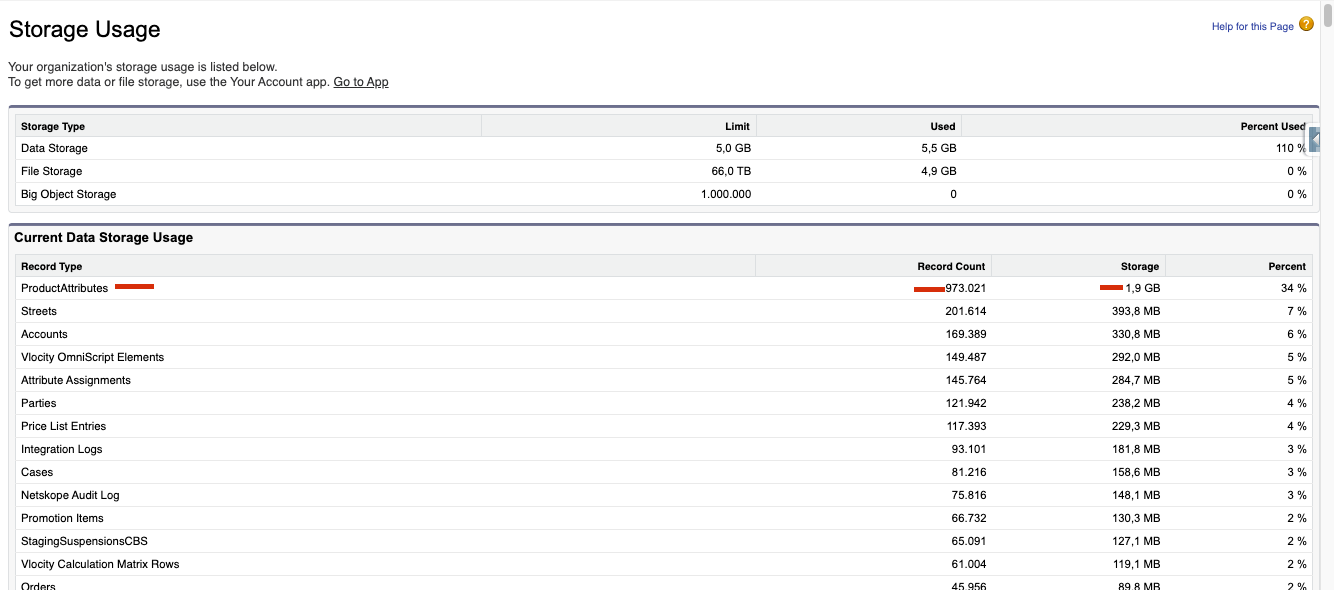
ProductAttributes High Storage Usage in Communications Cloud
Data pubblicazione: Oct 15, 2026
Descrizione
Issue
On the Storage Usage page in Setup, the ProductAttributes entry uses a large share of your org's data storage. This happens in some Communications Cloud (Vlocity CMT) orgs. You might not recognize the ProductAttributes entry, because it does not match an object label you work with directly.
Symptoms
- On the Storage Usage page, ProductAttributes is one of the largest entries in the data storage list.
- Data storage usage for the org is high or close to the limit, and ProductAttributes accounts for a significant part of it.
Root Cause
ProductAttributes is the Storage Usage label for the system object vlocity_cmt__CachedPriceBookEntryAttributeValue__c. This object is a persistent cache. It stores the attribute values that apply to the products behind specific price book entries — in effect, a cache of price book entries.
The Refresh Platform Cache job populates this object. Sometimes old cache records are not deleted. These old records stay in the object and continue to use data storage.
Because the object is a cache, you can manually delete its records and then re-run the Refresh Platform Cache job. The job repopulates the entries that are needed, without impacting Vlocity functionality or DataPacks.
Risoluzione
Before You Begin
- Test the cleanup in a sandbox first.
- Plan the cleanup for a low-activity period, because the cache is not repopulated until you re-run the job.
- Confirm that you have the API Enabled and Author Apex permissions (required to run anonymous Apex) and access to delete records in the
vlocity_cmt__CachedPriceBookEntryAttributeValue__cobject.
Steps
Part 1 — Confirm the cause
- In Setup, open the Storage Usage page.
- In the data storage list, check how much storage ProductAttributes uses.
- If ProductAttributes is not a significant share of your data storage, stop here. This article does not apply; review the other large entries instead.
Part 2 — Delete the cached records
-
Open the Developer Console and open the Execute Anonymous window.
-
Run the following Apex code:
List<vlocity_cmt__CachedPriceBookEntryAttributeValue__c> sObjList = [SELECT Id FROM vlocity_cmt__CachedPriceBookEntryAttributeValue__c LIMIT 10000]; delete sObjList; -
If the code runs without errors and records remain, run it again. Repeat until the object has no records left.
- Apex allows up to 10,000 records to be processed by DML statements in one transaction, so don't set the
LIMITvalue above 10,000. - If you get an Apex governor limit error, lower the
LIMITvalue and run the code again.
- Apex allows up to 10,000 records to be processed by DML statements in one transaction, so don't set the
Part 3 — Rebuild the cache and verify
- Re-run the Refresh Platform Cache job from Vlocity CMT Administration > Maintenance Jobs. The job repopulates the object with the entries that are needed. For details, including how to run the job from anonymous Apex, see Running Maintenance and Digital Commerce Cache Jobs Remotely on Salesforce Developers (https://developer.salesforce.com/docs/industries/cme/guide/comms-t-running-maintenance-and-digital-commerce-cache-jobs-remotely.html).
- After the job completes, return to the Storage Usage page and confirm that ProductAttributes now uses less data storage.
- Test a typical pricing or cart flow that uses your price books to confirm that it works as expected.
If the Issue Comes Back
Old records can build up again over time. If ProductAttributes grows again, repeat Parts 2 and 3. If storage use stays high right after a cleanup and job re-run, contact Salesforce Support and include the ProductAttributes storage values from the Storage Usage page before and after the cleanup.
Numero articolo Knowledge
003834007
Questo articolo ha risolto il problema?
Facci sapere, così possiamo migliorare!
