Seleziona un'organizzazione
Apply Data Source Filters to Salesforce Data Source
Data pubblicazione: Apr 23, 2025
Operazione
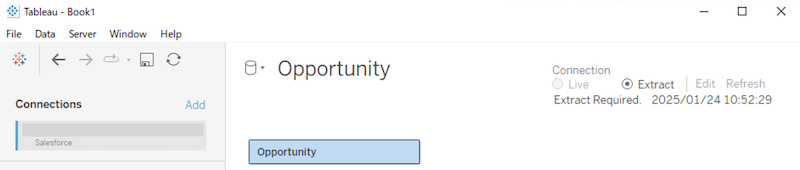
When connecting to Salesforce, data source filters cannot be added on the Data Source page, unlike with other data sources. How can we apply data source filters to a Salesforce data source?
Fasi
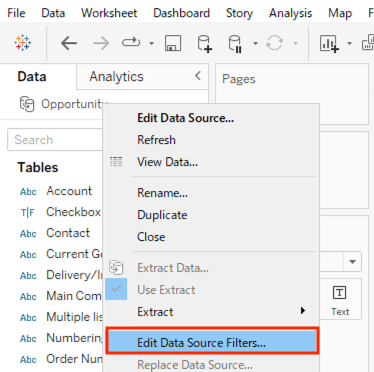
When connecting directly to Salesforce or using a local copy of a Salesforce data source in Tableau Desktop, open any worksheet, right-click (or Control-click on a Mac) the data source, and choose 'Edit Data Source Filters'.
Note: If you publish this data source, the data will be published with the data source filters applied.
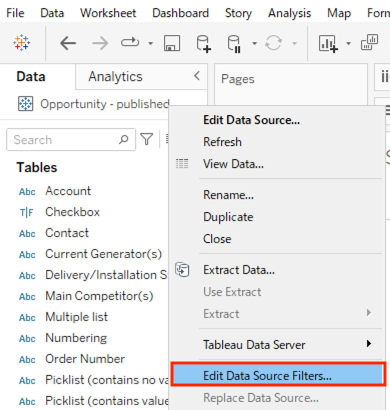
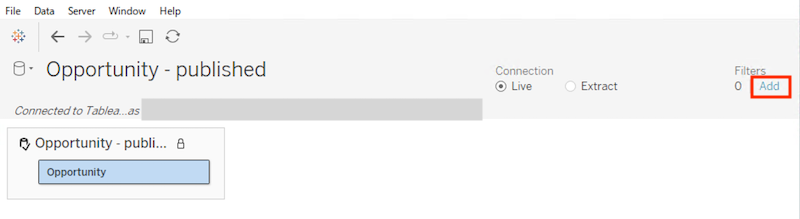
When connecting to a published data source that connects to Salesforce, you can add data source filters in either of the following ways.
Note: These methods apply data source filters only within the workbook. The already published data source remains unaffected.
Option 1
Open any worksheet page, right-click (control-click on a Mac) the data source and choose Edit Data Source Filters.
Option 2
Open Data Source page, click Add in the Filters section in the upper-right corner of the page.
Risorse aggiuntive
The data source filters do not filter the extracted data, i.e., they do not reduce the size of the extract file (.hyper). If you would like to reduce the extracted data itself, consider hiding unused fields as described in this article, applying filters in SOQL, or use Tableau Prep Builder before creating the extract file (.hyper).
Numero articolo Knowledge
004205243
Questo articolo ha risolto il problema?
Facci sapere, così possiamo migliorare!
