Velg en organisasjon
Agentforce: Setup & Troubleshoot Agentforce Data Libraries & Answer Question with Knowledge
Publiseringsdato: Dec 5, 2025
Beskrivelse
Overview of AgentForce Data Library
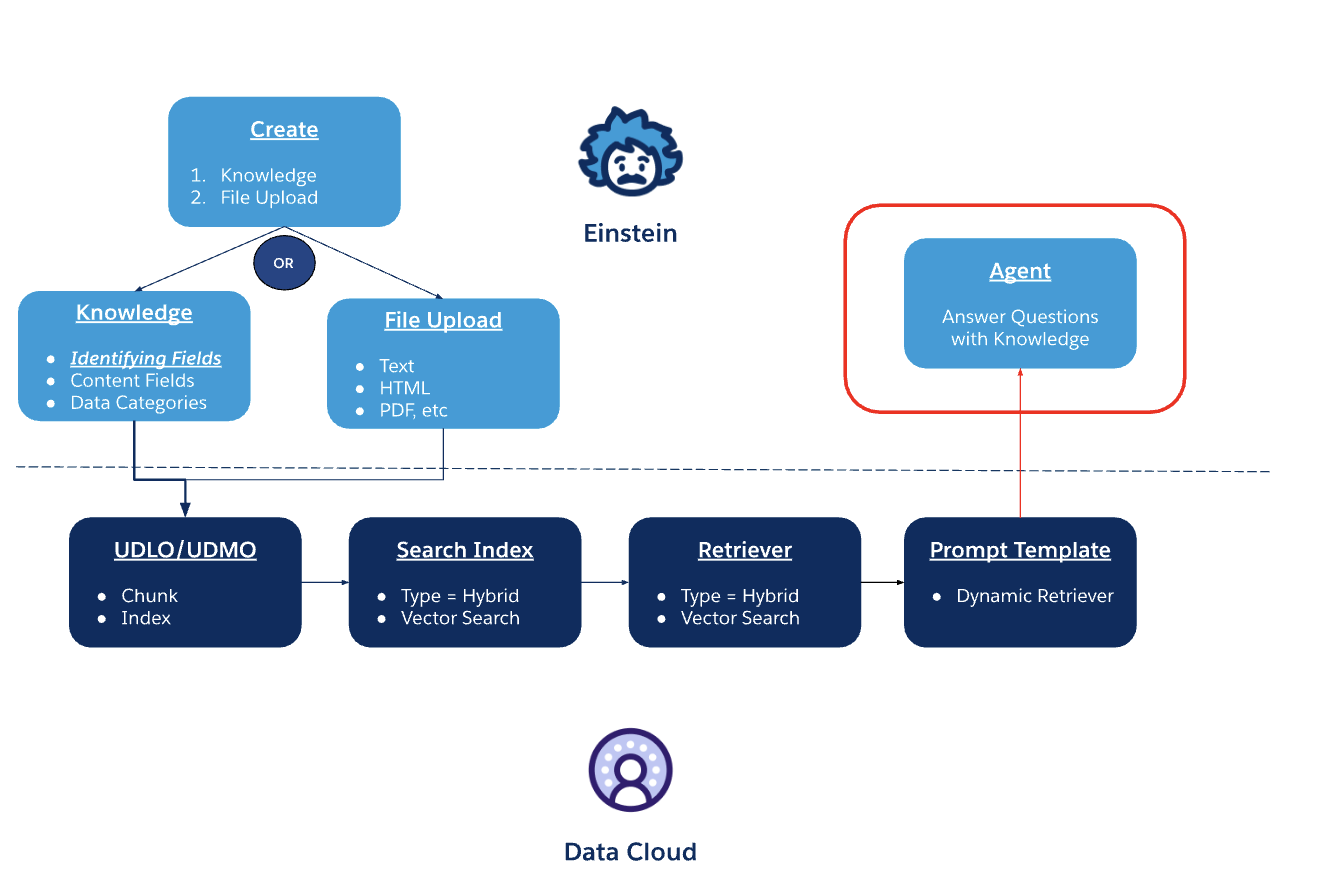
Agentforce Data Libraries aims to simplify the configuration of Semantic search through chunking and indexing providing Salesforce Agents or Prompt Templates with content based on Salesforce Knowledge articles or files (text, HTML, or PDF). Review the Agentforce Data Library help article for more information.
NOTE: Agentforce Data Libraries is a required configuration for the Answer Questions with Knowledge Agentforce Agent Action.
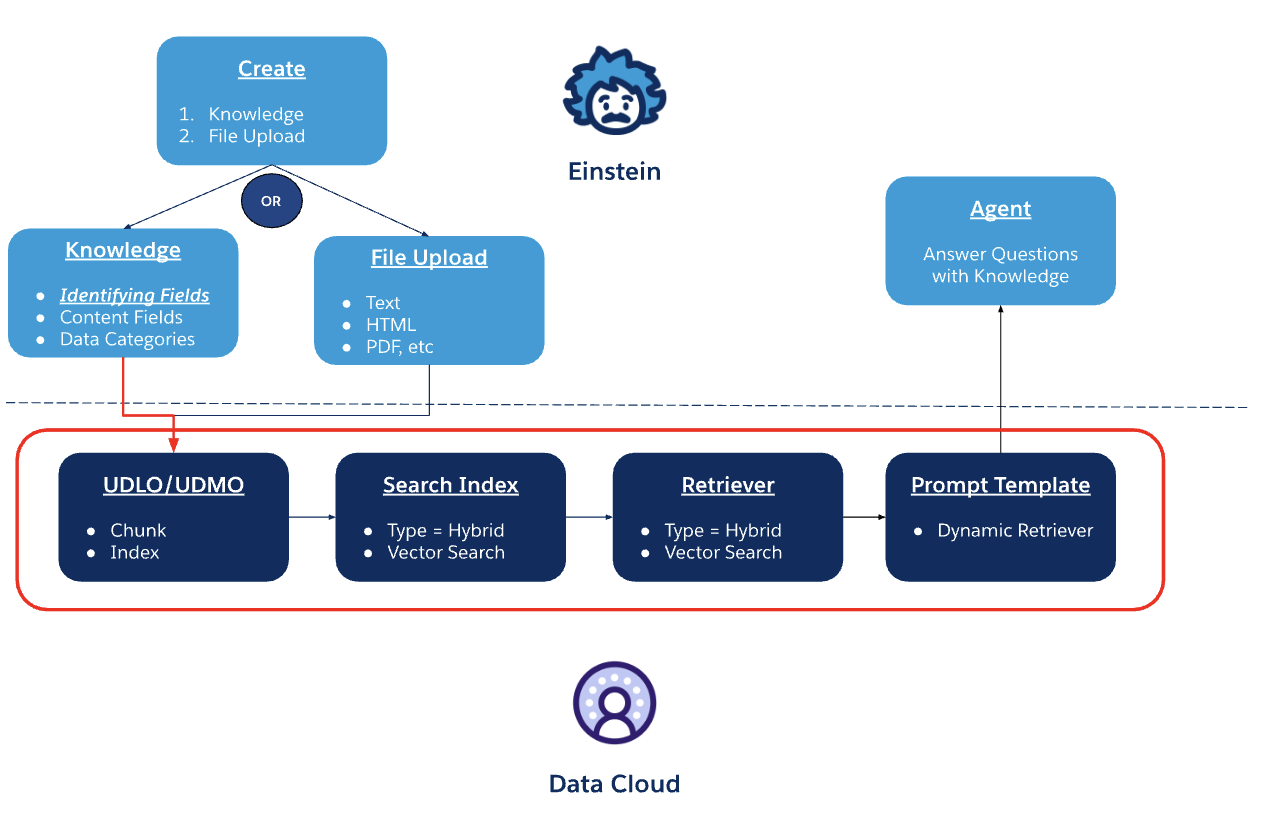
When you set up a new Agentforce Data Library, there are a few things happening in the background.
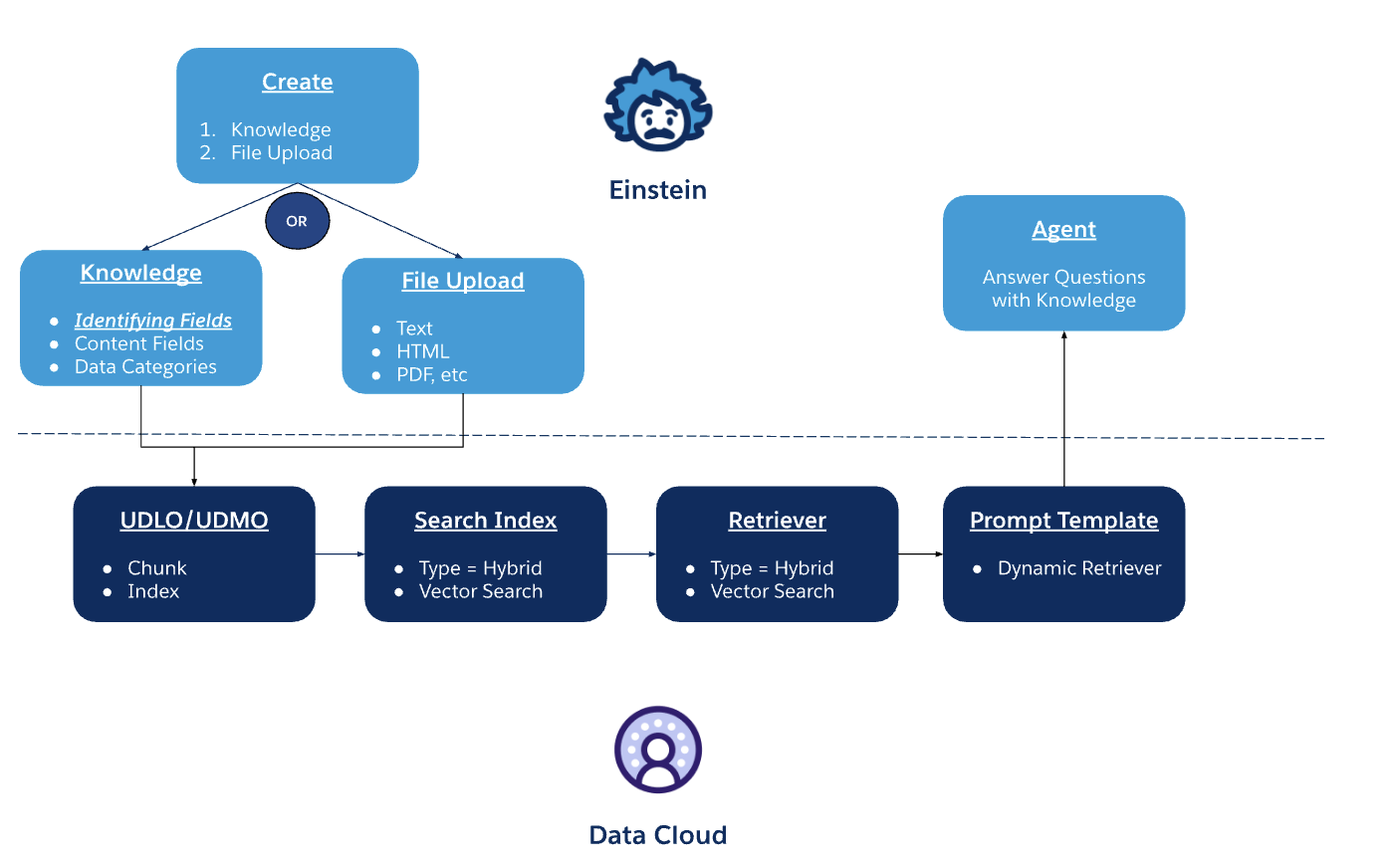
As you create a new Agentforce Data Library, you will choose between Knowledge and File Upload.
If you choose Knowledge, your Agentforce Data Library will leverage your Salesforce Knowledge base articles. You will have to define the right set of identifying fields to provide accurate results. Identifying fields should be fields that have concise description of the article or fields that represent the article gist for helping make search results better and will be part of your Semantic Search to quickly find information. Keep in mind that if your Identifying fields are of TEXTAREA Field Type then the completion of the steps to have your Agentforce Data Library ready and working will take longer.
These will be explained in more detail later in this document.
Setup Example
Let’s consider a customer looking to provide an AI Service Agent that can answer generic product questions. As part of the AI Service Agent configuration, this customer will create a new Agentforce Data Library to be used by the AI Agent.
Prerequisites
Agentforce Data Libraries can be associated with an Agentforce Agent and used by the Answer Questions with Knowledge, or you can use them in custom Prompt Templates. There are a few prerequisites to ensure you can leverage Agentforce Data Libraries. The following must be enabled and properly configured with required permissions:
1. Data Cloud enabled and the Data Cloud Architect (formerly Data Cloud Admin) permission assigned to the Salesforce user setting up Agentforce Data Libraries.
2. Einstein Generative AI
3. Agentforce Agents
4. Prompt Builder
5. Salesforce Knowledge, if planning to use knowledge articles
Agentforce Data Library
In the Salesforce Org Setup > Einstein > Agentforce Data Library, the System Administrator will click New Library, enter the required information and click Save.
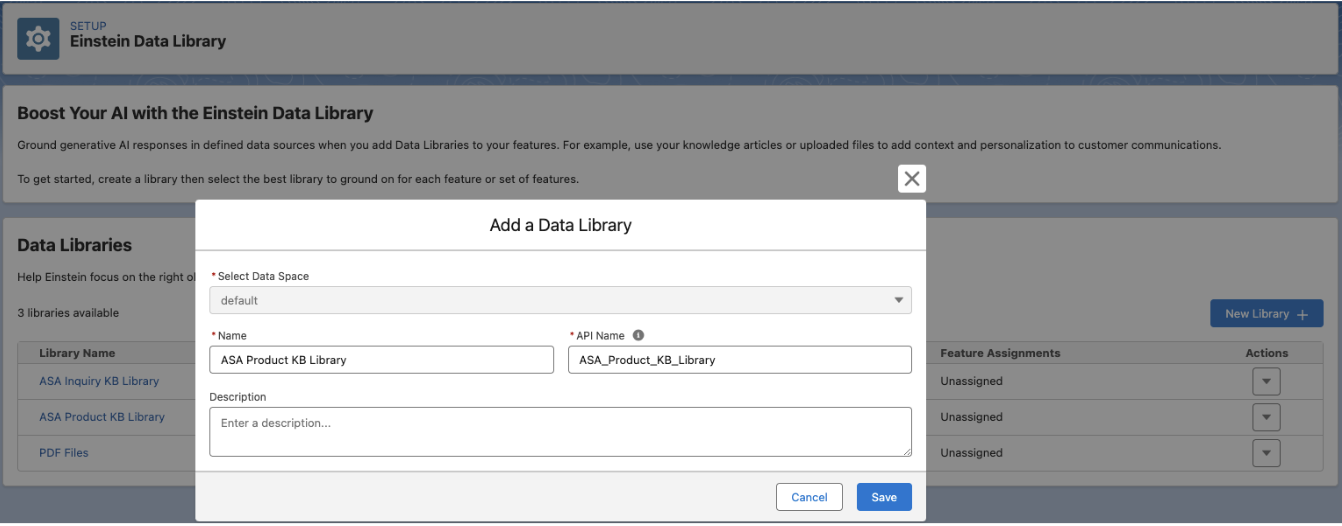
In the next screen, the administrator will enter the required information and click Save.
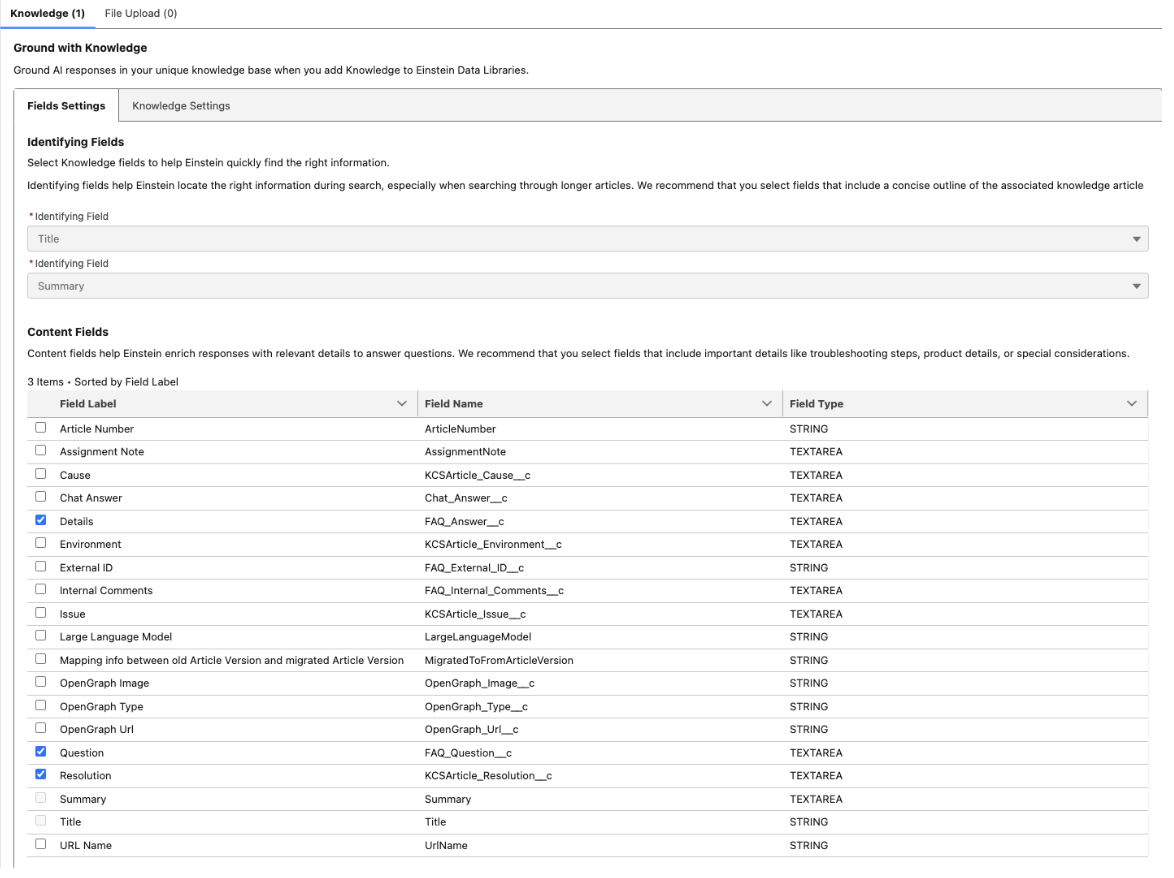
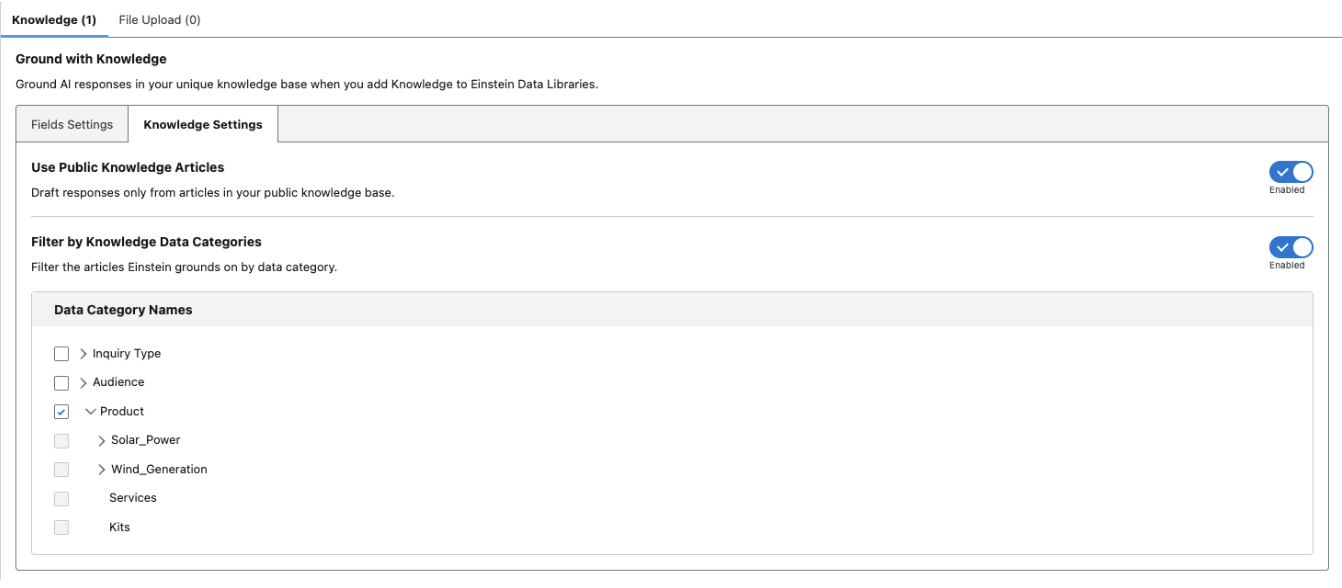
Data Cloud - UDLO & UDMO
Once the new Agentforce Data Library configuration is defined and saved, the background processes are triggered. This means a new UDLO and a new UDMO configuration will be created.
UDLO & UDMO
Using the previously created Agentforce Data Library example, the following Data Lake Objects would be created:
NOTE: The UDLO / UDMO names will follow the Agentforce Data Library API naming with index_dml and chunk_dml added.
NOTE: For File Upload, the UDLO / UDMO will follow the naming convention as RagFileUDMO…

* Chunk - UDLO for the Chunk definition
* Index - UDLO for the Index definition
They will each be mapped to their respective UDMOs:

Search Index
A new Vector Search Index will also be created. Depending on the size of the Knowledge base and what Identifying fields were selected the Search Index may take longer to be created.
NOTE: The Search Index and Retrieve will follow the Agentforce Data Library API naming.
NOTE: When creating a new knowledge-based data library with the same identifying fields as an existing one, the existing search index will be reused. If you want a separate search index, make sure to use different identifying fields. For file-based data libraries, the system will always reuse the search index FileUDMO_SI.

And the last one will be a Retriever which is ultimately used in the Prompt Template for Answer Questions with Knowledge as a dynamic retriever.
NOTE: Retrievers created by ADL start with "KA_" for Knowledge and "File_" for File related ADL.
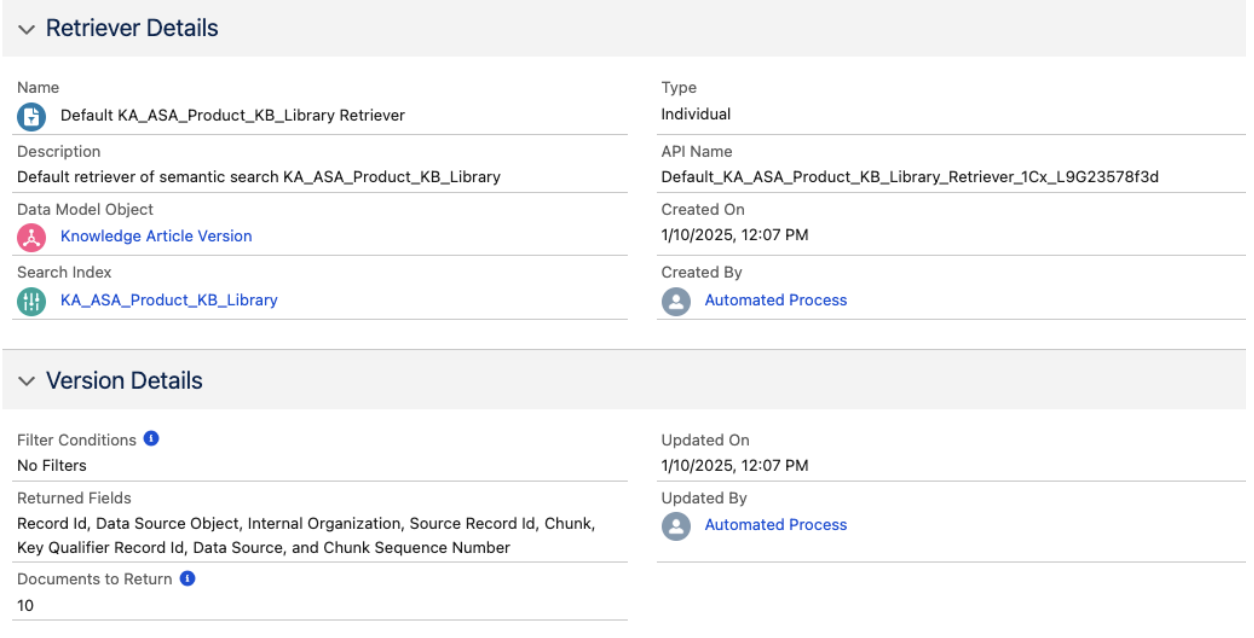
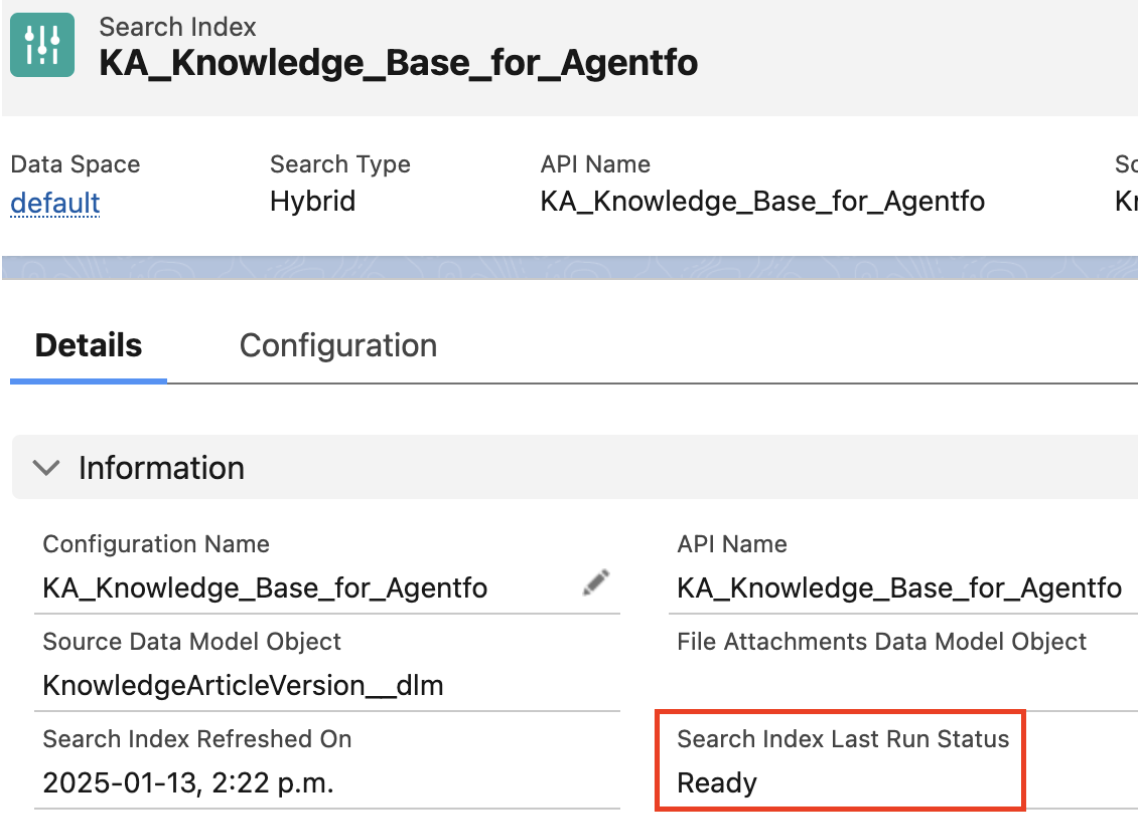
NOTE: You must wait for the Search Index Status to change to Ready to use the Answer Questions with Knowledge Agent Action.
Search Index Last Run Status should be Ready to test the Answer Questions with Knowledge Agentforce Agent Action. To check the Search Index Last Run Status, use the following steps:
1. Go to the Search Index tab.
2. Select the Search Index based on your Data Library name. The Name will be in KA_Data Library Developer Name format.
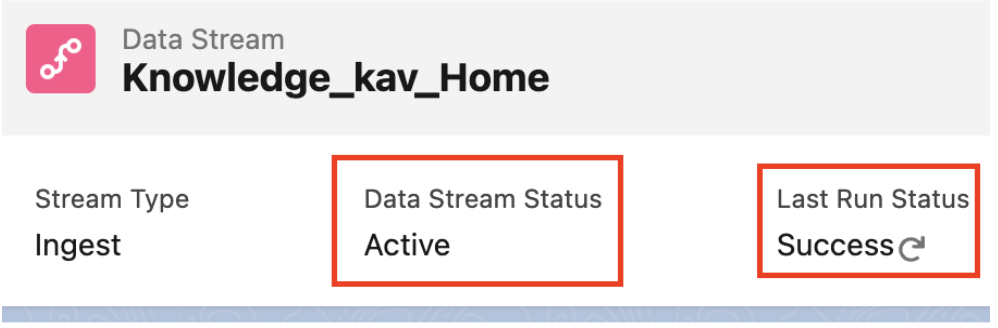
Check the Data Stream Status and the Last Run Status of the “Knowledge_kav_Home” Data Stream. It should be in Active status.
a. Go to the Data Streams tab.
b. Click the “Knowledge_kav_Home” Data Stream.
c. Make sure the Data Stream Status is “Active”.
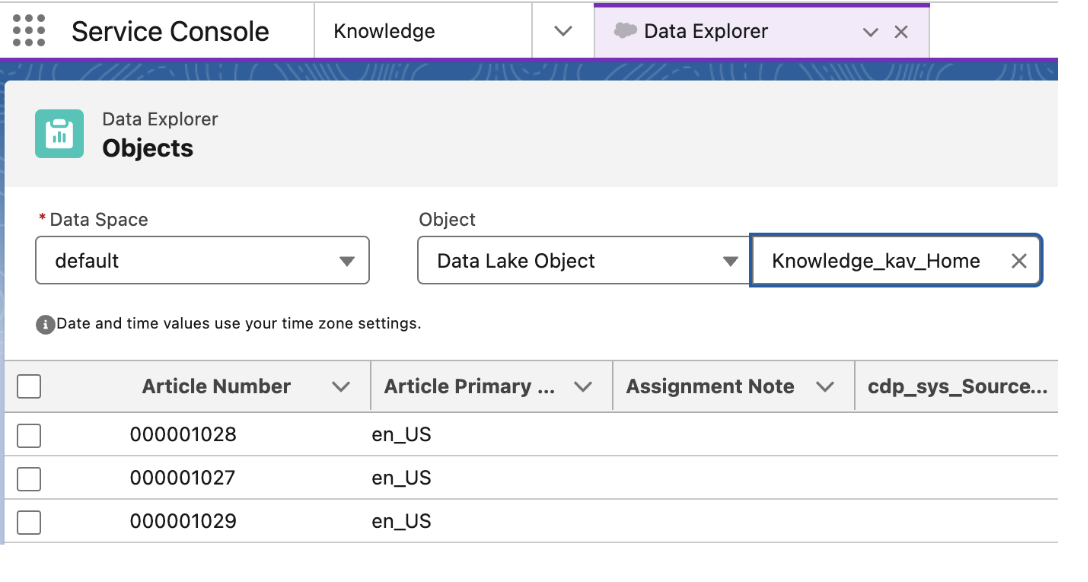
Go to the Data Explorer tab and verify whether the records are available in the Data Cloud’s Data Lake Object “Knowledge_Kav_Home”.
Agent Action - Answer Question with Knowledge
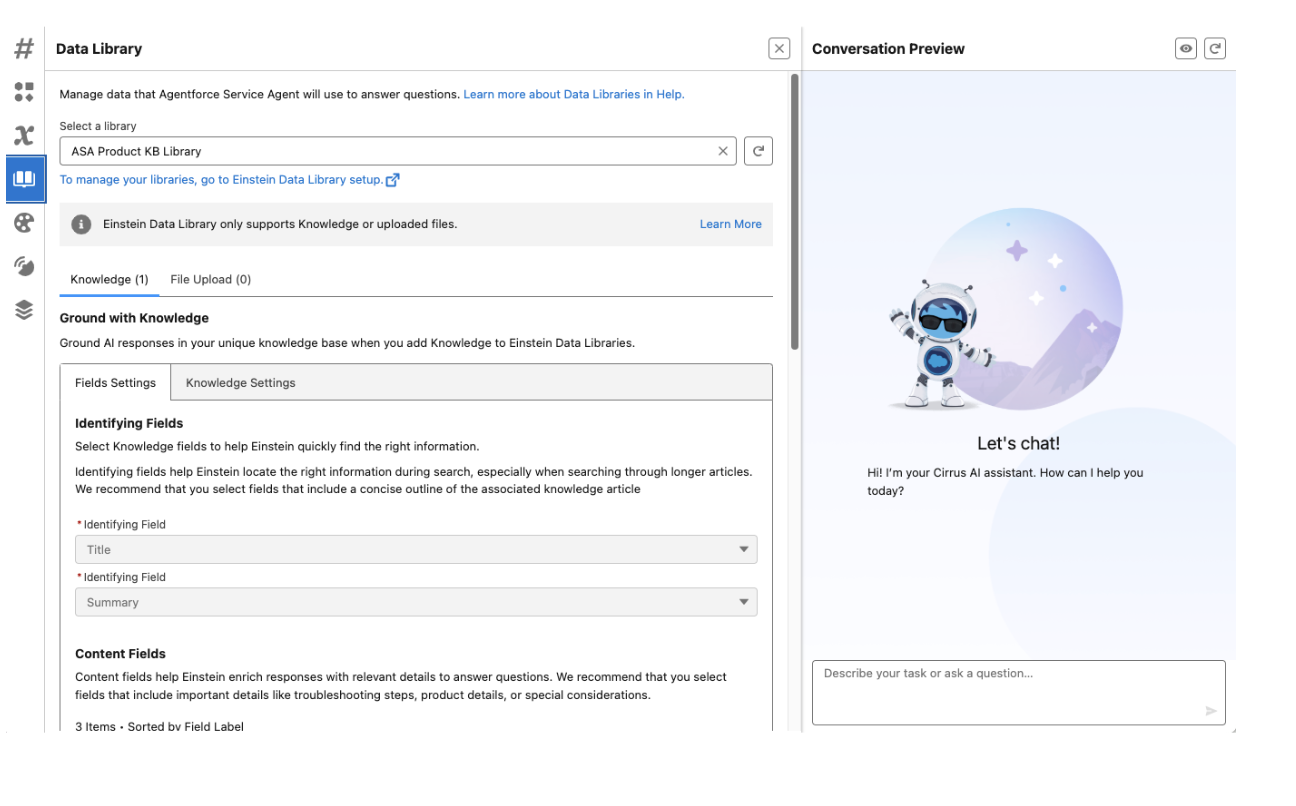
The AI Agent will use the Agentforce Data Library that is associated with its configuration as illustrated below:
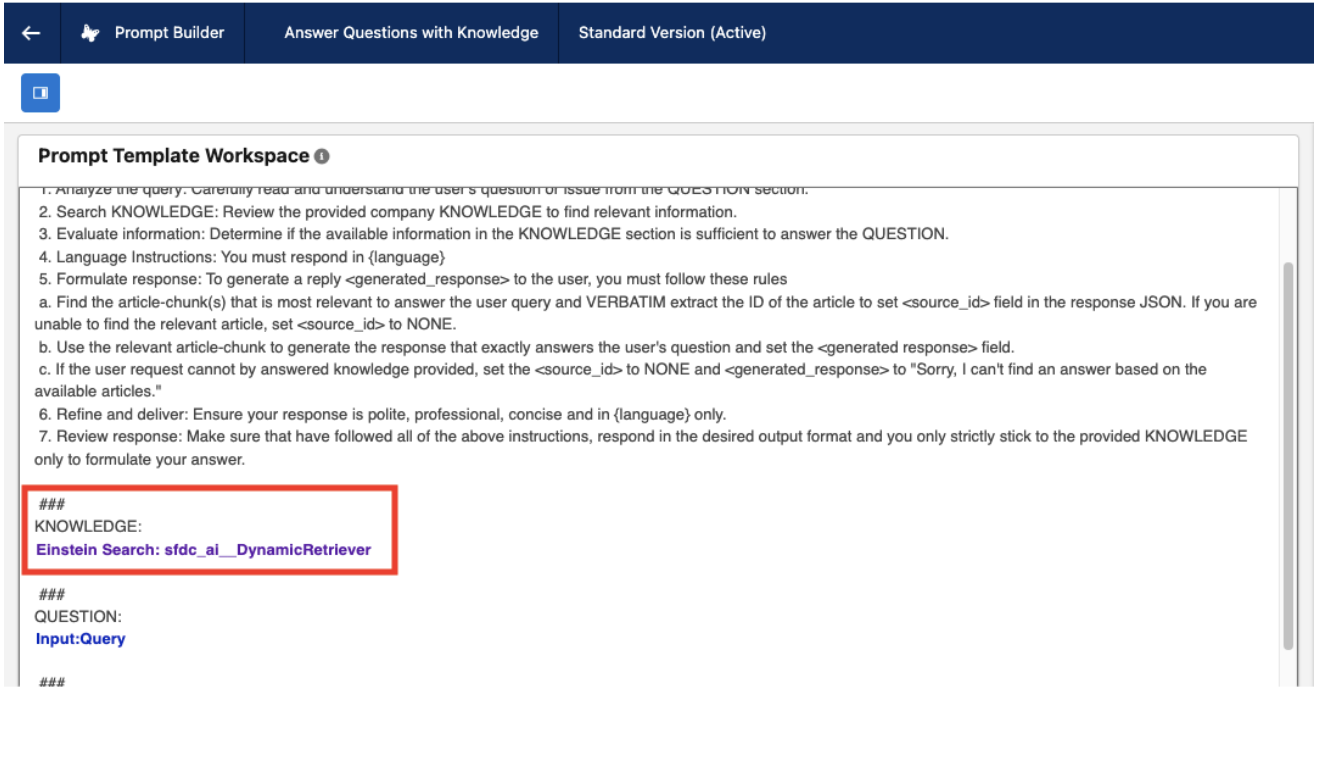
The Answer Question with Knowledge, which is usually associated with the General FAQ topic and included in the AI Agent configuration, uses a Prompt Template which dynamically leverages the Retrievers to ground with the Agentforce Data Library information and return the best response related to the user question. This means, any retriever ID that you provide as input will be used for fetching chunks and hydrating the prompt.
FAQ & Troubleshooting
File Upload is not working
Ensure there is at least one active Salesforce CRM Connector. Go to Setup > Data Cloud > Salesforce Integrations > Salesforce CRM

Search Index Failed - PDF with embedded content
Currently PDF files with embedded content are not supported. This is being addressed in the next few weeks
No Response is being provided by the Agent
Digital Agent Required Permissions:
* Provide access to the Data Space via permission sets under "Data Cloud Data Space Management" section.
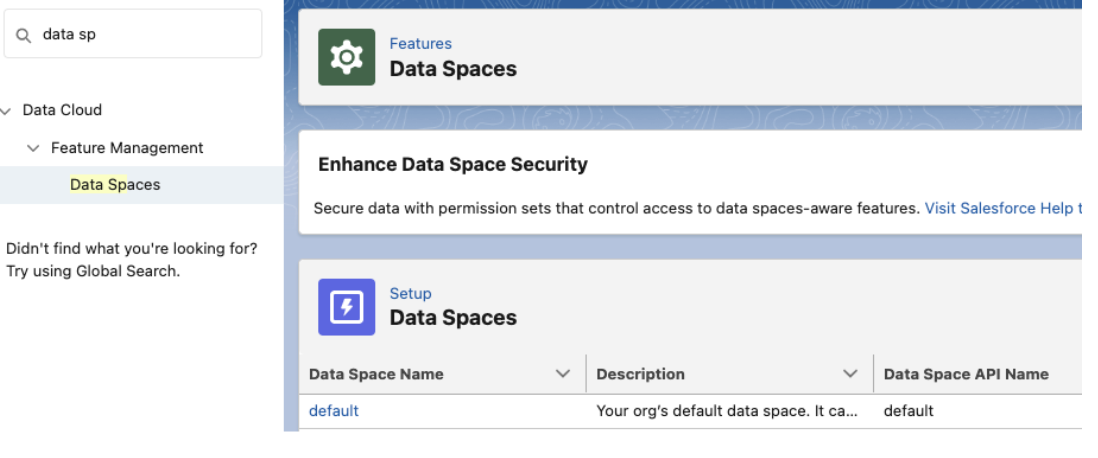
* Read access on Knowledge Object plus enabling FLS (Field-level security) on all fields selected in their Agentforce Data Libraries
* Allow View Knowledge
If not done this, create a new Permission set to be used by the Agentforce Agent User with the required access to Knowledge.
Go to Setup > Users > Permission Sets > click New.
Enter the Label and API Name then click Save
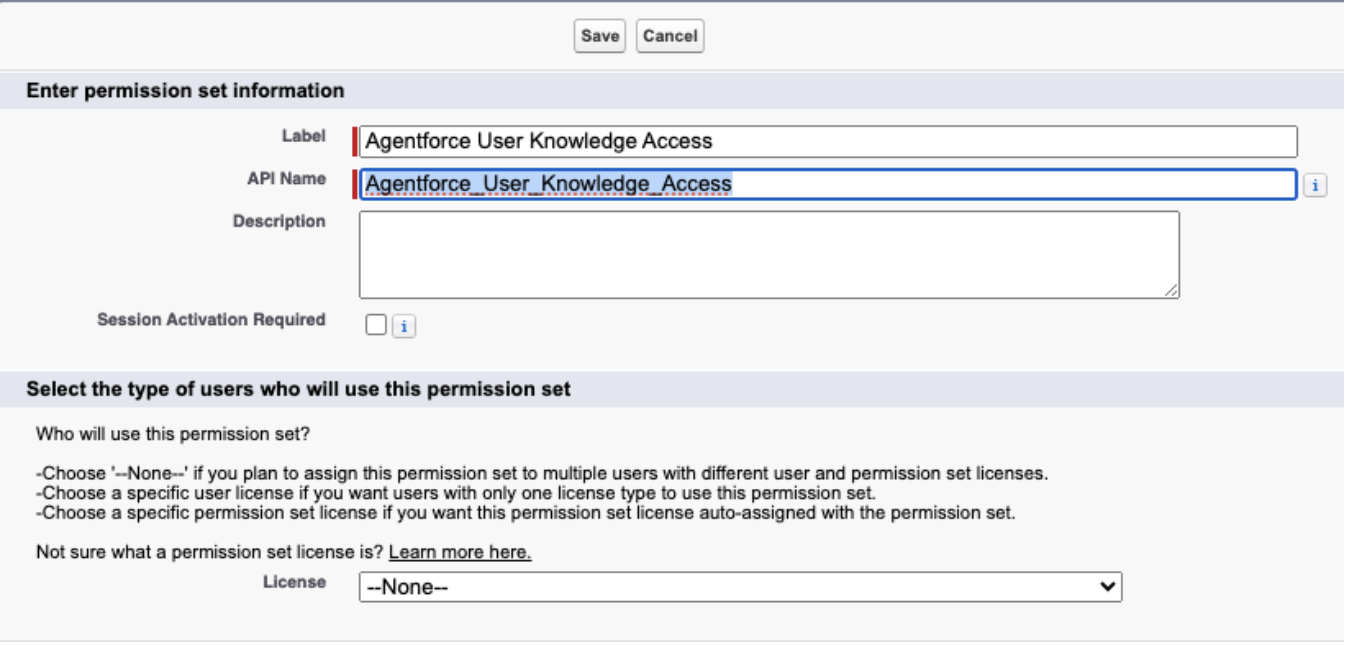
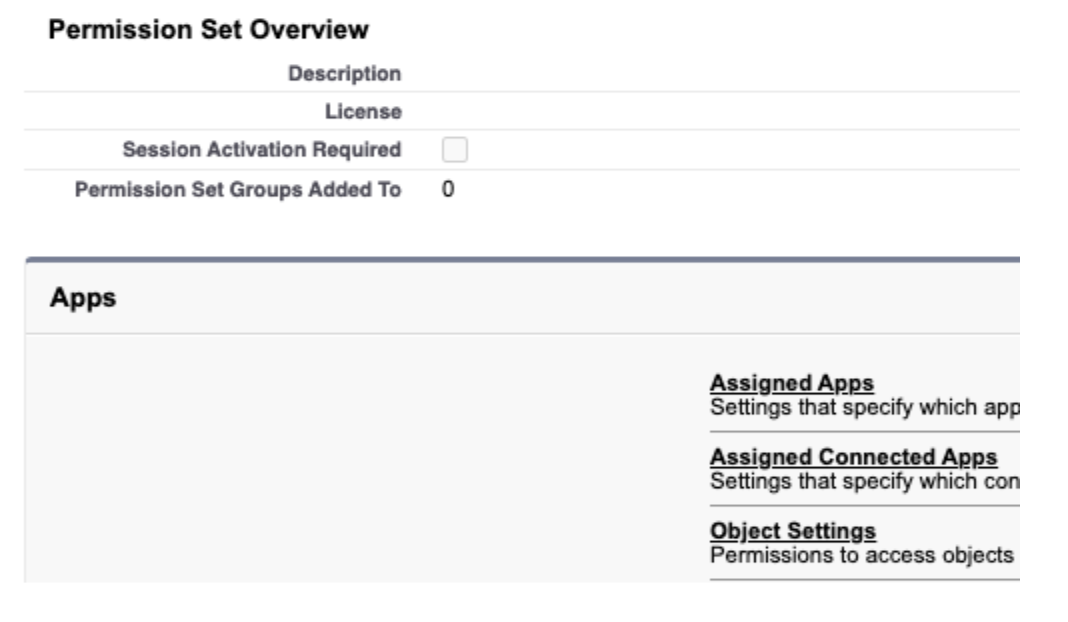
In the Permission Set, click Object settings to configure Knowledge object and fields access.
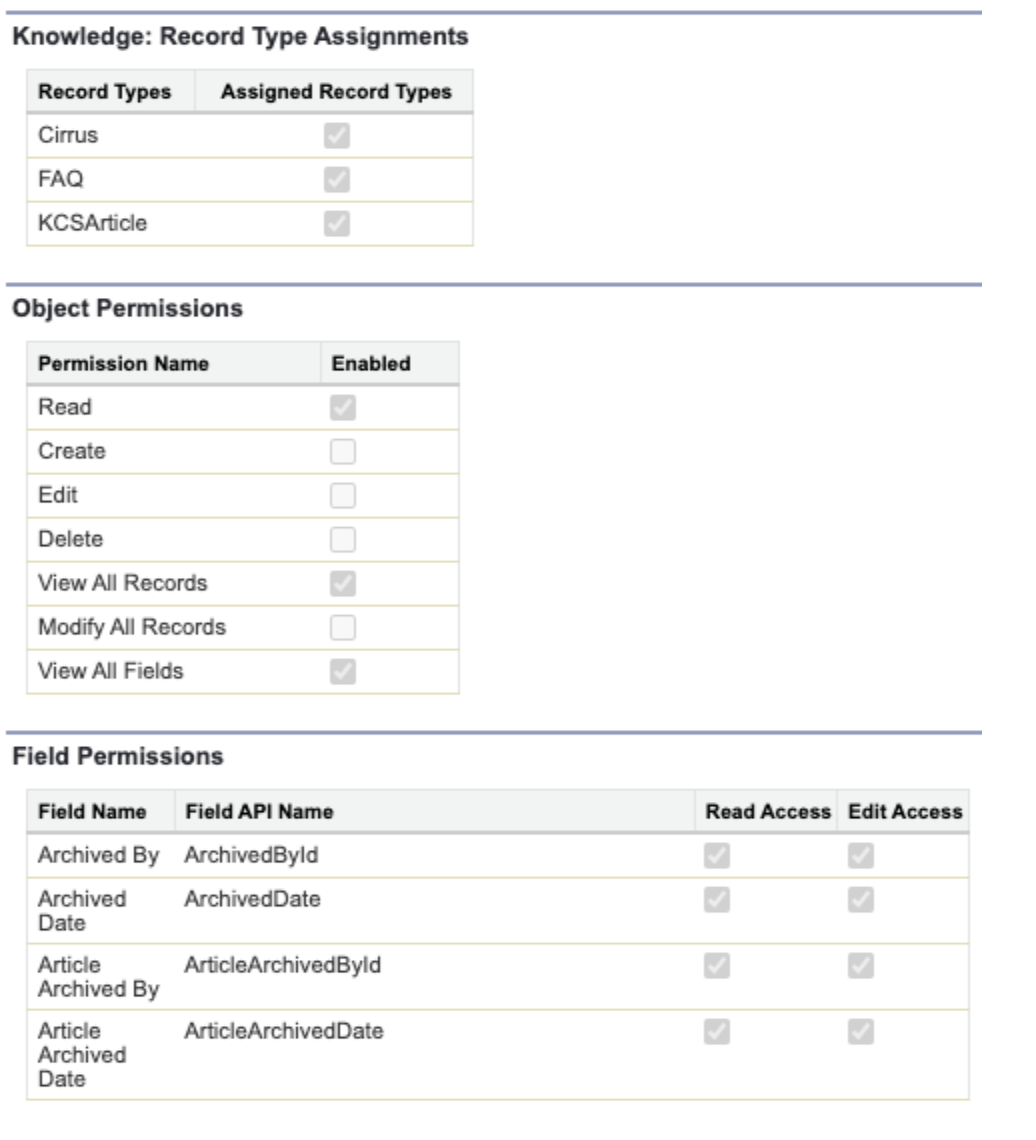
Define Read access to the Knowledge object and access to the required fields.
Still in the new Permission Set, go to App Permissions and check the Allow View Knowledge permission. Check this article for information about this permission.

In Data Cloud:
* Ensure the Search Index is ready

* Ensure the Chunk and Index UDLO are active and you have information on its Refresh History screen
* Ensure the Chunk and Index UDMO status is Ready. You can also check if the information was loaded correctly in the UDMO by using the Data Cloud > Data Explorer functionality
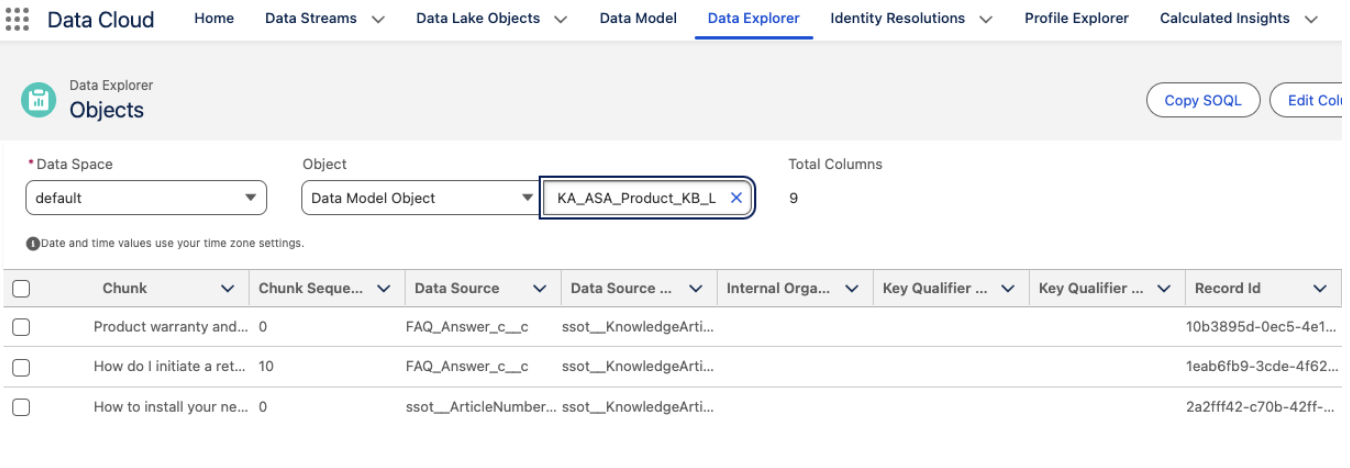
NOTE: If using a Demo Org it may take longer to see data in the chunk and index DMO.
No Response by the Agent - ragFeatureConfigId is Empty
After checking everything, if the Agent is still not providing the expected response or you see a similar screen as illustrated below where the ragFeatureConfigId is empty, there are a few more things to check:
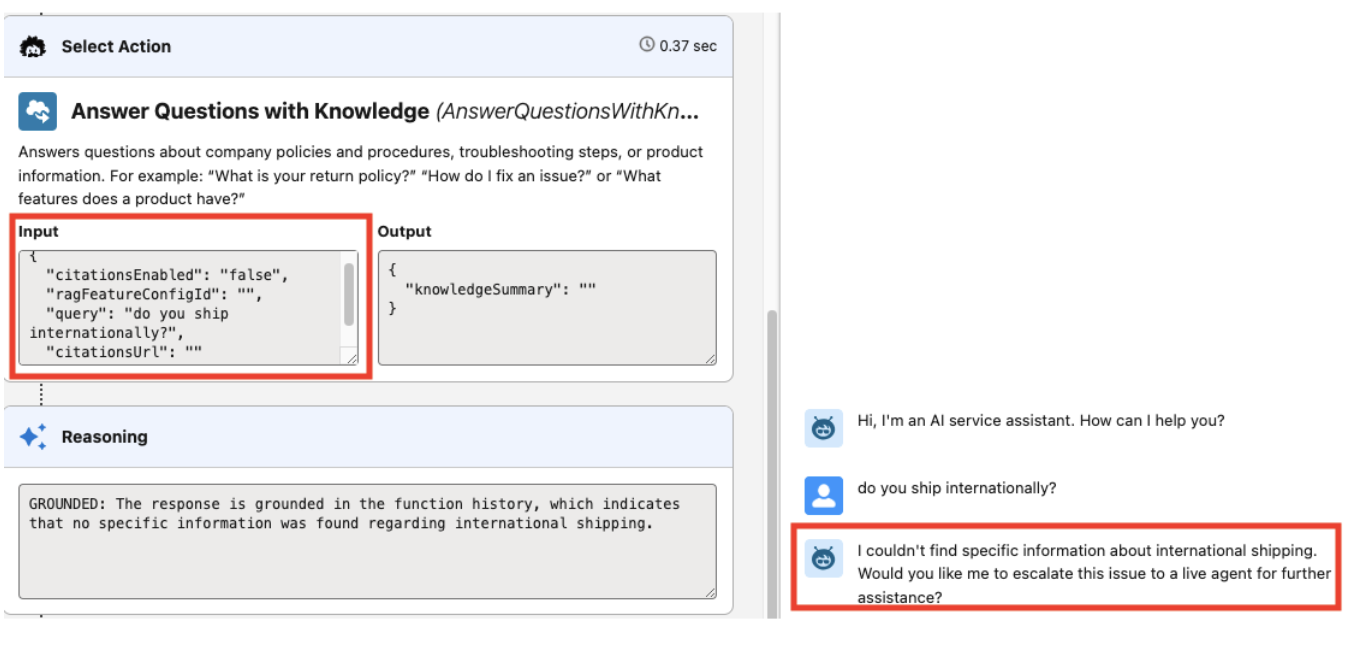
Go to the Knowledge configuration screen, in your Agent Builder and try the following:
* Remove the current associated Agentforce Data Library and Save it
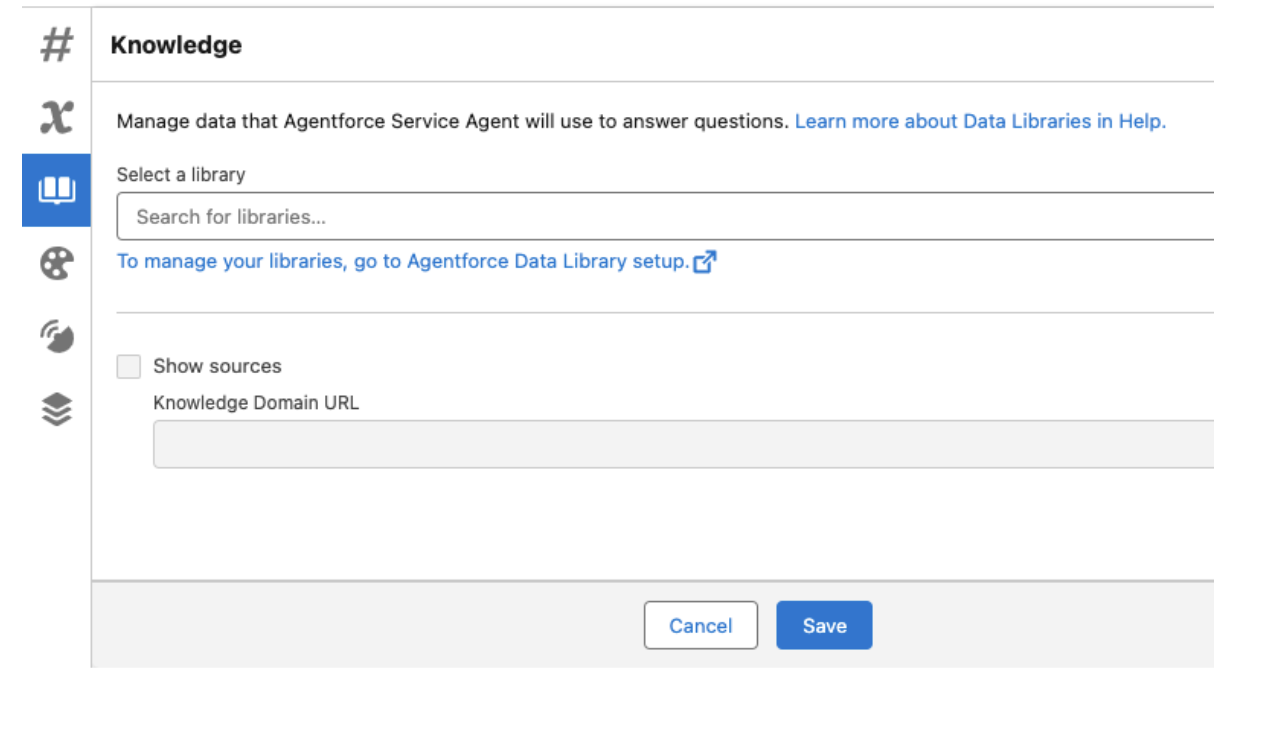
* Close the Agent Builder by clicking on the back arrow at the top left
* Open your Agent in Agent Builder again
* Add the Agentforce Data Library back into the configuration and save it.
Something Went Wrong when creating a new Agentforce Data Library
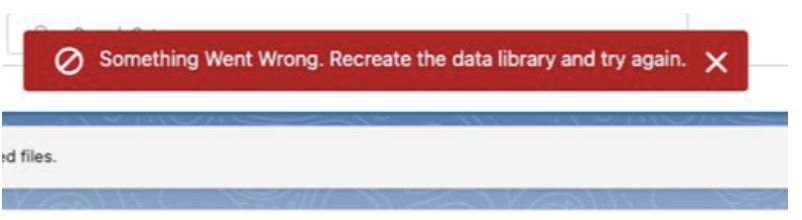
If you have fields with a field label greater than 35 characters you may get this error. Ensure your Knowledge field labels are within this limit.
Something Went Wrong: We couldn’t fetch the data space / data libraries
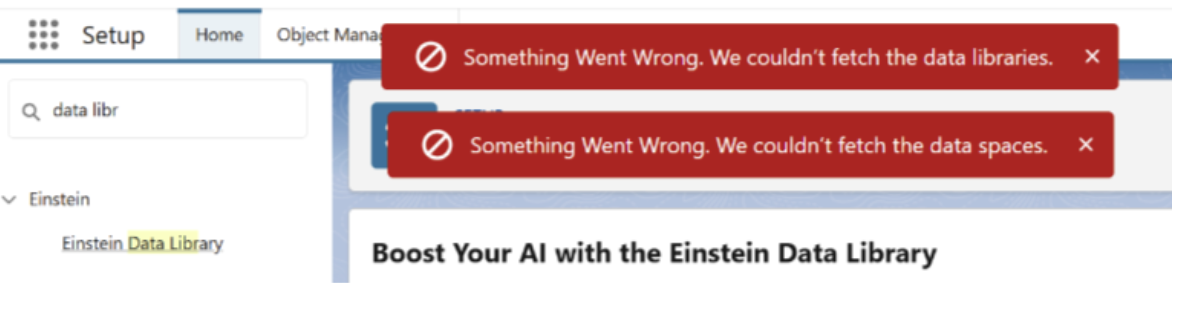
The absence of the Data Spaces tab in the Data Cloud App may result in an error pop-up appearing in the Agentforce Data Library.
Review this Known Issue article.
We couldn't upload your file

You can upload up to 4 MB for text or HTML files, or 100 MB for PDF files.
If your file is less than 4 MB and you are under the 100 MB files limit, please check this Known Issue.
No Articles are returned from the search
Check the Agentforce Data Library “Use Public Knowledge Article and Filter by Knowledge Data Categories settings.
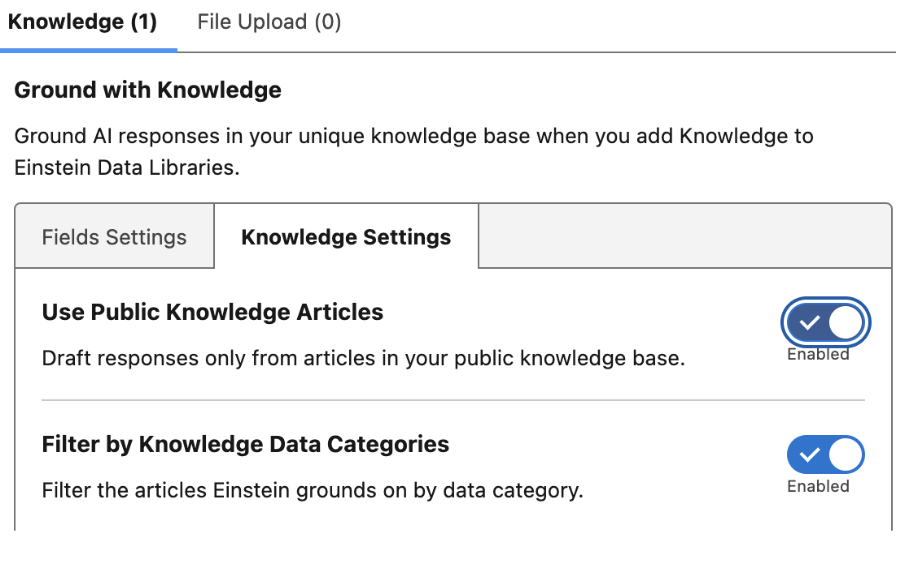
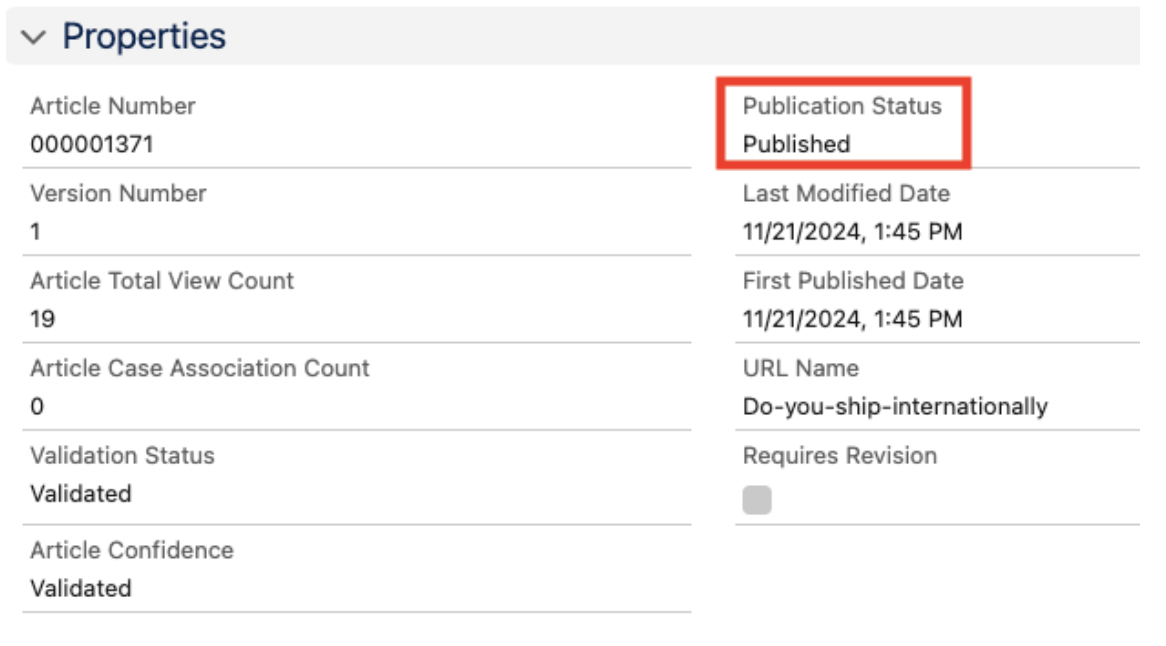
If "Use Public Knowledge Articles" is enabled, ADL will only return chunks from Knowledge Articles that have the Publication Status field as “Published” (IsVisibleInPkb - Visible In Public Knowledge Base).
If you have enabled “Filter by Knowledge Data Categories”, the Knowledge Articles of selected Data Categories will be available to search.
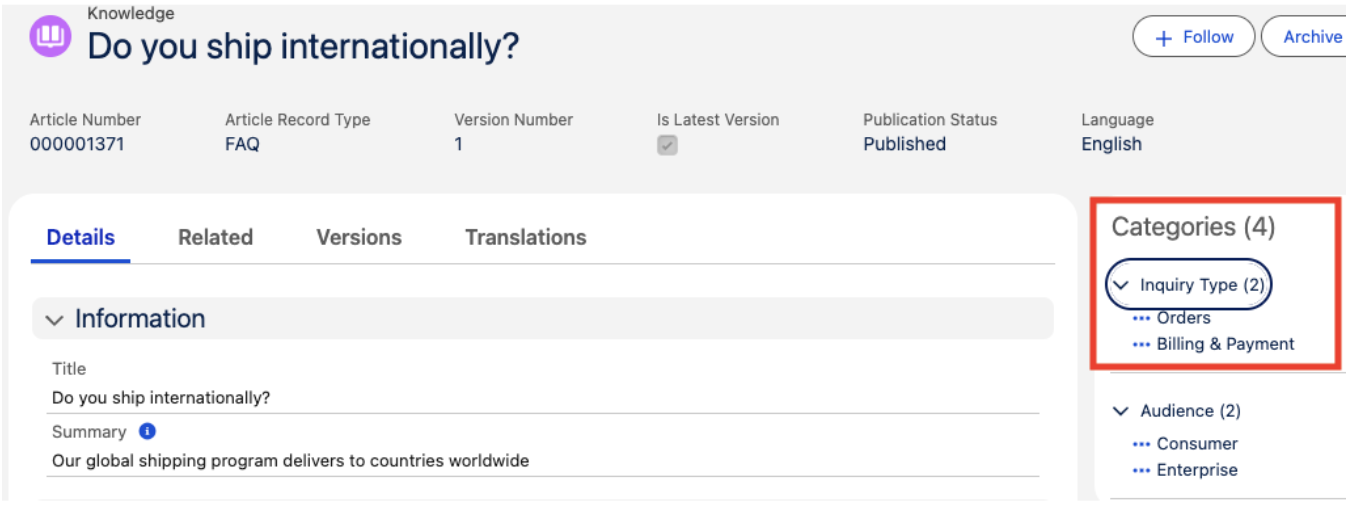
If the Agentforce Agent is not returning the relevant Knowledge Articles when the filter is set on Data Category(“Filter by Knowledge Data Categories”), then please check the following:
1. Ensure checks on Data Category Visibility in:
- Profiles
- Custom Permission Sets
- Roles
2. Check your Knowledge Articles which are not returning Data Categories visibility on the above. If there are any Custom visibilities set, then there are chances that your user might have access to Knowledge Articles due to the Custom visibility option on the Data Categories access assignment.
3. By default, Agentforce Service Agent doesn’t have Read access to the Knowledge__kav object. Make sure the Agentforce Service Agent has Read access to the Knowledge__kav object Known Issue.
4. Check whether the Permission Set Group “AgentforceServiceAgentUserPsg” is assigned to the Agentforce Agent running user.
- Open the Agentforce Agent in the Agent Studio Builder.
- Click the Settings on the top right corner.
- Check the Agent User.
- Open the Agent User and check whether the Permission Set Group “AgentforceServiceAgentUserPsg” is assigned.
5. If you are using the File Upload option and if the results are not coming, kindly check the content of the documents uploaded. Please make sure that the content is structured and well formatted.
- NOTE: Data Cloud only chunks on text and not images of your files.
6. Rebuild the Search Index. This will index the entire Agentforce Data Library from scratch.
- Go to the Search Index Tab.
- Open the Search Index for your Data Library. It will start with KA_ for Knowledge and FileUDMO_SI for File source followed by Data Library API Name.
- Click the Rebuild Button.
- Wait for the index to be completed.
- On the Search Index, you can check the Status. The Status should be Ready to test again.
Knowledge-artikkelnummer
004333412
Hjalp denne artikkelen med å løse problemet ditt?
La oss få vite det slik at vi kan forbedre!
