Välj en organisation
Troubleshoot Network Issues in Hyperforce with TCP Tracing on Windows
Publiceringsdatum: Jul 10, 2026
Beskrivning
TCP Tracing for Hyperforce Orgs
Standard traceroute tools rely on Internet Control Message Protocol (ICMP), which is blocked on Hyperforce. This means typical traceroute commands do not work when diagnosing network path issues to Hyperforce-hosted orgs. TCP-based tracing tools — such as TraceTCP and Pingplotter — provide an alternative method to diagnose network connectivity issues by using TCP packets instead of ICMP.
This article explains how to set up a Windows system to use TCP trace functionality. The primary prerequisite is installing Npcap, a packet capture library required by TraceTCP.
Lösning
Step 1: Install NPCAP:
- Navigate to the NPCAP installation website
- Click on the “Npcap 1.80 installer” link
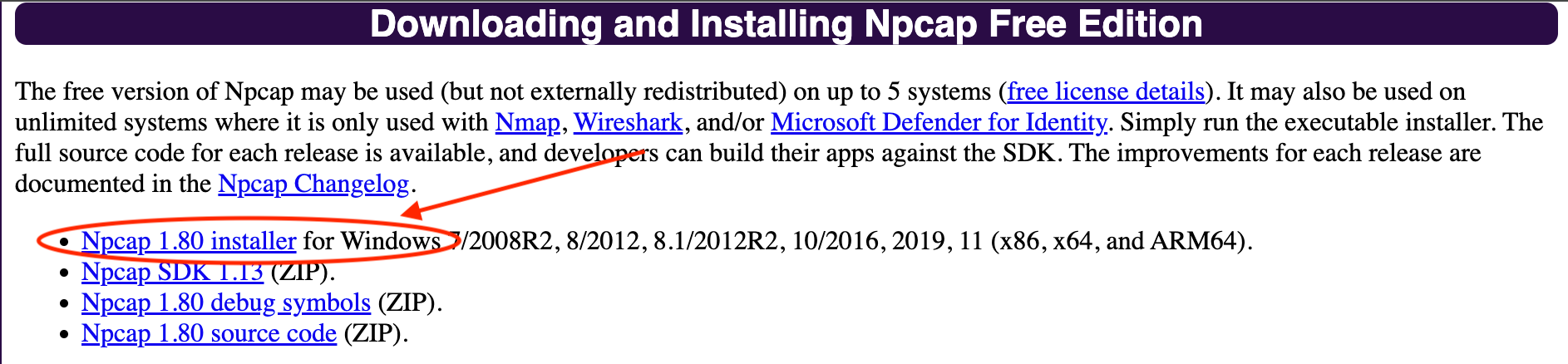
- After the download, run the installer and install Npcap
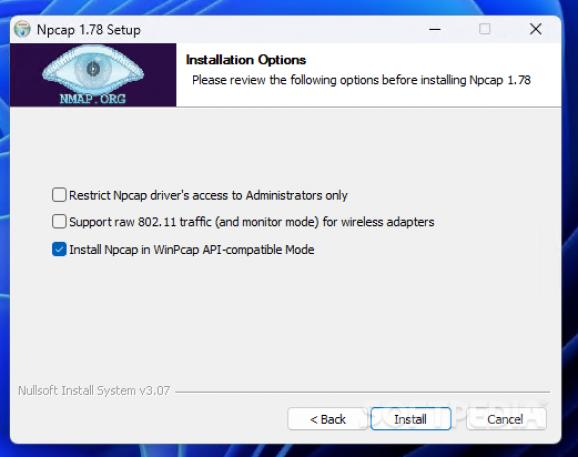
- Please be sure to install Npcap in WinPcap API-compatible Mode (see image below)
Step 2: Install TraceTCP:
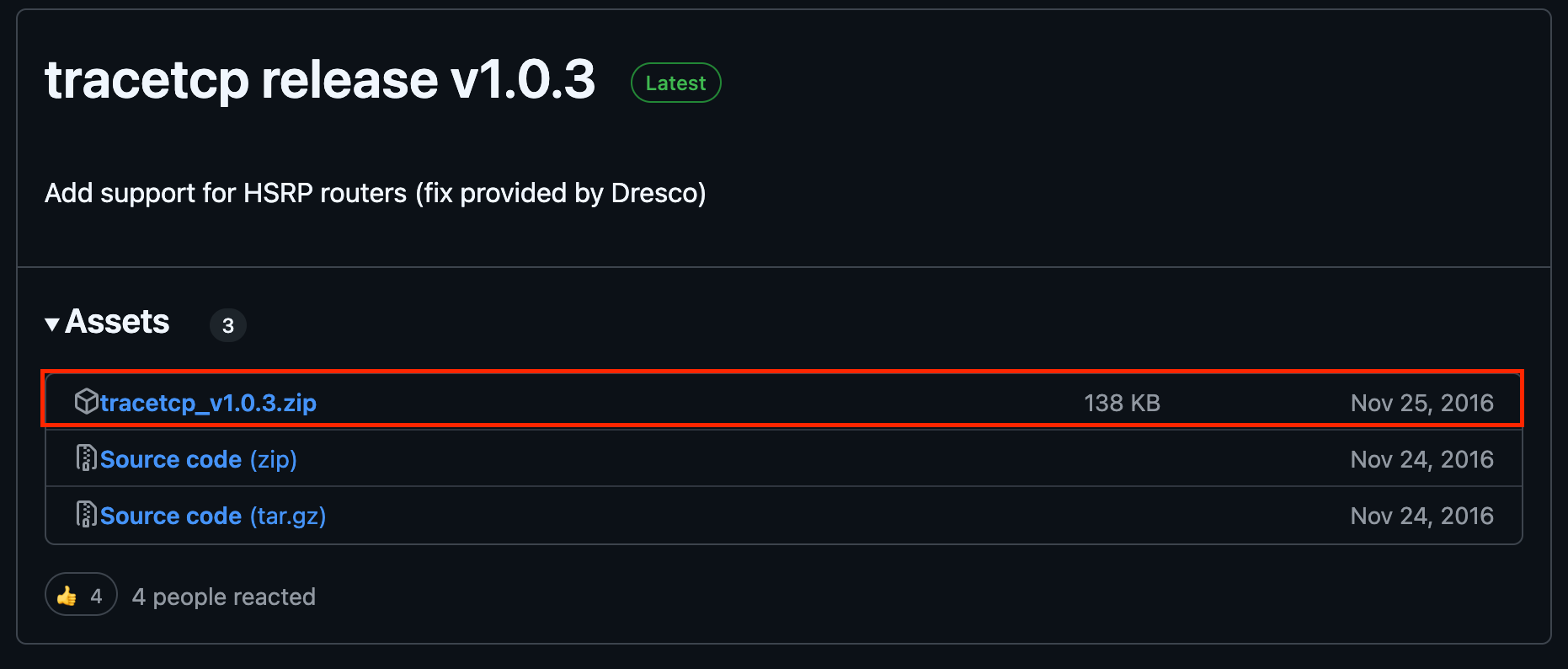
- Navigate to https://github.com/0xcafed00d/tracetcp/releases
- click on the download link for tracetcp_v1.0.3.zip as seen below:
- Extract the Trace TCP files from the ZIP into your C:\Windows\System32 folder (extract the files only, do not copy the entire folder(s) over as the system will not recognize the files if they are still in the Tracetcp folder, within System32)
Step 2.5: For intermittent issues, Pingplotter can be installed and set up for TCP trace:
- Download and install pingplotter from here: https://www.pingplotter.com/download/
- Folllow the pingplotter guide below (keep in mind if you have already installed Npcap)
https://www.pingman.com/kb/article/how-do-i-set-up-pingplotter-to-use-tcp-packets-51.html - The results can be interpreted by following the guide below:
https://www.pingplotter.com/fix-your-network/interpret-results/ - Alternatively, a case can be opened with Salesforce Support to help interpret the results
Step 3: Run a TraceTCP or Pingplotter TCP trace
- Open CMD
- Type in tracetcp ----------------:443. (input customer’s mydomain in the ------ section)
- Results can be screenshotted and sent to SF support for review or can be reviewed by customer’s internal network team. Review is similar to our Traceroute article.
- For Intermittent issues or if the issue is easier to troubleshoot in pingplotter (packet loss tracking), please follow the steps outlined in Step 2.5
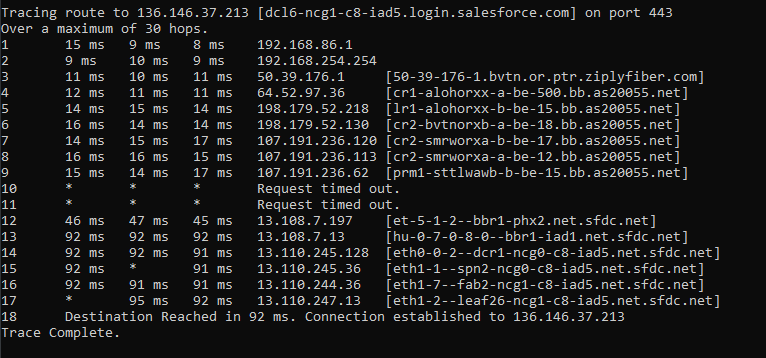
Your TraceTCP results should look similar to this example (to login.salesforce.com)
Knowledge-artikelnummer
004464739
Löste denna artikel ditt problem?
Berätta för oss vad vi kan förbättra!
