Organisation auswählen
Change Font Size to 7 or Below in a Tableau Workbook
Veröffentlichungsdatum: Mar 28, 2025
Aufgabe
Adjust the font size in a Tableau workbook to 7 or below to improve data label visibility.
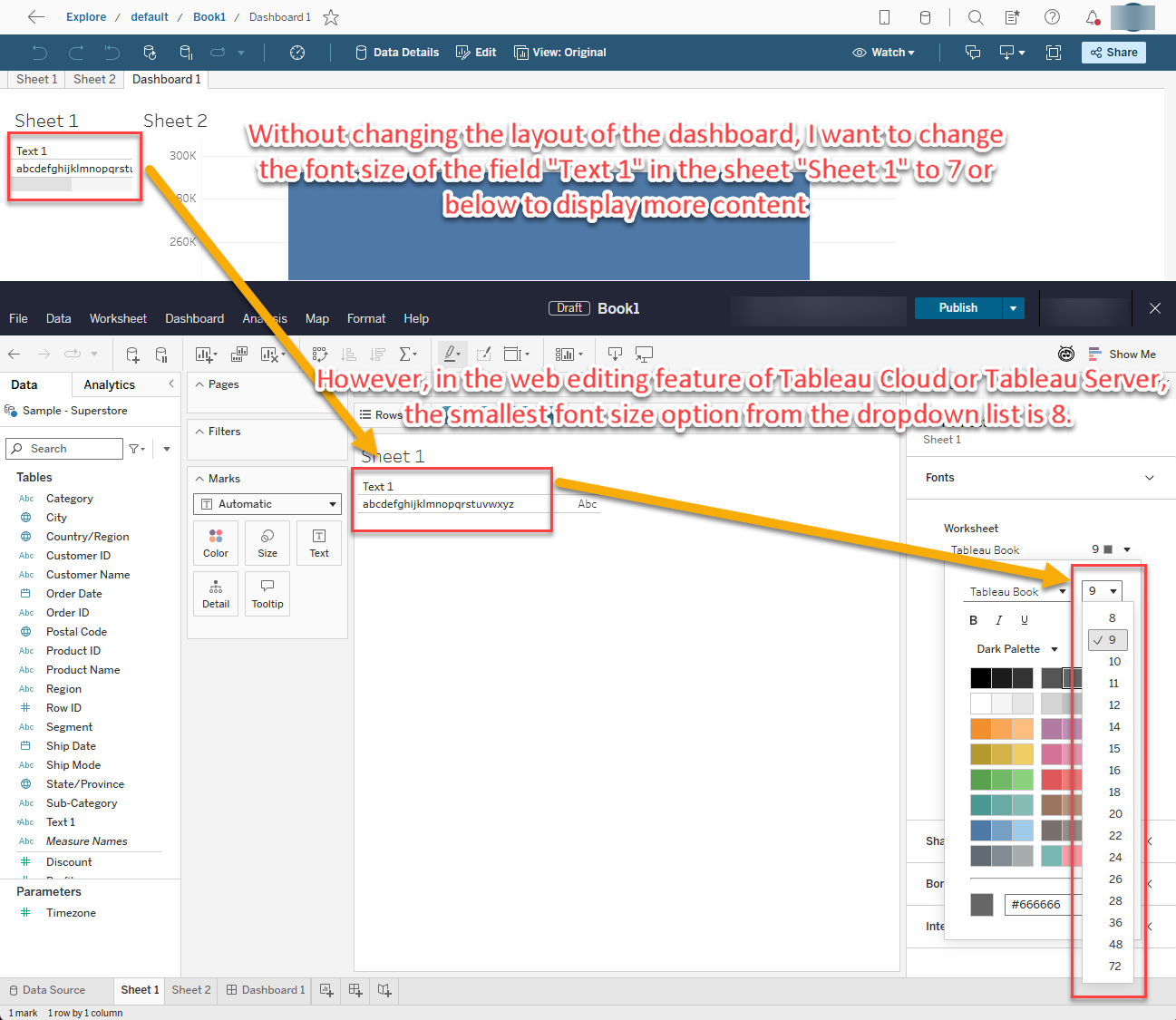
For example, for a space-constrained dashboard, without changing the layout of the dashboard, I want to change the font size of the field "Text 1" in the sheet "Sheet 1" to 7 or below to display data label correctly. However, in the web editing feature of Tableau Cloud or Tableau Server, the smallest font size I can select from the dropdown list is 8.
Schritte
By following these steps, you can change the font size to 7 or below in a workbook via Tableau Desktop, to ensure that the data label are displayed correctly, even in a space-constrained dashboard.
Note:
• Some fonts cannot be set to a size below 8.
• In this example, using the default font in Tableau products, Tableau Book, allows you to set the font size below 8.
Steps:
1. Open the Workbook:
• Launch Tableau Desktop and open the workbook where you need to adjust the font size.
2. Navigate to the Sheet:
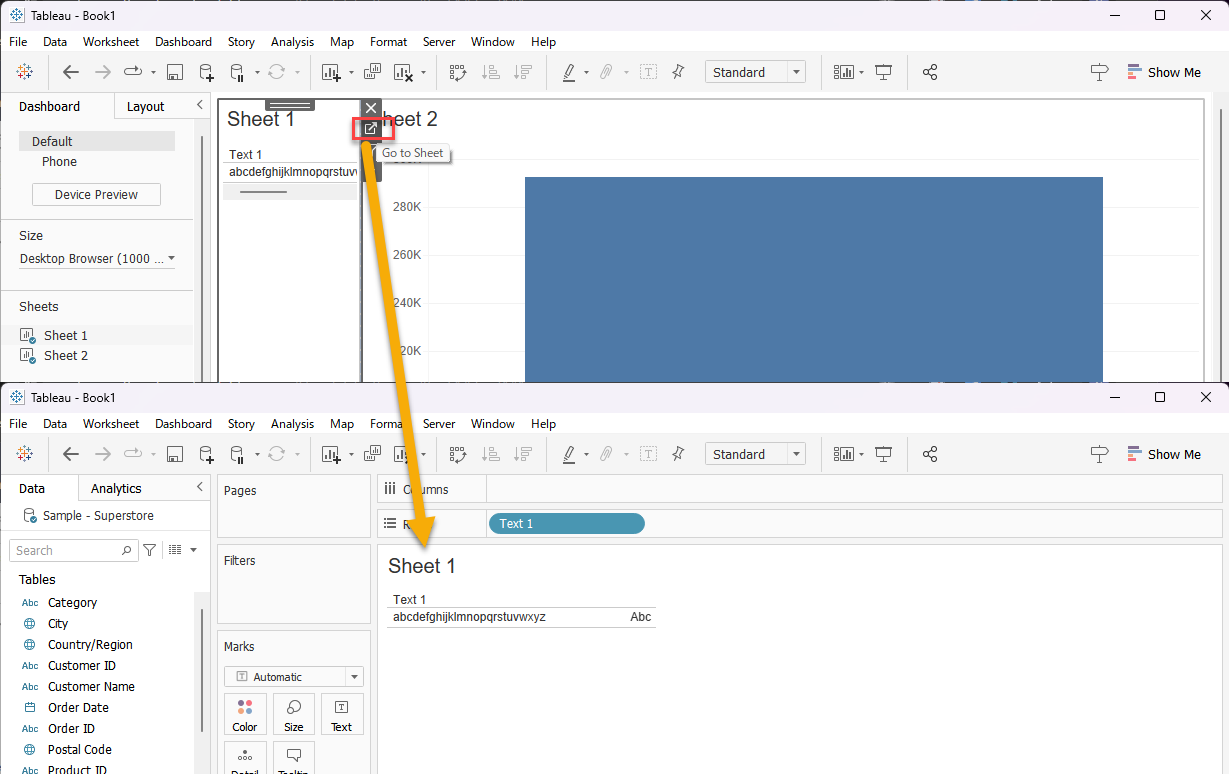
• In the dashboard, click on the sheet where you need to change the font size.
• Click on the "Go to Sheet" button to navigate to the specific sheet (e.g., "Sheet 1").
3. Access Font Settings:
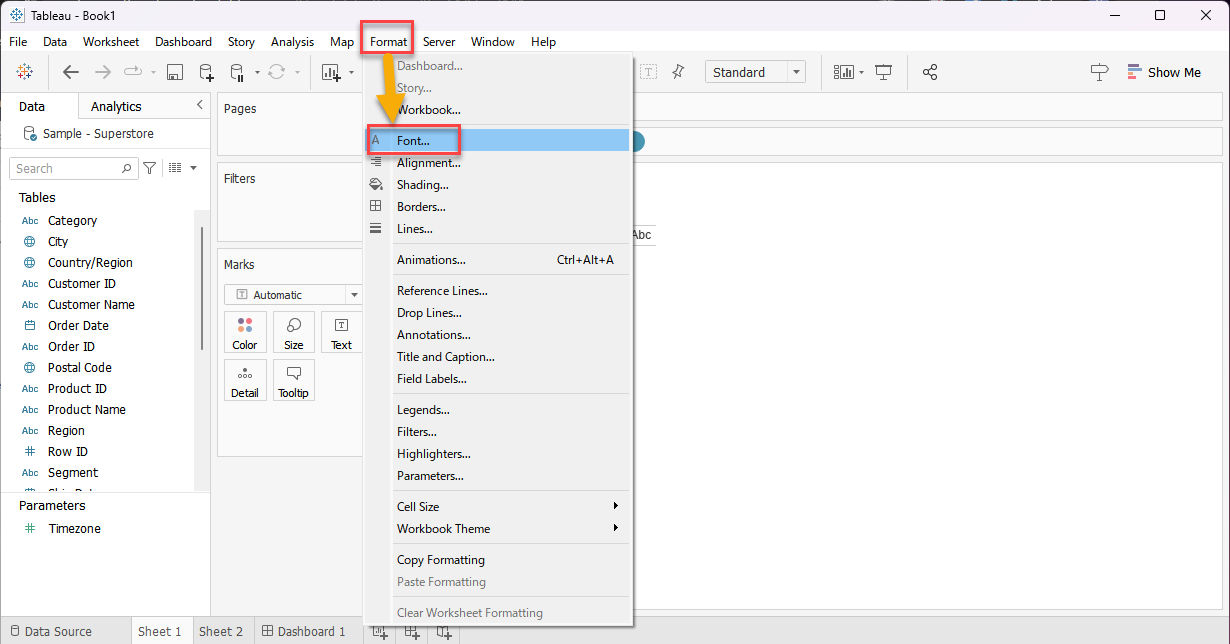
• From the menu bar, select "Format" and then click on "Font".
4. Select the Field:
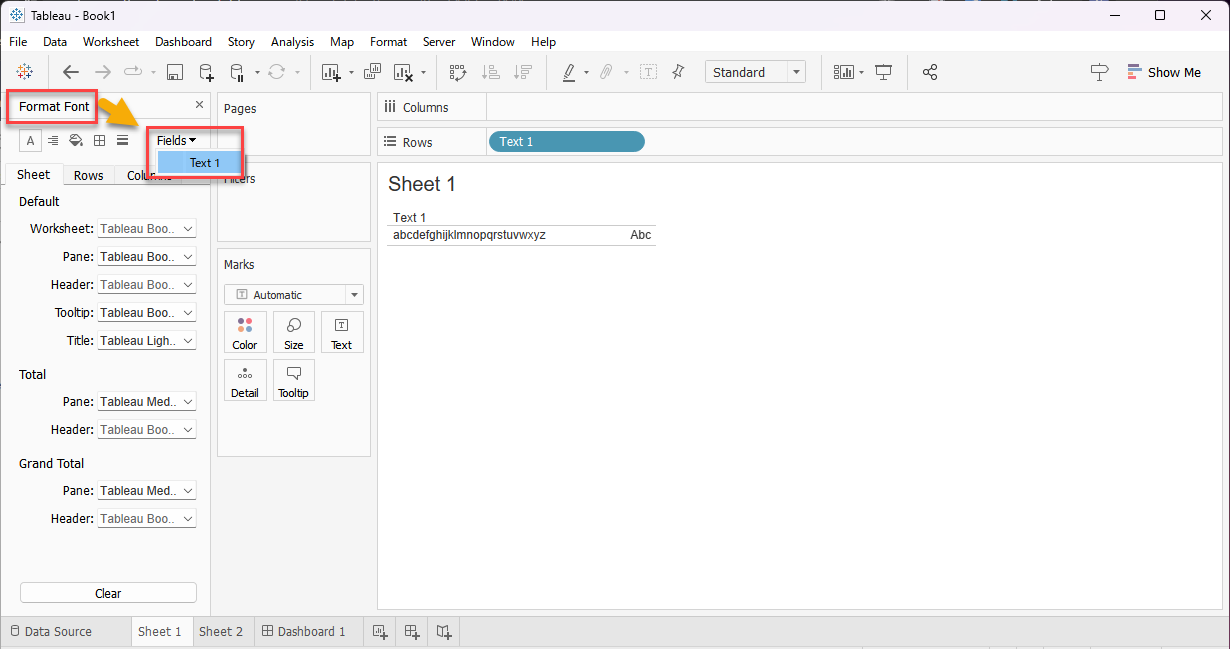
• In the "Format Font" pane, go to the "Field" dropdown and select the field you want to adjust (e.g., "Text 1").
5. (Option) Change the Font:
• Select the font you want to use from the list of available fonts. In this example, select "Tableau Book".
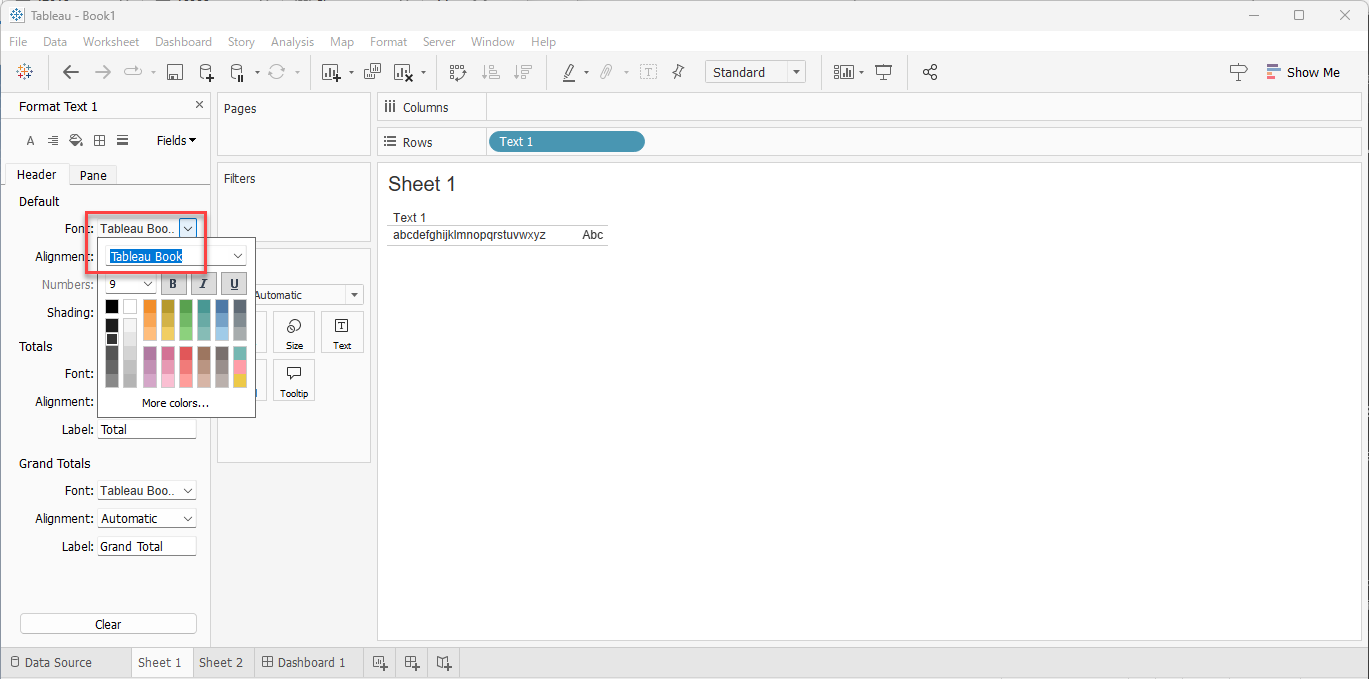
6. Adjust the Font Size:
• In the "Format: [Field]" pane, under "Header", manually enter "7" in the font size box (since size 7 may not be available in the dropdown).
• Press the Enter key to apply the change.
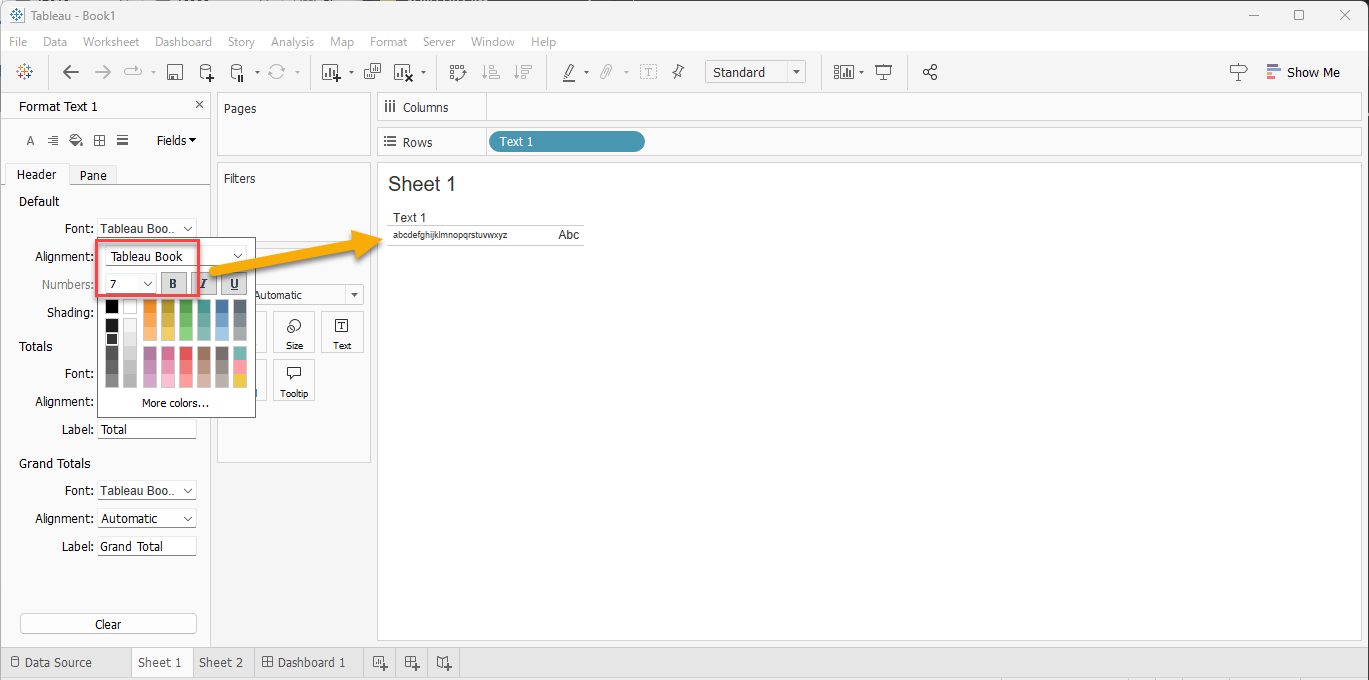
7. Verify the Changes:
• Click on a blank area to ensure the changes are applied.
• Reopen the "Format: [Field]" pane to confirm that the font and size settings are retained.
8. Save the Workbook:
• Save the workbook to ensure all changes are preserved.
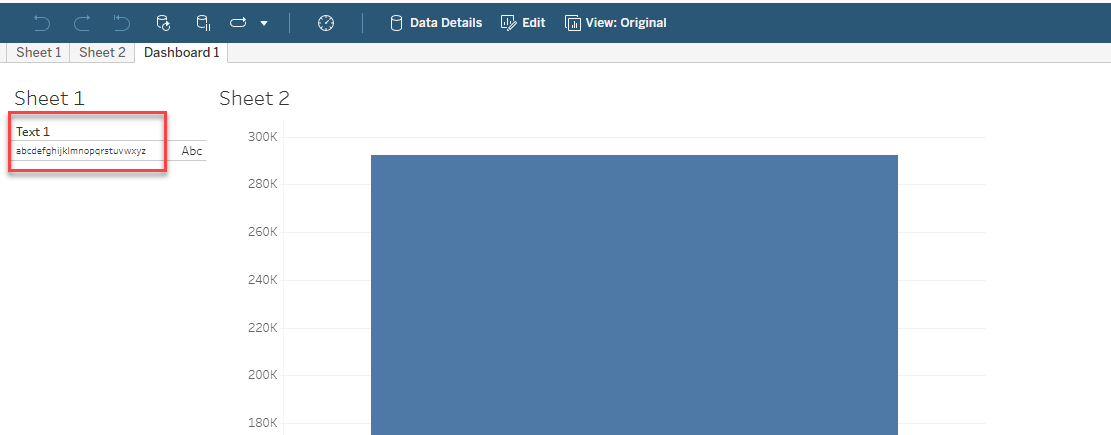
9. Publish the Workbook:
• Publish the updated workbook to Tableau Cloud or Tableau Server and verify that the font size adjustments are reflected correctly.
Zusätzliche Ressourcen
Fonts Not Displaying as Expected After Publishing to Tableau Public or Tableau Cloud
Nummer des Knowledge-Artikels
004575673
Konnten Sie Ihr Problem mithilfe dieses Artikels lösen?
Geben Sie uns Feedback, damit wir uns verbessern können.
