Sélectionner une organisation
Get a Public URL for Media in an Enhanced CMS Workspace
Date de publication: Mar 21, 2025
Description
Note: this article applies to Marketing App users for all editions (Marketing Cloud Growth/Advanced, Salesforce Starter, Salesforce Pro Suite, and Salesforce Foundations).
The purpose of this Knowledge Article is to enable marketers to include a publicly accessible URL for content such as PDFs or images in their marketing communications. This article describes how to build the public URL for a content record by first accessing the ID of the public channel where the content is published, and then by accessing the ID of the content record.
Before you can get a public URL, make sure that the enhanced CMS workspace that contains your media content has a public channel associated with it. To create a channel, see Create and Manage CMS Channels. To add a channel to a workspace, see Add or Remove a Channel from a CMS Workspace.
The public URL contains your org ID, the channel ID for the public channel where your content is published, and the content key for your media content.
Résolution
Get the Public Channel ID
To get the channel ID, you can use this API or follow these steps in the UI.
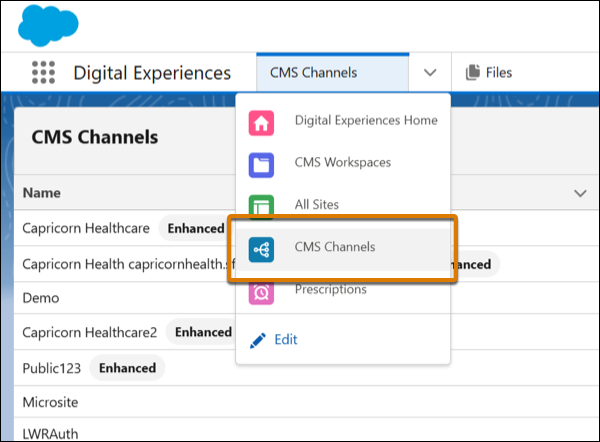
1 - Go to the CMS Channels tab in the Digital Experiences App.
2 - Open the Developer Tools in your browser. In Chrome, press press Ctrl + Shift + i (Windows) or Cmd + Opt +i (macOS).
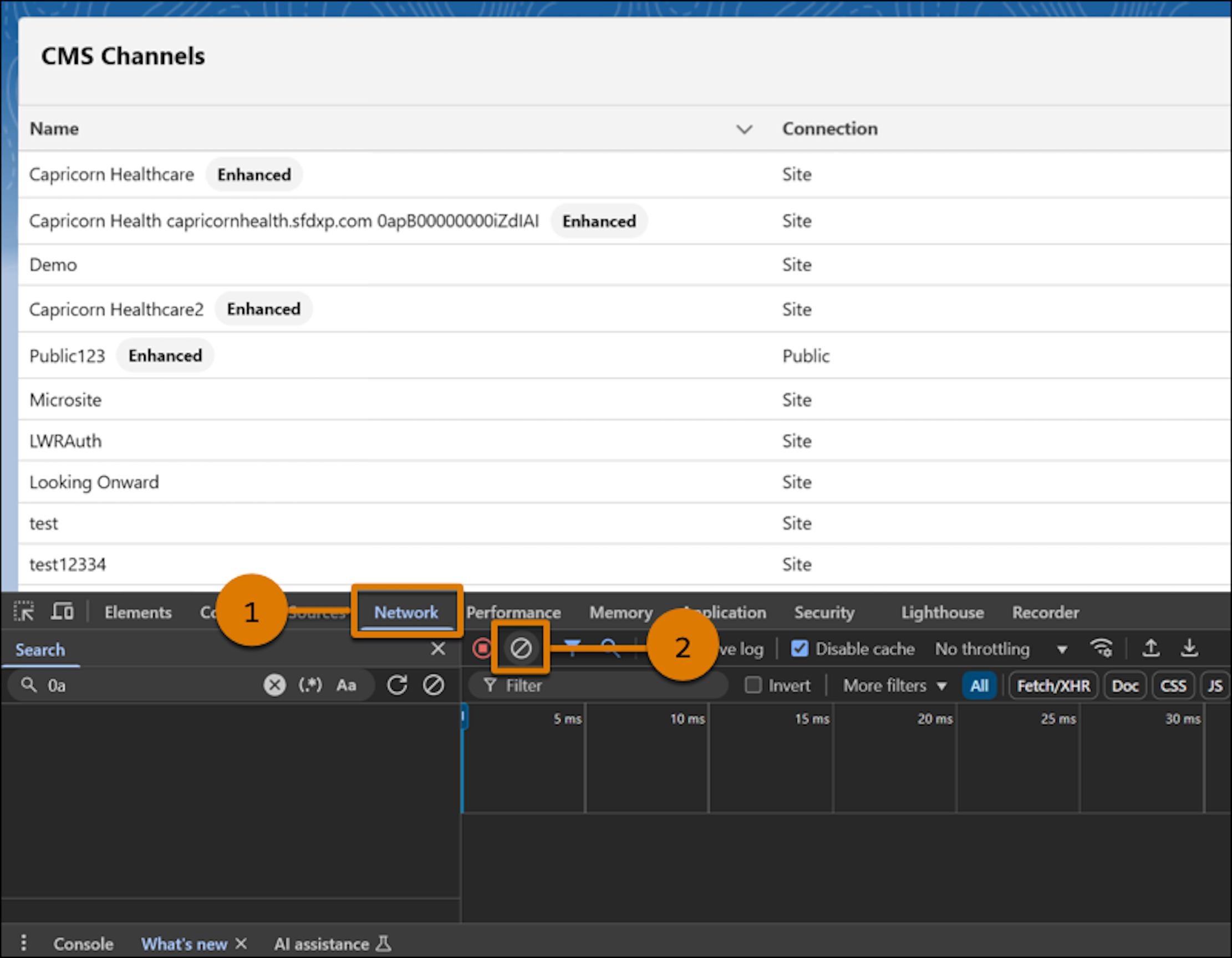
3 - Within the developer tools, click the Network tab (1), and click the circle with a slash through it (2) to clear the log.
4 - In the CMS Channels list, find your public channel, click the row level action, and then click Edit.
5 - When the channel settings open, go to the developer tools and click the search bar, or press Ctrl + f (Windows) or Cmd + f (macOS).
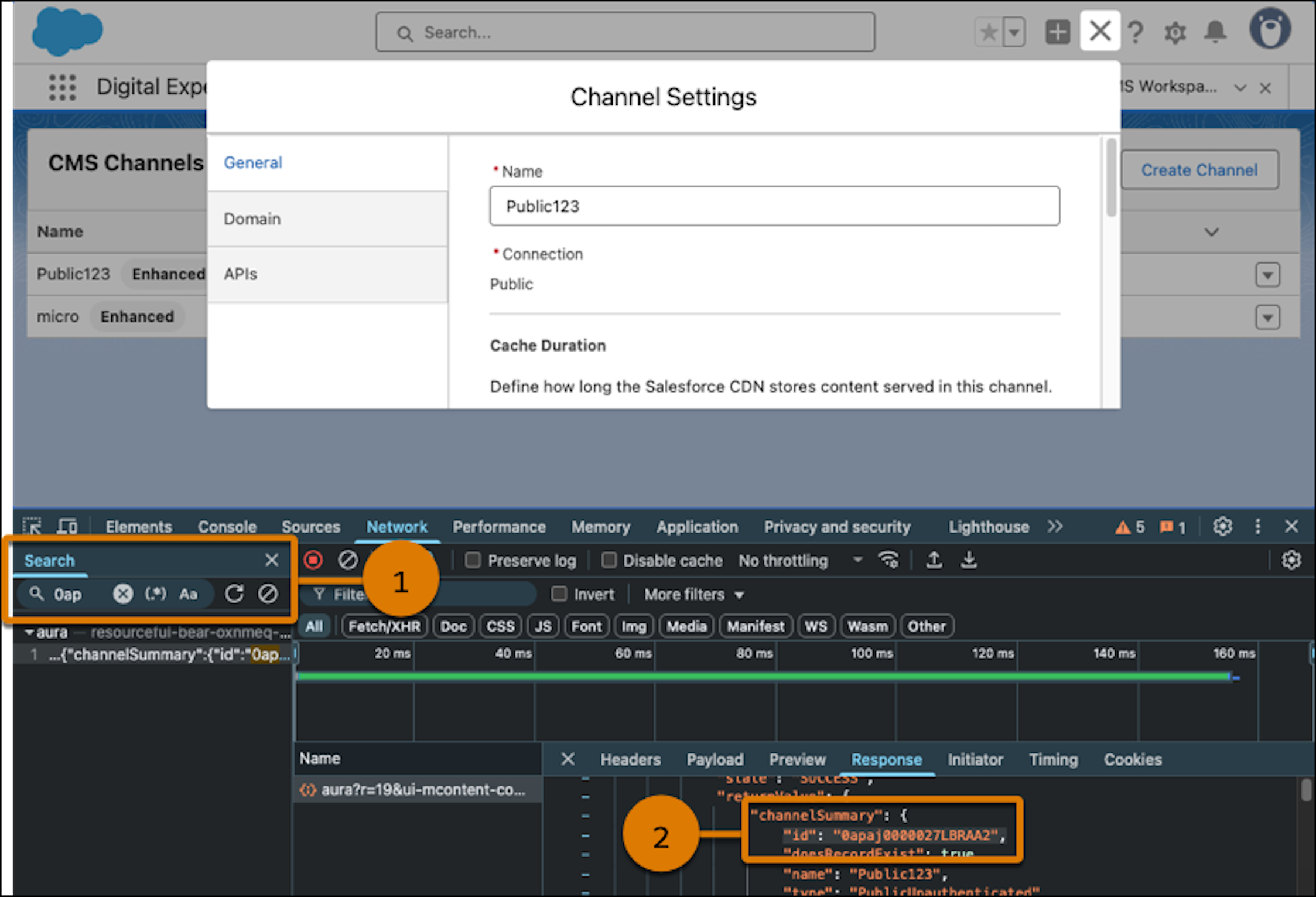
6 - Enter “0ap” in the search bar to find the channel ID (1). The ID starts with “0ap” and is 18 characters long, such as “0apfI000000F4hhQAC”.
7 - Copy and paste the 18 character ID (2) in a place where you can find it later, and then delete the last 3 characters from it. Now you have a channel ID of 15 characters for your URL.
Get the Content Key
1 - In the CMS workspace that’s connected to your public channel, upload your media content, such as an Image or Document, then publish the content.
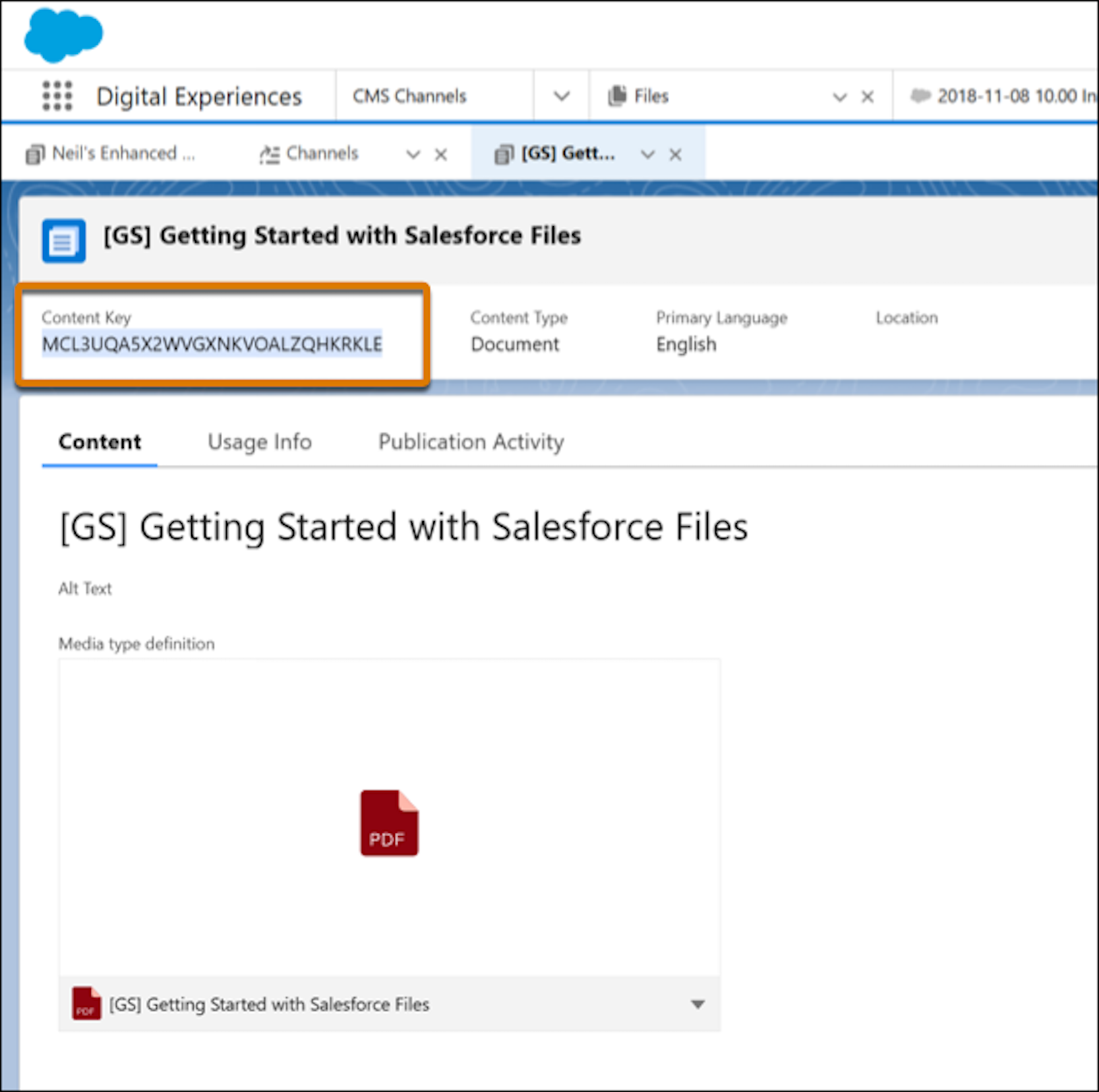
2 - Go to the content detail page and copy the content key to save it.
Create the Public URL
The Public URL is in the format of:
<org domain>/cms/delivery/media/<content key>?channelId=<15 character channel id>&oid=<15 character organization Id>
For example:
https://mycompanydomain.my.salesforce.com/cms/delivery/media/MCL3UQA5X2WVGXNKVOALZQHZRKLE?channelId=0apfI000000G4hh&oid=00DfI00000B8FqX
If you need a public URL for any content that’s published to the same public channel, you can use the same URL, and replace the <content key> with the new content key.
Numéro d’article de la base de connaissances
004576431
Cet article a-t-il résolu votre problème ?
Dites-nous ce que nous pouvons améliorer !
