Sélectionner une organisation
AWS Secrets Manager Properties Provider - Configuring AWS Assume Role with AWS Service Role in CloudHub 2.0 Private Space
Date de publication: Apr 2, 2025
Prérequis
Tâche
Étapes
- Enable the "AWS Service Role" on CloudHub 2.0 Private Space to generate the Role ARN. Refer to the documentation: Configure AWS Service Role
- Access your organization’s AWS Account and either create a new role or update an existing one.
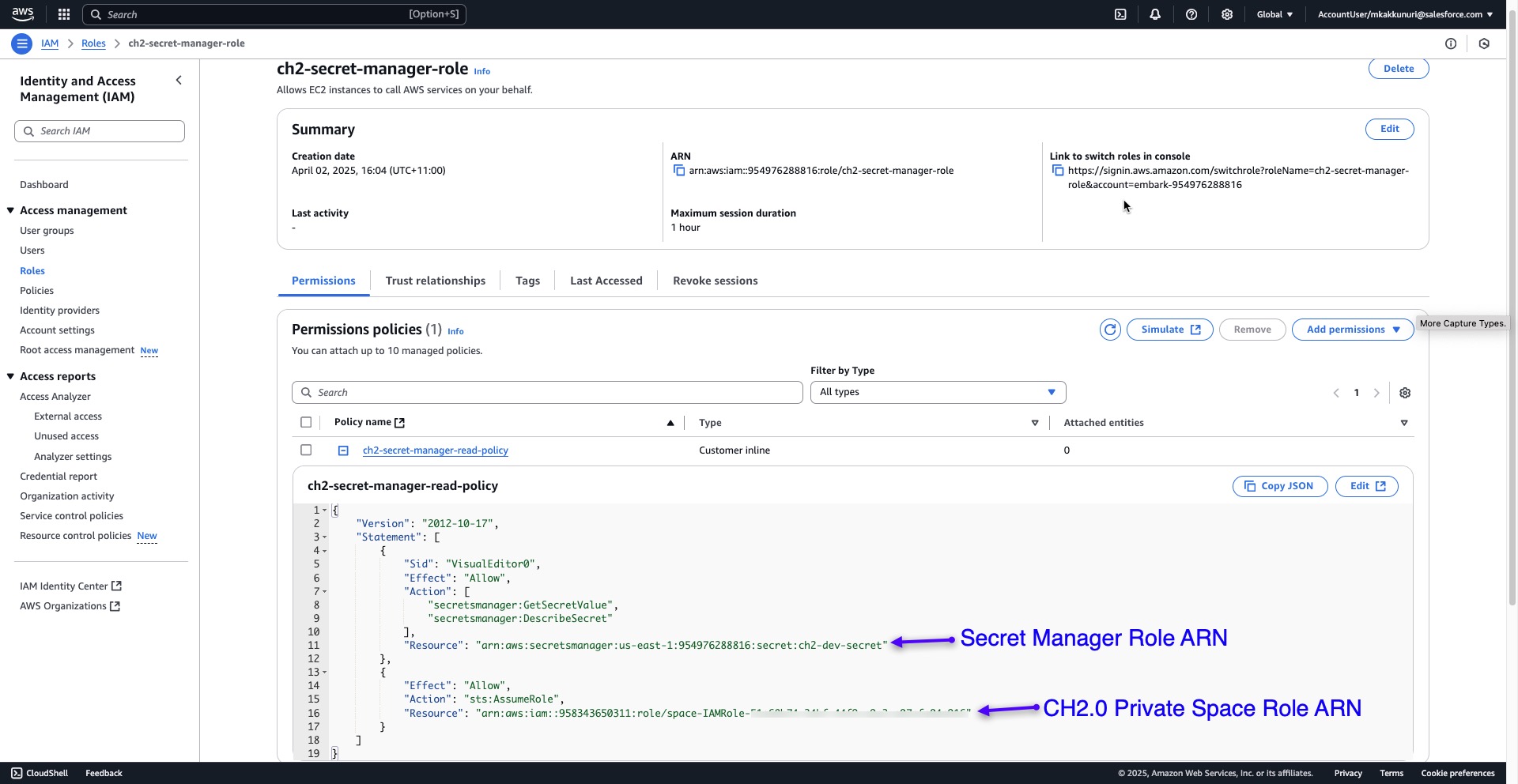
- For this role, create an inline policy that includes two actions for "Secret Manager" and "STS Assume Role" as illustrated below:
- The example below demonstrates a role created for Secret Manager for CloudHub 2.0 Private Space.
- Under the "Permissions" tab, use the "Create Inline Policy" option to create a custom policy.
- Add the Secret Manager Role ARN as a resource for the action that allows read access to Secret Manager.
- Add the CloudHub 2.0 Private Space Role ARN as a resource for the action that allows STS Assume Role.
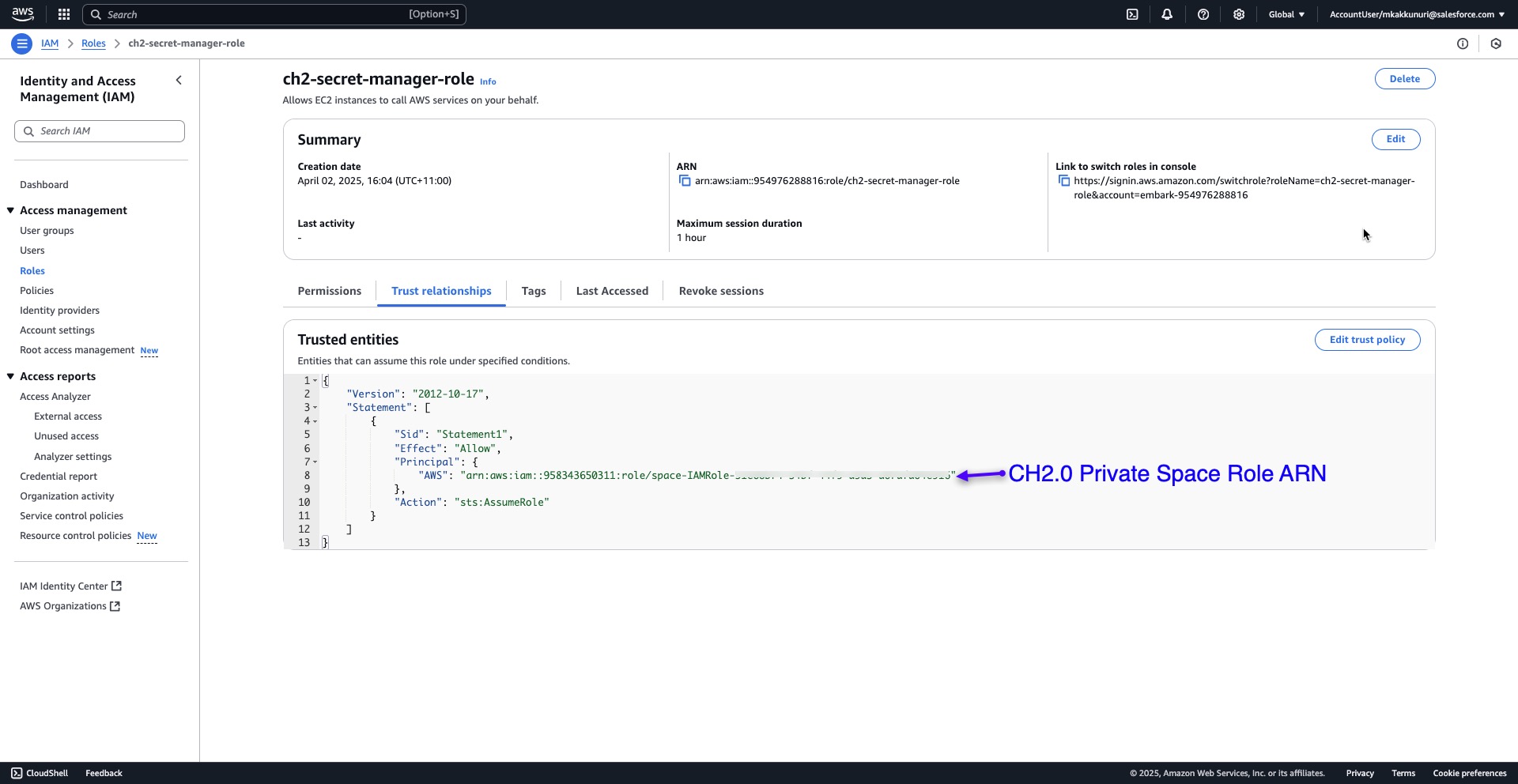
- Under the "Trust Relationships" tab, create a custom trust policy for STS Assume Role using the Role ARN copied from CloudHub 2.0 Private Space.
- In Anypoint Studio, configure the "AWS Secrets Manager Properties Override Config" under the "Global Elements" tab.
- Do not provide Access and Secret Keys as these are optional fields.
- Provide the Role ARN copied from CloudHub 2.0 Private Space.
- To fetch secrets, follow this article: How to fetch the secrets from Amazon Secrets Manager using Amazon Secrets Manager Properties Provider
Note: This article is based on the original article: Use AWS Service Role in CloudHub 2.0 Private Space
Disclaimer: This article discusses products and technologies that are not part of the MuleSoft product suite. Technical assistance for these products is limited to the information provided in this article.
Numéro d’article de la base de connaissances
004630378
Cet article a-t-il résolu votre problème ?
Dites-nous ce que nous pouvons améliorer !
