Velg en organisasjon
AWS Secrets Manager Properties Provider - Configuring AWS Assume Role with AWS Service Role in CloudHub 2.0 Private Space
Publiseringsdato: Apr 2, 2025
Forkunnskaper
Oppgave
Trinn
- Enable the "AWS Service Role" on CloudHub 2.0 Private Space to generate the Role ARN. Refer to the documentation: Configure AWS Service Role
- Access your organization’s AWS Account and either create a new role or update an existing one.
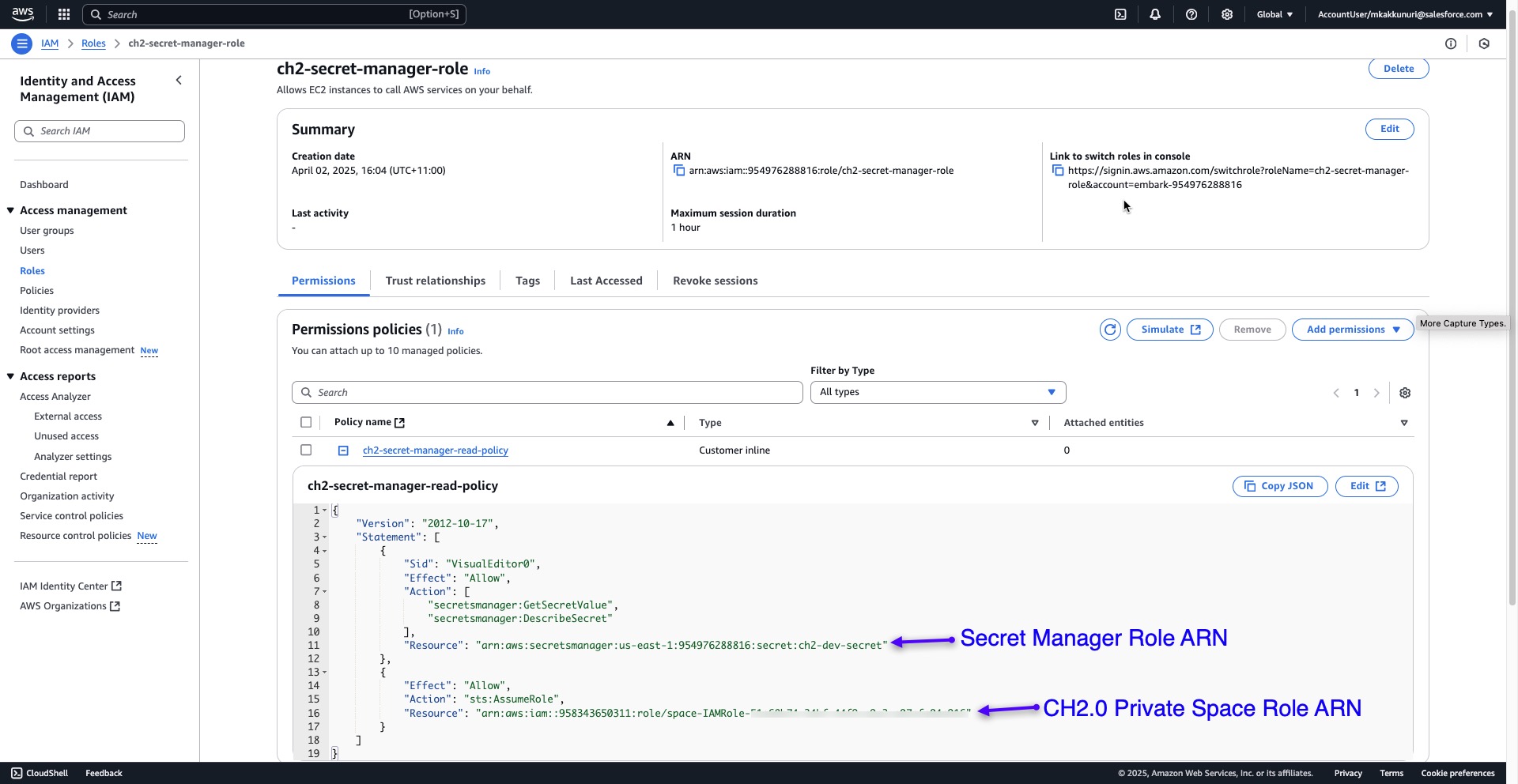
- For this role, create an inline policy that includes two actions for "Secret Manager" and "STS Assume Role" as illustrated below:
- The example below demonstrates a role created for Secret Manager for CloudHub 2.0 Private Space.
- Under the "Permissions" tab, use the "Create Inline Policy" option to create a custom policy.
- Add the Secret Manager Role ARN as a resource for the action that allows read access to Secret Manager.
- Add the CloudHub 2.0 Private Space Role ARN as a resource for the action that allows STS Assume Role.
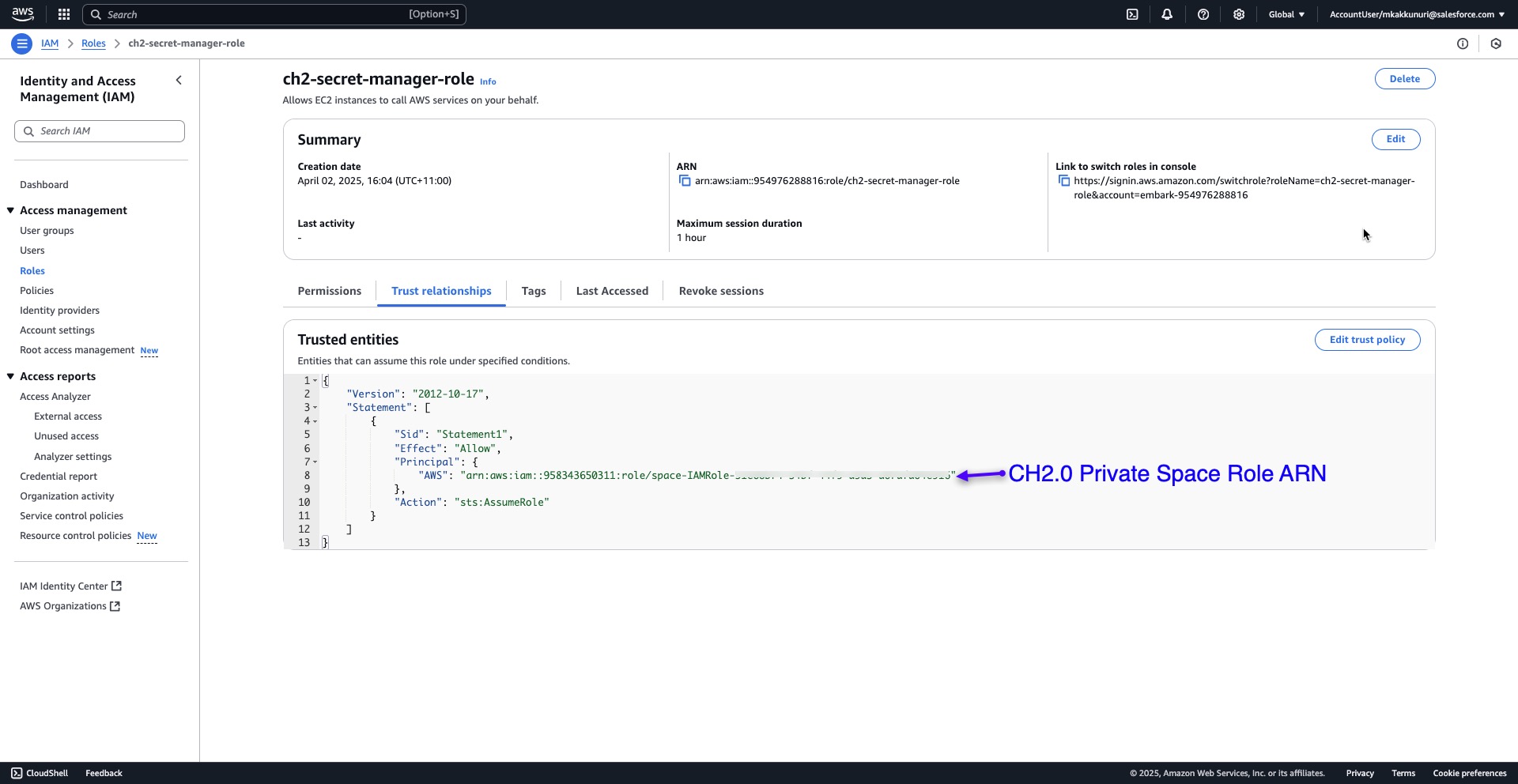
- Under the "Trust Relationships" tab, create a custom trust policy for STS Assume Role using the Role ARN copied from CloudHub 2.0 Private Space.
- In Anypoint Studio, configure the "AWS Secrets Manager Properties Override Config" under the "Global Elements" tab.
- Do not provide Access and Secret Keys as these are optional fields.
- Provide the Role ARN copied from CloudHub 2.0 Private Space.
- To fetch secrets, follow this article: How to fetch the secrets from Amazon Secrets Manager using Amazon Secrets Manager Properties Provider
Note: This article is based on the original article: Use AWS Service Role in CloudHub 2.0 Private Space
Disclaimer: This article discusses products and technologies that are not part of the MuleSoft product suite. Technical assistance for these products is limited to the information provided in this article.
Knowledge-artikkelnummer
004630378
Hjalp denne artikkelen med å løse problemet ditt?
La oss få vite det slik at vi kan forbedre!
