Sélectionner une organisation
VM Listener Timeout Warning After Upgrading to Mule Runtime 4.9.0
Date de publication: Apr 14, 2025
Description
Description
This article explains a known behaviour change related to VM listener transactions introduced in Mule Runtime 4.6.1 and above. Users upgrading to Mule 4.9.0 (Java 17) may notice frequent warning messages in Studio and application logs, even without actively triggering any flows. This article provides the cause and solution for such behaviour.
Overview
After upgrading from Mule 4.4 (Java 8) to Mule 4.9.0 (Java 17), VM listeners configured with "ALWAYS_BEGIN" transactional action may show repeated warning logs about transaction timeouts. This occurs even when no transaction has started yet, shortly after application deployment.
Use Case
* Application uses VM listener with "ALWAYS_BEGIN" transaction action.
* After deployment in Mule 4.9.0, warning logs are generated every 15 seconds.
* This behaviour was not observed in Mule 4.4.
Observed Warning Logs
WARN 2025-04-09 16:14:33,762 org.mule.extensions.vm.internal.listener.VMListener: Failed to rollback transaction: Timeout Reached. Transaction rolled back.
org.mule.runtime.api.tx.TransactionException: Timeout Reached. Transaction rolled back.
Root Cause
This is due to a new feature introduced in Mule Runtime 4.6.1+ where transaction timeouts are now honored by default. As per the Mule 4.6.0 Release Notes (March 2024):
"Transactions' timeout is now honored. When a transaction times out, it is rolled back, and an error is thrown that can be handled with error handling. To enable this, activate the mule.tx.error.when.timeout feature flag."
According to the Feature Flagging documentation, this flag is enabled by default.
Résolution
Resolution
If your application does not require timeouts on VM transactions and you want to suppress these warning messages, disable the feature using a system property:
Set system property:
-Dmule.tx.error.when.timeout=false
How to Apply in Anypoint Studio
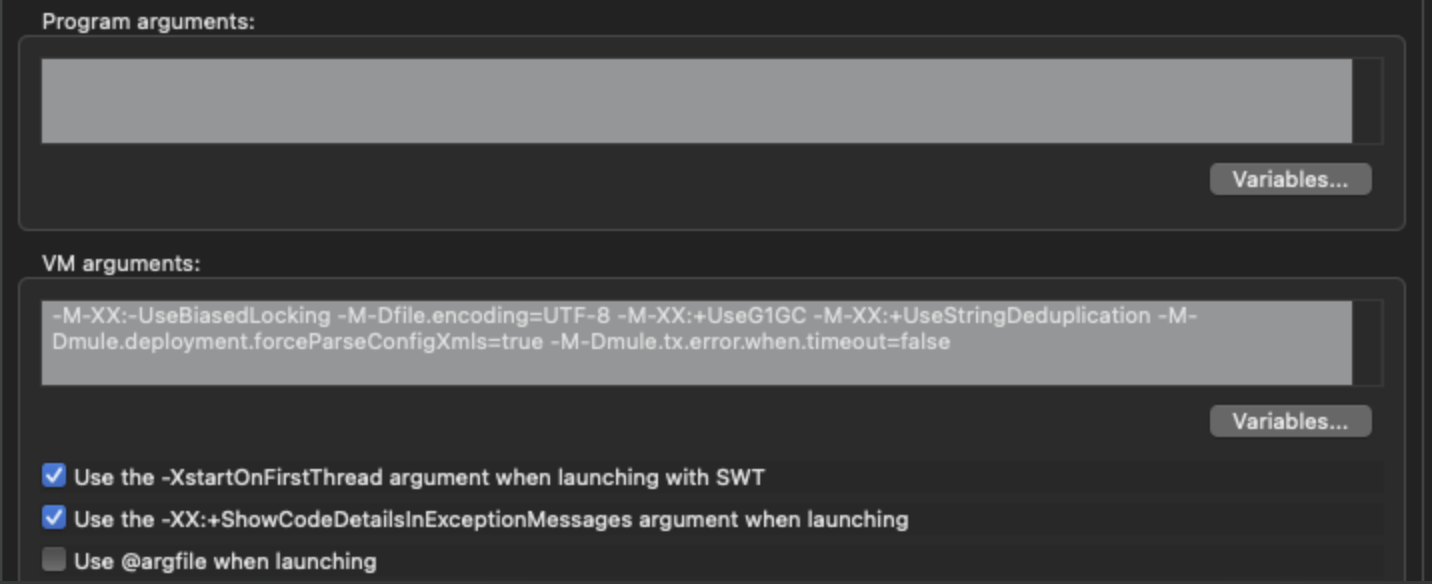
To add this system variable in Anypoint Studio's run configuration:
- Right-click your project in the Package Explorer.
- Select Run As > Run Configurations.
- In the Run Configurations window, go to the Arguments tab.
- In the VM arguments field, add:
-Dmule.tx.error.when.timeout=false
5. Click Apply, then Run.
Ressources supplémentaires
Numéro d’article de la base de connaissances
004634381
Cet article a-t-il résolu votre problème ?
Dites-nous ce que nous pouvons améliorer !
