選擇組織
How to Compare the Values of a Single Measure Across Two Distinct Dynamic Time Periods Within the Same Worksheet
發佈日期: Aug 6, 2025
工作
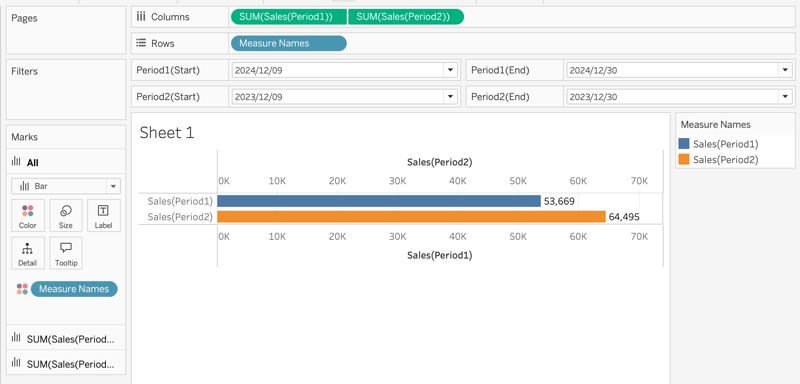
To compare the values of a single measure (e.g., [Sales]) across two distinct dynamic time periods (Period 1 and Period 2) within the same worksheet:
步驟
1. Create a Parameter: [Period1 (Start)]
This parameter will allow dynamic selection of the start date for Period 1.
-
Data Type: Date
-
Allowable Values: List
-
Source of Values: Select values from
[Order Date]
2. Create Additional Parameters
Repeat step 1 to create the following parameters for dynamic date selection:
-
[Period1 (End)] : this parameter is for the end date of Period 1
-
[Period2 (Start)] : this parameter is for the start date of Period 2
-
[Period2 (End)] : this parameter is for the end date of Period 2
3. Create a Calculated Field: [Sales (Period1)]
IF [Order Date] >= [Period1 (Start)] AND [Order Date] <= [Period1 (End)] THEN [Sales] END
4. Create a Calculated Field: [Sales (Period2)]
IF [Order Date] >= [Period2 (Start)] AND [Order Date] <= [Period2 (End)] THEN [Sales] END
5. Add Fields to the View
-
Drag [Sales (Period1)] and [Sales (Period2)] to the Columns shelf.
-
Right-click on
[Sales (Period2)]on the Column shelf and select Dual Axis. -
Then, right-click on one of the axes and choose Synchronize Axis to align both measures.
6. Show Parameter Controls
Display the following parameter controls to allow users to select custom date ranges:
(1)Select the start date and end date of Period 1 on the parameter below:
-
[Period1 (Start)]
-
[Period1 (End)]
(2)Select the start date and end date of Period 2 on the parameter below:
-
[Period2 (Start)]
-
[Period2 (End)]
其他資源
Refer to the attached workbook. It contains the implemented resolution.
Additionally, the movie demonstrating this resolution's implementation is also attached.
知識文章編號
004634394
此文章是否解決您的問題?
請讓我們知道,以便我們改進!
