Seleccionar una organización
How to Use a Record-Triggered Salesforce Flow to Update a Related Record When a Task is Created
Fecha de publicación: May 28, 2026
Descripción
Scenario:
When a [Task] record is created or updated, reflect the value of its [Last Modified Date] on the associated [Account] record.
Points to Note
• Objects related to [Activities] ([Task] and [Events]) have both [Last Activity] and [Last Modified Date] fields.
• For more information on these two fields, please refer to the article "Differences between Last Activity and Last Modified Dates"
Note
The instructions provided here are for a sample implementation.
Salesforce Support cannot provide specific steps for the content described here, so please be aware of this in advance.
Should the flow not perform as expected, please contact Salesforce Support.
Solución
Prerequisites
First, you must create a custom "Date" field on the Account object where the date from the Task will be stored.
- Object: Account
- Data Type: Date
- Field Label (Example): Task Last Modified Date
- API Name (Example): TaskLastModifiedDate__c
If you need assistance with creating a custom field, please refer to the Salesforce Help article below.
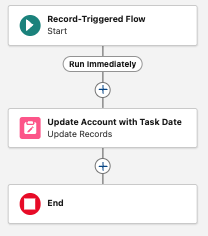
Sample Flow Configuration Steps
1.In the [Automation] application, select [Flows] tab. (Switch applications from the [App Launcher] in the top left corner of the screen.)
2.Click [New], then in the [New Automation] window, click "View All >" under [Triggered], and select [Record-Triggered Flow].
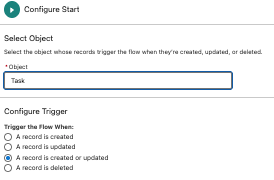
3.In [Configure Start], set the following and click [Done]:
-
- Object: Task
- Configure Trigger: A record is created or updated
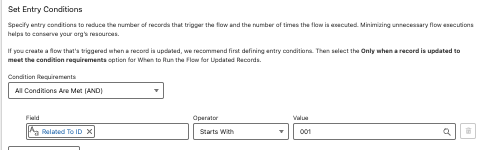
- Condition Requirements: All Conditions Are Met (AND)
- Field:
WhatId(Related To ID) - Operator: Starts With
- Value:
001(This filters for Tasks related to Account records, as '001' is the Account ID prefix)
- Field:
- When to Run the Flow for Updated Records: Every time a record is updated and meets the condition requirements
- Optimize the Flow for: Actions and Related Records

4.Click the + icon below the Start element and add an [Update Records] element.
5.Configure the Update Records element as follows:
-
- Label: Update Account with Task Date
- API Name: Update_Account_with_Task_Date
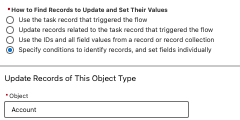
- How to Find Records to Update and Set Their Values: Specify conditions to identify records, and set fields individually
- Object: Account
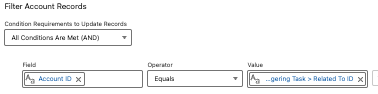
- Condition Requirements to Update Record:
- Field:
Id - Operator: Equals
- Value:
{!$Record.WhatId}
- Field:
- Set Field Values for the Account Records:
- Field:
TaskLastModifiedDate__c(the custom field you created) - Value:
{!$Record.LastModifiedDate}
- Field:


Recursos adicionales
Other Resources
* Create a Custom Field
* Differences between Last Activity and Last Modified Dates
Número del artículo de conocimiento
004637120
¿Resolvió este artículo su problema?
¡Háganos saber cómo podemos mejorar!
