Organisation auswählen
Loop over a collection as many times as a number field
Veröffentlichungsdatum: Apr 2, 2026
Beschreibung
An automation triggers upon the creation of Order Product records. This automation generates Fulfilment records not just per line item, but for each unit within the specified quantity. For example, if an order contains a single line item with a quantity of 15, the system creates 15 individual Fulfilment records, one for each unit, since each needs to be fulfilled separately.
Lösung
In order to solve this problem, We need to create a Record Triggered Flow and mimic a loop.
Step 1:
Let’s start by creating a new Record Triggered Flow
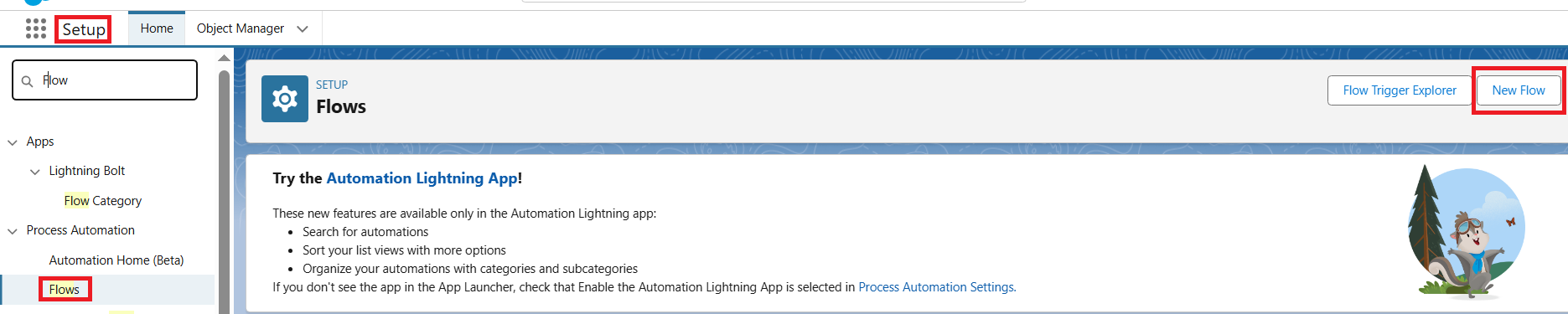
a. Go to Setup> Flows and click the New Flow button
b. Select Start From Scratch, Click Next, Choose Record Triggered Flow, and click Create
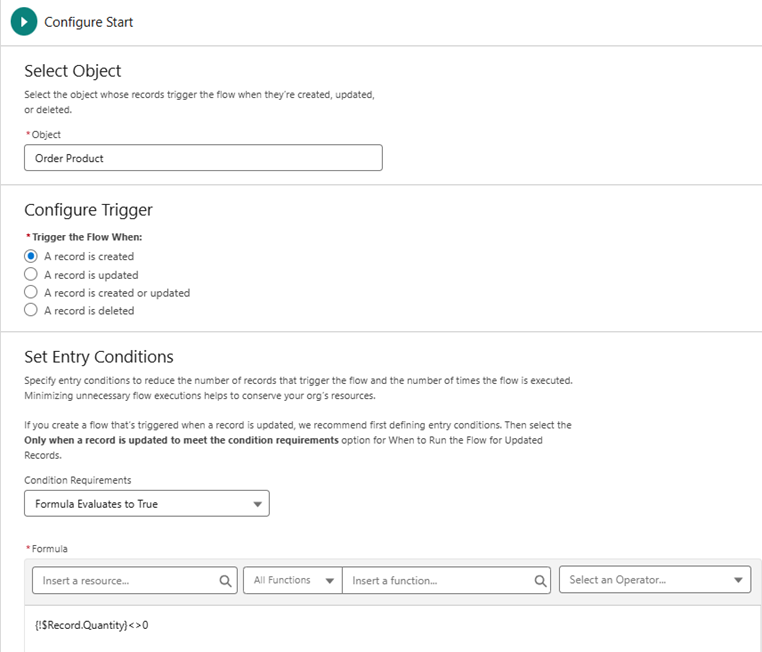
c. As the object, Select Order Product. Under Configure Trigger, Select A record is created
d. Under Set Entry Conditions, Set the dropdown to Formula Evaluates to True and set the Formula to
{!$Record.Quantity}<>0
Step 2:
Create Record Variables that we will use in Assignments inside our loop
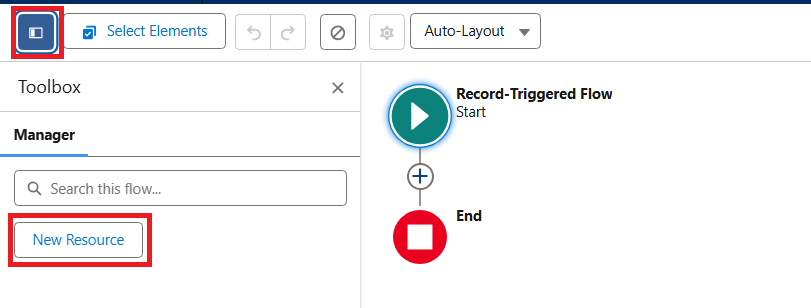
a. Click on the symbol besides Select Elements and select New Resource
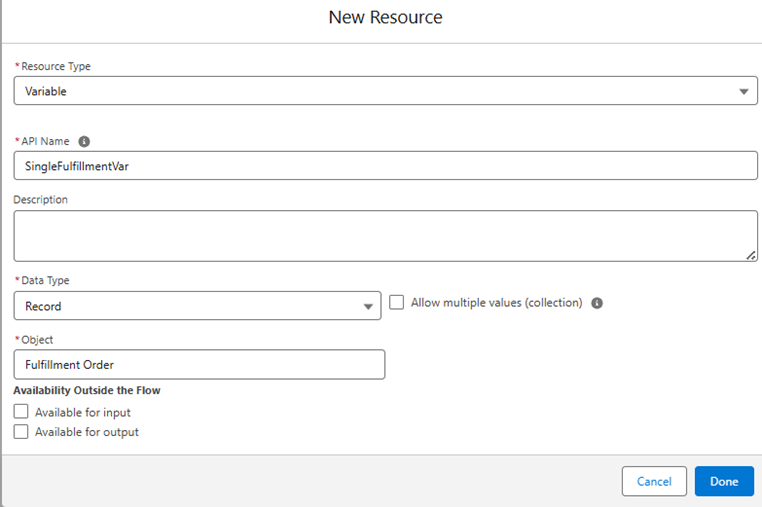
b. Select Variable as the Resource Type, Set the API Name to SingleFulfillmentVar, Set the Data Type to Record and the Object to Fulfillment Order and click Done
Step 3:
Add another New Resource
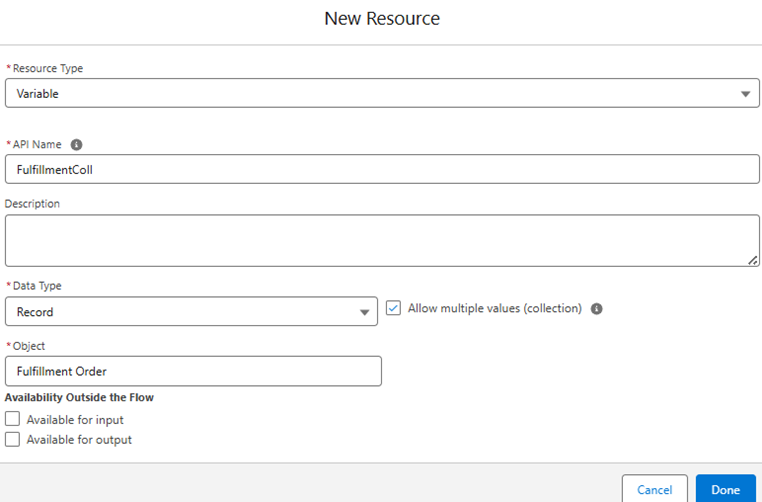
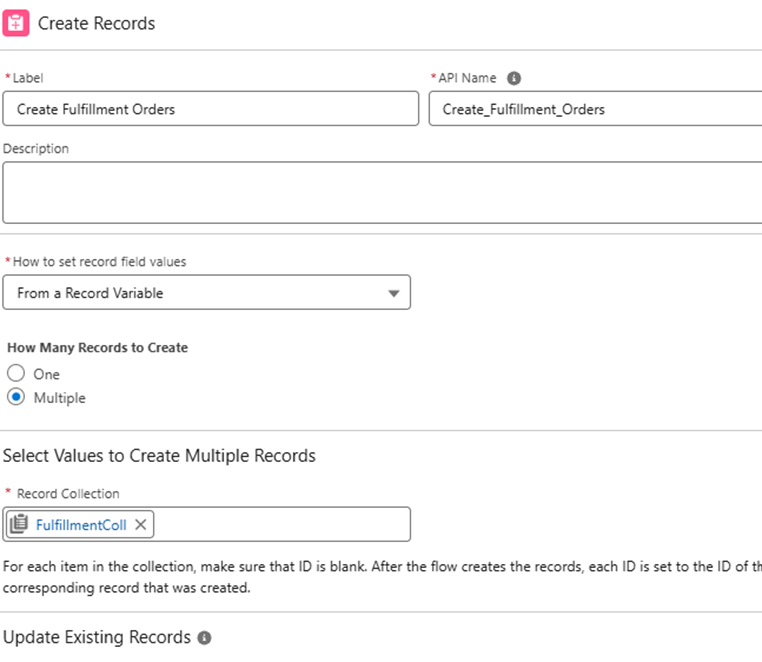
a. Select Variable as the Resource Type, Set the API Name to FulfillmentColl , Set the Data Type to Record and make sure you select Allow multiple values (collection) and set the Object to Fulfillment Order and click Done
b. We need one more variable that will allow us to count the number of records created
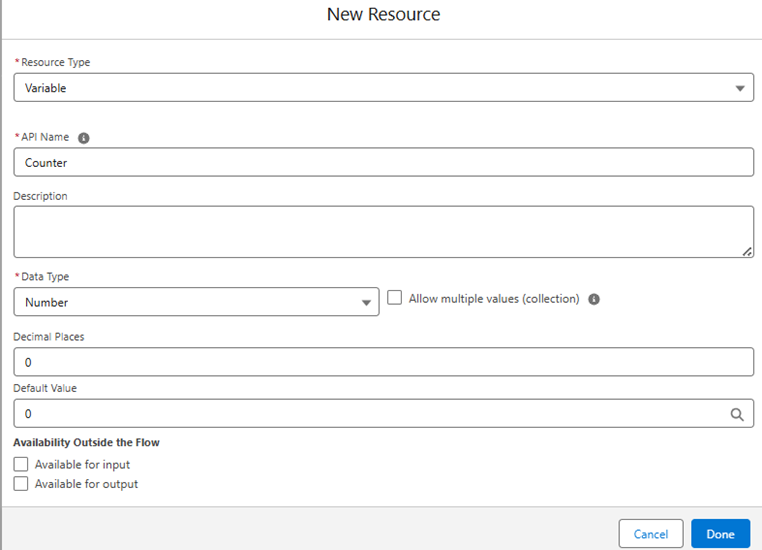
c. Once more, Click New Resource, Select Variable as the Resource Type, Set the API Name to Counter, Set the Data Type to Number and change the Decimal Places and Default Value to 0 and click Done
Step 4:
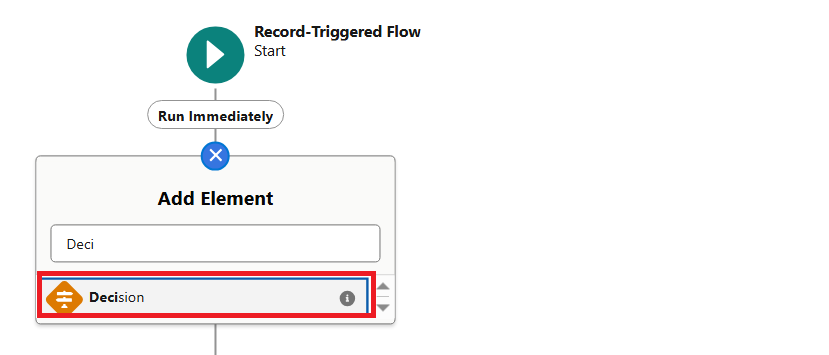
Add a Decision Element to the canvas by clicking the + sign just under the Start Element and choose Decision
Note : Give appropriate name for Decision Element and Outcomes
Note : Counter is a numeric variable, whereas $Record refer to the triggering record-in this context, the triggering Order Product
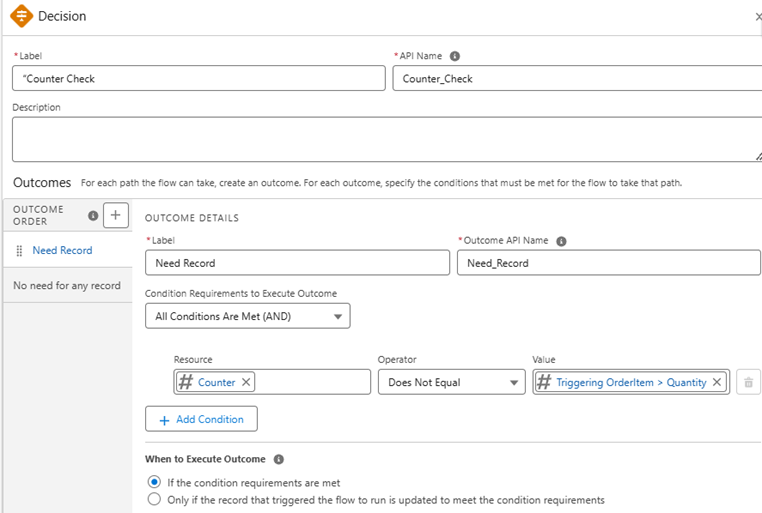
a. Name the Decision Element as Counter Check. For the Outcome use name Need Record. Update the Default Outcome to a more meaningful label, Such as No Record Needed
b. In the Need Record outcome, Set the filter to
| Counter | Does Not Equal | {!$Record.Quantity} |
Step 5:
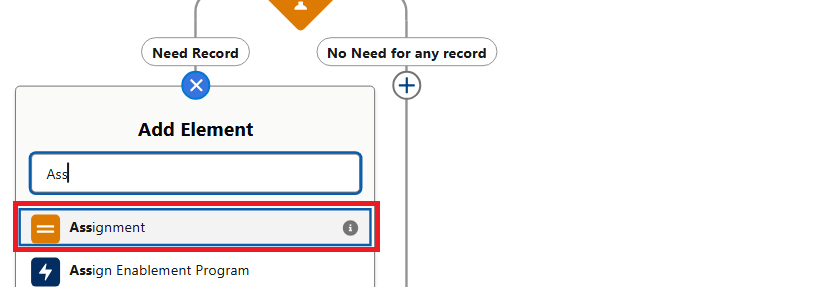
In the Need Record branch, Add an Assignment Elements by clicking the + sign
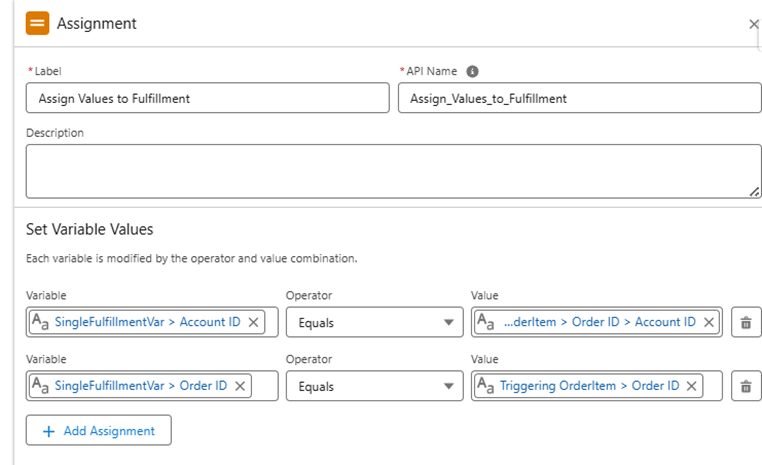
a. Give it a appropriate Label and add values needed to create the Fulfillment Order records by using theb SingleFulfillmentVar created earlier
| SingleFulfillmentVar >AccountId | Equals | {!$Record.Order.AccountId} |
| SingleFulfillmentVar >OrderId | Equals | {!$Record.OrderId} |
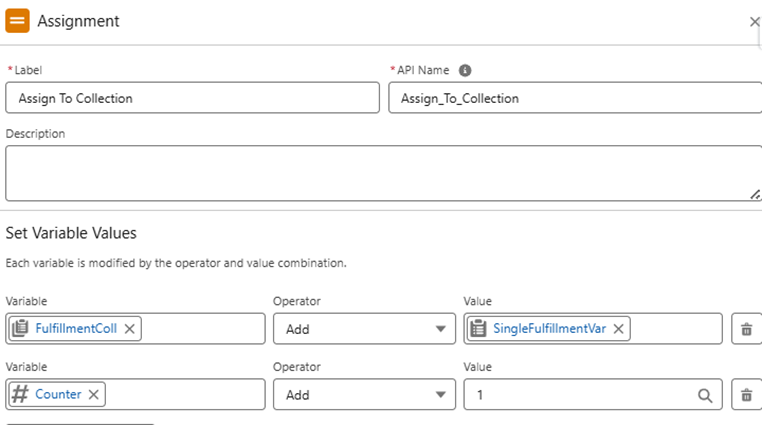
b. Add another Assignment to the collection created earlier. and increment the counter by 1
| FulfillmentColl | Add | SingleFulfillmentVar |
| Counter | Add | 1 |
c. The Flow should look like this at the moment
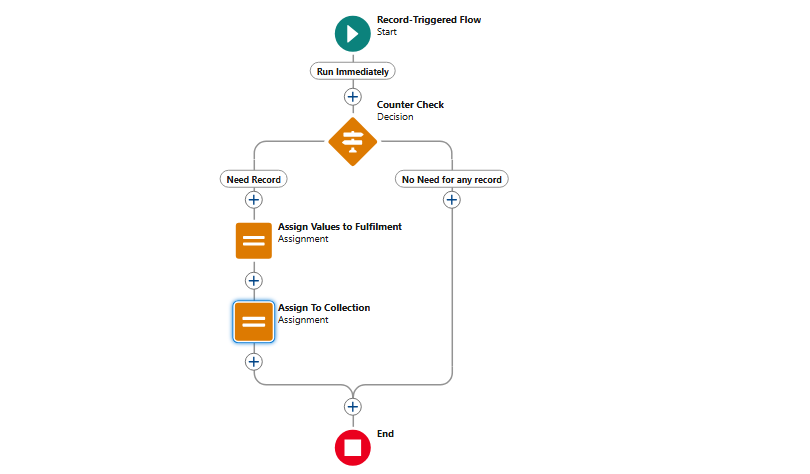
Step 6
: Now, click the + sign after the second Assignment and select Connect to element and click the + sign under the Decision Element
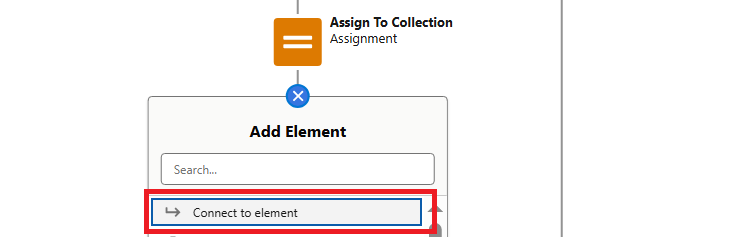
a. You should now see a connection between the last Assignment Element and the Decision Element
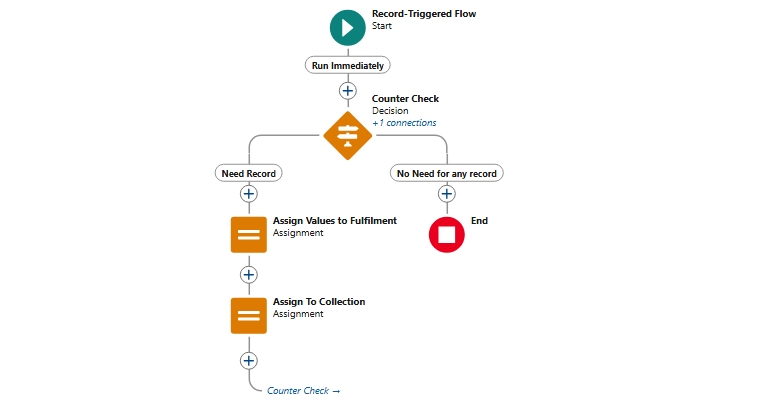
b. This allows the Decision to be again since the Counter value is now 1 more than the last time, so we keep evaluating it until the Counter is equal to the Quantity as per our Decision Outcome. When the Counter is equal to the Quantity, the Decision Outcome will be false and therefore we will go down the other Outcome path
Step 7:
Add a Create Records Element in the No need for any record outcome by clicking the + sign
.
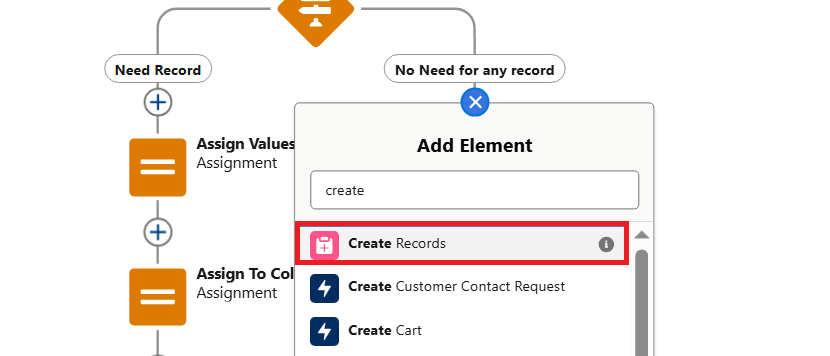
a. Give it a appropriate Label, then set the How to set record field values dropdown to From a Record Variable. Set How Many Records to Create to Multiple and finally assign FulfillmentColl variable to the Record Collection field
Step 8
Save the Flow and Activate it
Nummer des Knowledge-Artikels
004695536
Konnten Sie Ihr Problem mithilfe dieses Artikels lösen?
Geben Sie uns Feedback, damit wir uns verbessern können.
