Velg en organisasjon
How to separate specific text from a string using Flow formula
Publiseringsdato: Jan 26, 2026
Beskrivelse
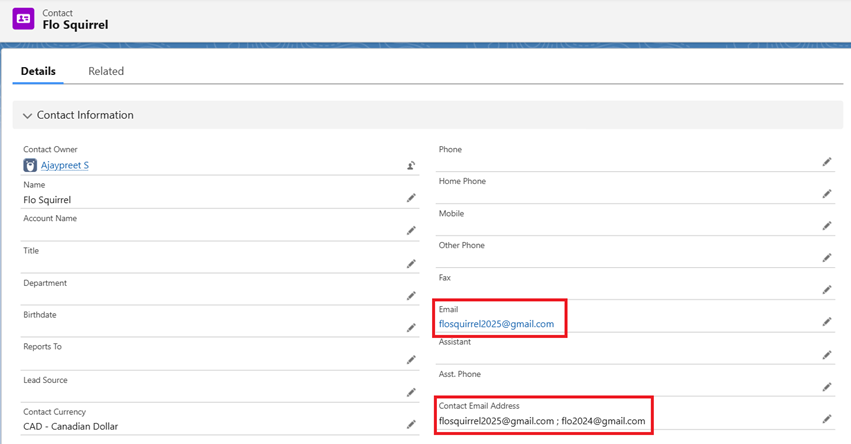
An integration generates a string containing multiple email addresses separated by semicolons and stores it in a custom text field name Contact_Email_Address_c, on Contact record in Salesforce. The organization's requirement is to extract the first email address from this string and store it in standard Email field on Contact record.
In this article, we will explore how to meet this requirement using a formula resource within a Salesforce Flow.
Løsning
In this use case, as the Email value population needs to happen on creation of Contact record, we will use Record-Triggered Flow. Follow the steps provided below to create the automation:
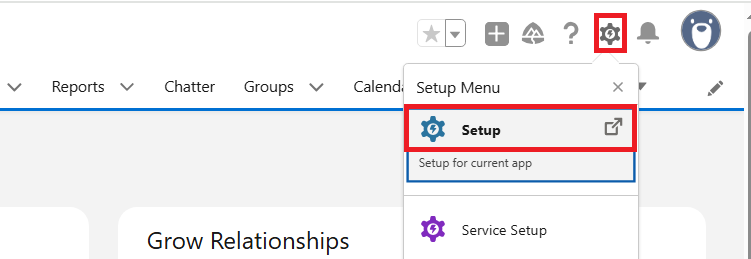
Step 1: Login to your Salesforce account, click the Gear Icon on the top right corner of your screen and select Setup
Step 2: From the Quick find box, search for Flows and select the New Flow button

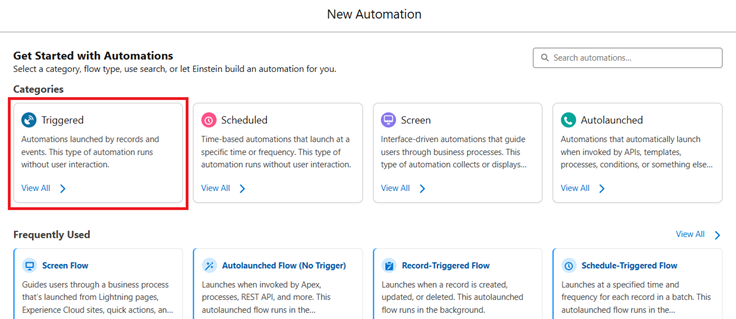
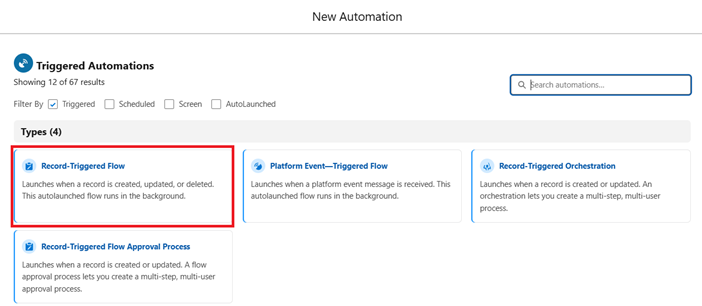
Step 3: Under the Categories section, choose the Triggered option, and then select Record-Triggered Flow to proceed
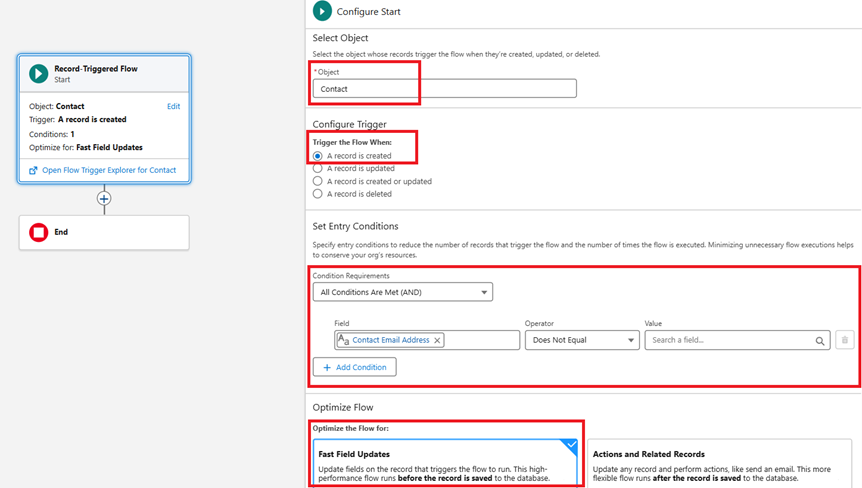
Step 4: On the Configure Start trigger, provide the following values:
| Object | Contact |
| Trigger the Flow When | A record is created |
| Condition Requirement | All Conditions Are Met (AND) |
|
Optimize the Flow for | Fast Field Updates |
Logic should be as follows:
| Contact_Email_Address__c | Does Not Equal |
Note: Leave the Value input box empty in the logic above, as we do not want the Flow to be triggered when Contact Email Address is blank
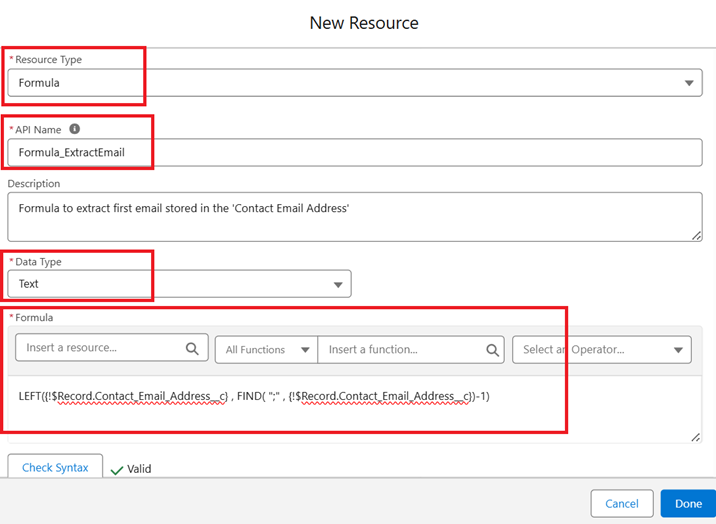
Step 5: Create a new Formula Resource Type for extracting the first email value from the Contact Email Address field. Substitute the values as follows:
| Resource Type | Formula |
| API Name | Provide a suitable API Name |
| Description | Provide a suitable Description |
| Date Type | Text |
Use the following Formula as below:
LEFT({!$Record.Contact_Email_Address__c} , FIND( ";" , {!$Record.Contact_Email_Address__c})-1)
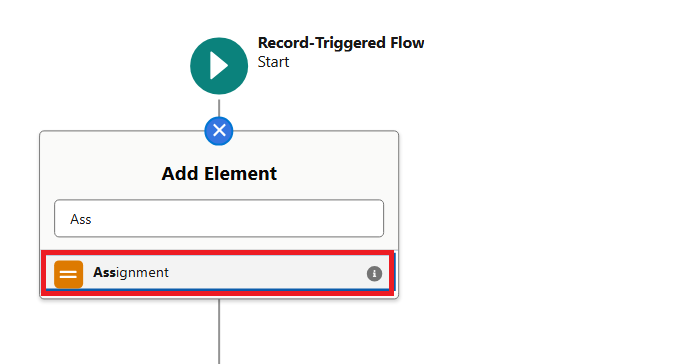
Step 6: Add an Assignment element that is available when the + icon is selected. In the Assignment element, substitute the following values:
Note: Provide any suitable Label and Description. Its optional, but providing a Description is considered a best practice
| Label | Assign first email value |
| Description | Provide any suitable description |
Set Variable Values as below:
| {!$Record.Email} | Equals | {!Formula_ExtractEmail} |
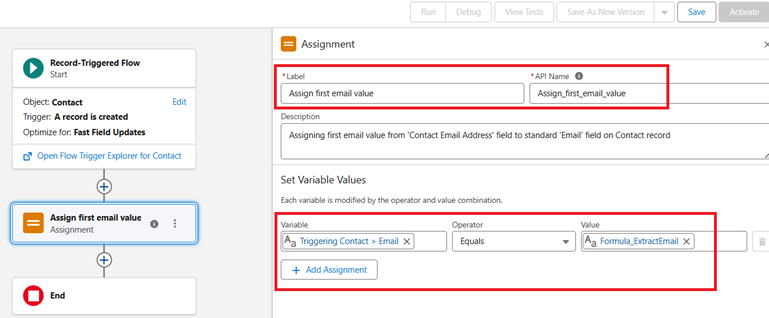
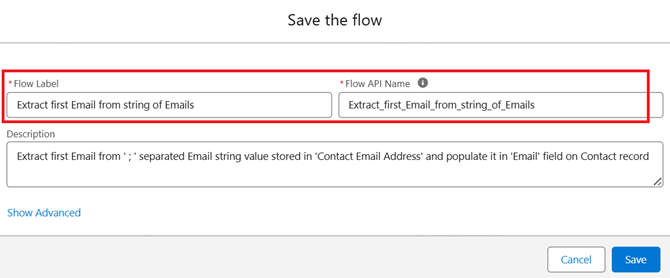
Step 7: Now, on the upper right side of the Flow canvas, hit the Save button and provide a suitable Flow Label
Step 8: Finally, click on the Activate button available next to the Save button to activate the Flow

Output:
____________________________________________________________________
Written by: Ajaypreet Singh Saini | Forum Ambassador
Ajaypreet Singh Saini is working as a Salesforce Implementation Consultant at Grantbook. Prior to Grantbook, Ajaypreet served as a Salesforce Administrator for 2 years working on Sales Cloud where he was responsible for configuring and administrating complex processes and maintaining security of Salesforce Instance.
Submissions reflect only the opinions of the user who made available the Submission and not the opinions of Salesforce, regardless of whether the user is affiliated with Salesforce, and may contain or constitute products, services, information, data, content and other materials made available by or on behalf of third parties ("Third Party Materials). Salesforce neither controls nor endorses, nor is Salesforce responsible for, any Third Party Materials, including their accuracy, validity, timeliness, completeness, reliability, integrity, quality, legality, usefulness or safety, or any applicable intellectual property rights. Any Submissions made available through any message board or forum in response to posted questions, or that otherwise purports to answer any questions, including any questions about Salesforce or Programs, are made available for your general knowledge only and should never be relied upon as answers to your specific questions (even if an answer is marked as a “best” answer or with any similar qualifications). You should always contact Salesforce support for answers to your specific questions. Salesforce has no control over Submissions, and is not responsible for any use or misuse (including any distribution) by any third party of Submissions.
If you have questions, tap into the wisdom of our entire Trailblazer Community here: https://trailhead.salesforce.com/trailblazer-community/feed
Knowledge-artikkelnummer
004754253
Hjalp denne artikkelen med å løse problemet ditt?
La oss få vite det slik at vi kan forbedre!
