Seleziona un'organizzazione
Visual Remote Assistance (VRA) - Resolving CSP Trusted Sites Configuration Issues in Visual Remote Assistant
Data pubblicazione: May 15, 2025
Descrizione
Users may encounter issues with the Visual Remote Assistant if CSP trusted sites are not configured correctly as shown in below screenshot. This article outlines the steps to verify and correct CSP trusted sites, including checking for spelling mistakes, extra spaces, and trailing slashes in URLs. It also provides guidance on using Chrome DevTools to identify which trusted sites are not configured properly and how to fix specific issues like the tspa~endSessionRedirectionURL~c URL configuration. If the issue persists after following these steps, contacting Salesforce support is recommended.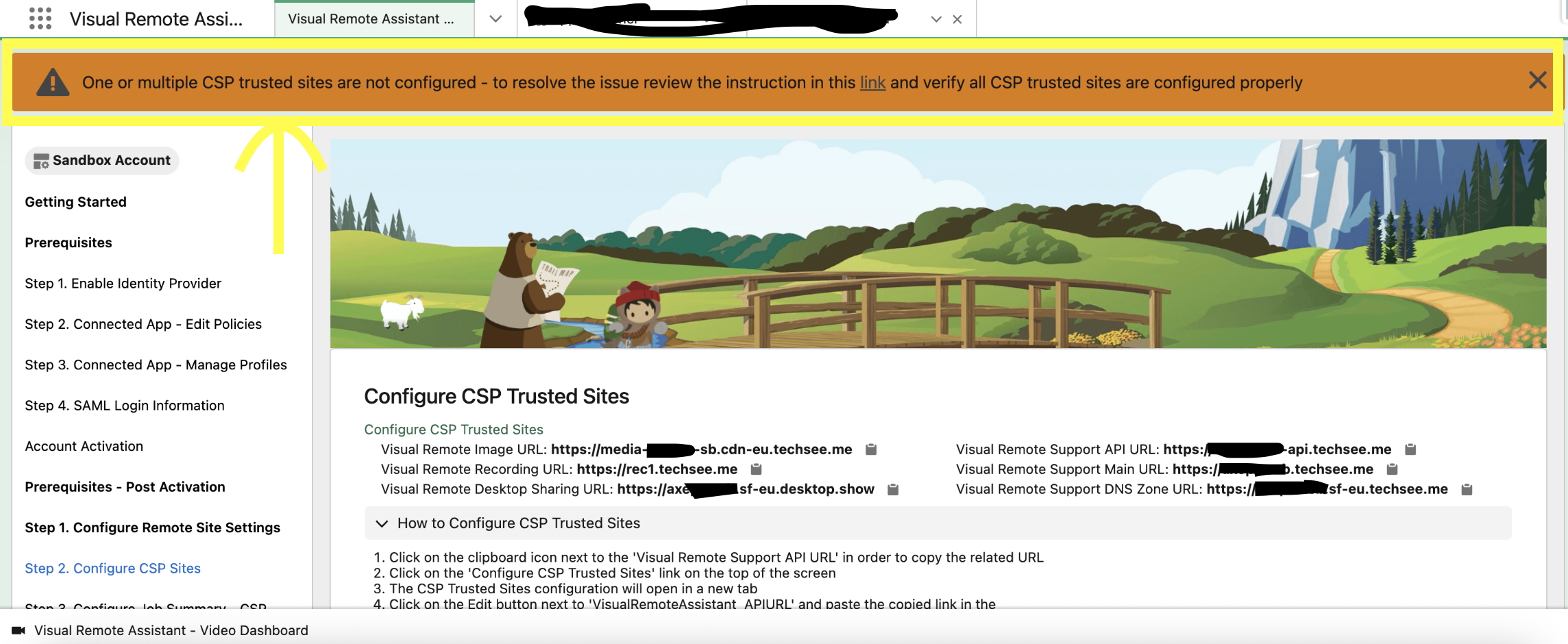
Risoluzione
Resolution Steps:
1. Verify CSP Trusted Sites:
- Ensure all CSP trusted sites are correctly added without any spelling mistakes or extra spaces.
2. Identify Incorrectly Added Trusted Sites:
- If the issue persists, follow these steps to identify which trusted site is not added correctly:
- Open Chrome DevTools and reload the Visual Remote Assistant configuration page.
- In the Network tab, filter the logs using the keyword "CSP".
- Open the "Preview" for the network log entry "tspa.Configuration.checkCSPSites".
- In the Preview, navigate to the Actions and expand the action with the message containing "One or multiple CSP trusted sites are not configured".
3. Check hasMissedSite Parameter:
- If the hasMissedSite parameter is False, all CSP trusted sites are configured correctly. If the issue persists, contact Salesforce support. Below screenshot for Reference.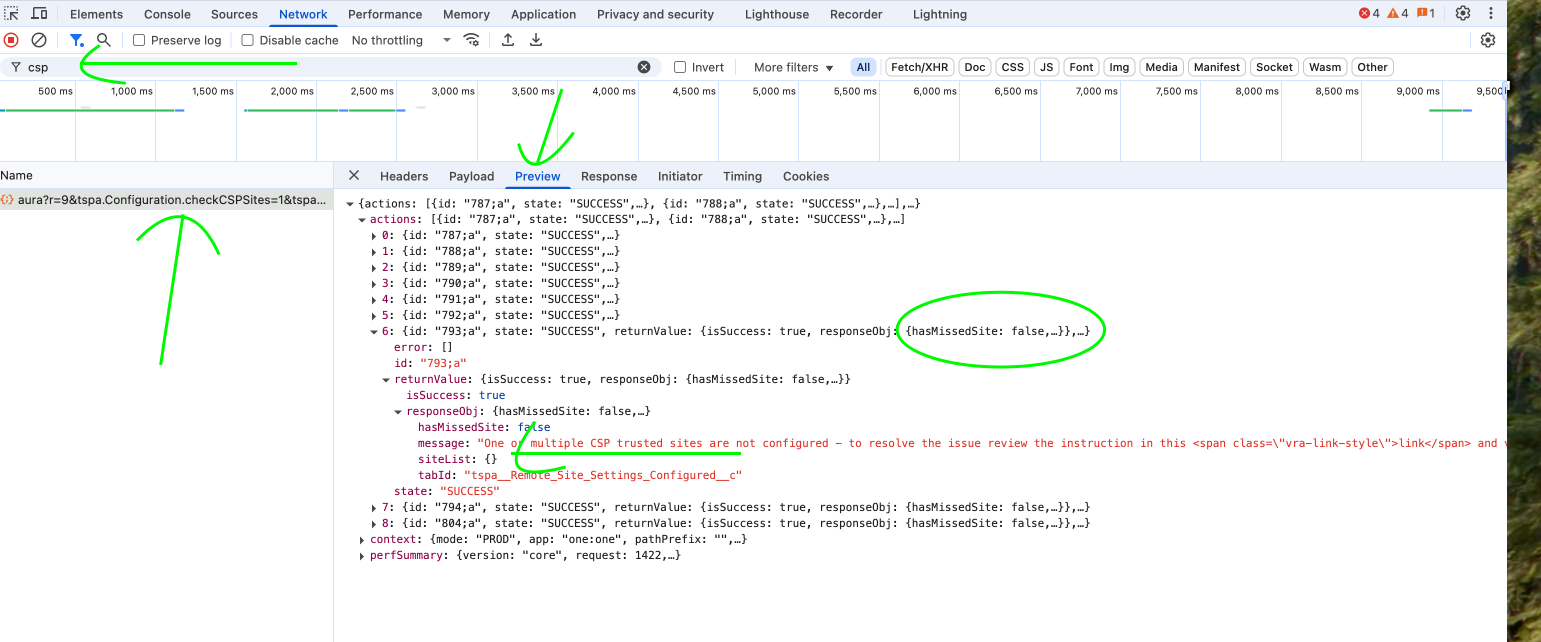
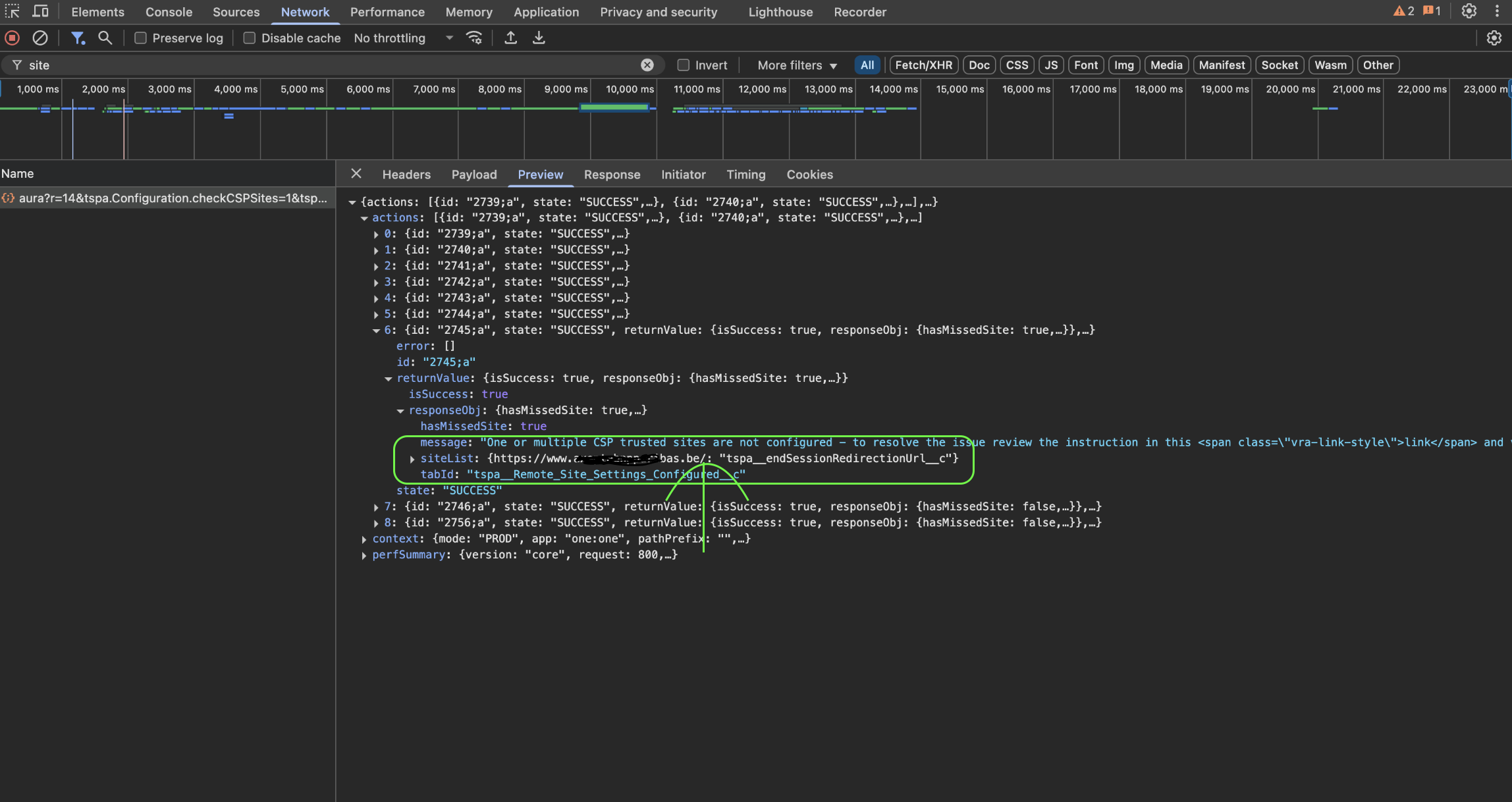
hasMissedSite parameter is True, one or more sites are not configured in CSP trusted sites. The missing sites will be listed in the siteList parameter. Note these sites and add them to the CSP trusted sites in Setup.
4. Check for Trailing Slash in URL:
- If the issue is not resolved and you still receive the warning, check the site URL listed in the siteList parameter. Ensure there is no trailing slash ("/") at the end of the URL.
- For example, if the URL ends with "/", it can cause this issue.
5. Fix URL for tspa~endSessionRedirectionURL~c:
- If the tspa~endSessionRedirectionURL~c site is not configured correctly, follow these steps to remove the trailing slash:
- Navigate to "Visual Remote Assistant-API Details" via the App Launcher.
- Click into the available record.
- In the Endpoints section, remove the trailing slash from the "End Session Redirection URL".
- Save the changes.
Numero articolo Knowledge
004810964
Questo articolo ha risolto il problema?
Facci sapere, così possiamo migliorare!
