Sélectionner une organisation
Purchase Additional User Licenses
Date de publication: Apr 2, 2026
Description
Check active licenses available for the org and purchase more if needed using steps shared.
Résolution
How to Check Active Salesforce Licenses and Purchase More if Needed
To view your current number of active licenses:
-
-
Log in to your Salesforce instance.
-
Click the gear icon in the top-right corner and select Setup.
-
In the Quick Find search, type Company Information, then click the Company Information link.
-
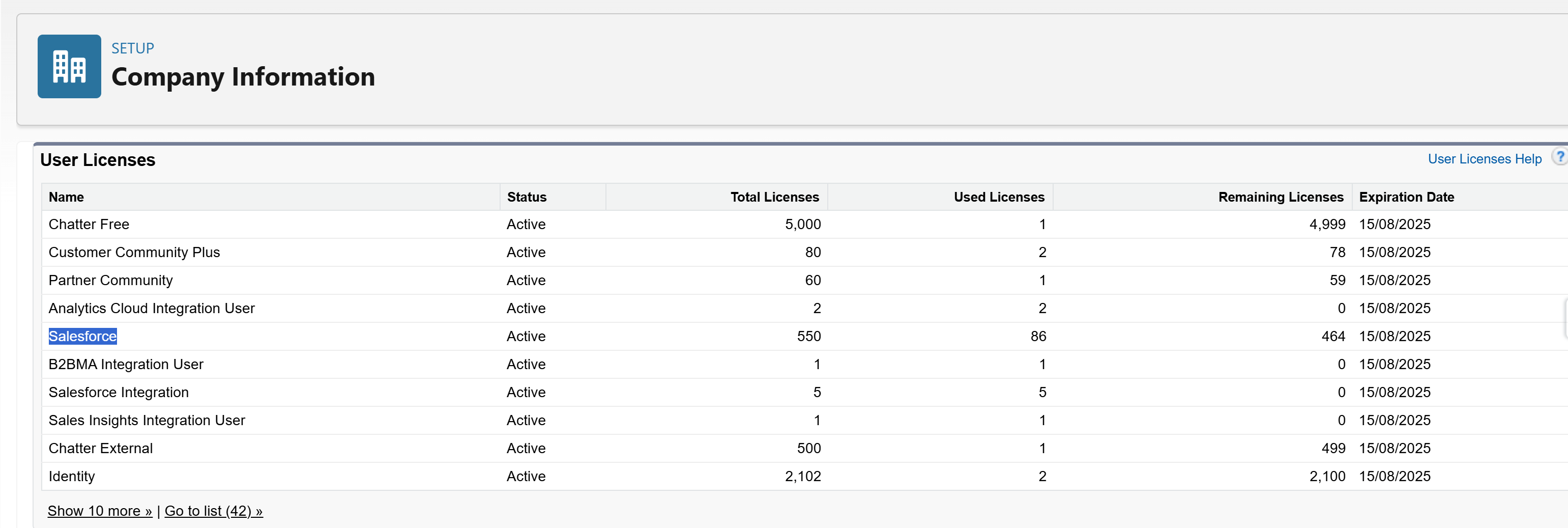
Scroll down to view your total number of active Salesforce licenses.
In below screen-shot for Salesforce User Licenses out of 550 active license 86 licenses are consumed. - If you need to purchase additional licenses:
-
Please contact your Account Executive.
-
If you do not have a dedicated Account Executive, you can reach out to our Accounts team using the information below:
Email: myaccount@salesforce.com
Phone: 1-800-NO-SOFTWARE -
- Additionally you can use 'Your Account App' to purchase new products and licenses for your Salesforce org.
To purchase new products or buy additional licenses and consumption-based resources please follow below steps -
1. Launch the Your Account app using applauncher.
2. Click Browse & Buy.
3. In the Product Catalog, select a contract.
4. To buy additional licenses and consumption-based resources, select the Manage Your Products tab and find the product that you want to add.
5. To specify the products that you want, select the quantity (1) and add to your cart (2)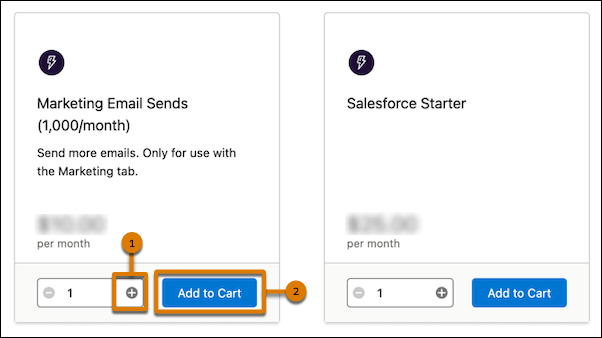
6. Open your cart.
7. Review your order and then click Check Out.
8. Review your payment and signature details.
For in detail steps please refer to steps mentioned in article below -Add Products and Licenses with the Your Account App :
https://help.salesforce.com/s/articleView?id=xcloud.users_add_products_subscription_management.htm&type=5
9. Your licenses are typically available within 45 minutes of purchase.
10. If you don’t see your license after 45 minutes, contact Support.
-
Ressources supplémentaires
For more insights please refer to :
Numéro d’article de la base de connaissances
004811242
Cet article a-t-il résolu votre problème ?
Dites-nous ce que nous pouvons améliorer !
