조직 선택
Customize Start Month of Fiscal Year in Time Dimension Filter in Tableau Pulse
게시 일자: Sep 3, 2025
상세 설명
When applying a time dimension filter in Tableau Pulse, the start month defaults to January.
솔루션
Fiscal year settings in Tableau Pulse can be configured using one of the following options:
Option 1: Modify Fiscal Year Start in Tableau Desktop
Change the fiscal year start month for the date field in Tableau Desktop and then publish the data source to Tableau Cloud.
- Connect to your desired data source in Tableau Desktop
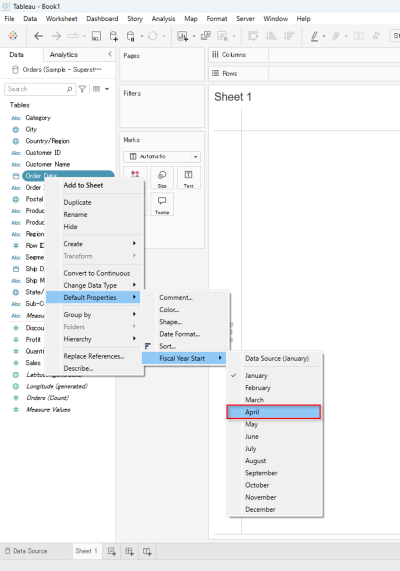
- Right-click the date field you want to use as a filter in Tableau Pulse
- Click [Default Properties] | [Fiscal Year Start] | [Month]. For details, please refer to Fiscal Dates.
- Publish the data source to Tableau Cloud
- Connect to the data source published in step 4. in Tableau Pulse and define your metrics
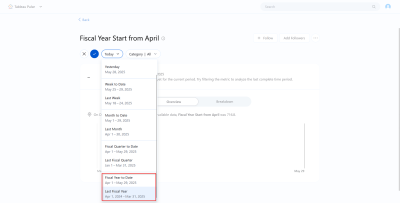
- Verify that the fiscal year is applied to the time dimension filter
Option 2: Set a custom calendar in Tableau Pulse
Change the start date of your fiscal year by setting up a custom calendar.
Please refer to Set a custom calendar for setup instructions. For requirements, refer to Requirements for custom calendars.
추가 자원
Knowledge 기사 번호
004867938
이 기사를 통해 문제를 해결했습니까?
개선을 위한 의견을 보내주세요.
