Выбрать организацию
Customize Start Month of Fiscal Year in Time Dimension Filter in Tableau Pulse
Дата публикации: Sep 3, 2025
Описание
When applying a time dimension filter in Tableau Pulse, the start month defaults to January.
Решение
Fiscal year settings in Tableau Pulse can be configured using one of the following options:
Option 1: Modify Fiscal Year Start in Tableau Desktop
Change the fiscal year start month for the date field in Tableau Desktop and then publish the data source to Tableau Cloud.
- Connect to your desired data source in Tableau Desktop
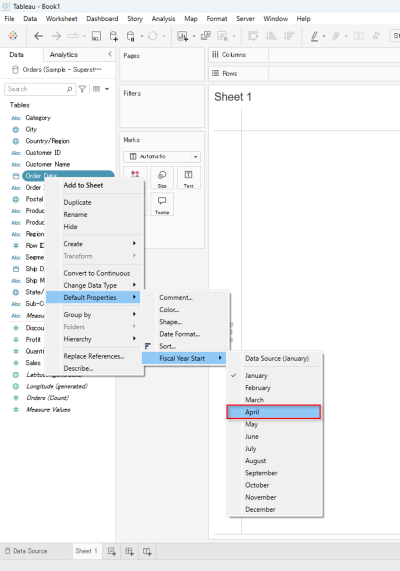
- Right-click the date field you want to use as a filter in Tableau Pulse
- Click [Default Properties] | [Fiscal Year Start] | [Month]. For details, please refer to Fiscal Dates.
- Publish the data source to Tableau Cloud
- Connect to the data source published in step 4. in Tableau Pulse and define your metrics
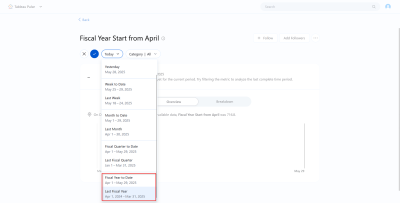
- Verify that the fiscal year is applied to the time dimension filter
Option 2: Set a custom calendar in Tableau Pulse
Change the start date of your fiscal year by setting up a custom calendar.
Please refer to Set a custom calendar for setup instructions. For requirements, refer to Requirements for custom calendars.
Дополнительные ресурсы
Номер статьи базы знаний
004867938
Эта статья решила вашу проблему?
Оставьте свой отзыв, чтобы мы могли стать лучше!
