Vælg en organisation
How do I configure access to AWS Secrets Manager using only a Role ARN, avoiding the use of access and secret keys?
Udgivelsesdato: Jun 4, 2025
Forudsætning(er)
Opgave
Configure AWS Secret Manager to authenticate using only RoleARN
Trin
1. Use AWS service role in CloudHub 2.0 (CH2) Private Space (PS) for CH2 applications to access AWS resources in another AWS account. Enable AWS Service Role in CH2 PS

2. Sign in to the AWS Management Console
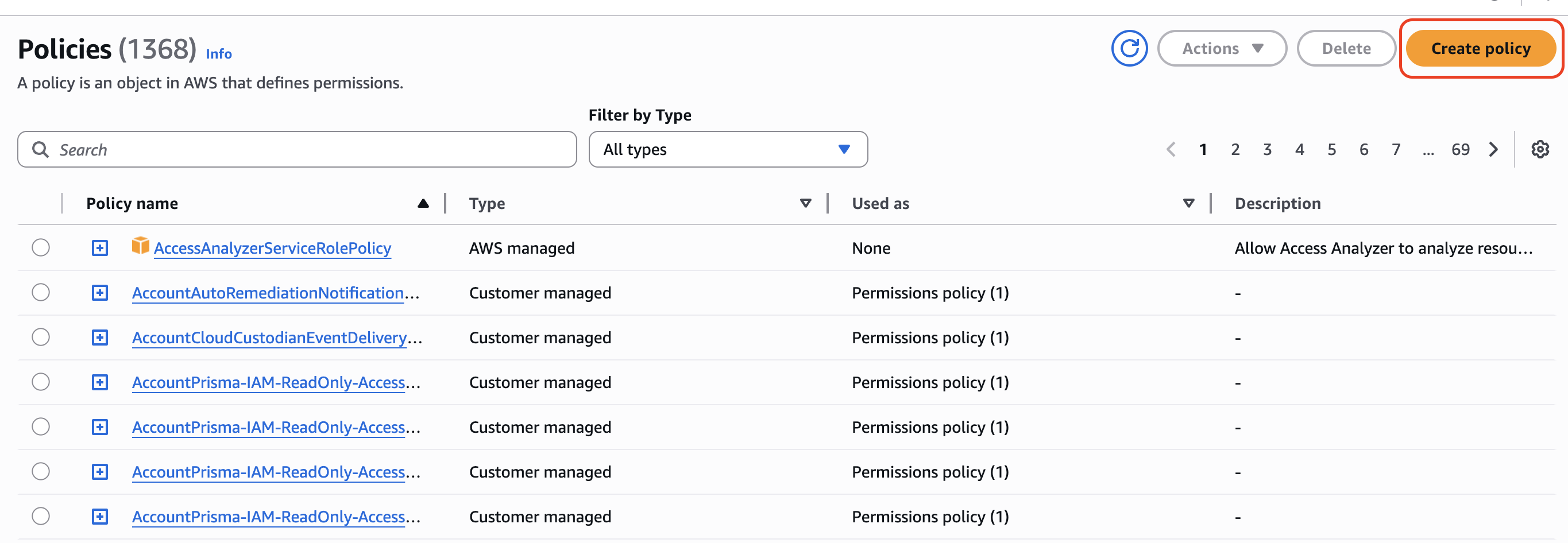
3. In the navigation pane, choose "IAM." --> Click on Policies --> Click on Create Policy
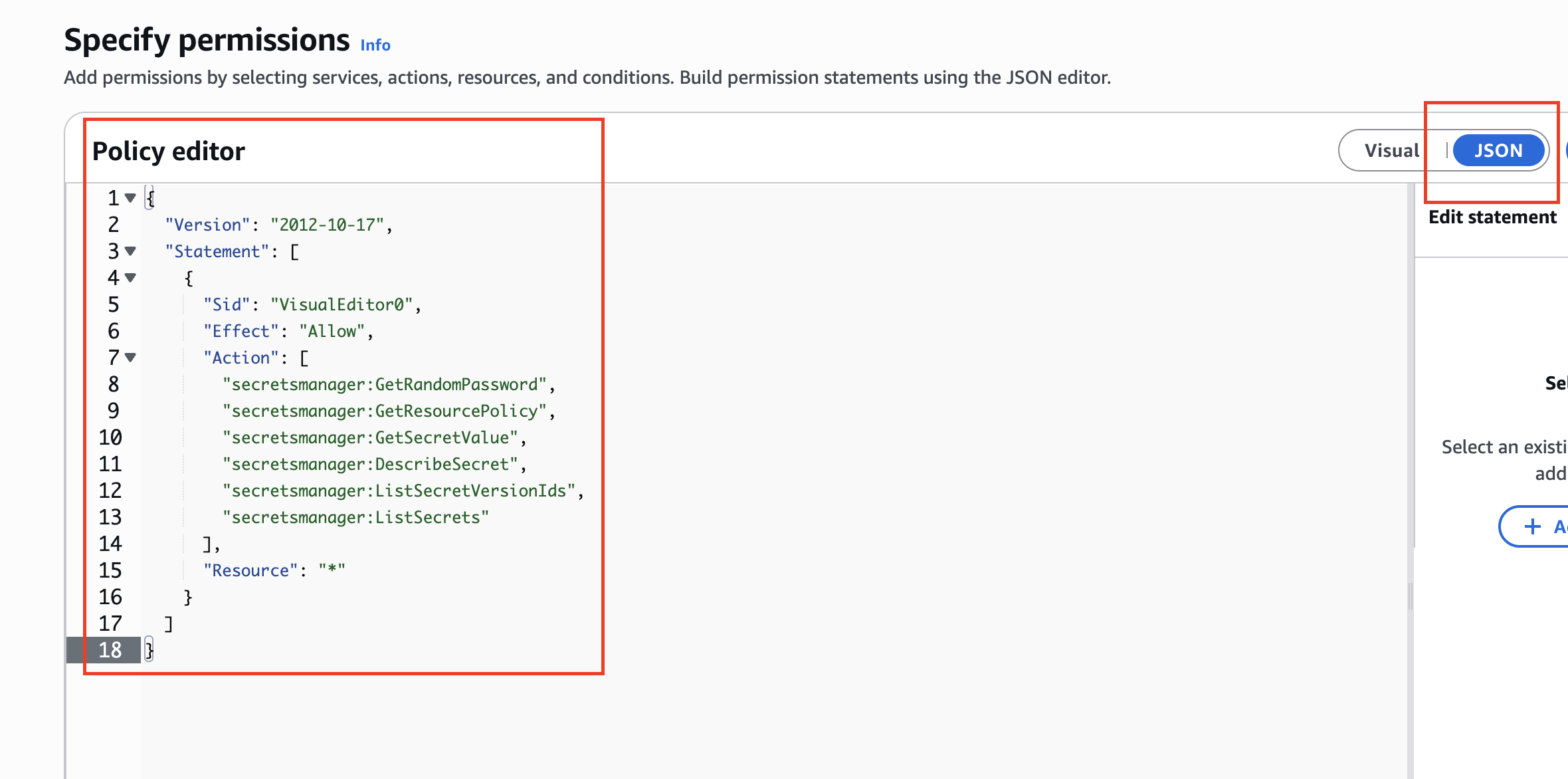
4. In the "Create policy" wizard, choose the "JSON" tab. In the JSON editor, specify the permissions for accessing Secret Manager. Here's an example policy with the specified permissions:
{
"Version": "2012-10-17",
"Statement": [
{
"Sid": "VisualEditor0",
"Effect": "Allow",
"Action": [
"secretsmanager:GetRandomPassword",
"secretsmanager:GetResourcePolicy",
"secretsmanager:GetSecretValue",
"secretsmanager:DescribeSecret",
"secretsmanager:ListSecretVersionIds",
"secretsmanager:ListSecrets"
],
"Resource": "*"
}
]
}
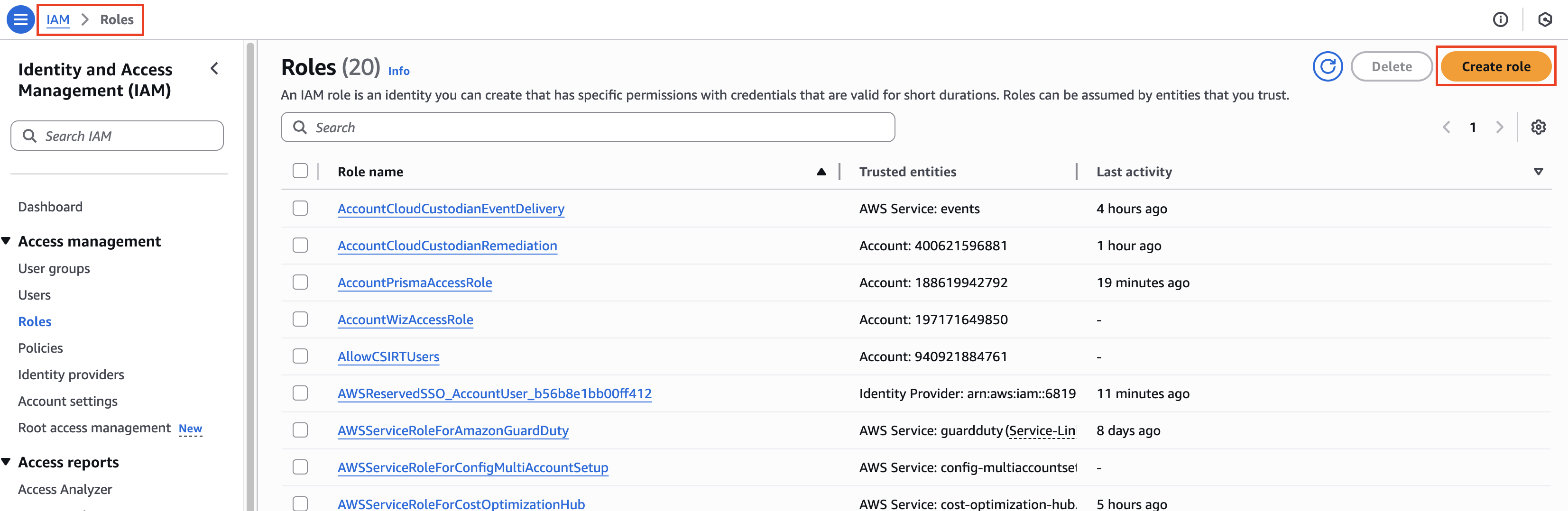
6. Go to IAM --> Roles --> Create Role
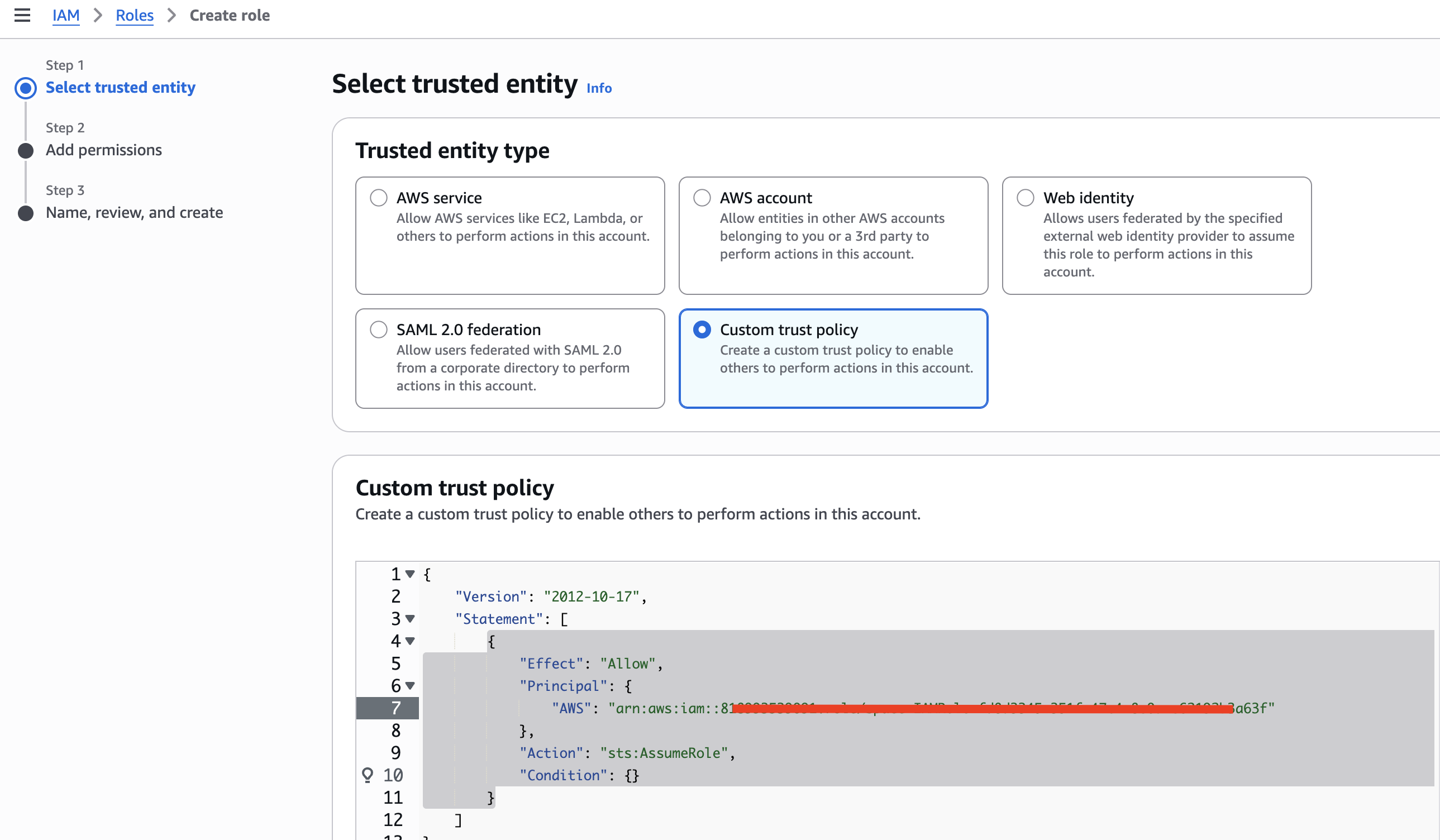
7. Click on "Custom Trust Policy" and paste the below JSON and make sure to replace AWS Role ARN with the one that was obtained in Step1 and click o Next
{
"Version": "2012-10-17",
"Statement": [
{
"Effect": "Allow",
"Principal": {
"AWS": "your_ch2_role_arn_obtained_in_step_1; e.g. arn:aws:iam::37989**2"
},
"Action": "sts:AssumeRole",
"Condition": {}
}
]
}
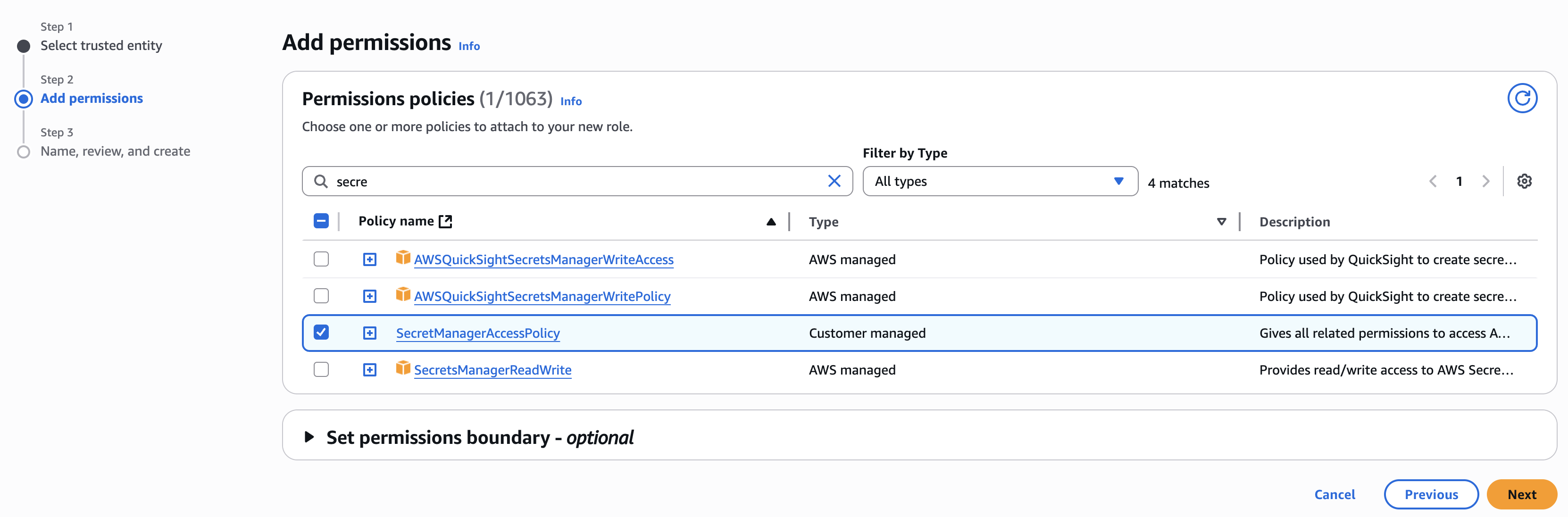
8. In the Permissions policies search with SecretManagerAccessPolicy and add it to your Role. Click Next
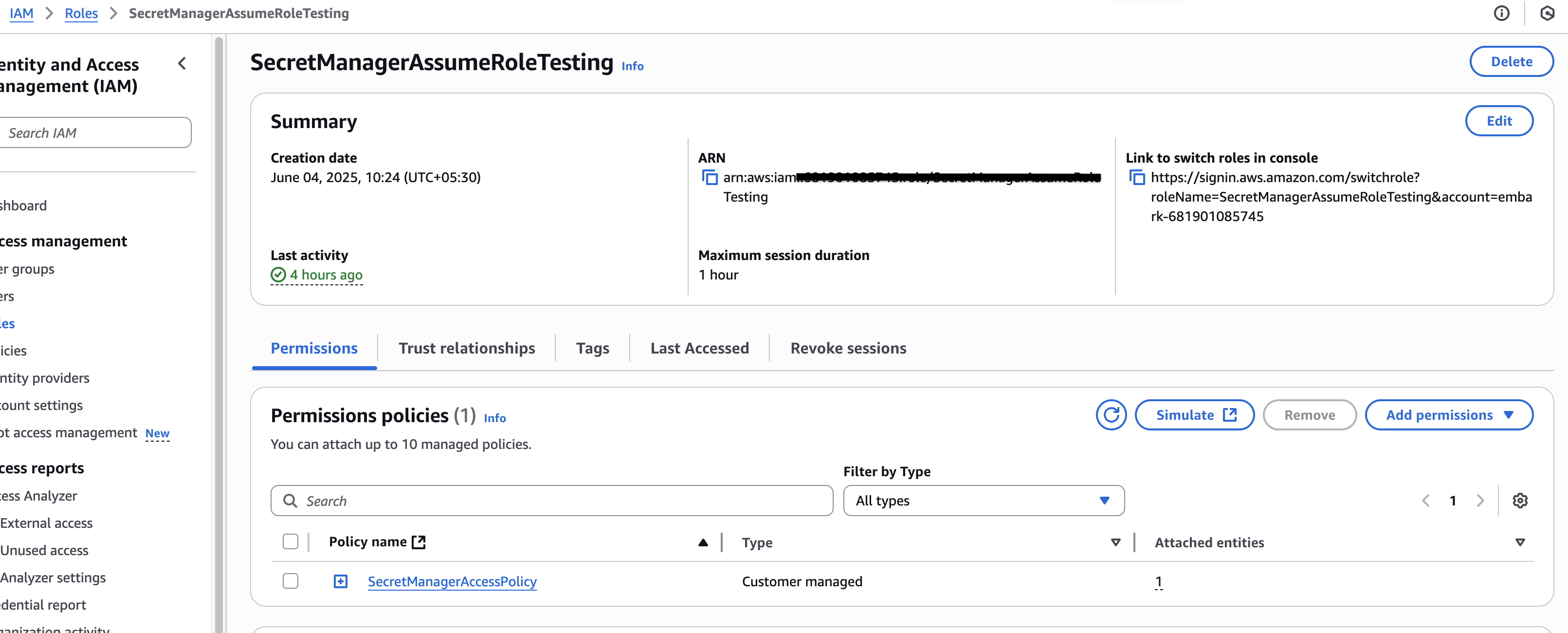
10. Now, copy the RoleARN from the policy home page.
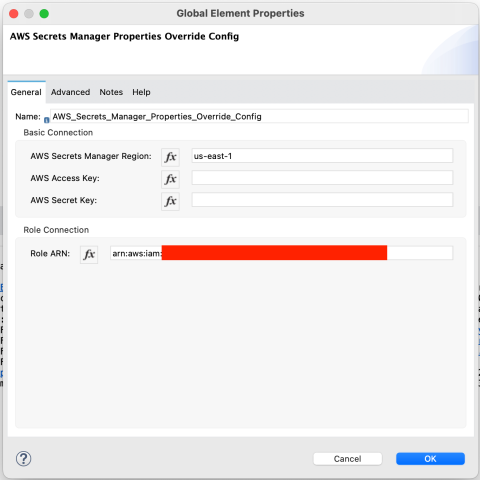
11. Configure AWS secret manager as shown below:
12. Please check the code snippet below on how to create an AWS secret and access it using MuleSoft code.
AWS CLI code snippet:
aws secretsmanager create-secret --name test-credentials   --secret-string '{"key":"value-key", "secret":"value-secret"}'
MuleSoft Application code snippet:
<flow name="secrets-manger-demoFlow" doc:id="b0e6e5ce-e472-4858-8003-5c8deb65f98e" > <http:listener doc:name="Listener" doc:id="2181d34a-7fe1-42bd-b46a-b47578ec46ae" config-ref="HTTP_Listener_config" path="/awssm"/> <logger level="INFO" doc:name="Logger" doc:id="2af7764e-f74e-4b92-abd1-ab213d83653c" message="#[${aws-secrets::test-credentials}.key]"/> <set-payload doc:name="Set Payload" doc:id="3ecf7547-7d34-4309-a5f2-782b7efbab9e" value="test"/> </flow>
13. Deploy your application in Cloudhub 2.0 Private space
Congratulations!
You've created an IAM role with the specified permissions for accessing AWS Secret Manager.
Vidensartikelnummer
004980144
Løste denne artikel dit problem?
Giv os besked, så vi kan forbedre os!
