Organisation auswählen
Data 360: How to Set Up a Data Share from Salesforce Data 360 to Google BigQuery
Veröffentlichungsdatum: Oct 21, 2025
Beschreibung
Salesforce Data 360 (Formerly Data Cloud) enables seamless data sharing with external platforms like Google BigQuery through Data Share Targets. This article outlines how to establish this connection, configure the required permissions in GCP, and access shared data for querying and analysis.
Lösung
Prerequisites
Make sure you have access to the following:
-
A Salesforce Data 360 org with permissions to manage Data Shares and Data Share Targets
-
A Google Cloud Platform (GCP) project
-
IAM admin privileges in GCP to assign required roles and manage service accounts
Step 1: Configure IAM Roles in Google Cloud Console
-
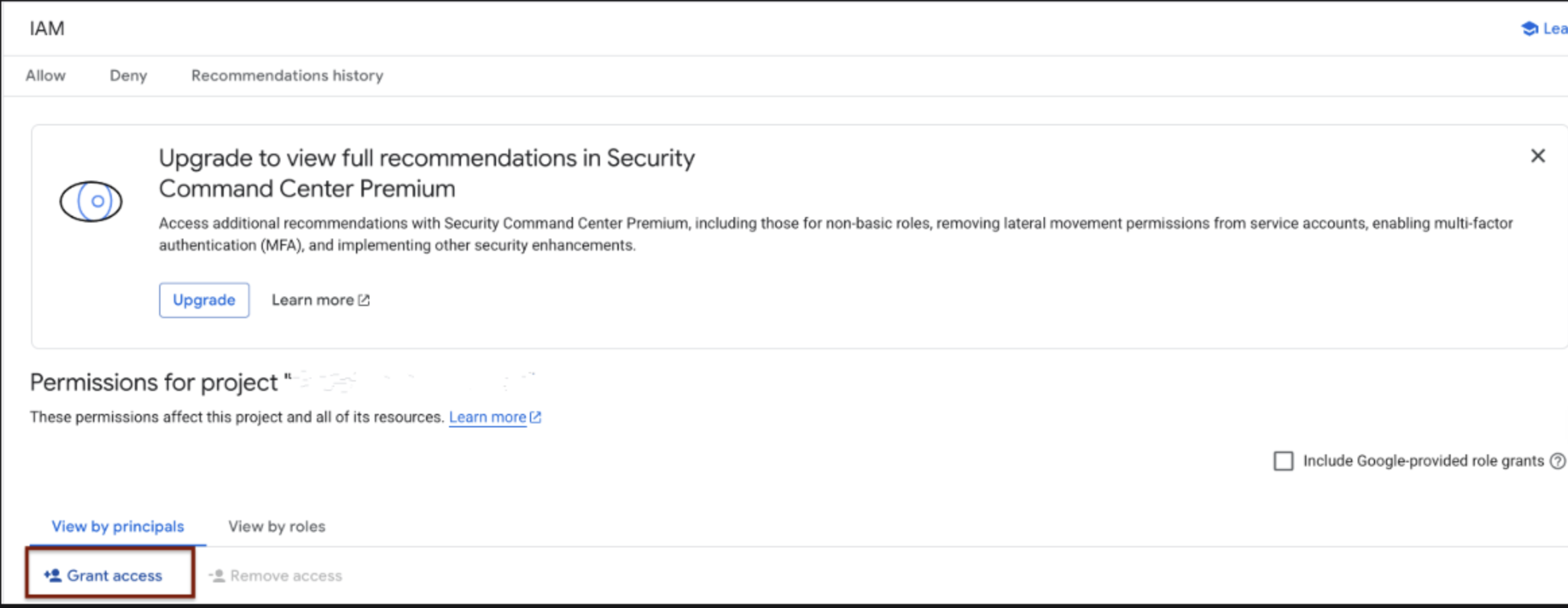
Navigate to the IAM tab in the Google Cloud Console.
-
Click “Grant Access”.
-
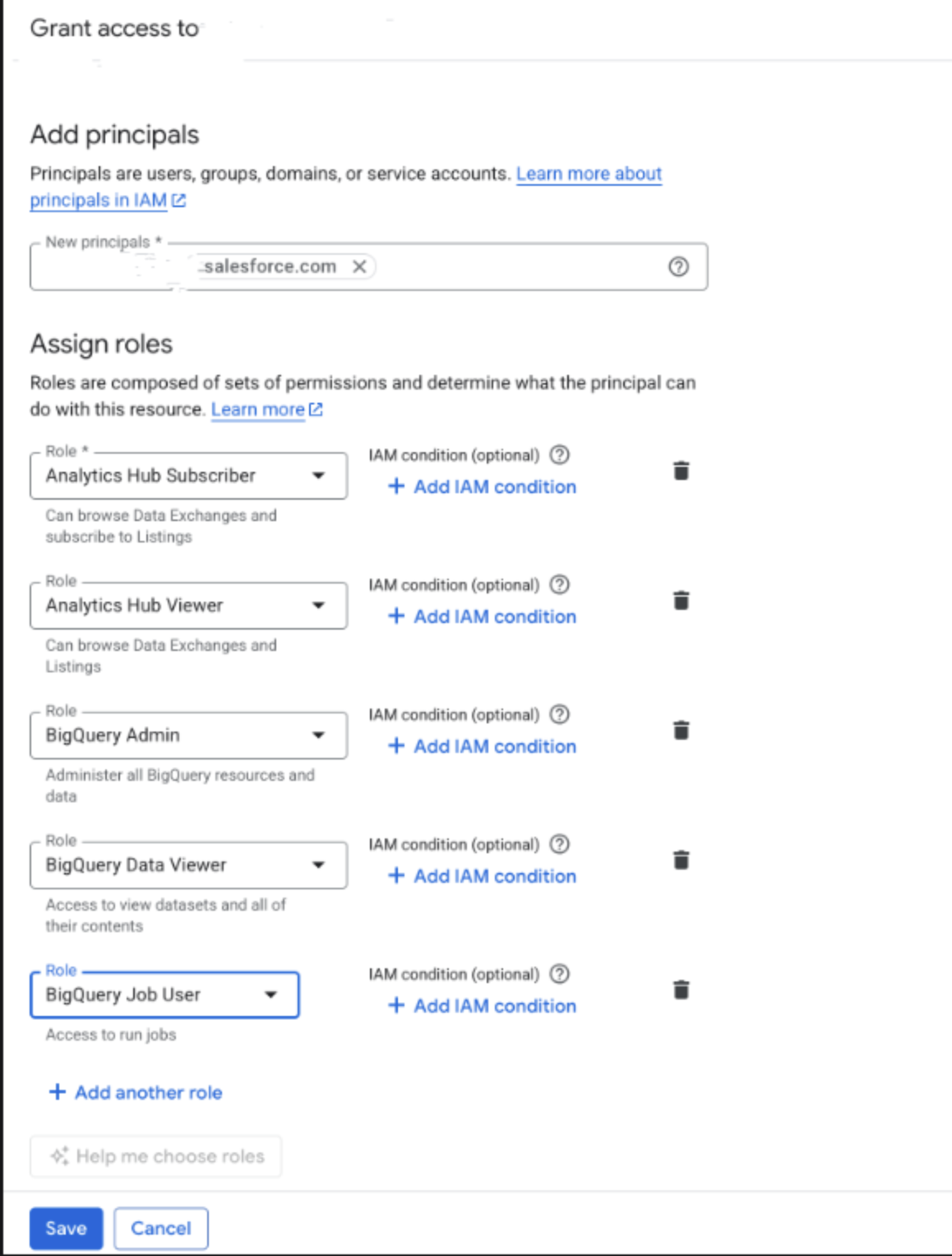
Add a new principal (email or group) and assign the following roles:
-
Analytics Hub Subscriber -
Analytics Hub Viewer -
BigQuery Admin -
BigQuery Data Viewer -
BigQuery Job User
-
Step 2: Create a Data Share Target in Data 360
-
In Salesforce Data 360, navigate to Data Share Targets tab.
-
Click New, and select Google BigQuery as the connection type.
-
Provide the following details:
-
Label: A display name (max 20 characters)
-
API Name: Auto-filled (can be customized)
-
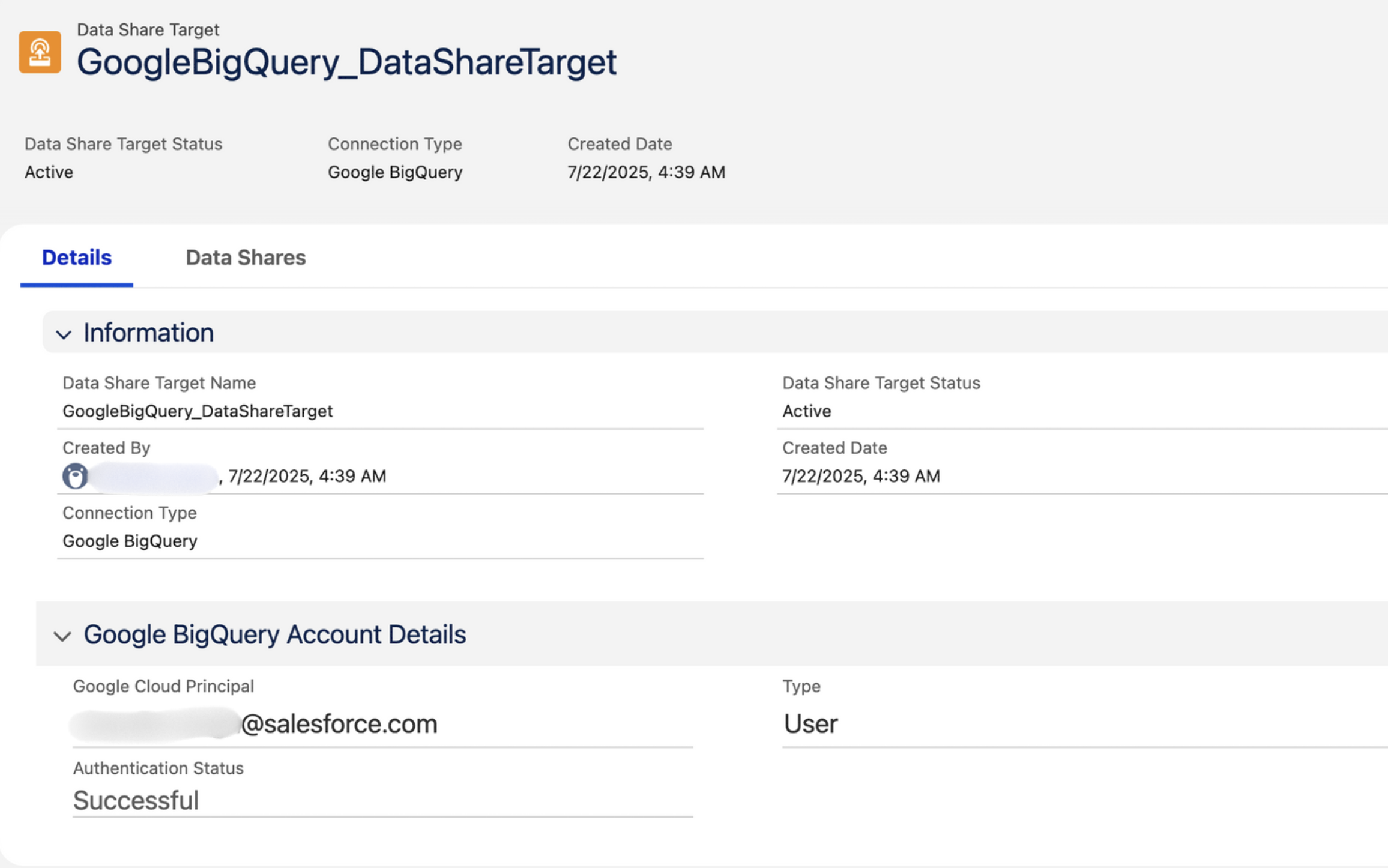
Google Cloud Principal: Enter user or group email (must belong to a valid Google Workspace domain)
-
Type: Select either User or Group
-
-
Click Save. You’ll be redirected to the Google Sign-in page.
-
Authenticate using the provided Google Cloud Principal.
-
Once authenticated, you'll return to Data 360, and the Data Share Target will be marked Active.


Step 3: Create a Data Share in Data 360
-
Navigate to the Data Shares tab.
-
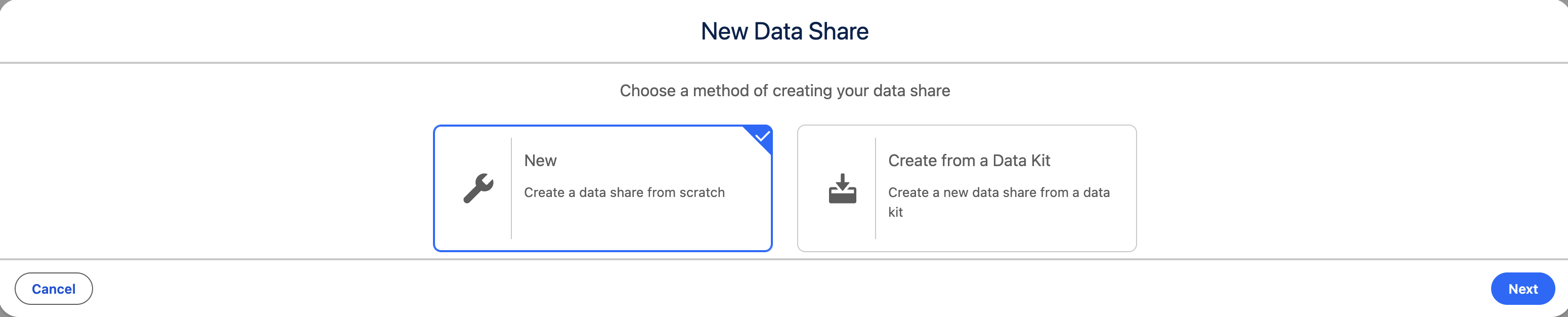
Click New and:
-
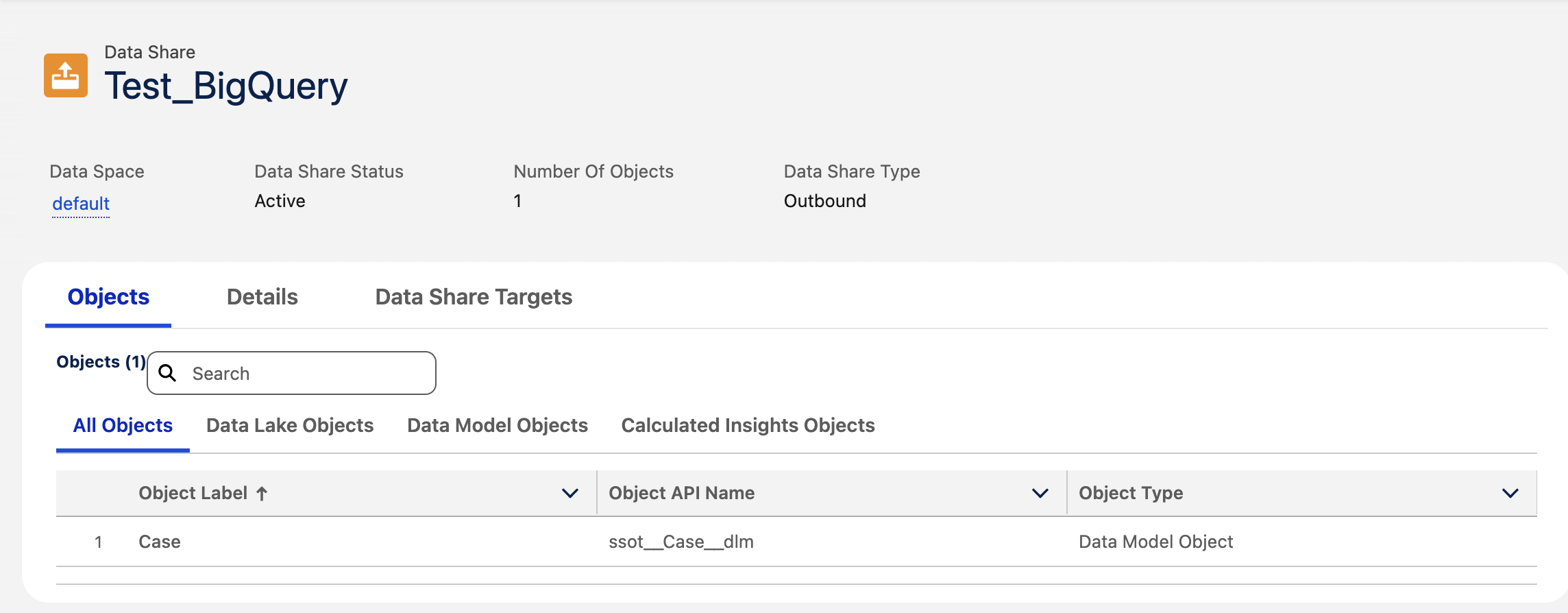
Provide a Label Name
-
Select the appropriate Data Space. Click Next
-
-
Choose the Objects you want to share. Save
Step 4: Link Data Share Target to the Data Share
-
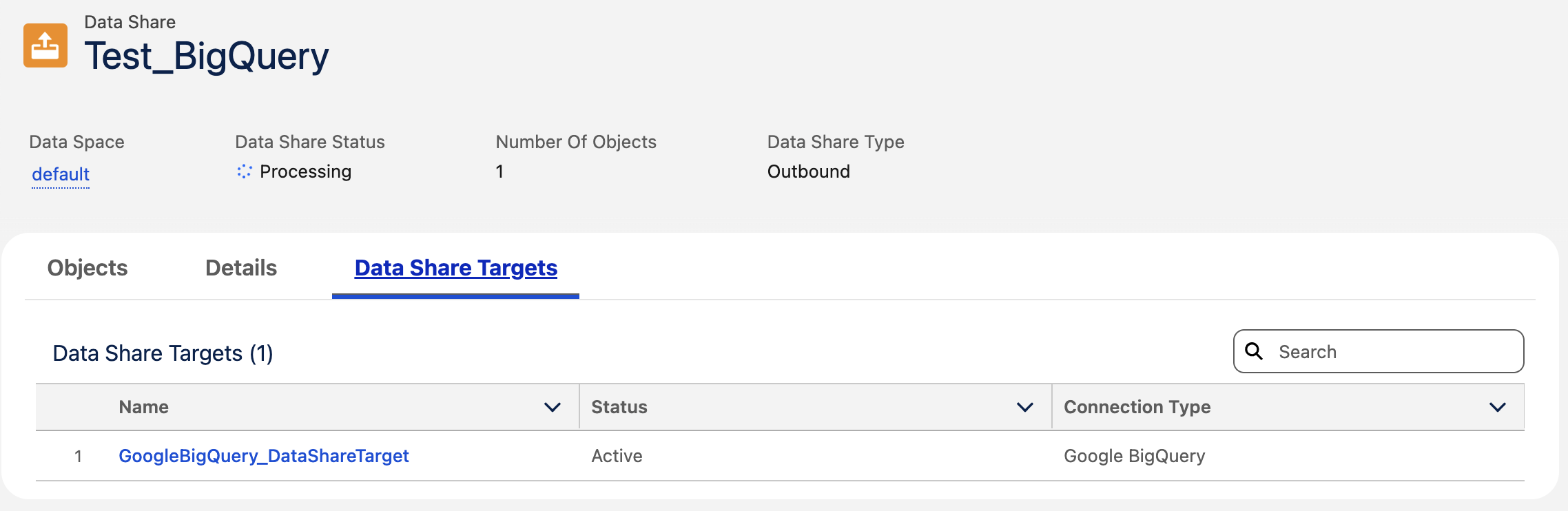
From the Data Share record, click the “Link or Unlink Data Share Target” button (top-right corner).
-
Select the Google BigQuery data share target.
-
Click Save to complete the linking.

How to View Shared Data in BigQuery (Analytics Hub)
-
Go to BigQuery Studio in the Google Cloud Console.
-
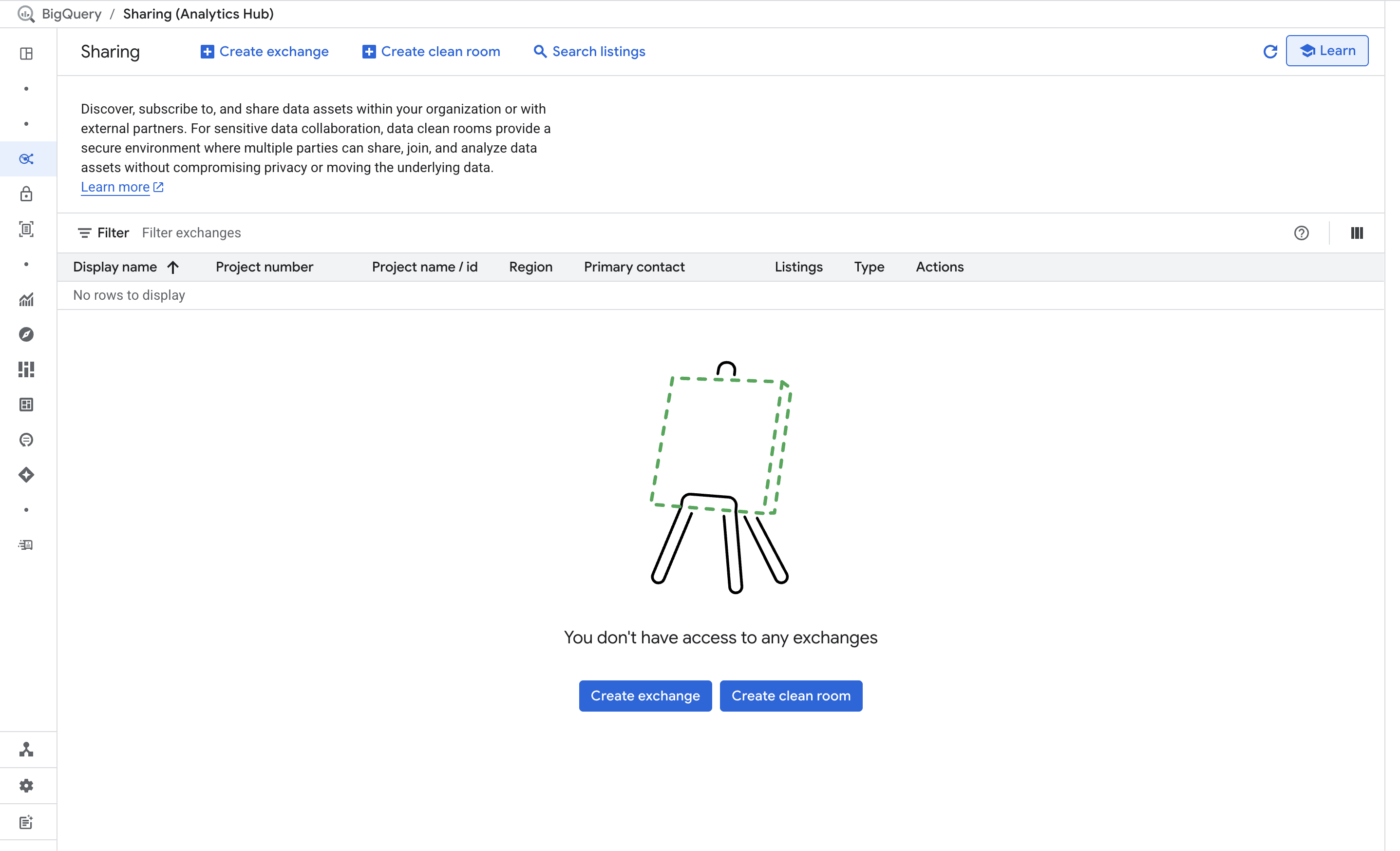
In the left sidebar, navigate to: Sharing (Analytics Hub) > Search Listings
-
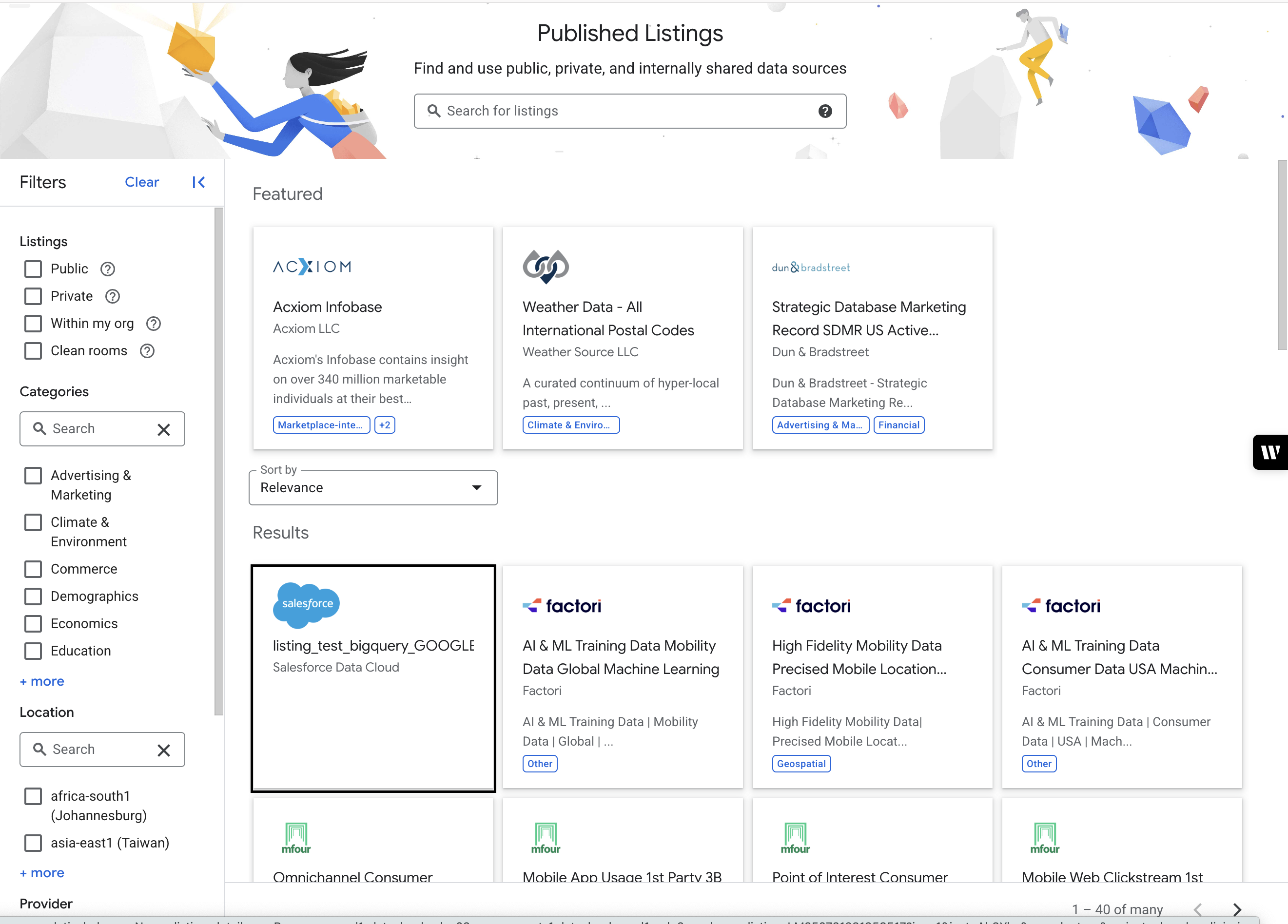
Use the search bar to search for the listing name based on the label used when creating the Data Share in Salesforce Data 360.
-
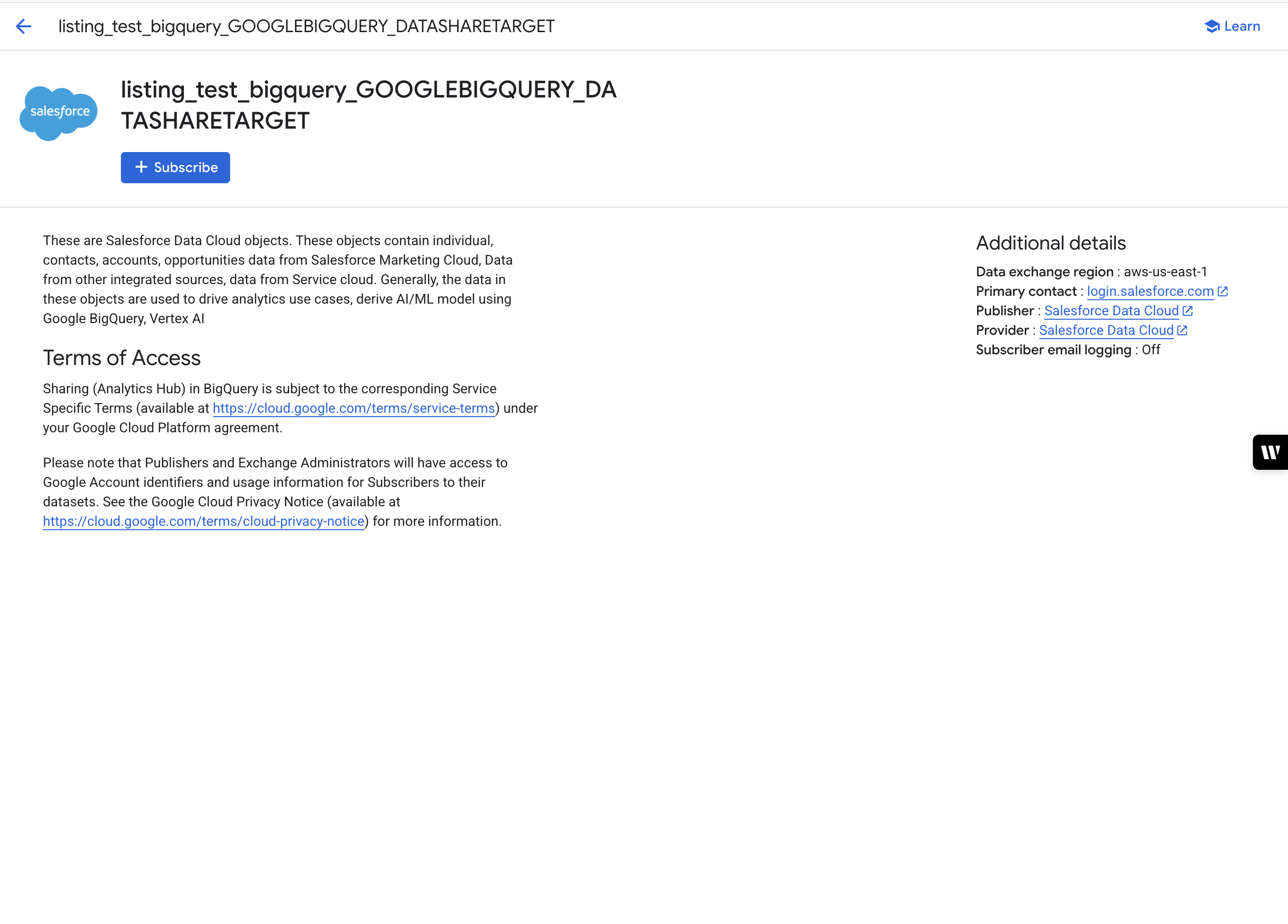
Click on the desired Listing to view details.
-
You’ll see the shared dataset/project name. Click Subscribe (if prompted) or navigate to the dataset directly from here.
How to Query the Shared Data in BigQuery:
-
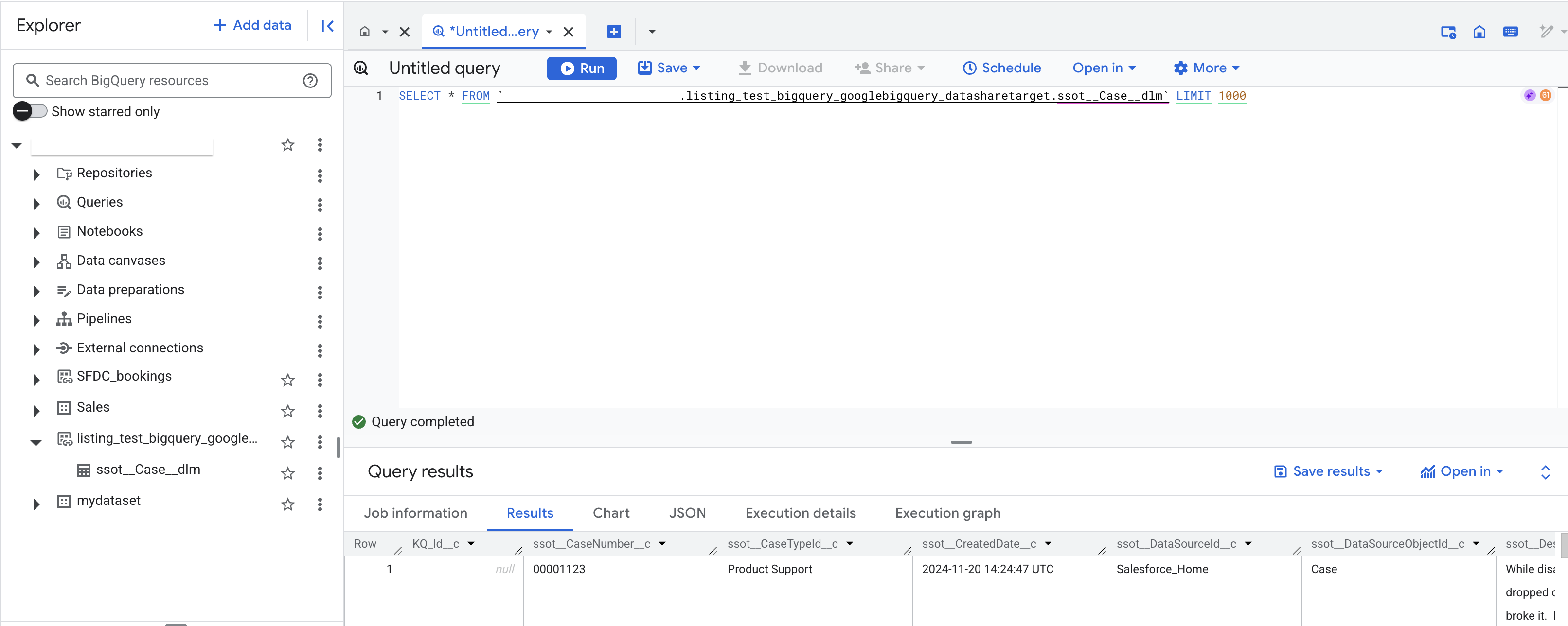
In BigQuery Studio, expand the dataset under your project or the shared listing.
-
Select a table.
-
Use the Query Editor to write SQL queries, for example:
SELECT * FROM 'shared_project.shared_dataset.shared_table_name' LIMIT 100; -
Click Run to execute and view results.
Nummer des Knowledge-Artikels
005101362
Konnten Sie Ihr Problem mithilfe dieses Artikels lösen?
Geben Sie uns Feedback, damit wir uns verbessern können.
