Выбрать организацию
Azure to MuleSoft Static VPN Guide
Дата публикации: Jul 17, 2025
Задача
Azure to MuleSoft Static VPN Guide
This article will assist you in setting up a VPN connection between your Azure network to your MuleSoft VPC
Действия
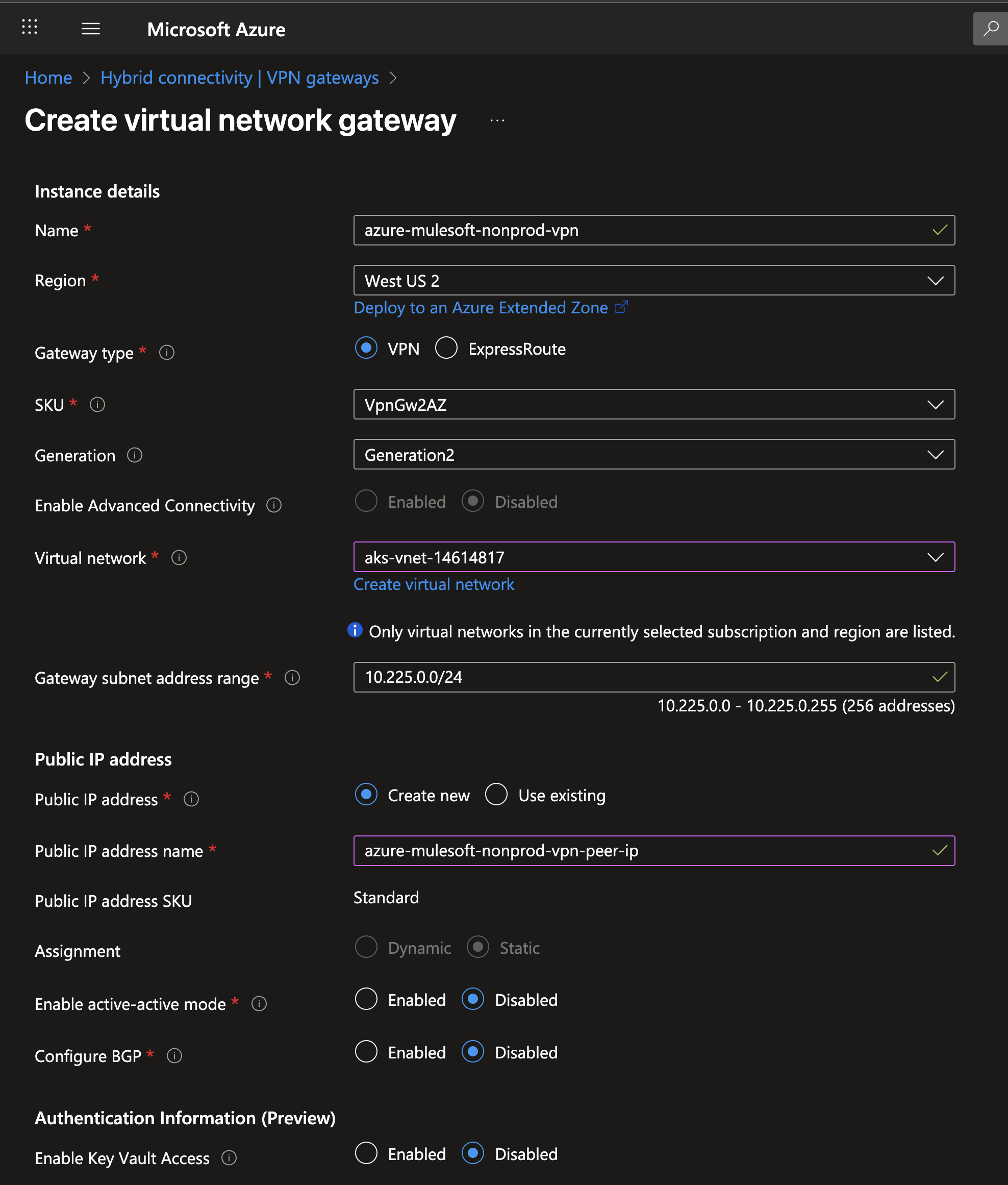
1. Log into your Azure Portal and create the Azure VPN Gateway in your Azure Virtual Network Gateway
• Make sure to select a VpnGw1 SKU or higher. I will use the default in this example
• Tunnels with a basic SKU are not supported.
• Once deployed write down the public IP address for future reference
2. a) For Cloudhub 1.0
Log into Runtime Manager and under the VPN tab click on "Create VPN"
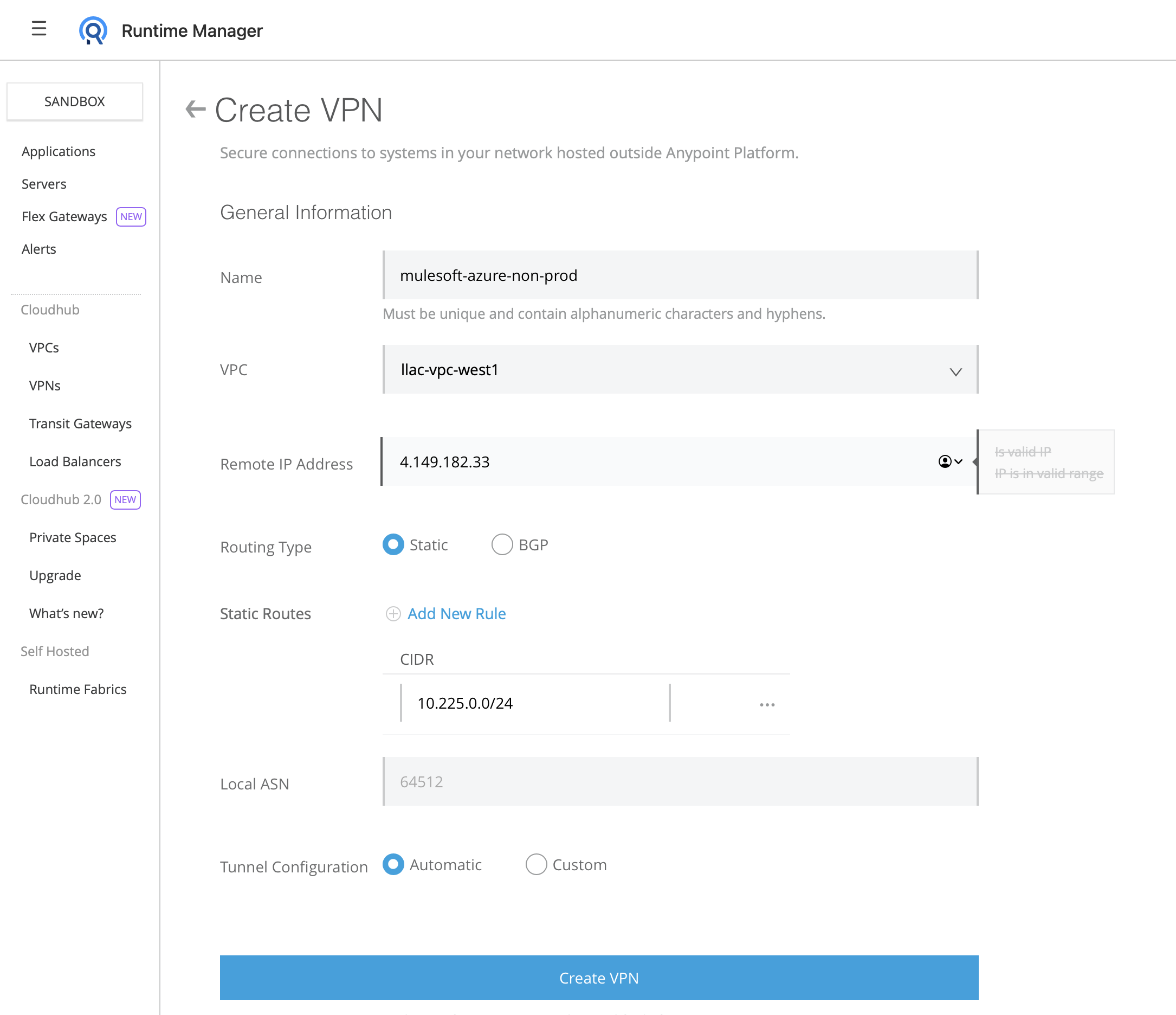
Fill in the VPN creation form with the following information:
Name: Choose a name for your VPN. Example: mulesoft-azure-nonprod-vpn
VPC: Select the Cloudhub VPC that you would like to connect to Azure
Remote IP address: The Public IP address of the Azure VPN that you wrote down earlier
Static Routes: Add one route per each IP address space of the Azure Virtual Network
Tunnel Configuration: Leave it as automatic
2. b) For Cloudhub 2.0
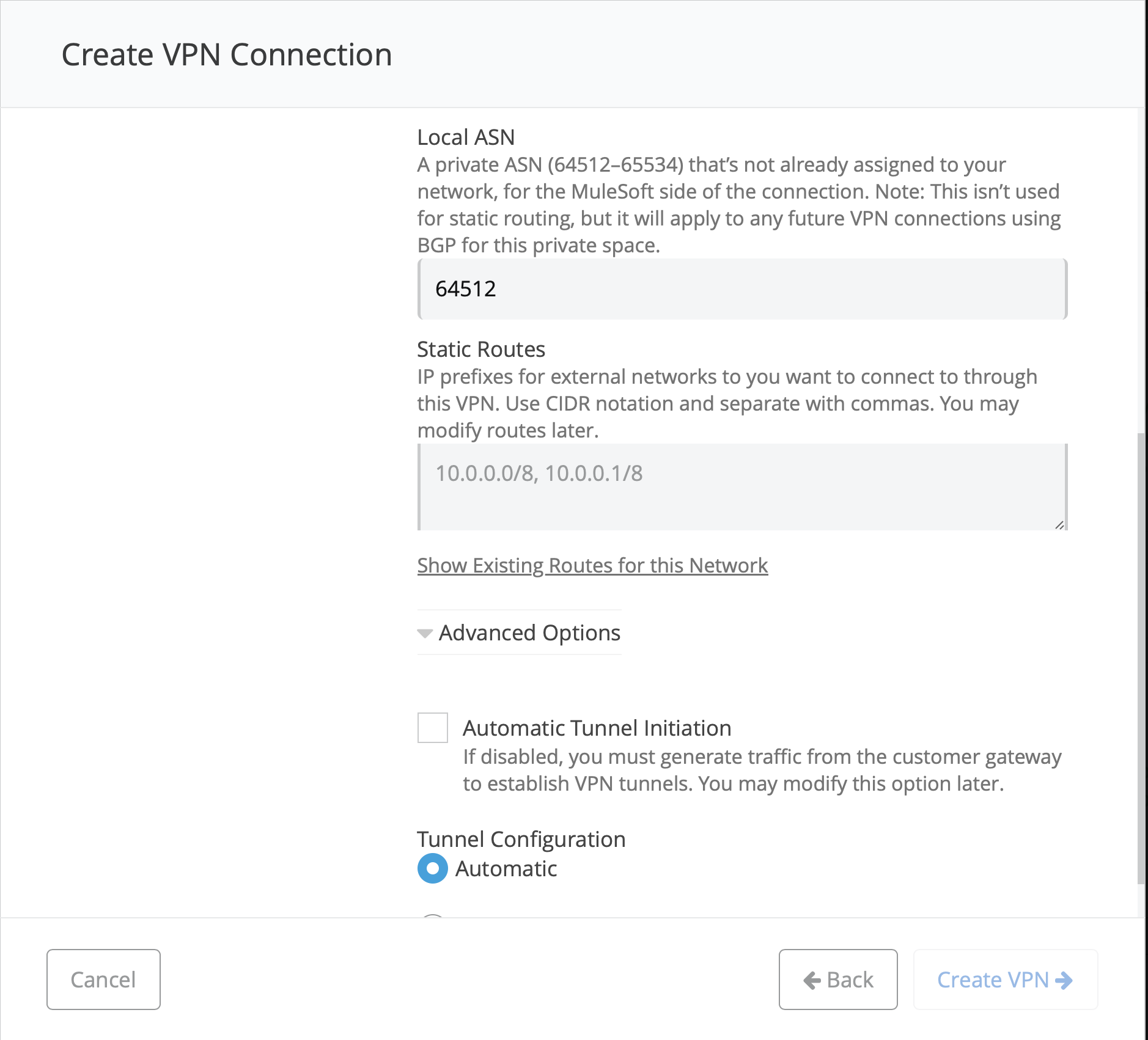
- Go to Runtime Manager - Private Space - <name of your PS> - Create Connection - VPN - Enter Name of your VPN - Next
- Remote IP: The Public IP address of the Azure VPN that you wrote down earlier
- Leave ASN default
- Advanced Options - uncheck "Automatic Tunnel Initiation"
IMPORTANT!!!: For Cloudhub 2.0 Private Spaces please make sure to go into Advanced Options and UNCHECK "Automatic Tunnel Initiation"
3. Wait until the tunnel has change to Available status
4. Note the tunnels IPs and PSK
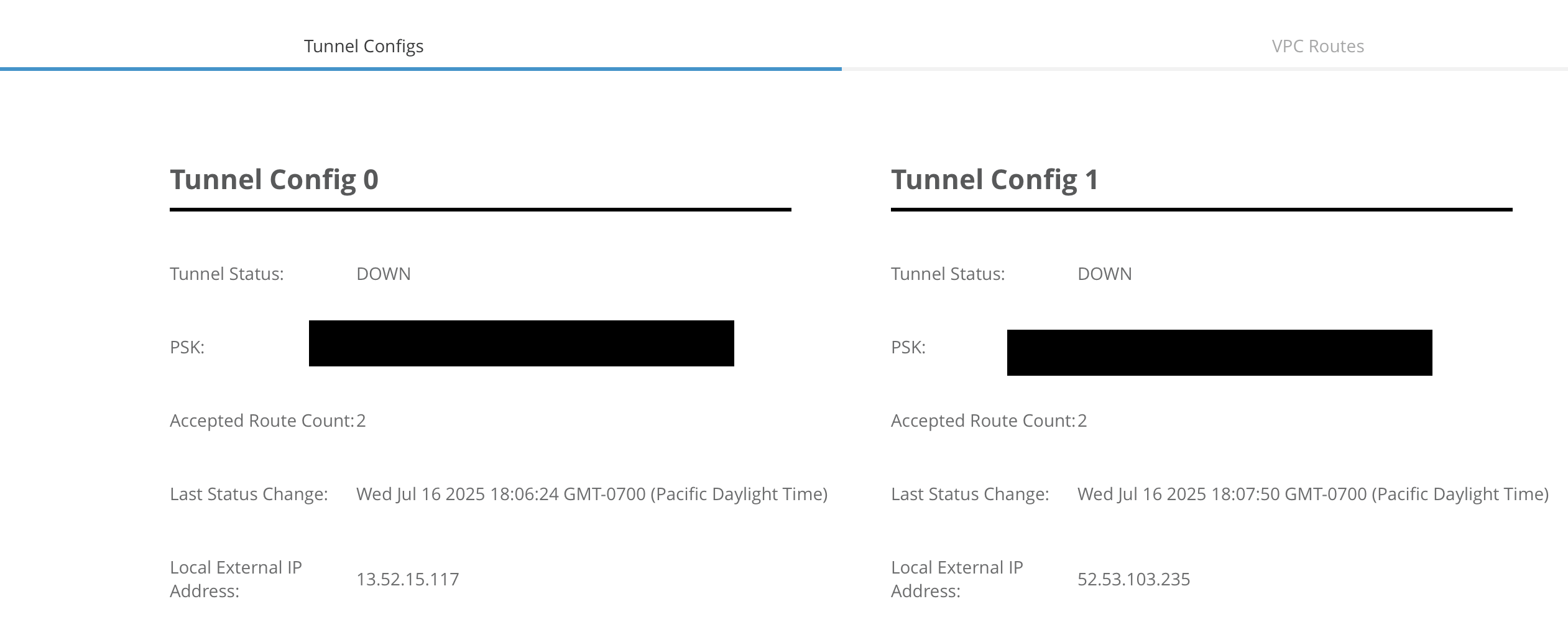
5. Go back to Azure and create a new Local Network Gateway
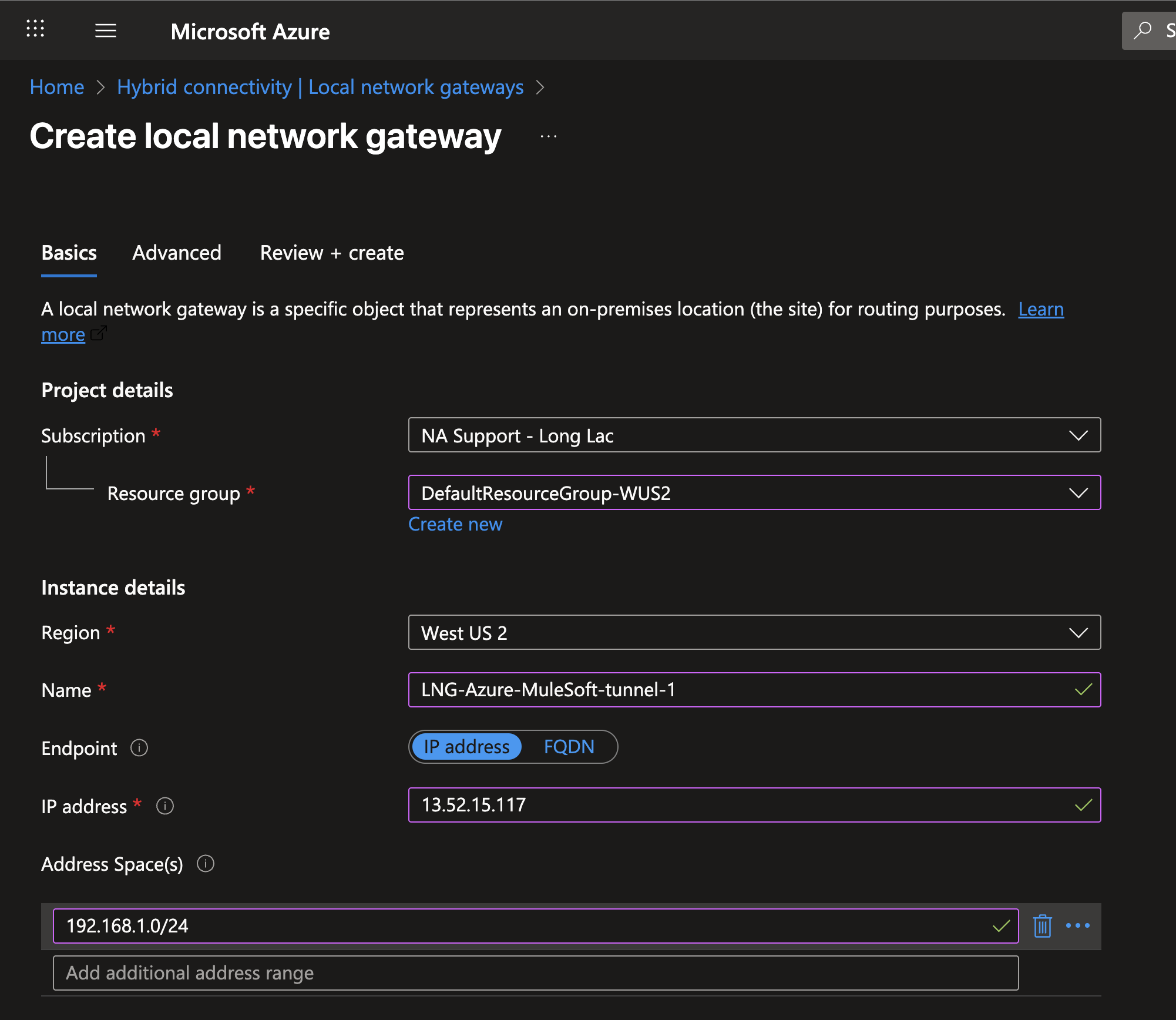
Name: Add a new for each env tunnel
IP address: Enter the IP of the first tunnel
Address Spaces: CIDR of the Cloudhub VPC
6. Repeat the same steps for the second tunnel but changing the name and IP.
7. Create a VPN Connection in Azure
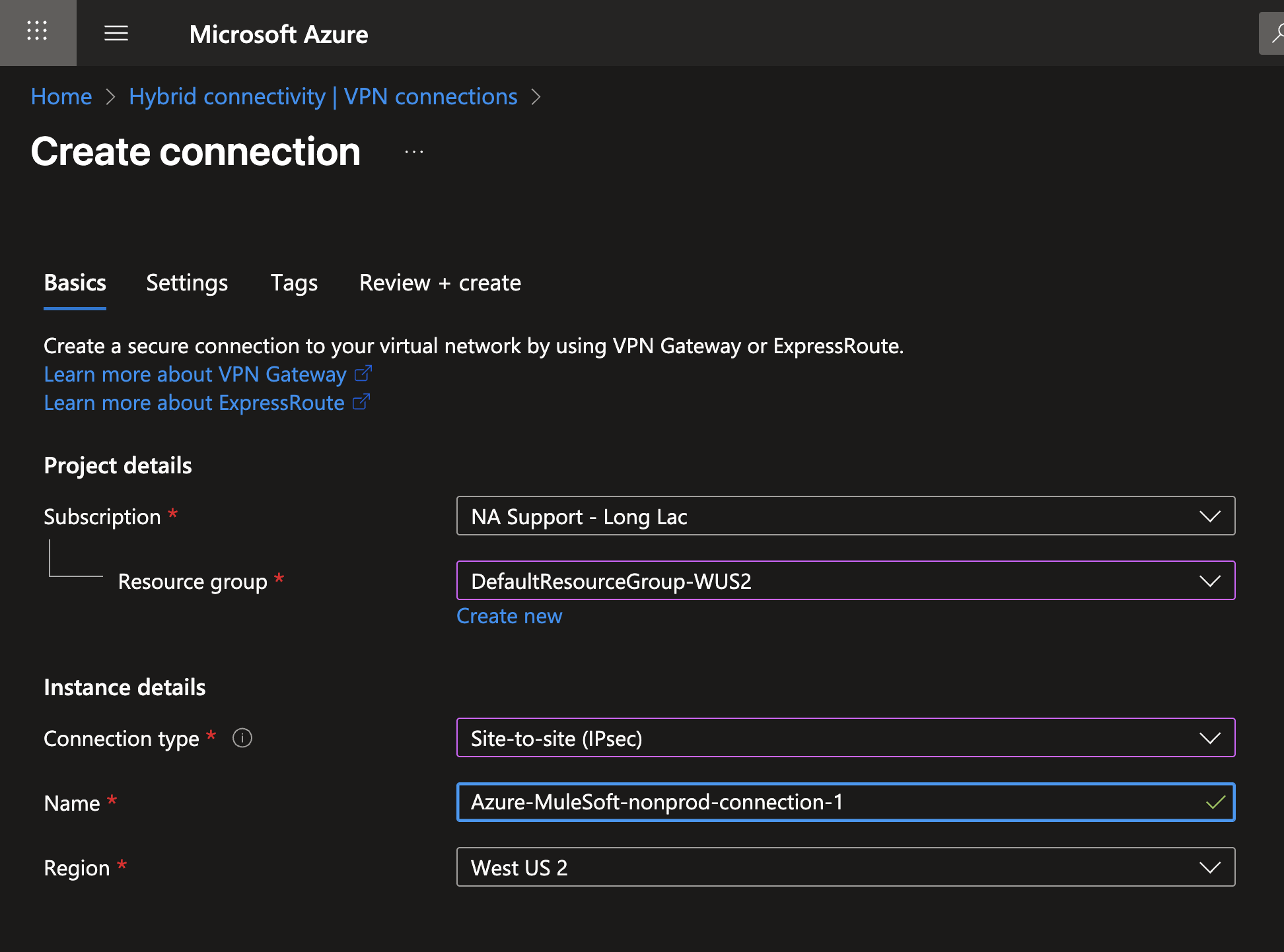
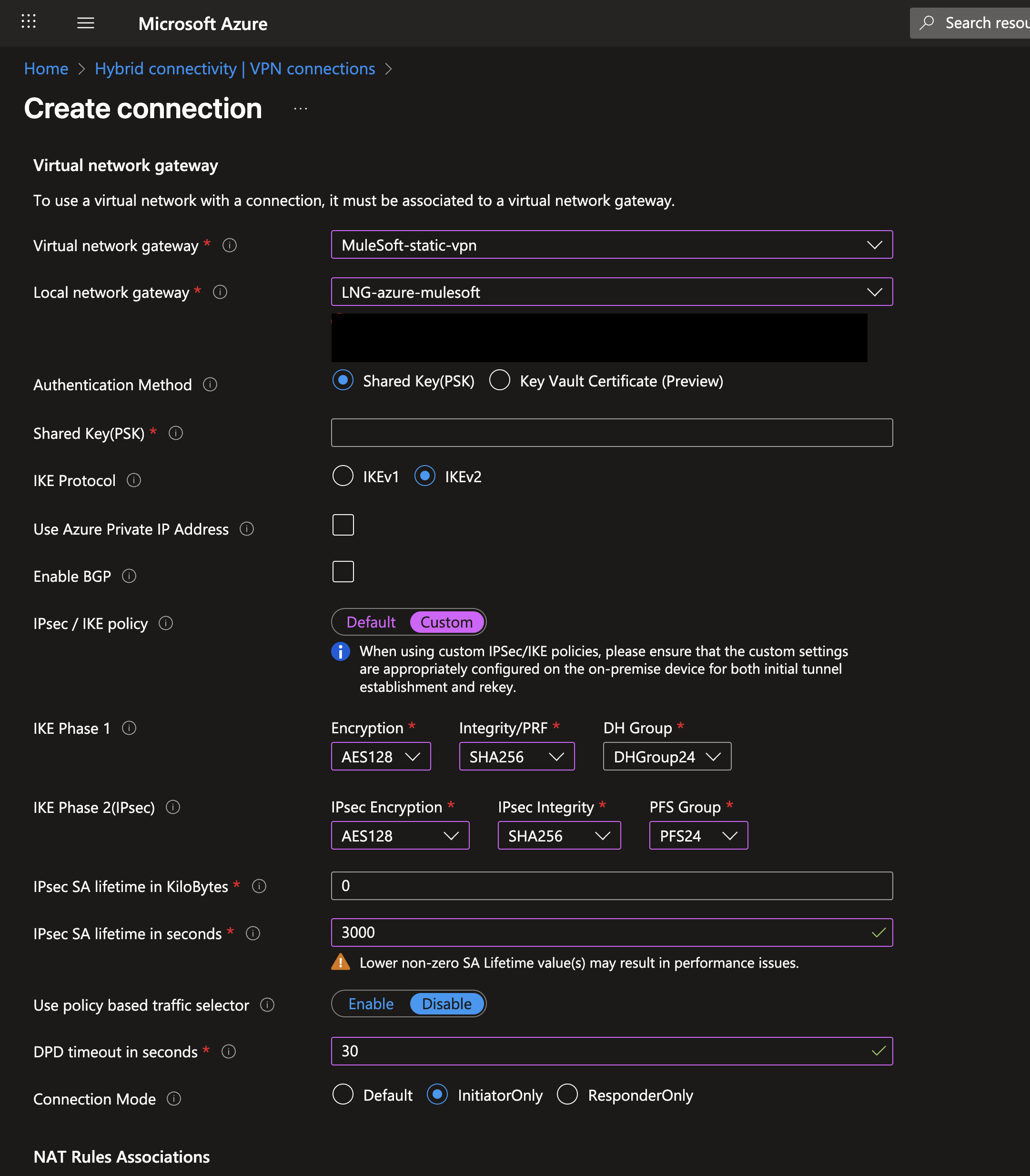
Virtual Network Gateway: The VPN gateway on your Azure Virtual Network
Local Network Gateway: The LNG Created for the first tunnel
Shared Key (PSK): The PSK you wrote down from Cloudhub page
IPsec/IKE Policy: Custom (use any approved by your networking team but the screenshot parameters should work)
IMPORTANT: Make sure a value is selected for PFS Group
IPsec SA lifetime in seconds: 3000 (IMPORTANT: keep this value as 3000)
DPD timeout in seconds: 30
Connection Mode: InitiatorOnly (IMPORTANT)
7. Repeat this process again for the second tunnel
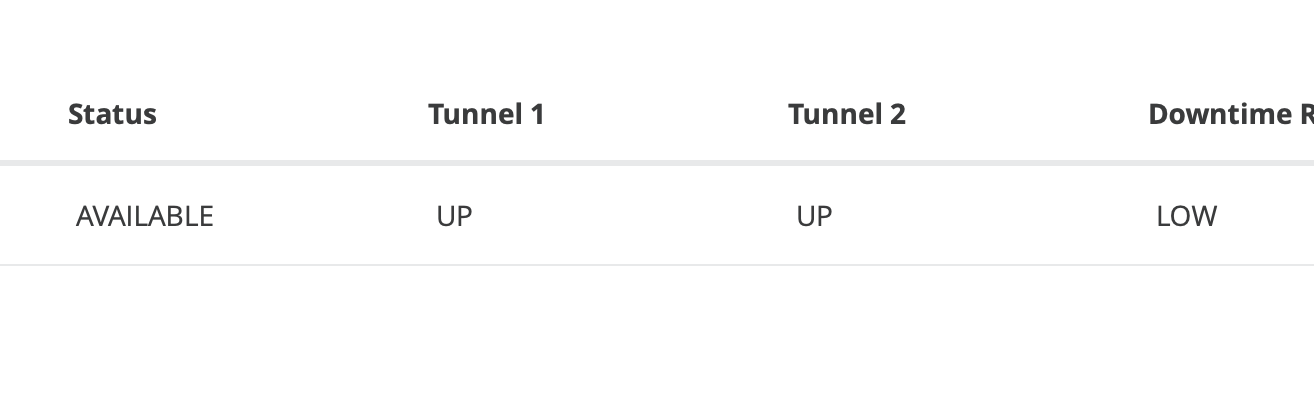
8. Verify that the tunnels are UP UP status in Runtime Manager
9. Test network with Net-tools
https://help.salesforce.com/s/articleView?id=001115029&type=
Deploy net-tools app and use socket connection to a host in Azure.
NOTE: ping is not supported in Cloudhub 2.0
Номер статьи базы знаний
005103361
Эта статья решила вашу проблему?
Оставьте свой отзыв, чтобы мы могли стать лучше!
