Seleccionar una organización
How to Group by Row in a Joined Report
Fecha de publicación: Apr 2, 2026
Descripción
In a Joined Report, each report type becomes a Block. For example, Block 1 can show Opportunities and Block 2 can show Accounts. By grouping the report by Account, you can view all related Opportunities in one block and key Account details in the other.
Solución
Step 1:
For full instructions on how to build a Joined Report, you can follow the existing help article here
Once you have added the two blocks, the report should look like this:
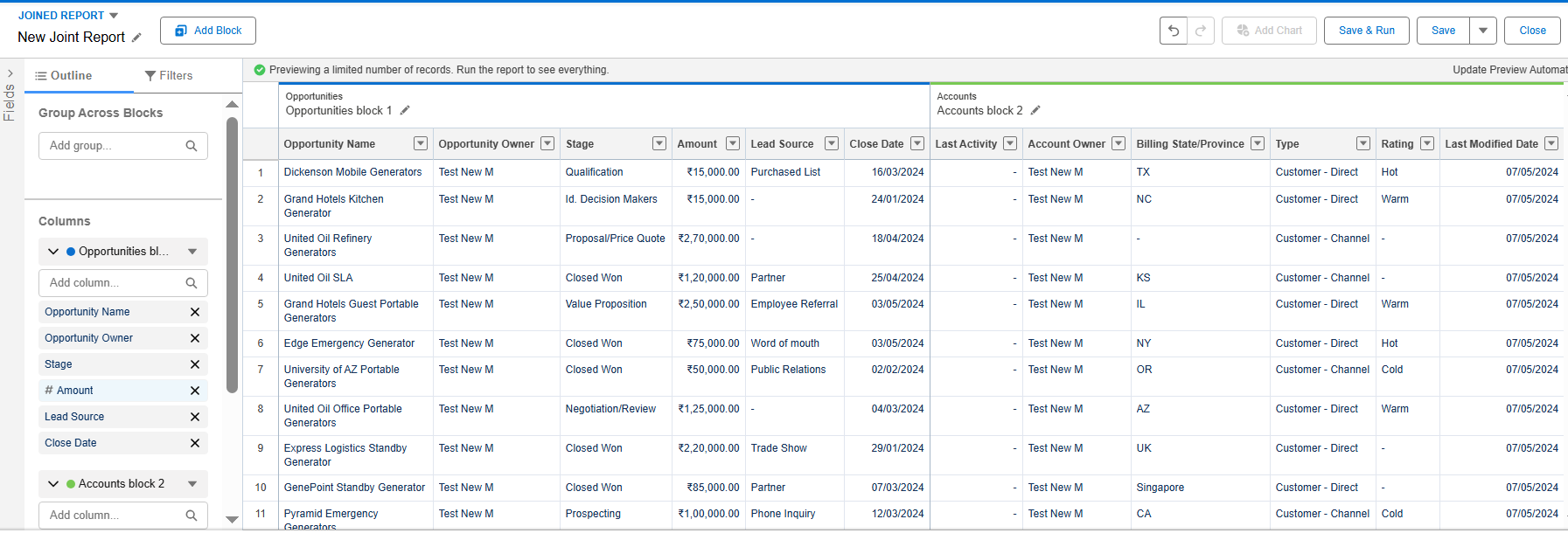
- You will notice is that the separate Blocks have no relationship with each other. They are simply two independent reports displayed in one joined view.
- This is why we use Group by Row, to bring a common relationship and introduce order to the Joined Report Blocks.
- To do this, use the Group Across Blocks feature in the top of the Report Outline editing section, highlighted in Red below:
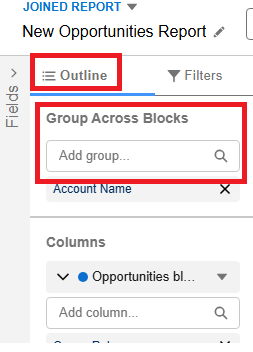
- Important Note: Only fields that are common to all of the Joined Report Blocks can be used as Groups Across Blocks.
Step 2:
In this case, we will choose the Account Name field
- When we do this, the Joined Report groups the records related to the same Account from both the Opportunities and Account Blocks together.
- You can see an example of the finals result below :
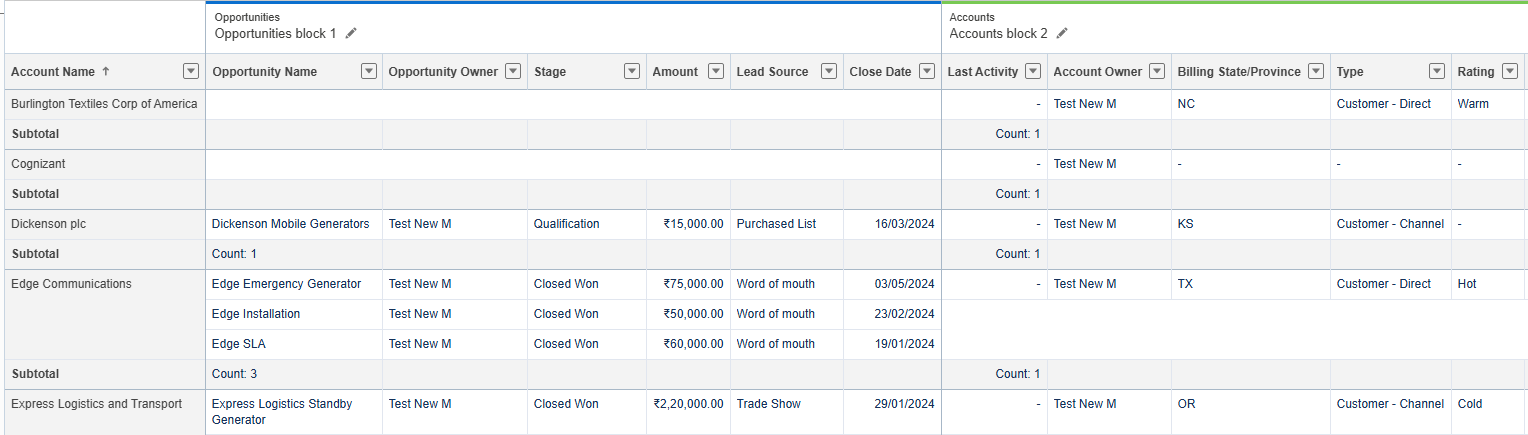
- Now, in Block 1, all Opportunity records that meet the filters set for Block 1 are grouped together. As well, the additional fields on the same Account are visible in Block 2.
- As this is a very simple example and we are Grouping by Account, Block 2 will always have only one record.
- However, when you use different Report Types, it is possible that both Blocks have multiple records that match the filter criteria.
Recursos adicionales
Número del artículo de conocimiento
005131468
¿Resolvió este artículo su problema?
¡Háganos saber cómo podemos mejorar!
