조직 선택
How to Group by Row in a Joined Report
게시 일자: Apr 2, 2026
상세 설명
In a Joined Report, each report type becomes a Block. For example, Block 1 can show Opportunities and Block 2 can show Accounts. By grouping the report by Account, you can view all related Opportunities in one block and key Account details in the other.
솔루션
Step 1:
For full instructions on how to build a Joined Report, you can follow the existing help article here
Once you have added the two blocks, the report should look like this:
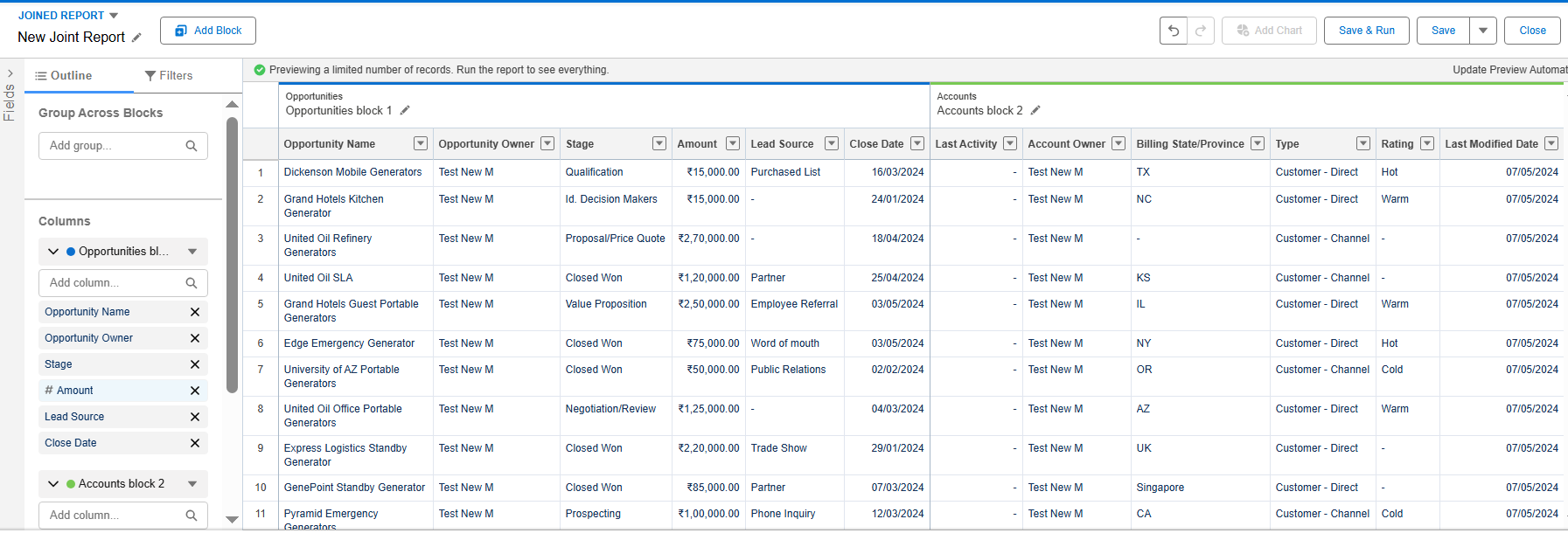
- You will notice is that the separate Blocks have no relationship with each other. They are simply two independent reports displayed in one joined view.
- This is why we use Group by Row, to bring a common relationship and introduce order to the Joined Report Blocks.
- To do this, use the Group Across Blocks feature in the top of the Report Outline editing section, highlighted in Red below:
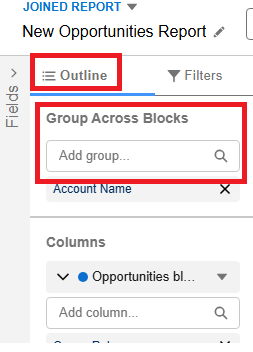
- Important Note: Only fields that are common to all of the Joined Report Blocks can be used as Groups Across Blocks.
Step 2:
In this case, we will choose the Account Name field
- When we do this, the Joined Report groups the records related to the same Account from both the Opportunities and Account Blocks together.
- You can see an example of the finals result below :
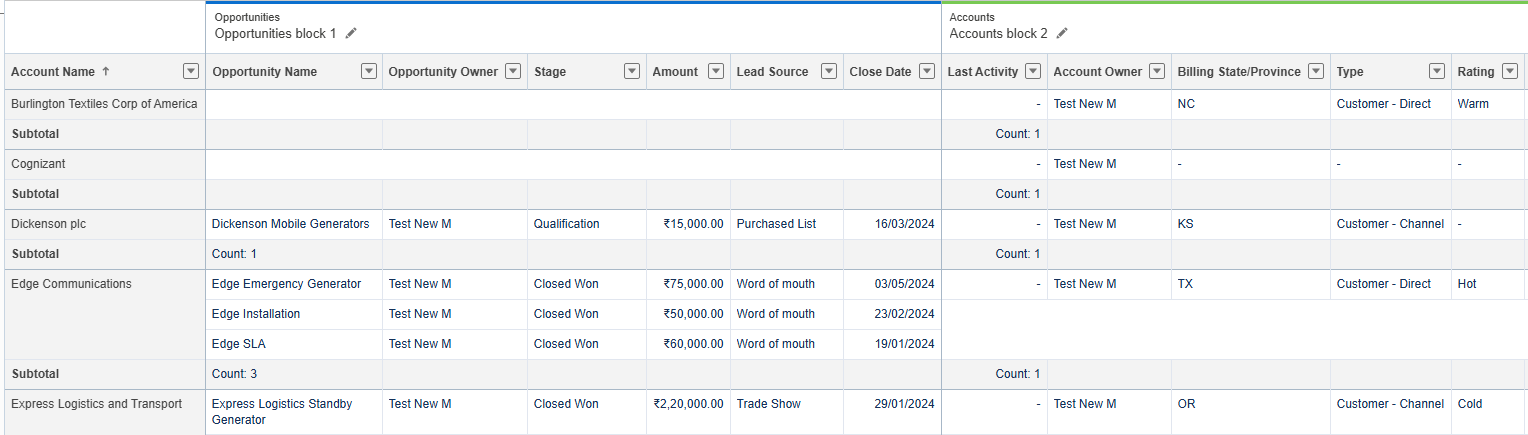
- Now, in Block 1, all Opportunity records that meet the filters set for Block 1 are grouped together. As well, the additional fields on the same Account are visible in Block 2.
- As this is a very simple example and we are Grouping by Account, Block 2 will always have only one record.
- However, when you use different Report Types, it is possible that both Blocks have multiple records that match the filter criteria.
추가 자원
Knowledge 기사 번호
005131468
이 기사를 통해 문제를 해결했습니까?
개선을 위한 의견을 보내주세요.
